
Send a Message into a Running Claude Code Session from a Browser Tab
A channel turns a running Claude Code session into something the outside world can message: you install fakechat, name it with --channels, send a prompt from a browser page, read the answer there, and then shut the open door behind you.
Install the fakechat channel, start a session that listens for it, get Claude's answer on a web page, and then stop the server that outlives your session.
Your Claude session is already open with the whole project loaded, and you still have to walk back to the terminal to ask it one question.
In this article: Day 19 of a day-by-day guide to Claude Code. Start here: you install the fakechat channel, send a running session a message from a chat page in your browser, read Claude's reply on that page, and then stop the channel's server and remove it. Going deeper: how a channel message travels and when it is dropped, how Telegram, Discord, and iMessage keep strangers out with an allowlist, and how a channel compares with Remote Control and Dispatch.
Tested on Claude Code 2.1.326.
Yesterday you set a /goal that finished in one turn and committed Rate return tickets as refund.
Start here
At the end of today, you can send a message from a chat page in your browser into a Claude Code session that is already running, and read Claude's answer on the same page.
Starting fresh or fell behind? Run git switch -C main claude-code/day-18. This replaces your main with the end of Day 18; to keep your own work, run git branch my-backup first.
On Day 7 you steered a session from a browser with Remote Control. The browser was a second window into the same conversation, and you saw everything that Claude did. A channel works another way. It is an MCP server, installed as a plugin, that pushes messages into a session that is already running. Claude reads each message, does the work, and can send an answer back through the same channel.
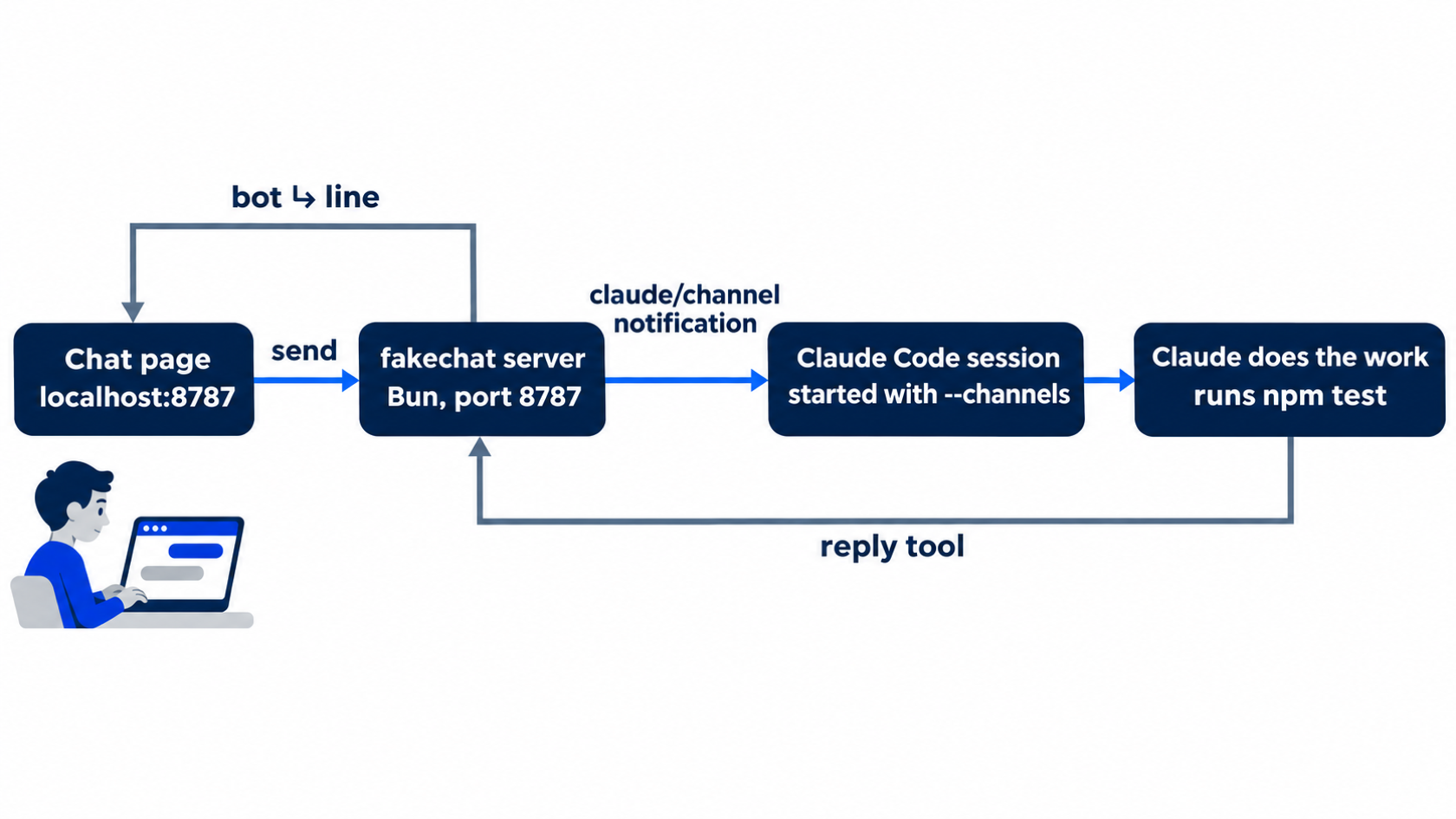
Today's channel is fakechat, the demo channel from the docs. It is a chat page on your own computer, with nothing to sign in to.
Channels are a research preview. The docs say that the --channels flag, which you use below, can still change, and that it does not appear in claude --help yet.
What you need
- Bun, a JavaScript runtime like Node.js. The channel plugins are Bun scripts. The next step checks for it.
- A claude.ai sign-in or a Console API key. The login from Day 1 works. The docs say that channels do not work through Amazon Bedrock, Google Cloud's Agent Platform, or Microsoft Foundry.
- On a Team or Enterprise plan, an admin who enables channels. The docs say that an Owner must turn channels on for those plans, and that a startup warning tells you to ask an admin. This guide did not test that case. If you are blocked, read today's steps and "Who can turn channels on" in Going deeper, then come back.
Check the starting state
Open a terminal in Ticket Triage:
cd ~/code/ticket-triage
git status
npm test
bun --version
Git prints nothing to commit, working tree clean. The tests show ℹ fail 0 and the pass count from yesterday. It was 22 on the tested auto run and 23 on the Manual run, because the Manual run wrote one more test on Day 16. Write your number down.
bun --version prints a version number. The tests used Bun 1.3.6. If your shell says command not found, install Bun with the steps at bun.sh/docs/installation, open a new terminal, and run bun --version again.
Install fakechat
Install fakechat from the shell, as you installed a plugin on Day 14:
claude plugin install fakechat@claude-plugins-official --scope local
It prints:
✔ Installed plugin: fakechat@claude-plugins-official (scope: local)
The docs suggest user scope, so that the plugin is on in every project. This guide picks local scope instead. With local scope, which Day 14 explains, the plugin stays in Ticket Triage, it is on for you only, and it stays out of git.
Why not /plugin install inside a session? An install inside a session starts fakechat's server at once. In this guide's one-terminal test, that server outlived /exit and held its port, and the next session's channel failed. The shell command starts no server. Going deeper shows the failure and the fix.
Manual mode: no prompts. Commands run from the shell ask nothing.
Check the result:
git status
cat .claude/settings.local.json
Git still prints nothing to commit, working tree clean. Local scope records the plugin in .claude/settings.local.json, your personal settings file. When Claude Code first writes it, the docs say, it adds the file to your global git excludes, so git ignores it. On the tested runs, the file held one setting, shown here with the spaces removed: {"enabledPlugins":{"fakechat@claude-plugins-official":true}}. Look for the fakechat line.
Start a session with the channel on
An installed channel delivers messages only to a session that names it at startup. Run:
claude --channels plugin:fakechat@claude-plugins-official
The --channels flag turns on the channels that you name, for this session only. plugin: says that the channel comes from a plugin. The rest is the plugin's name and its marketplace, as in the install command.
Above the input box, the startup screen shows a notice:
▎ Channels (experimental) messages from plugin:fakechat@claude-plugins-official inject directly in this session · restart without --channels to stop
The notice says that fakechat's messages go straight into this session, and that a restart without the flag stops them. The status bar shows ⏵⏵ auto mode on (shift+tab to cycle) or ⏸ manual mode on. Either mode works today. Follow the Manual mode: lines if you see the second one.
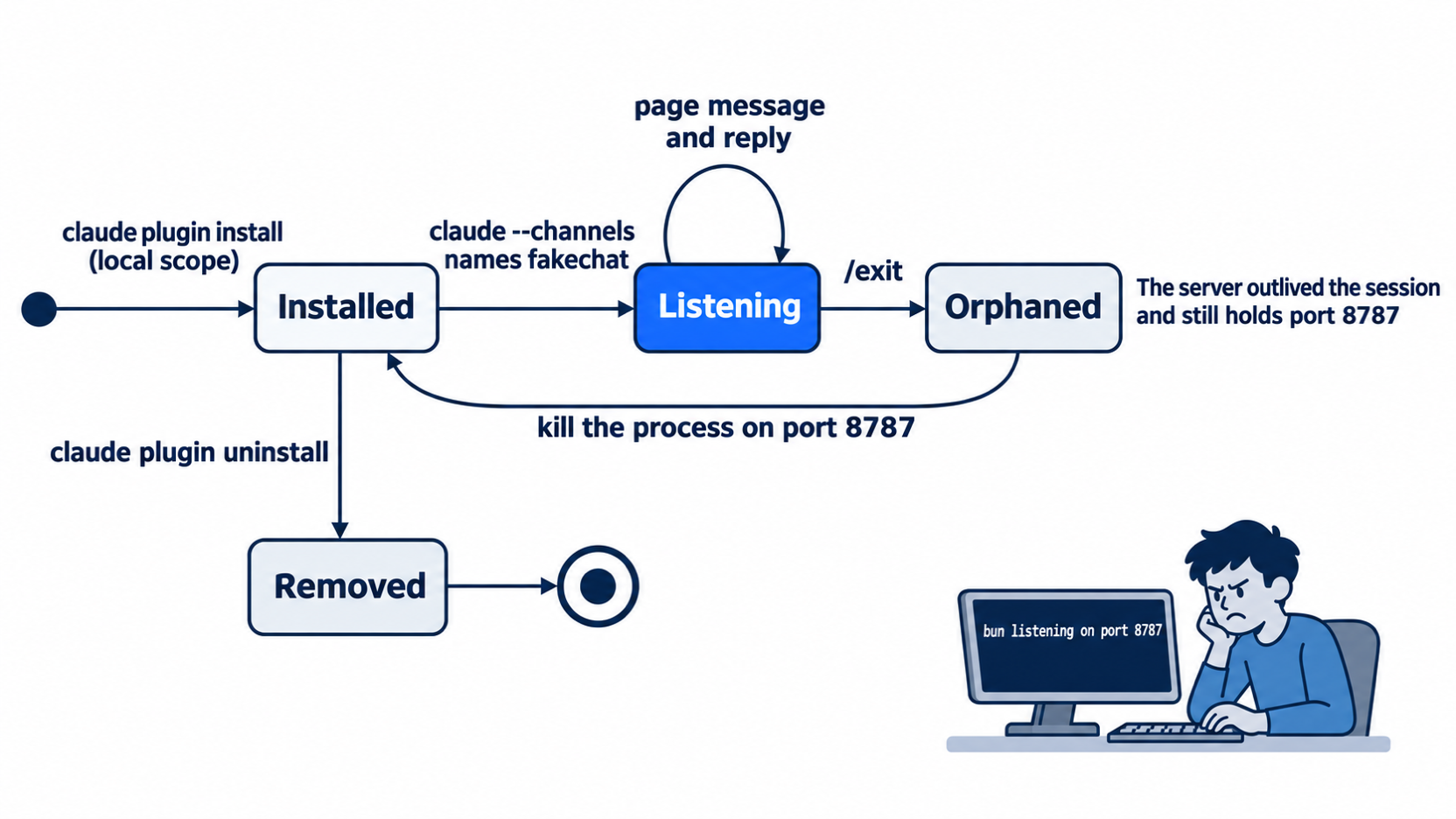
The session also started fakechat's server, a small web server on your computer at port 8787. Every session in which the plugin is on starts this server, but only a session started with --channels gets its messages. The server also keeps running after you leave the session. The last steps today stop it.
Manual mode: no prompts.
Send a message from the page
Open http://localhost:8787 in your browser. The page has a text box with attach and send buttons. Type this message and click send:
Run npm test and reply with the pass and fail counts.
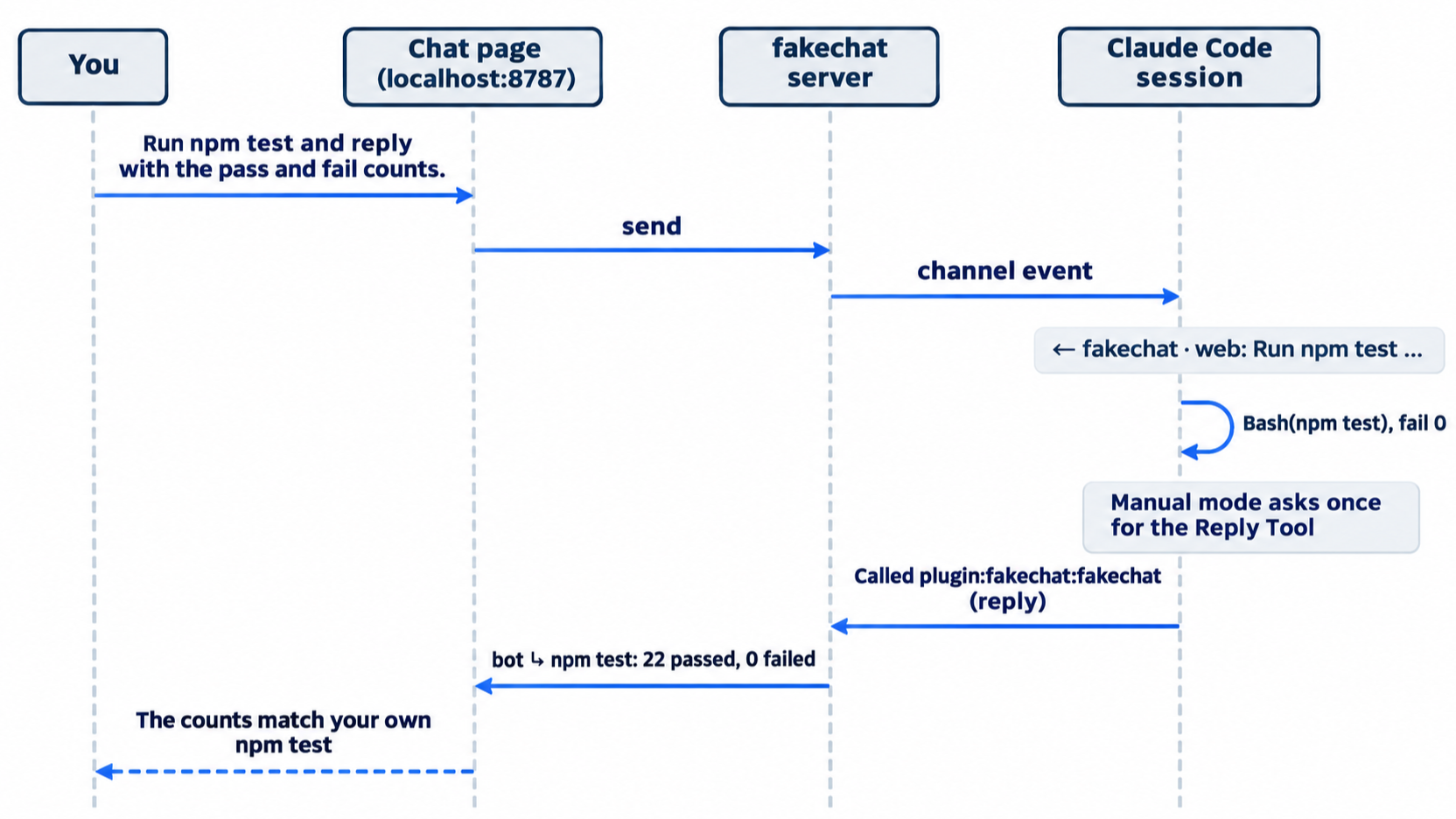
Switch to the terminal. The message arrives as a new line, and Claude starts work without a prompt from you. On the tested auto run, the screen showed:
← fakechat · web: Run npm test and reply with the pass and fail counts.

⏺ Bash(npm test 2>&1 | tail -15)
  ⎿  # Subtest: emergency, also matches the damaged rule
     ok 22 - emergency, also matches the damaged rule
       ---
     … +12 lines (ctrl+o to expand)
  ⎿  Allowed by auto mode

  Called plugin:fakechat:fakechat (ctrl+o to expand)

⏺ I ran npm test and sent the result to the chat: all 22 tests passed and none failed. None were cancelled or skipped either.
Read it from the top:
← fakechat · web:marks a message that came in through a channel. The arrow points into the session,fakechatnames the channel, andwebnames the chat page that sent it.- Claude ran
npm test, as it does for a typed prompt. Called plugin:fakechat:fakechatis the answer going out. Fakechat gives Claude a reply tool, a tool that sends text back to the page, and Claude called it with the counts. The terminal shows the call, not the text of the reply.
Manual mode: one prompt, plugin:fakechat:fakechat — Reply Tool: (MCP), for the reply to the page. It shows the reply under text:, then asks Do you want to proceed?. Choose 1. Yes. The prompt opens in the terminal, not on the page, so the page waits until you answer it. npm test does not prompt, because of your Day 4 allow rule.
Read the reply on the page
Go back to the browser. Each line on the page starts with the time. you: marks your message. bot ↳ marks Claude's reply, followed by the start of the message that it answers. A browser run with a different question showed:
[08:18:21] you: Which categories does classify() return? Reply with one line.
[08:18:26] bot ↳ Which categories does classify() return?: classify() returns one of: "damaged", "refund", "shipping", "cancel", or "other" (checked in that order, first match wins).
Your answer is on a bot ↳ line under your message. The tested runs sent today's message with a small script that does what the send button does, and read the reply text that the page received. On the auto run, it was:
npm test: 22 passed, 0 failed (22 tests total, none cancelled or skipped).
On the Manual run, it was npm test: 23 pass, 0 fail (no tests cancelled, skipped or todo). Claude chooses its own words, so your reply can differ. The counts must match your number from this morning.
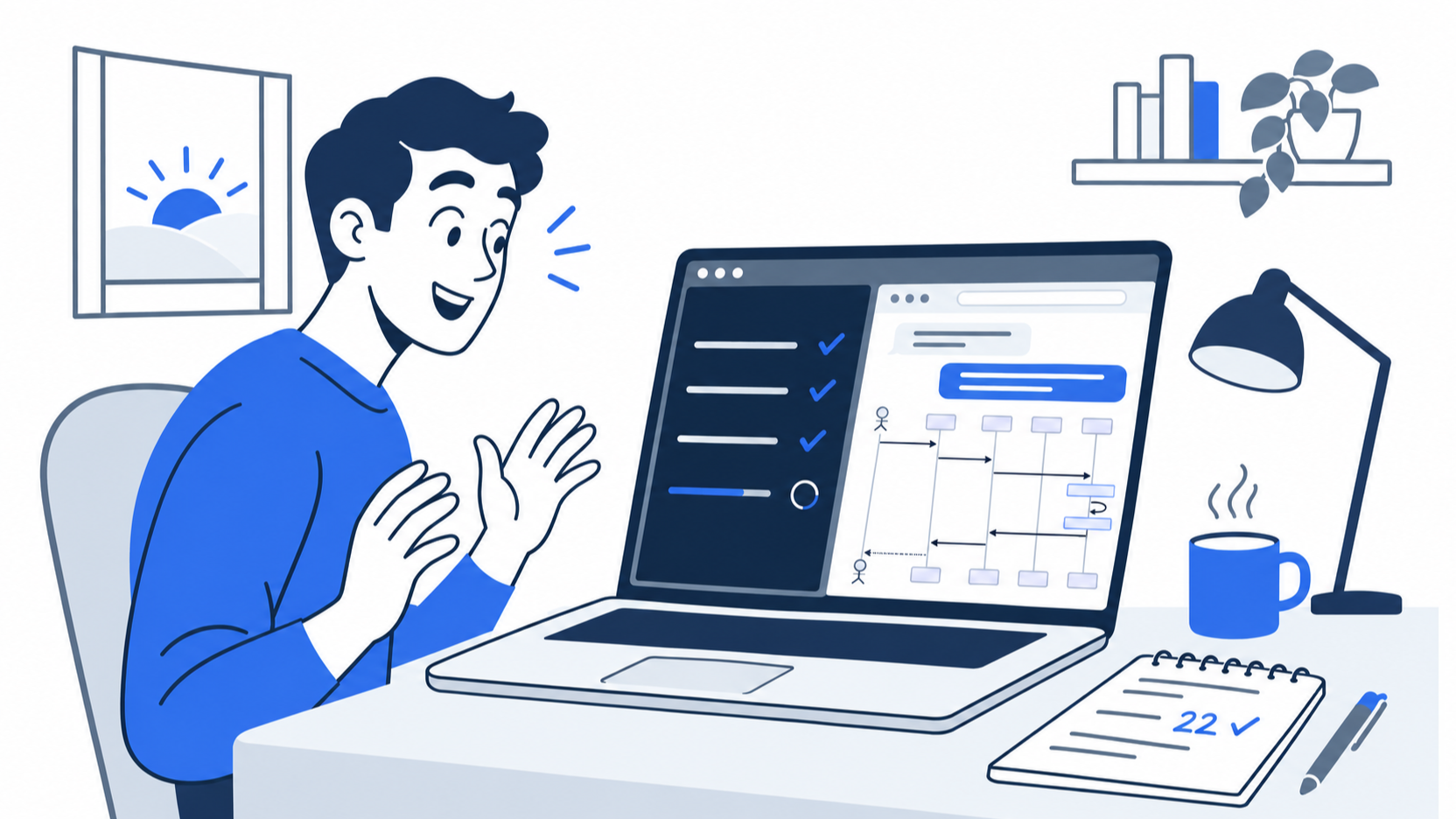
The reply landed on the page without a word typed in the terminal, and its counts match the number on the notepad.
Find the channel in /mcp
Back in the terminal, type /mcp and press Enter. On Day 13 this panel listed your docs server. Today it also lists the channel:
✔ plugin:fakechat:fakechat 2 tools
The name shows where the server comes from: plugin:, then the plugin, then the server. One of the two tools is the reply tool. Press Esc to close the panel.
Manual mode: no prompts.
A warning before you leave it running
Fakechat does not check who sends a message. Its description says no access control. Any program on your computer that can reach port 8787 can type into your session, and Claude treats the text as work to do. Keep fakechat only while you use it. Real chat channels check each sender, as Going deeper explains.
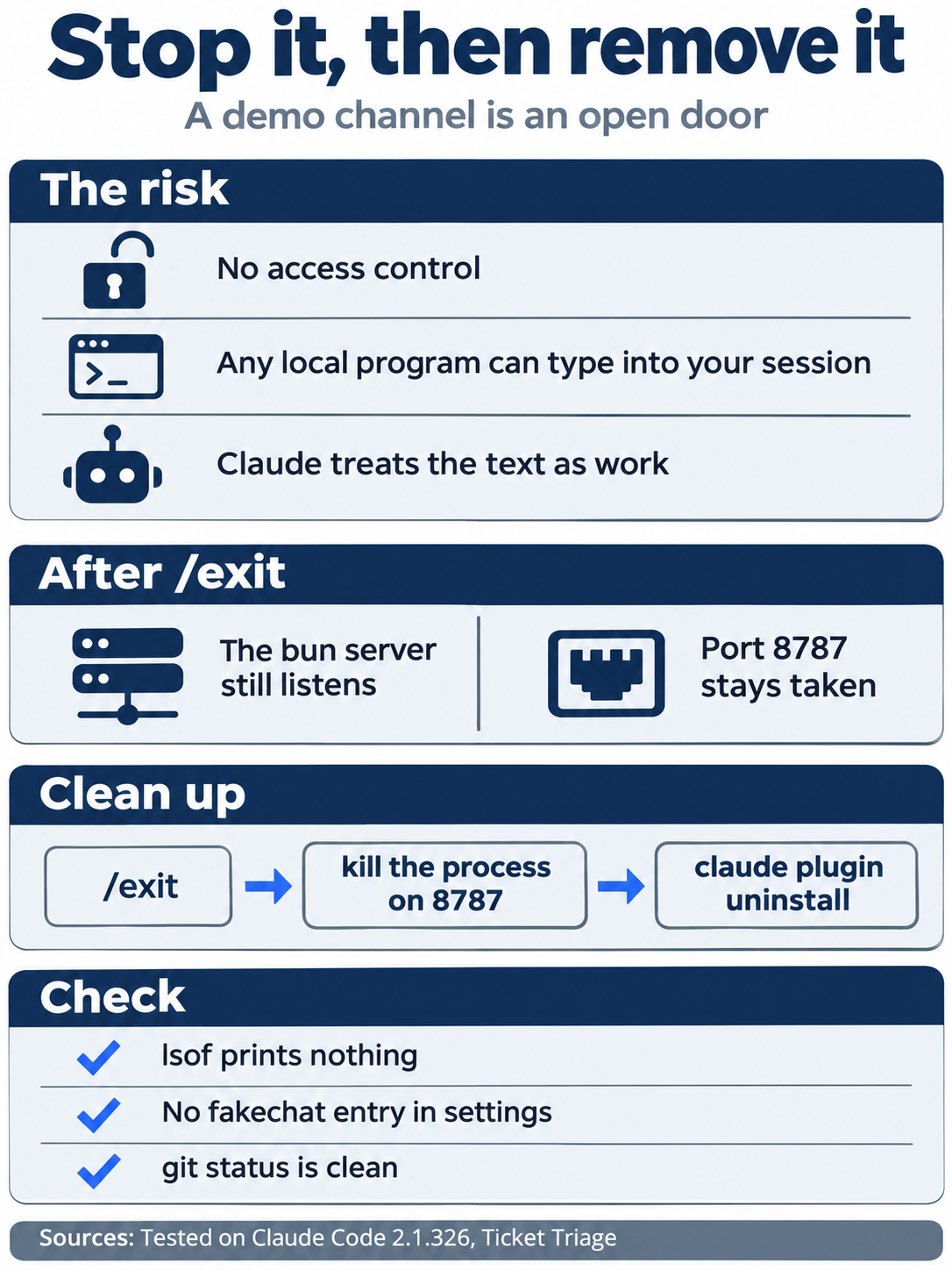
A demo channel is an open door into your session, and the door stays open after /exit until you stop the server and remove the plugin.
Stop fakechat's server
Type /exit. In the same terminal, ask which program listens on port 8787:
lsof -nP -iTCP:8787 -sTCP:LISTEN
lsof lists the programs that listen on a port. On the tested runs, it printed a header line and one bun line that ends in 127.0.0.1:8787 (LISTEN). The bun line is fakechat's server, and it outlived the session. Stop it:
kill $(lsof -t -iTCP:8787 -sTCP:LISTEN)
lsof -nP -iTCP:8787 -sTCP:LISTEN
lsof -t prints only the process number, and kill stops that process. The second lsof printed nothing on the tested runs: the port is free. In the one-terminal test, closing the terminal did not stop the server.
Remove fakechat and check the win
While fakechat is installed, every later session in Ticket Triage starts its server on port 8787, and a session started without --channels drops the messages sent to it. Remove it from the shell:
claude plugin uninstall fakechat@claude-plugins-official --scope local
It prints:
✔ Uninstalled plugin: fakechat (scope: local)
Now check the state:
cat .claude/settings.local.json
lsof -nP -iTCP:8787 -sTCP:LISTEN
git status
npm test
On the tested runs, the settings file held {"enabledPlugins":{}}, with the spaces removed: the fakechat entry is gone. lsof printed nothing. If it prints a bun line, run the kill command from the last step again. Git prints nothing to commit, working tree clean. The tests show ℹ fail 0 and the same pass count as this morning. Claude only ran the tests and answered, so there is nothing to commit.
Manual mode: no prompts.
The win is the reply on the page: its counts match your own npm test. The tree is clean, nothing listens on port 8787, and fakechat is gone. Tomorrow starts from this state.
You installed a channel, sent a running session a message from a web page, read Claude's answer there, stopped the channel's server, and removed the channel.
You can stop here. Going deeper explains why this works and where it breaks.
Going deeper
This section is for readers who want to know how a channel message travels, what happens when no one is at the terminal, how the real chat channels keep strangers out, and how a channel compares with Remote Control and Dispatch. It assumes you finished Start here in Parts 1 to 19.
How a message travels
The channels docs and the channels reference describe the path. A channel plugin runs an MCP server, like the one you added on Day 13, that declares one extra capability, claude/channel. When something happens, such as a click on send, the server sends Claude Code a notification. The terminal shows it as the one-line ← summary that you saw today. The channels docs say that Claude receives it as a <channel source="plugin:fakechat:fakechat"> event, tagged with the server's scoped name. This guide did not capture the tag. A two-way channel, such as fakechat, also gives Claude a reply tool. The plugin's README names fakechat's two tools: reply, which you used today, and edit_message, which changes a reply that Claude already sent. A one-way channel, such as a build alert, gives Claude something to act on and expects no answer.
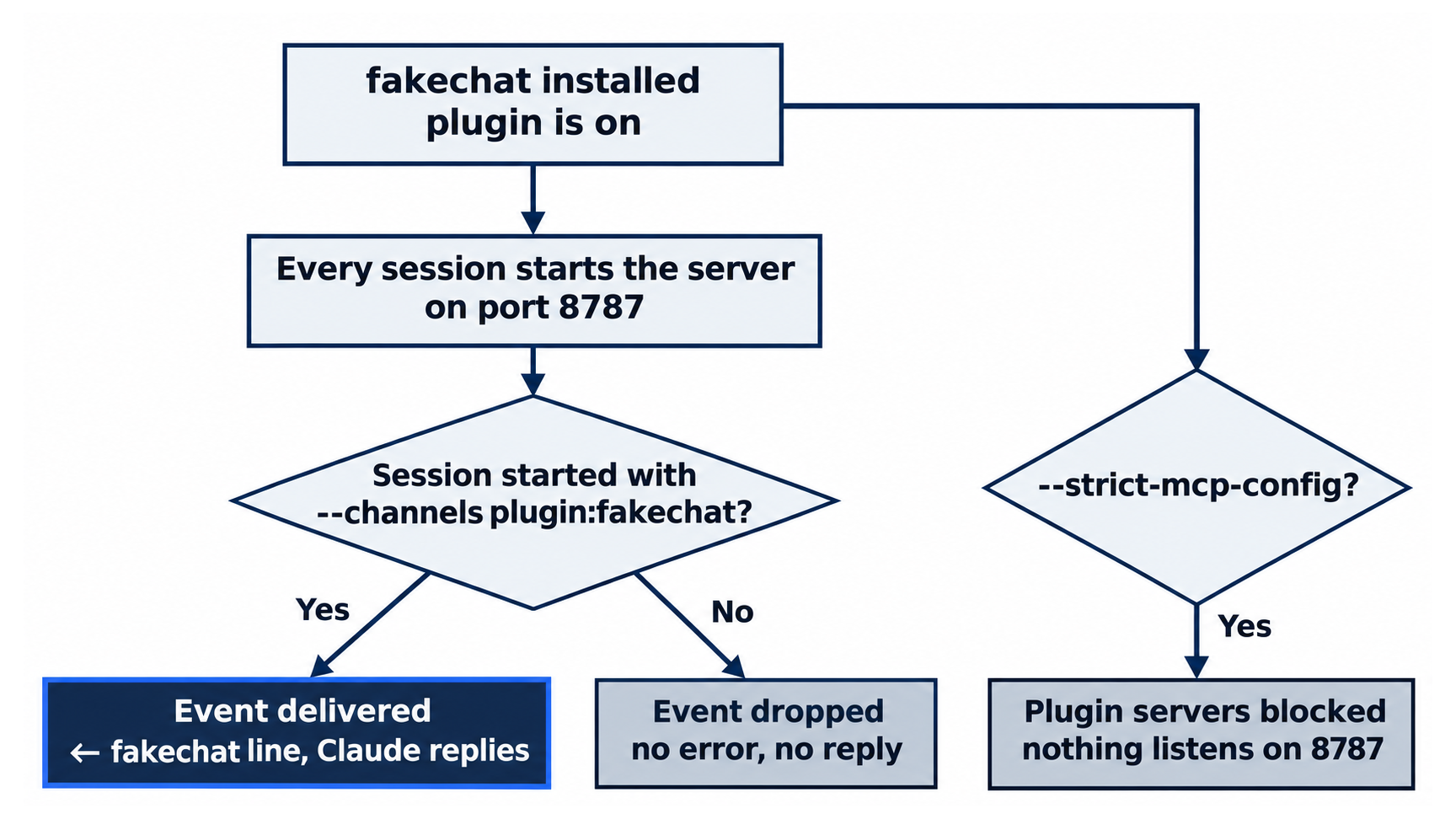
The reference adds three details. Claude Code does not confirm that it received a notification. If a session did not load the server as a channel, Claude Code drops the event with no error. Events queue in order, and several events that arrive while Claude is busy are delivered together on the next turn. A server listed in .mcp.json cannot push messages on its own: it must also be named in --channels.
This guide's follow-up test showed the dropped case. In a session started without --channels, with fakechat still installed, Bun listened on 127.0.0.1:8787 and /mcp listed ✔ plugin:fakechat:fakechat 2 tools. A message sent to the page, Reply with the word hello., got no reply in 25 seconds, and no ← fakechat line appeared in the terminal. A plugin's MCP server starts in every session in which the plugin is on. Only --channels decides whether its events reach Claude.
The --channels flag arrived as a research preview in v2.1.80.
Events arrive only while the session is open
The docs say that events arrive only while the session is open. Today's tests showed a catch on the fakechat side: after /exit, fakechat's server kept listening on port 8787, so the page's address still had a server behind it, with no session to receive its messages. On some tested runs, the server stopped when its terminal closed. On the one-terminal run, it did not, which is why Start here stops it with kill. A message sent in that state was not tested. For a real chat app, the docs' Telegram steps say that the bot can only reply while the channel is active.
For a channel that is always on, the docs suggest that you run Claude in a background process or a persistent terminal, such as a tmux session that you detach from and leave running. This guide did not test that setup.
A channel does not answer permission prompts for you. The docs say that if Claude hits a prompt while you are away, the session pauses until you respond. Today's Manual run showed the same thing: the reply waited at the terminal until you chose 1. Yes.
Real chat apps: Telegram, Discord, and iMessage
The research preview includes three real channels, each a plugin from claude-plugins-official. None of them was tested here, because they need bot tokens or an account. From the docs:
- Telegram. Create a bot with BotFather in Telegram and copy its token. Install
telegram@claude-plugins-official, run/telegram:configure <token>, which saves the token to~/.claude/channels/telegram/.env, then restart withclaude --channels plugin:telegram@claude-plugins-official. - Discord. Create a bot in the Discord Developer Portal, turn on Message Content Intent, and invite the bot to your server. Install
discord@claude-plugins-official, run/discord:configure <token>, then restart with--channels plugin:discord@claude-plugins-official. - iMessage. macOS only. The plugin reads your Messages database, so your terminal needs Full Disk Access in System Settings. It needs no bot or token. Restart with
--channels plugin:imessage@claude-plugins-officialand text yourself.
Each of these keeps a sender allowlist, the list of people who may send messages to your session. The docs say that the channel drops a message from anyone else with no reply. Telegram and Discord fill the list by pairing. You message the bot, the bot replies with a pairing code, and you approve the code in Claude Code with /telegram:access pair <code> or /discord:access pair <code>. Then you lock the channel to your list with /telegram:access policy allowlist or /discord:access policy allowlist. iMessage lets your own messages through with no setup, and you add another person by handle, such as /imessage:access allow +15551234567.
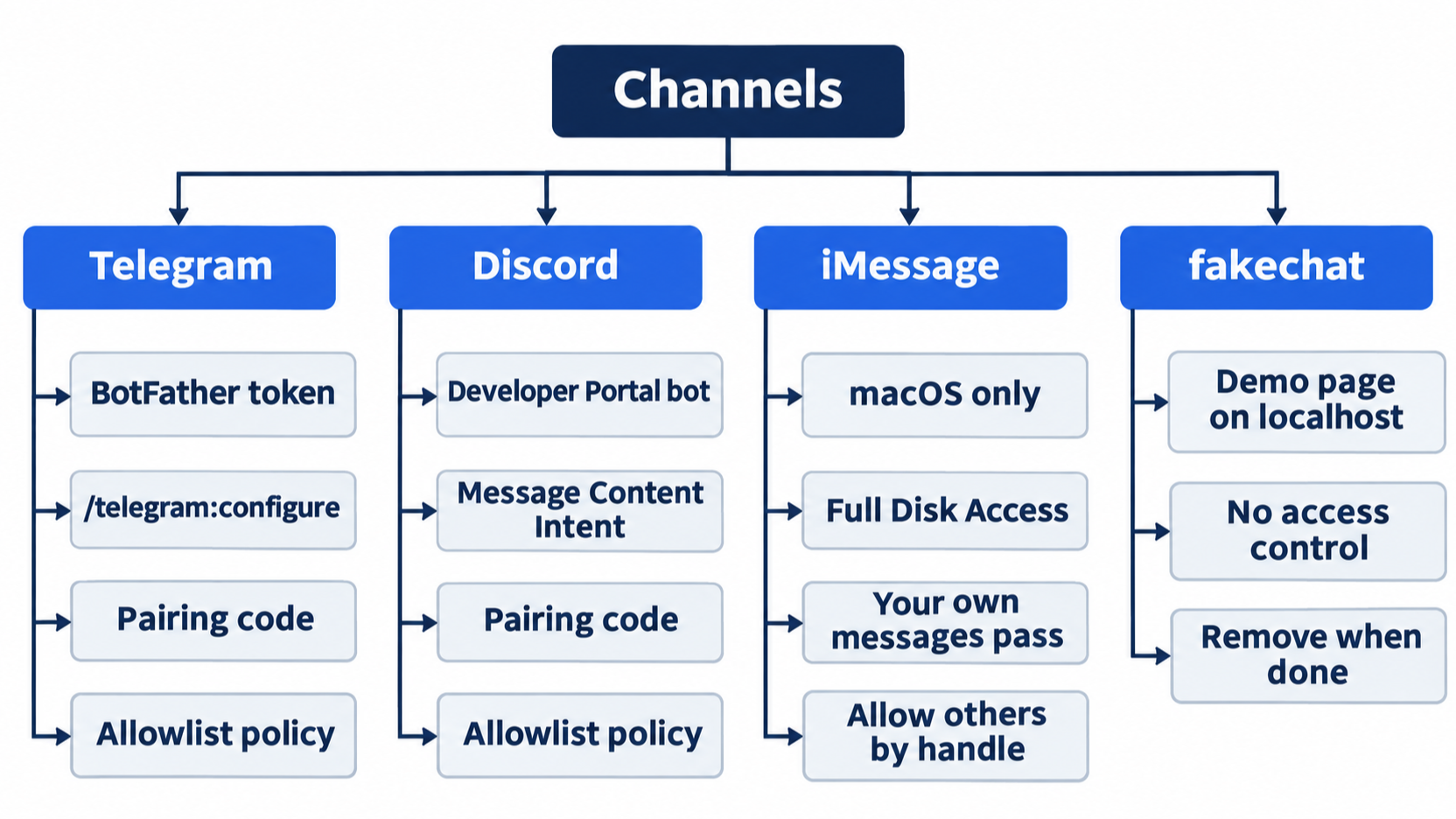
Fakechat has no allowlist. Its page is on your own computer, and on the tested runs its server listened on 127.0.0.1:8787, the local address only. Even so, any program on your computer can send to it, which is why Start here stops its server and removes it when you are done.
The permission relay
Since v2.1.81, a channel can offer a permission relay: it receives the same permission prompt that opens in your terminal and forwards it to you in the chat app. The reference says that both stay open, and Claude Code applies whichever answer arrives first. The relay covers tool approvals, such as Bash, Write, and Edit. It does not cover the project trust dialog or the dialog that approves an MCP server. Those appear only in the terminal.
A channel must declare a second capability, claude/channel/permission, to get prompts. Since v2.1.234, Claude Code relays prompts only to servers that the session opted in as channels, and it honors a server that opts out. Fakechat does not declare the relay, so today's Manual-mode prompt appeared only in the terminal. This guide did not test the relay.
The allowlist guards the relay too. The docs warn that anyone who can reply through the channel can approve or deny tool use in your session. Add only people you trust with that power.
For a session that no one watches, the docs name --dangerously-skip-permissions, which bypasses most prompts, for environments you trust only. The docs also say that a non-interactive run with -p turns off the tools that wait for terminal input, such as multiple-choice questions and the plan approval. The session never stalls on them.
Several channels in one session
The docs say that --channels takes several plugins, separated by spaces:
claude --channels plugin:fakechat@claude-plugins-official plugin:telegram@claude-plugins-official
This guide tested one channel at a time.
Why --strict-mcp-config stops a channel
--strict-mcp-config, which Day 6's Going deeper used, tells Claude Code to load only the MCP servers that --mcp-config names. This guide's tests found that it also blocks the MCP servers that plugins bring. A channel is a plugin's MCP server, so the flag blocks the channel too. On an exploratory run with the flag on 2.1.326, the session started, and nothing listened on port 8787. The docs do not mention this case. If you start sessions with --strict-mcp-config in a script, leave it off when you want a channel.

Installing a channel starts its server, but only the --channels flag at startup lets its messages reach Claude.
Troubleshooting: /mcp shows ✘ plugin:fakechat:fakechat
If the --channels session shows its notice but no ← fakechat line arrives, type /mcp. In this guide's one-terminal test, the panel showed ✘ plugin:fakechat:fakechat, and the message sent to the page got no reply. The channel's server had failed, because another fakechat server held port 8787. The old server came from an install inside an earlier session, and it kept running after /exit and after its terminal closed.
To fix it, type /exit, stop the old server with kill $(lsof -t -iTCP:8787 -sTCP:LISTEN), and check that lsof -nP -iTCP:8787 -sTCP:LISTEN prints nothing. Start the --channels session again, type /mcp, select fakechat, and choose 1. Reconnect. Without that step, Claude Code skips the server for 15 minutes. A later tested session showed the status ✘ failed with Skipping connection (recent failure cached; retries automatically in 15 min, or edit the plugin config to retry now), and the choices 1. Reconnect and 2. Disable. This guide did not test 1. Reconnect. A tested run 17 minutes later no longer hit the cache.
Who can turn channels on
The enterprise controls use two managed settings that users cannot override:
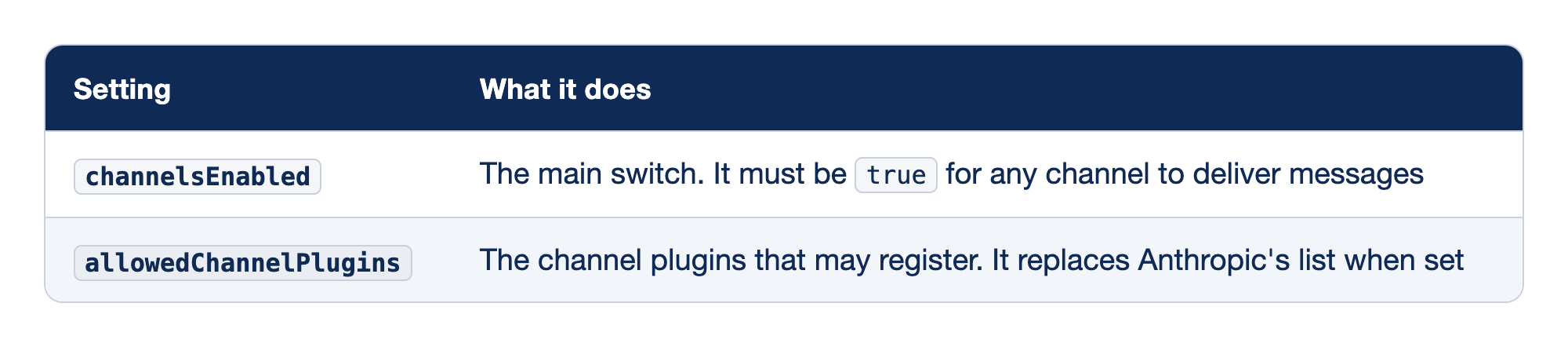
Two managed settings control channels for an organization, and users cannot override either one. The Setting column names each setting, and the What it does column says what the setting controls.
channelsEnabledis the main switch, and it must betruebefore any channel can deliver messages.allowedChannelPluginslists the channel plugins that may register, and it replaces Anthropic's list when it is set.
On claude.ai Team and Enterprise plans, channels stay blocked until an Owner turns them on under Organization settings > Claude Code > Channels, or sets channelsEnabled in managed settings. With a Console API key, channels work by default, unless your organization deploys managed settings. Console sign-in support came in v2.1.128. Pro, Max, and Ultra users without an organization skip both checks. allowedChannelPlugins arrived in v2.1.84.
During the preview, --channels accepts only plugins on Anthropic's list, or on your organization's list. The docs say that if you name another plugin, Claude Code starts normally, the channel does not register, and the startup notice says why. To test a channel that you are building, the docs use --dangerously-load-development-channels in place of --channels.
Build your own channel
The reference walks through a one-way webhook receiver: a Bun script that listens on a local port, turns each POST into a channel event, and appears in the terminal as a line such as ← webhook: build failed on main: .... A build server, an error tracker, or a deploy pipeline can then put its alerts in front of the Claude that already has your project open. The reference says to check the sender before you push any event, because an endpoint that anyone can reach is an open door into your session. This guide did not build one.
Channels, Remote Control, and Dispatch
The platforms page compares the ways to reach Claude Code when you are not at the terminal. Three of them run on your own computer:
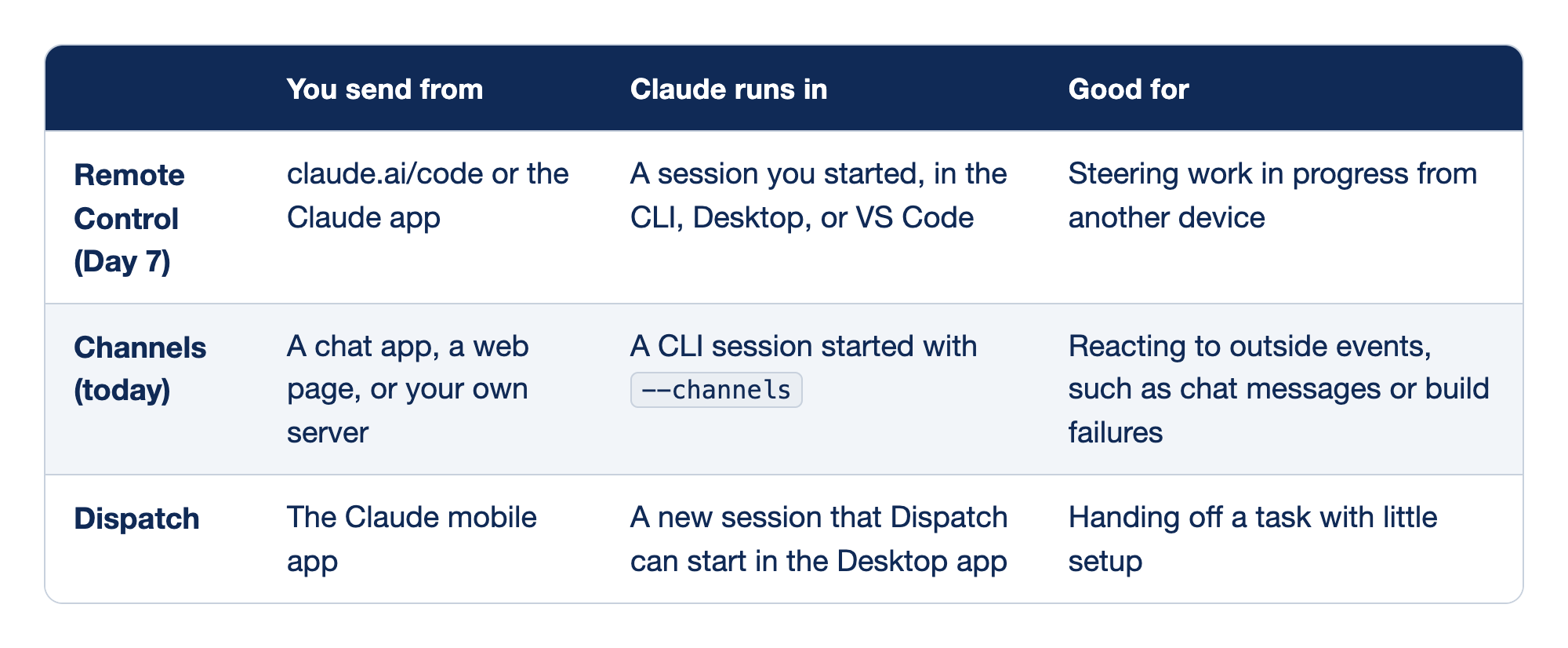
Three ways to reach Claude Code run on your own computer. The first column names each way, the You send from column says where the message starts, the Claude runs in column says which session does the work, and the Good for column names the job that each way fits.
- Remote Control (Day 7) takes a message from claude.ai/code or the Claude app, runs it in a session you started in the CLI, Desktop, or VS Code, and is good for steering work in progress from another device.
- Channels (today) take a message from a chat app, a web page, or your own server, run it in a CLI session started with
--channels, and are good for reacting to outside events, such as chat messages or build failures. - Dispatch takes a message from the Claude mobile app, runs it in a new session that Dispatch can start in the Desktop app, and is good for handing off a task with little setup.
Docs pages: Remote Control, Dispatch.
With Remote Control, you see the whole conversation and you answer its prompts from the browser, as you did on Day 7. A channel carries only messages and replies, and your terminal shows the reply as a tool call, not as text. Dispatch does not join a running session. When a task is development work, it can start a new session in the Desktop app. The docs say that Dispatch needs a Pro, Max, or Ultra plan and is not available on Team or Enterprise plans. Day 20 covers Dispatch.
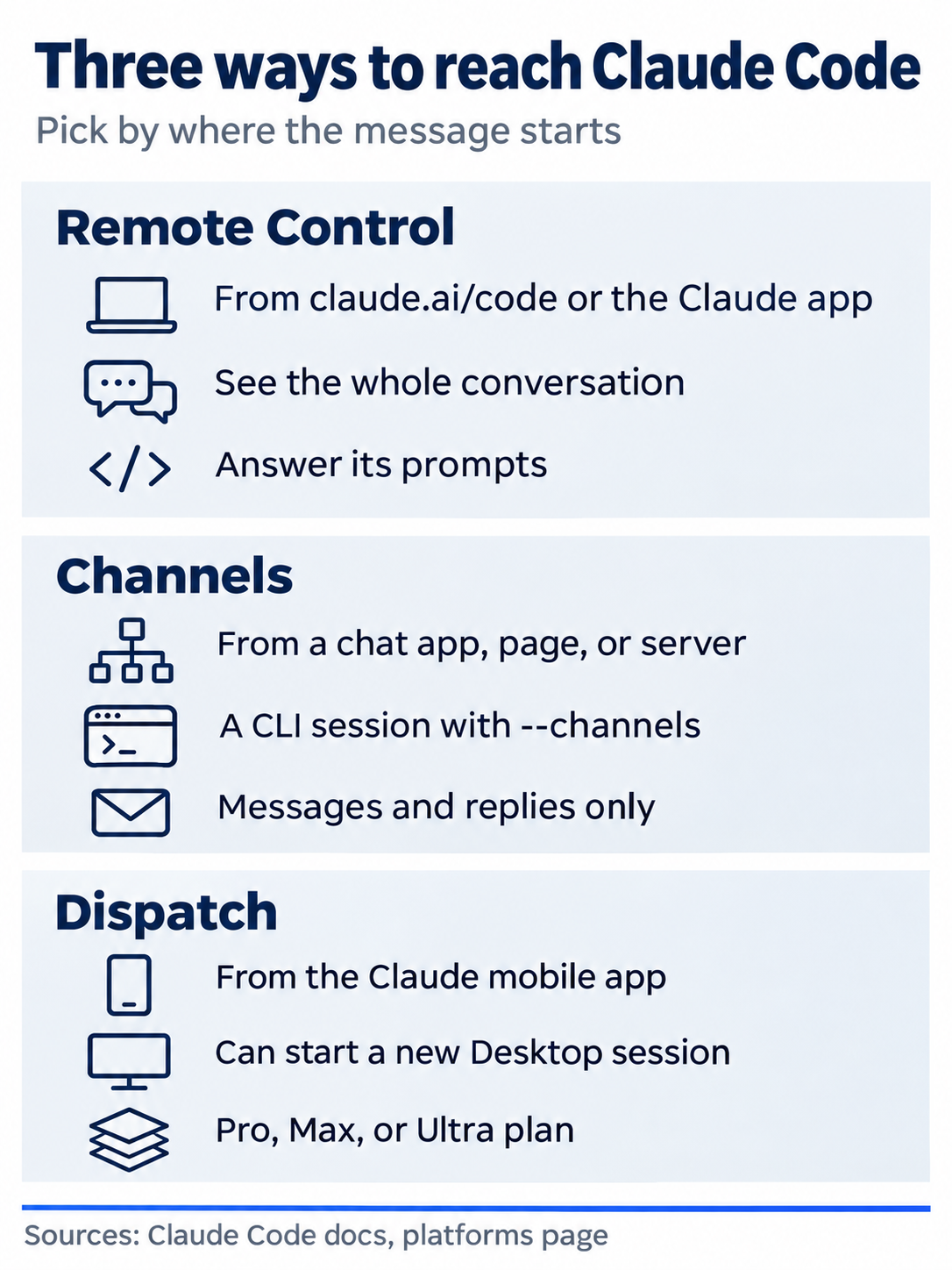
Pick the tool by where the message starts and whether you need to watch the whole conversation.
Go further: Stop Walking Back to Your Laptop: Push the World into a Running Claude Session is the first edition's chapter on channels, with full Telegram, Discord, and iMessage setup, a webhook receiver with a shared secret, and an always-on tmux pattern. Its tmux example repeats --channels once for each plugin, but the docs pass several plugins to one --channels, separated by spaces.
Do this today
Everyone
- Install fakechat from the shell with
claude plugin install fakechat@claude-plugins-official --scope local, startclaude --channels plugin:fakechat@claude-plugins-official, sendRun npm test and reply with the pass and fail counts.from http://localhost:8787, and read the reply on the page. Then type/exit, stop the server withkill $(lsof -t -iTCP:8787 -sTCP:LISTEN), and remove fakechat withclaude plugin uninstall fakechat@claude-plugins-official --scope local. Check the win: the terminal shows the← fakechat · web:line, the counts on the page match yournpm test,.claude/settings.local.jsonhas nofakechatentry, andgit statusprintsnothing to commit, working tree clean. - Habit: install a demo channel only for the work that uses it, and stop its server and uninstall it when you are done. Fakechat has no access control, and its server outlives the session. Check: after
/exitand thekillstep,lsof -nP -iTCP:8787 -sTCP:LISTENprints nothing.
If you read Going deeper
Each exercise needs fakechat, which Start here removed. Begin each one with the install from Start here. Each reset follows Start here: type /exit and run lsof -nP -iTCP:8787 -sTCP:LISTEN. If it prints a bun line, stop it with kill $(lsof -t -iTCP:8787 -sTCP:LISTEN). Then run claude plugin uninstall fakechat@claude-plugins-official --scope local.
- Ask a question that only reads. Start
claude --channels plugin:fakechat@claude-plugins-official, open the page, and sendWhich categories does classify() return? Reply with one line.Check: the page shows ayou:line and abot ↳line that lists the categories fromsrc/classify.js. This is the question from the tested browser run. Reset: as above, then check thatlsof -nP -iTCP:8787 -sTCP:LISTENandgit status --shortprint nothing. - See a session without
--channelsdrop a message. Start plainclaude, open http://localhost:8787, and sendReply with the word hello.Check:/mcplists✔ plugin:fakechat:fakechat 2 tools, but no reply reaches the page, and no← fakechatline appears in the terminal. The tested run sent the message with the script from Start here and waited 25 seconds. Reset: as above, then check thatlsof -nP -iTCP:8787 -sTCP:LISTENandgit status --shortprint nothing. - See
--strict-mcp-configblock the channel. Runclaude --strict-mcp-config --channels plugin:fakechat@claude-plugins-official. Check: in a second terminal,lsof -nP -iTCP:8787 -sTCP:LISTENprints nothing, because the flag blocked fakechat's server. The tested run also passed--mcp-configwith the Day 13 server, so your screen can differ. Reset: as above, then check thatgit status --shortprints nothing.
One message in, one reply out, one port closed
A channel lets the world reach the Claude that already has your project open. You name the channel when the session starts, a message arrives as a line in the terminal, and Claude answers through a reply tool back where the message came from.
The same reach is the risk. Fakechat checks no sender, and its server keeps listening after you leave. Use a demo channel for the work in front of you, then stop it and remove it, and give a real channel an allowlist before you give it your session.
This is Part 19 of "Claude Code, Day-to-Day (second edition)," a day-by-day guide to Claude Code in which each day takes 20 to 40 minutes. Part 19 is Day 19. All 28 days are out now.