
Start a Claude Code Task from Your Phone and Check It at Your Desk
Dispatch lets you hand a task to Claude from your phone and have it run on your own computer, and the real lesson is the read-only prompt, the two approvals, and the check at your desk that proves the reply right or wrong.
Dispatch sends a task from the Claude mobile app to your own computer, sends the result back, and leaves you one honest check to run when you return.
You are away from your desk, you want one small job done on your own machine, and you do not want to come back to a surprise.
In this article: Day 20 of a day-by-day guide to Claude Code. Start here: you send a read-only task from your phone through Dispatch, or through Remote Control if you do not have Dispatch, read the result on the phone, and check at your desk that nothing changed. Going deeper: how Dispatch compares with Remote Control, channels, and cloud sessions, what computer use and the help article's safety note mean, and how Claude Tag brings Claude into Slack for a team.
Tested on Claude Code 2.1.326.
Yesterday you sent a message from fakechat's chat page into a running session, read Claude's reply on the page, and removed fakechat.
Start here
At the end of today, you can start a task in Ticket Triage from your phone while you are away from your desk, read the result on the phone, and check at the desk that the task changed nothing.
Starting fresh or fell behind? Run git switch -C main claude-code/day-19. This replaces your main with the end of Day 19; to keep your own work, run git branch my-backup first.
Dispatch is one long conversation with Claude that you reach from the Claude mobile app. You send it a task, and Claude does the work on your own computer, in the Claude Desktop app from Day 15. When a task is development work, Dispatch starts a Claude Code session in the Desktop app's Code tab.
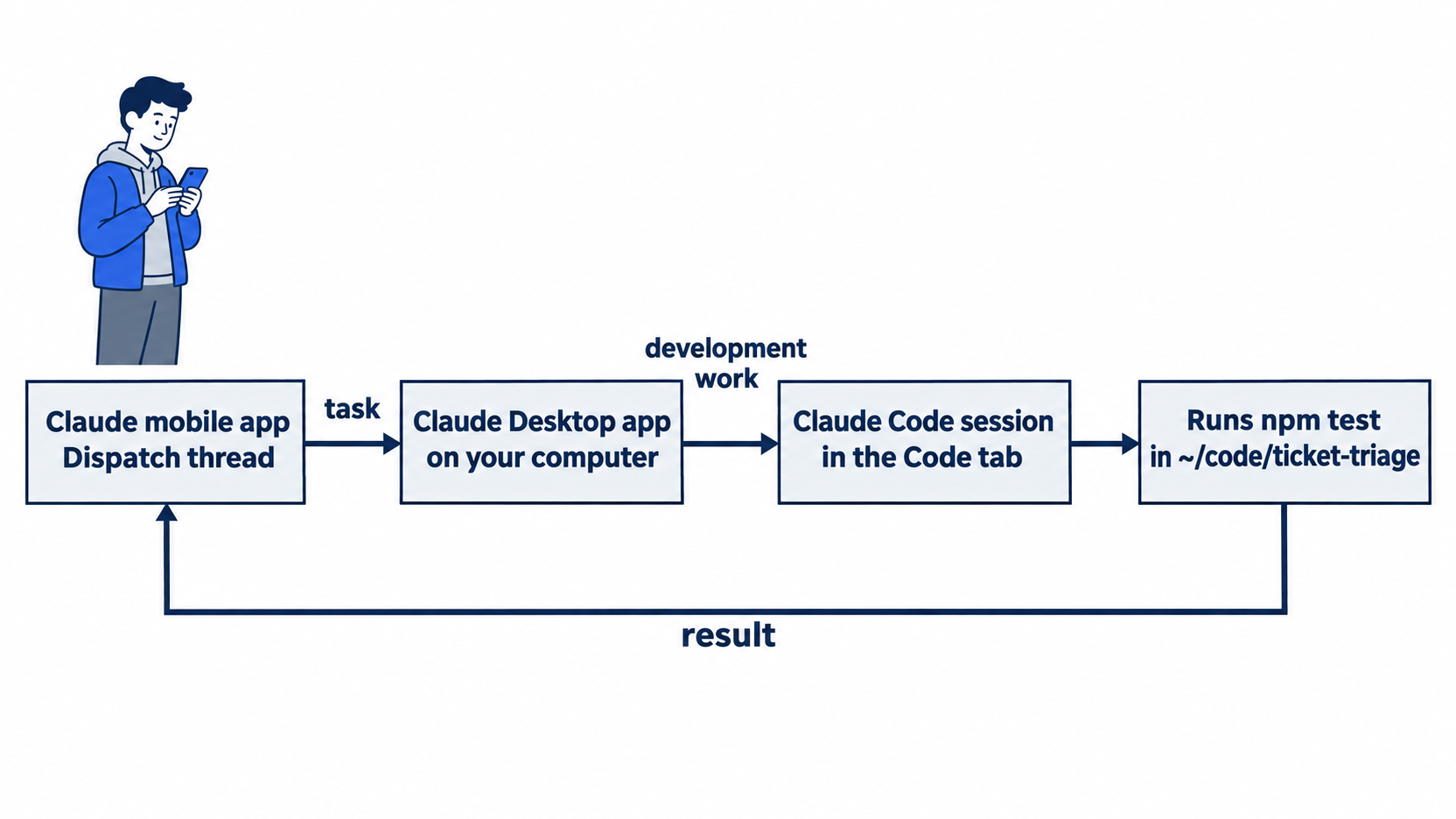
This guide ran the Dispatch path on a Mac and a phone on November 17, 2026, and the screen text below comes from that run. Steps that were not run say so. They come from the Dispatch help article or the Desktop docs.
The test ran in a copy of Ticket Triage in another folder. This lesson shows your path.
Check the starting state
Both paths start here. Open a terminal in Ticket Triage:
cd ~/code/ticket-triage
git status
npm test
Git prints nothing to commit, working tree clean. The tests show ℹ fail 0 and the pass count from yesterday. It was 22 on the tested auto run and 23 on the Manual run. Write your number down. Today's task only reads, so this number is your answer key.
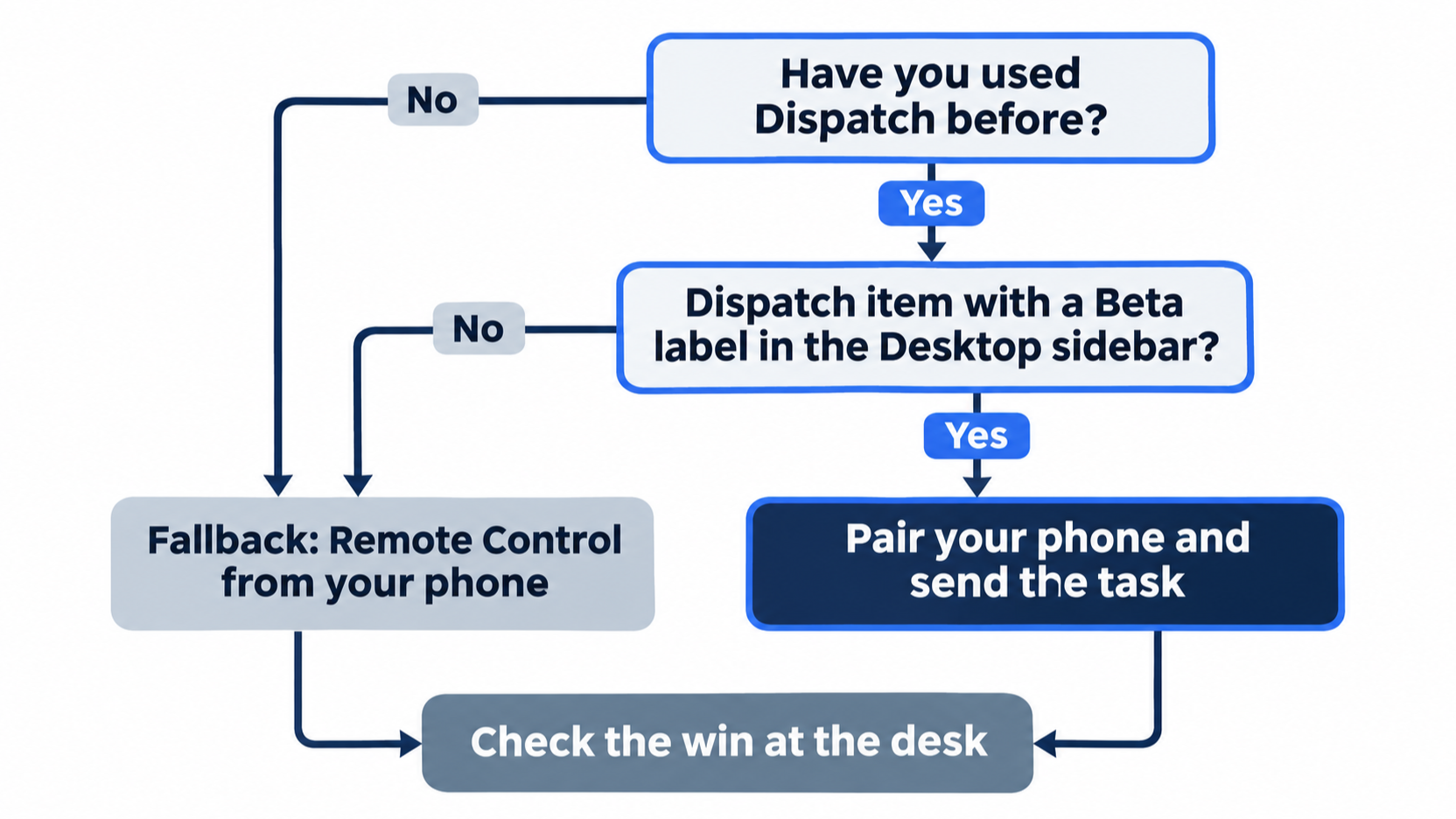
Do you have Dispatch?
The help article says:
Dispatch is in limited beta on some Pro, Max, and Ultra plans, and it isn't available to new users. If you already use Dispatch, you can keep using it for now, and this article still applies.
If you have never used Dispatch, you most likely do not have it. Go straight to "The fallback: Remote Control from your phone". You still get today's win.
If you already use Dispatch, look at the Desktop app's sidebar on the left. On the tested Mac, Dispatch is a top-level item with a Beta label. If it is not there, go to the fallback.
What you need for Dispatch
From the help article and the Desktop docs:
- The Desktop app, open on a computer that stays awake while Claude works.
- The Claude mobile app on your phone.
- A Pro, Max, or Ultra plan. The Desktop docs say that Team and Enterprise plans do not have Dispatch.
- An internet connection on both devices.
Pair your phone with the Desktop app
In the Desktop app, click Dispatch. The page shows the heading Pair with the Claude Mobile app, a QR code, and two buttons: I'm signed in on my phone and Set up later.
The QR code is a download link, not a pairing code. Install or update the Claude app on your phone, and sign in. Then click I'm signed in on my phone.
The next page is Get ready to dispatch, with five rows:
Give Claude access to your files, a switch. macOS asks for access when you click Finish.Keep this computer awake, a switch.Install Claude in Chrome, with an Install button.Let Claude use apps on this computer, a switch, with the macOS permissionsAccessibilityandScreen recording.All connectors are on, with the textDispatch can use every connector you've authenticated.
Leave the first two switches on. Today's task needs no browser, so skip Install.
The last two rows need a decision. Computer use lets Claude click, type, and open apps on your computer. A connector links your Claude account to an outside service, such as mail. Both were on for the tested account, so a Dispatch session can reach more than your project folder. Today's task only runs tests, so you can turn off Let Claude use apps on this computer. This guide did not test that.
Click Finish setup at the bottom of the page. This label is from the tester's report, not a screenshot. The page says Update these anytime in Settings.
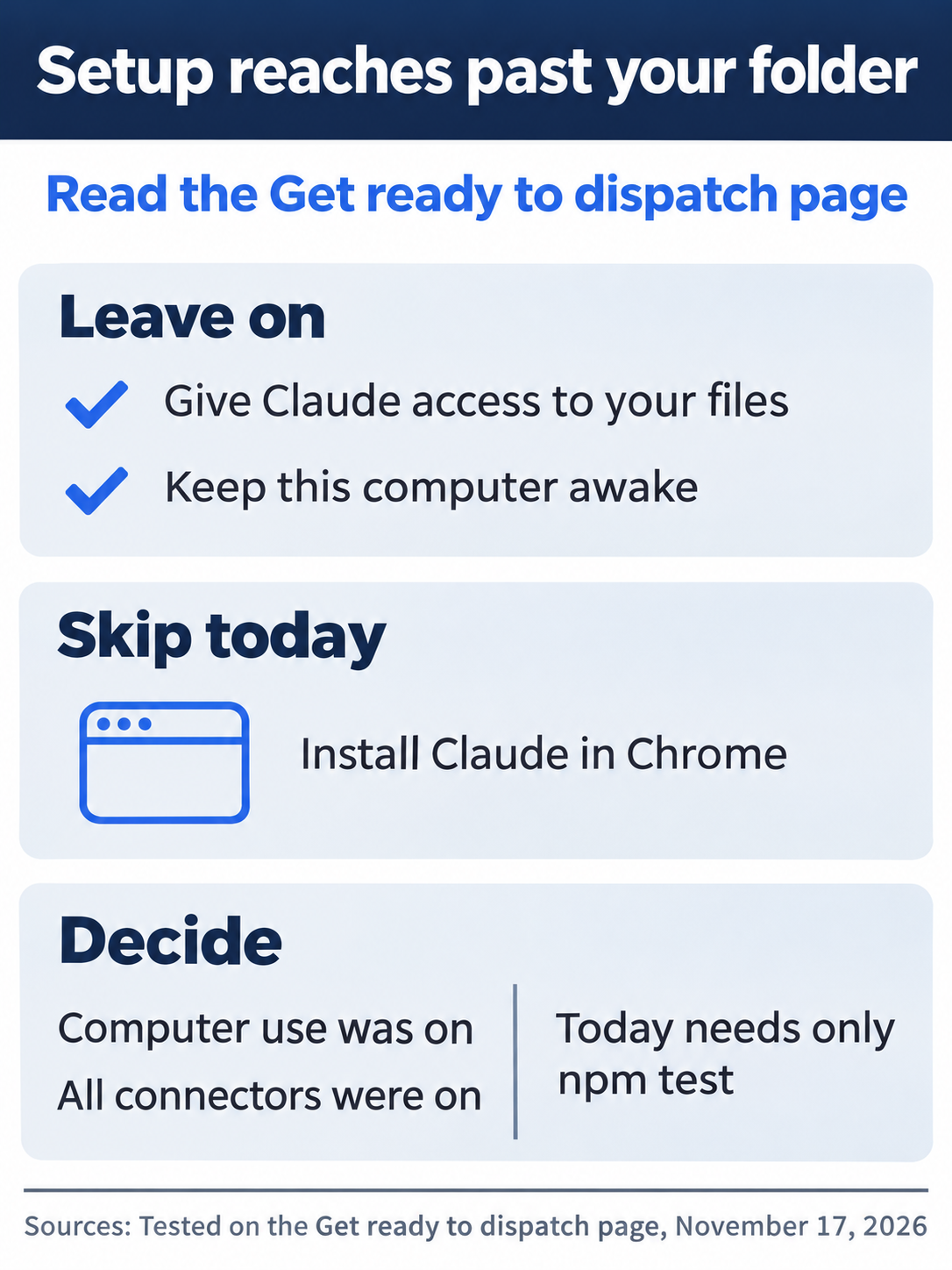
The setup page decides what a Dispatch session can reach. Computer use and connectors were already on for the tested account, and today's task needs neither of them.
Send the task from your phone
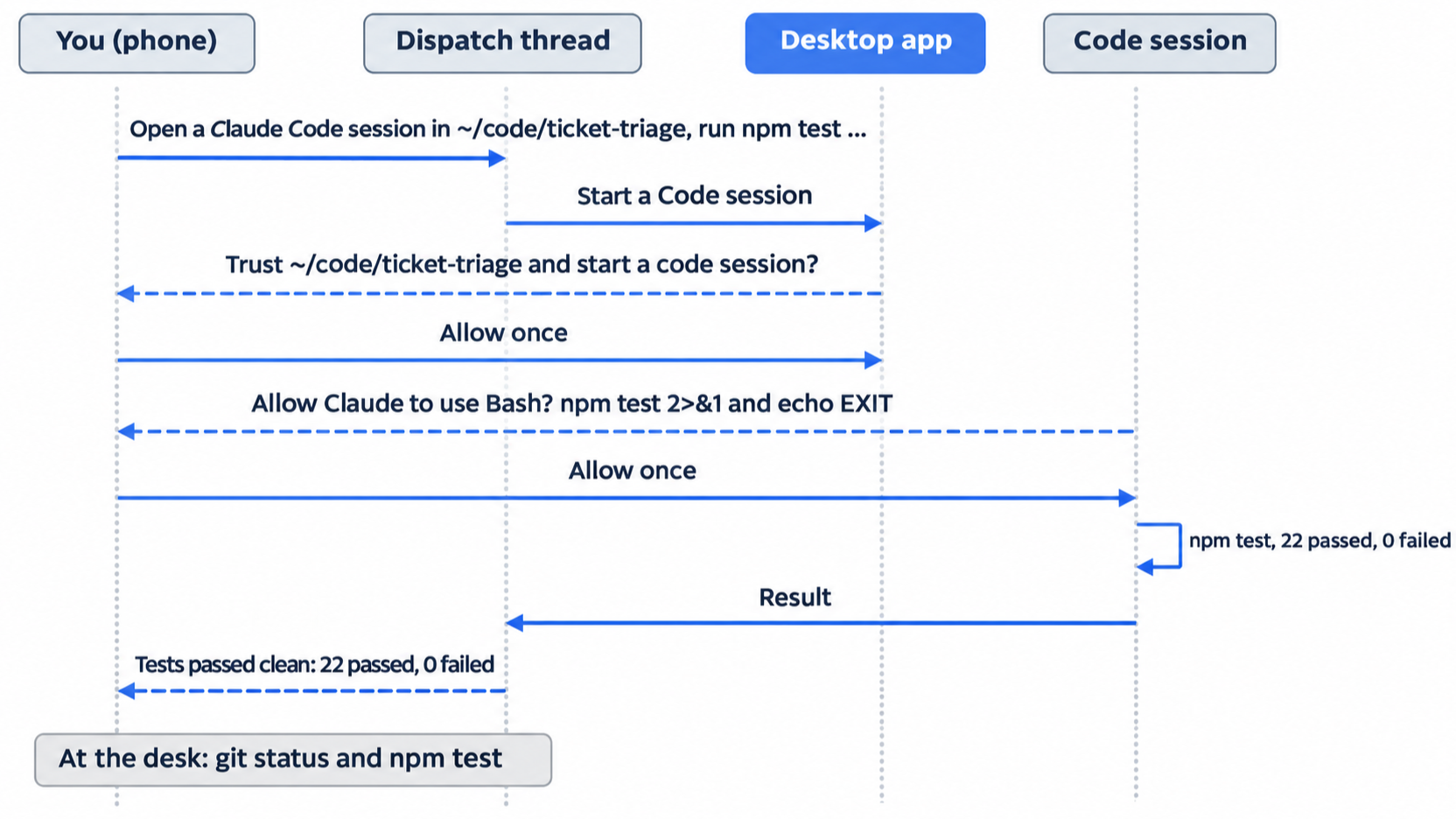
Take your phone away from the desk and open Dispatch in the Claude app. The thread shows Dispatch and an Online label at the top. Dispatch is one continuous thread, so earlier messages show above the new one. Send:
Open a Claude Code session in ~/code/ticket-triage, run npm test, and reply with the pass and fail counts. Do not change any files.
Each part of the prompt has a job:
Open a Claude Code sessionasks for a Code session by name, as the Desktop docs allow.~/code/ticket-triagenames the folder, because the docs do not say how Dispatch picks one.Do not change any files.keeps the task read-only, so tomorrow starts from today's state.
Dispatch turns the task into a Code session. A card such as ticket-triage: run npm test appears in the thread. Claude picks the title.
Approve two prompts on your phone
Two prompts reach your phone before the tests run. The first asks you to trust the folder: Trust <your home folder>/code/ticket-triage and start a code session? The Desktop app shows the same prompt with the line Claude will have read and write access to this folder. It will also be trusted in the Code tab. The phone's buttons are Allow once, Always allow for this task, and Deny. Choose Allow once on the phone.
Claude says that it started a read-only session. The second prompt is Allow Claude to use Bash?, for this command:
npm test 2>&1; echo "EXIT=$?"
Choose Allow once again. Your Day 4 allow rule, Bash(npm test *), did not skip this prompt. The command also has ; echo "EXIT=$?", which Claude added to print the exit code.
Manual mode: the two prompts are to trust ~/code/ticket-triage and to run npm test 2>&1; echo "EXIT=$?". Choose Allow once at each, and choose Deny for any other command. The tested session ran in Accept edits mode, which approves file edits and common file commands, as on Day 4. It still asked before this command. Manual mode was not tested with Dispatch, so more prompts can appear.
Now you can walk away. The help article says that a push notification arrives when the task is done or needs your go-ahead. This guide did not capture one.
Read the reply on your phone
On the tested run, the reply came two minutes after the task:
Tests passed clean: 22 passed, 0 failed (22 total). npm test exited 0 in ~117 ms, no suites errored, nothing skipped. No files changed, nothing installed (the project has no dependencies).
Claude chooses its own words, so your reply can differ. Compare the counts with your number from this morning: the pass count matches, and the fail count is 0.
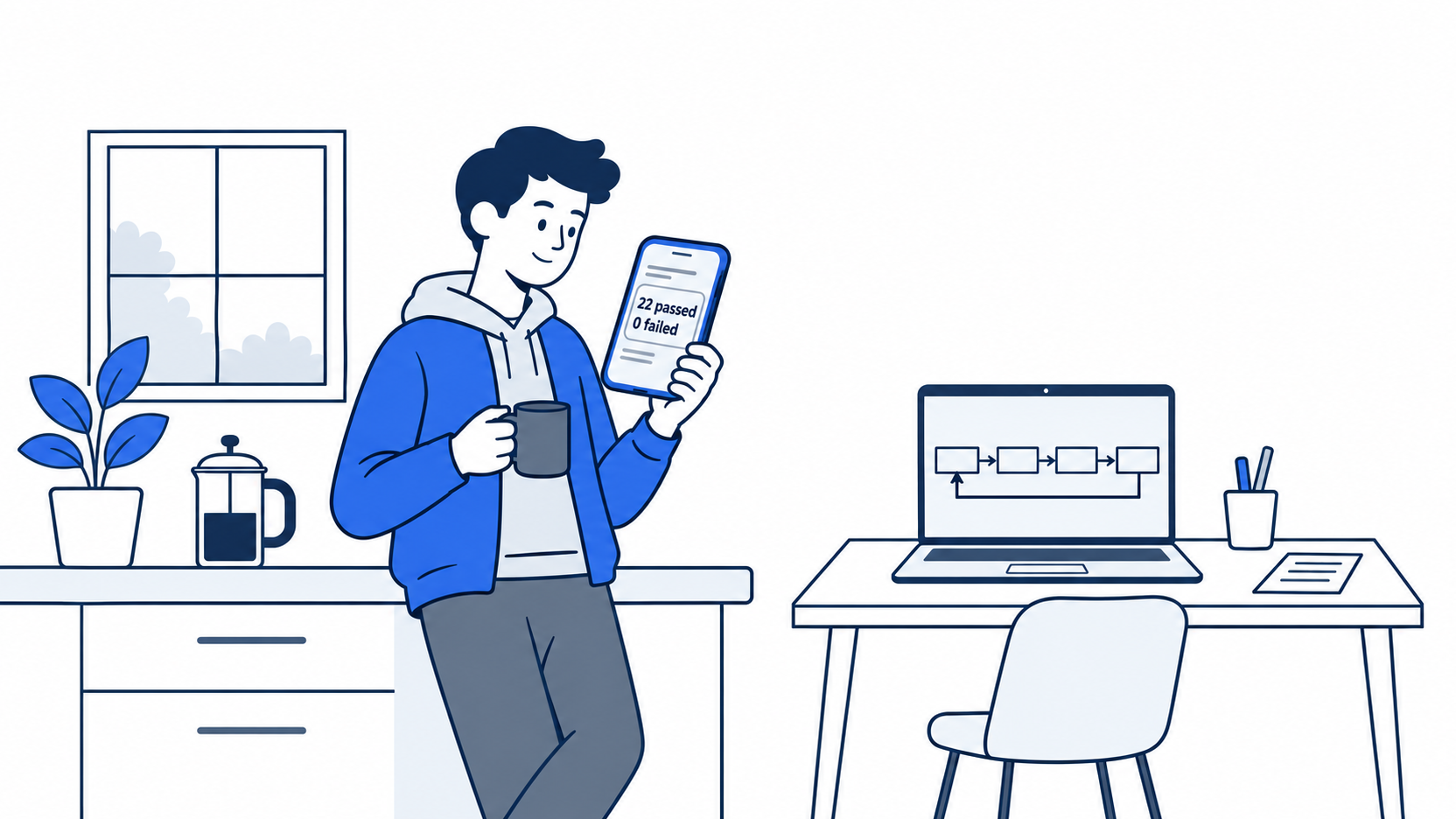
The reply arrived two minutes after the task, and its pass count matched the number written down that morning.
The last clause is wrong. Ticket Triage has had Prettier as a dev dependency since Day 11. Day 12 says to treat review findings as leads that you check in the file. Treat a reply on your phone the same way, and check its claims at your desk.
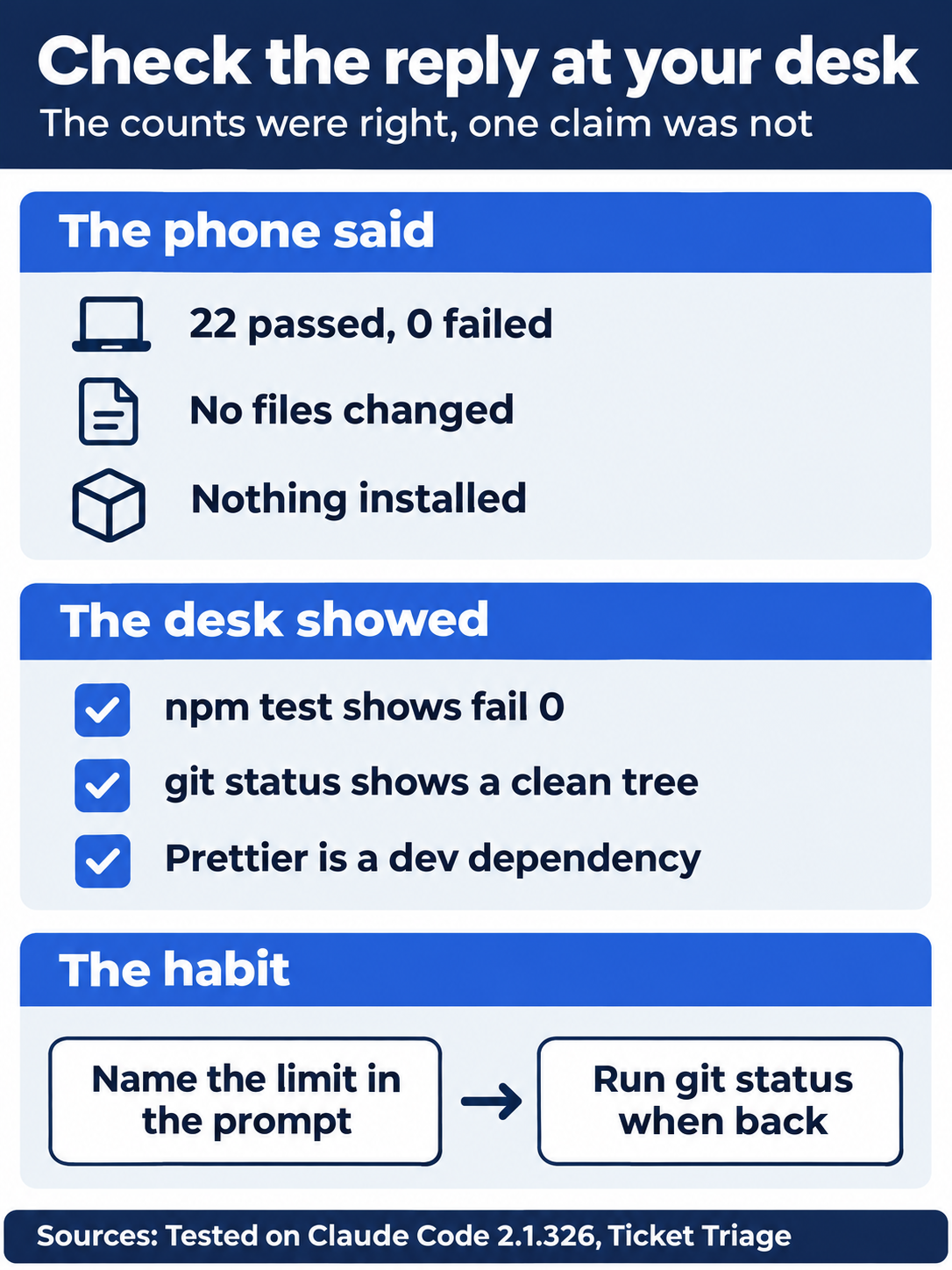
The counts in the reply were right, and one claim in the same reply was wrong. A reply on your phone is a lead until you check it at your desk.
Find the session at your desk
Back at the desk, open the Code tab in the Desktop app. The sidebar groups sessions by folder. Click the session with the card's title, such as ticket-triage: run npm test, in your folder's group. On the tested run, it showed All 22 tests passed. No test failed. and a table of counts. On the Manual chain, expect 23.
Now skip to "Check the win".
The fallback: Remote Control from your phone
Use this path if you do not have Dispatch. This guide ran today's prompt in Manual mode. This guide's Day 7 test ran the same steps in auto mode, with a different prompt.
Start a session in Ticket Triage:
claude
Connect it:
/remote-control Ticket Triage
Claude Code prints:
/remote-control is active · Continue here, on your phone, or at https://claude.ai/code/session_...
The status bar shows /rc. Run /remote-control again. A panel opens with Disconnect this session, Show QR code, and Continue. Select Show QR code and press Enter. Point your phone's camera at the QR code and tap the link. The Claude app opens on the session.
Walk away from the desk. In the app's message box, send:
Run npm test and reply with the pass and fail counts. Do not change any files.
You are already in Ticket Triage, so the prompt drops its first part. Read the reply in the app. On the tested run, it gave Pass: 22, Fail: 0, and I did not change any files. The terminal shows the same exchange.
Manual mode: no prompts. The tested run used npm test 2>&1 | tail -20, which your Day 4 rule covered. If Claude asks to run a test command, such as node --test, allow it once in the app. Deny any other command. The Day 7 test run kept no pictures of the app, so this guide does not quote its button names.
Disconnect: run /remote-control, select Disconnect this session, and press Enter. Claude Code prints:
⎿ Remote Control disconnected.
Type /exit.
Check the win
At the desk, in the terminal:
git status
npm test
Git prints nothing to commit, working tree clean. The tests show ℹ fail 0 and the same pass count as this morning. It was 22 on the tested Dispatch run. The counts in your phone's reply match. Claude only ran the tests, so there is nothing to commit. Tomorrow starts from this state.
You started a task from your phone, read the result there, and checked at your desk that the work ran on your computer and changed nothing.
You can stop here. Going deeper explains why this works and where it breaks.
Going deeper
This section is for readers who want to know how Dispatch compares with the other ways to work away from the terminal, what computer use changes, what the safety note in the help article means, and how Claude works from Slack. It assumes you finished Start here in Parts 1 to 20. Unless a line says otherwise, everything here comes from the docs, and this guide did not test it.
Dispatch, Remote Control, channels, and cloud sessions
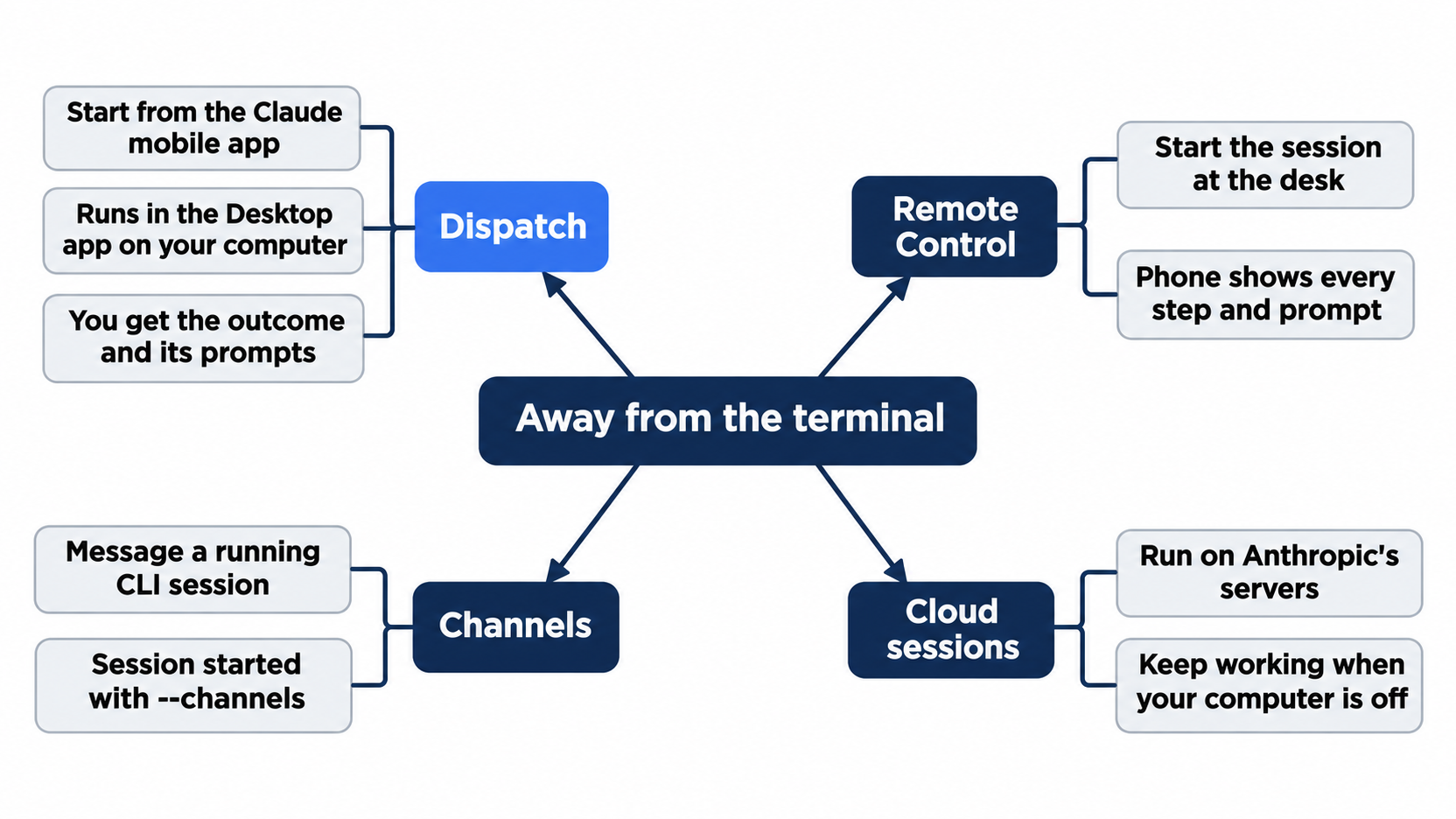
The platforms page compares the ways to reach Claude Code when you are not at the terminal. Four of them fit today:
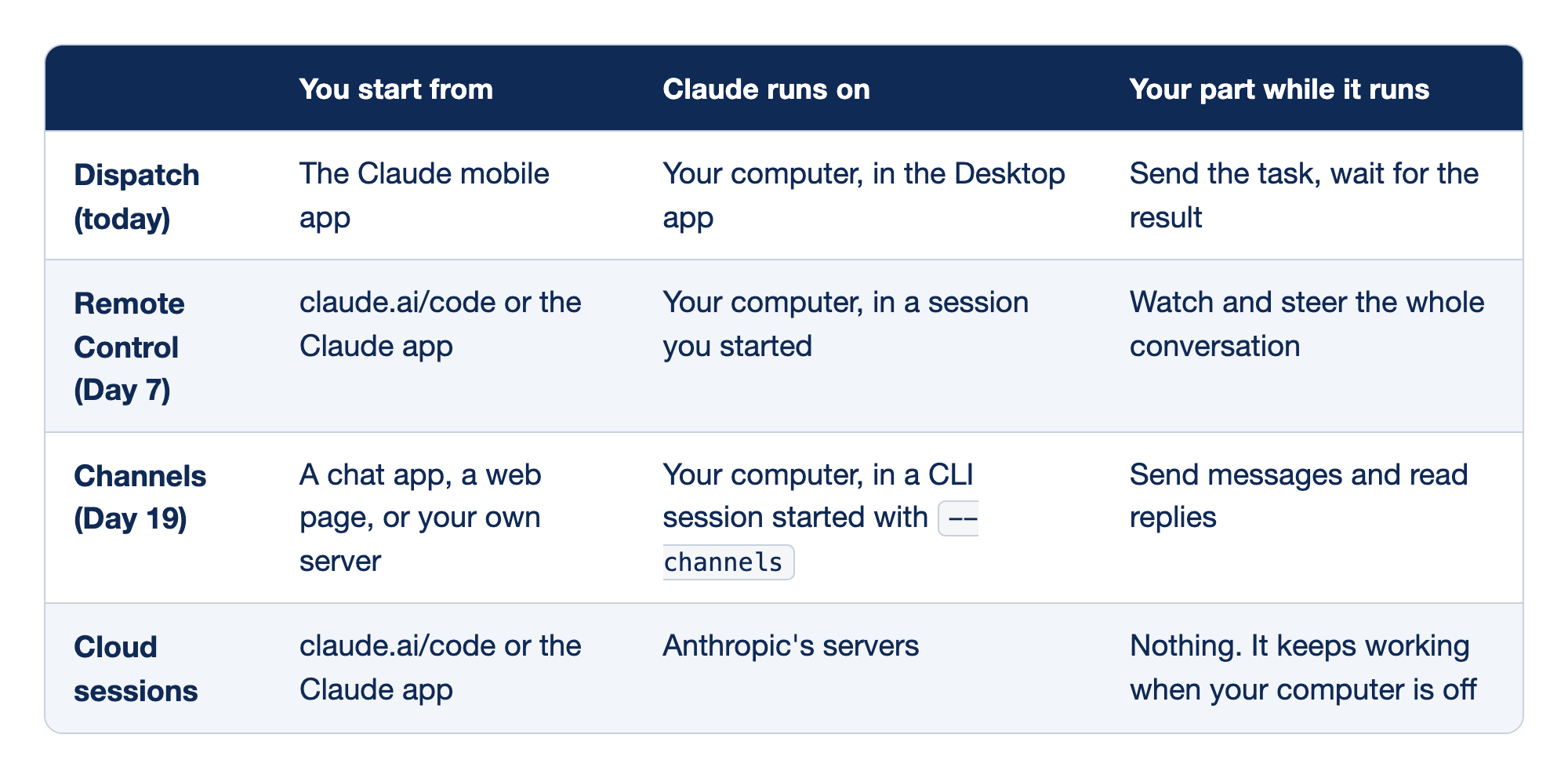
This comparison covers four ways to reach Claude Code when you are not at the terminal. The "You start from" column names where you send the task. The "Claude runs on" column names the machine that does the work. The "Your part while it runs" column says what you do until the work is done.
- Dispatch starts from the Claude mobile app, runs on your computer in the Desktop app, and asks you only to send the task and wait for the result.
- Remote Control starts from claude.ai/code or the Claude app, runs on your computer in a session you started, and lets you watch and steer the whole conversation.
- Channels start from a chat app, a web page, or your own server, run on your computer in a CLI session started with
--channels, and let you send messages and read replies. - Cloud sessions start from claude.ai/code or the Claude app, run on Anthropic's servers, and need nothing from you, because they keep working when your computer is off.
Docs pages: Dispatch, Remote Control, Channels, Cloud sessions.
Dispatch and Remote Control both reach your computer from your phone. The difference is who starts the session and how much of it you see. With Remote Control, you start the session at the desk, and the phone shows every step and every prompt, as on Day 7. With Dispatch, Claude starts the session, and the help article says that you get the outcome, not every step. Permission prompts still reach the phone, as the tested run showed. A channel joins a session that is already running, and a Dispatch task starts a new one.
The help article also draws the cloud line. Dispatch needs your computer awake and the Desktop app open. A cloud session runs on Anthropic's servers and keeps working when your computer is off. The article says that if you do not see Dispatch, you can use Cowork in the cloud instead of the pairing flow.
One thread, not one session per task
The help article says that Dispatch is a single thread that does not reset. Claude keeps context from earlier tasks, so you can send a follow-up from your desk to a task that you started on your phone. Under its current limits, the article says that you cannot start a new thread or manage several threads.
For each task, Claude decides what kind of work it is. Development tasks run in Claude Code, and knowledge work, such as research and documents, runs in Cowork. Each session appears in the sidebar of its own tab. The Desktop docs list fixing bugs, updating dependencies, running tests, and opening pull requests as tasks that usually go to Code. A task that you start with "open a Claude Code session" goes to Code because you asked.
The help article also says that a newer Claude experience, which combines chat and Cowork, is rolling out, and that some of its steps can look different there.
On the tested run, the session that Dispatch started also showed up on the phone, in the Claude app's Code list, as ticket-triage: run npm test. It had a laptop icon, which marks a session that runs on your computer. Opening it showed the session's own transcript, with Remote Control under its title, and a fuller report of the same run: a table of counts and I did not change any files. It also repeated the wrong claim that the project has no dependencies. You can follow a Dispatch task in the thread or open its session directly, as you did on Day 7.
Computer use in Dispatch sessions
Computer use lets Claude open apps on your computer, click, type, and see the screen. The Desktop docs say that it is off by default. On the tested Mac, though, the Get ready to dispatch page showed Let Claude use apps on this computer already switched on, so finishing Dispatch setup can leave it on. To find the general switch, the Desktop docs say to open Settings and go to This computer > System, or to Capabilities if the menu does not list This computer, then turn on Enable computer use. On macOS, you also grant the app the Accessibility and Screen Recording permissions. The help article says that computer use is not part of the Linux beta. On Linux, Dispatch works with files, connectors, and plugins, but not with desktop apps.
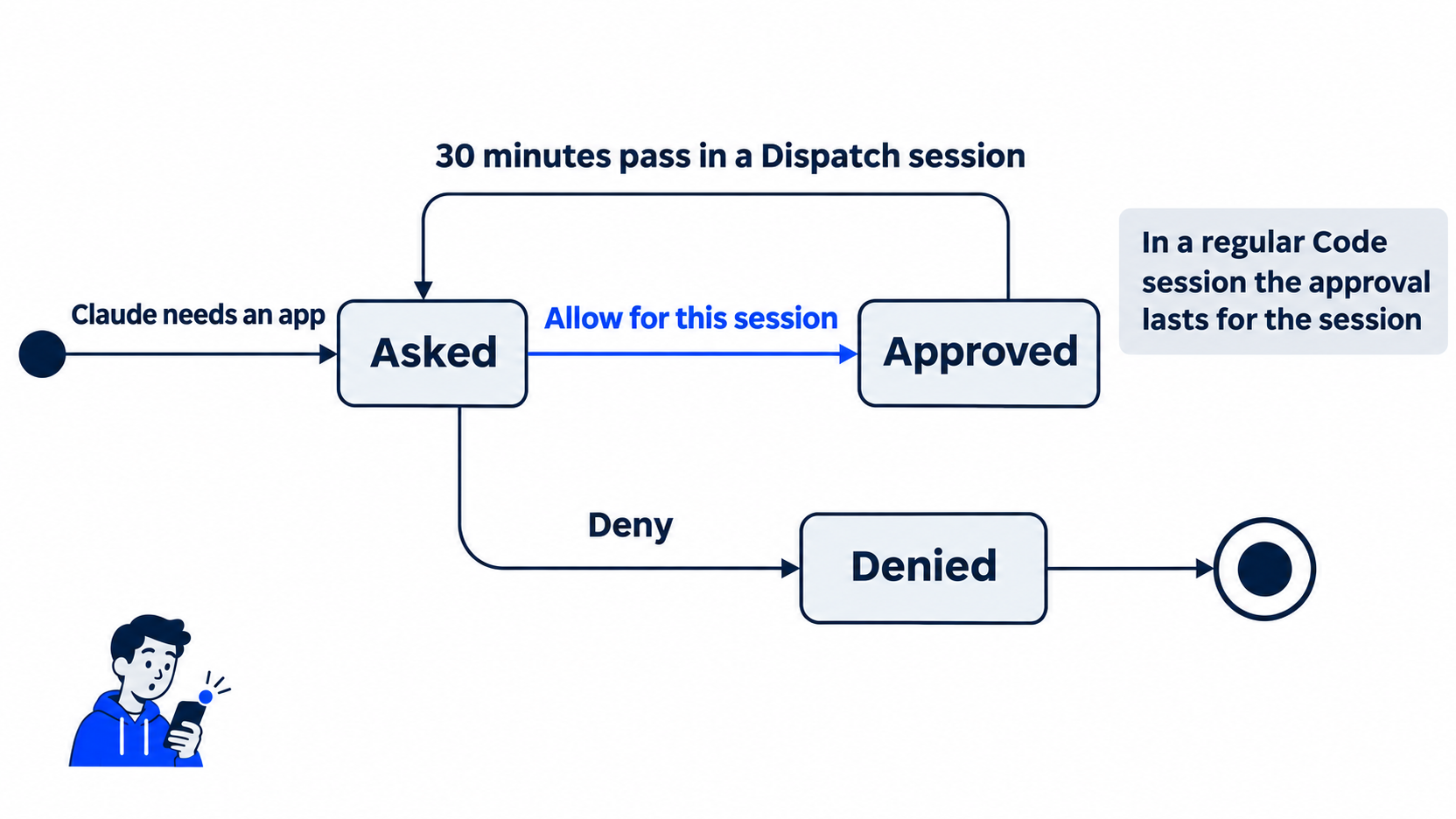
The first time Claude needs an app, a prompt asks you to choose Allow for this session or Deny. In a regular Code session, the approval lasts for the session. The Desktop docs say that in a session that Dispatch started, app approvals expire after 30 minutes and Claude asks again. You are away from the desk, so an approval that you gave an hour ago does not keep working on its own. A long task that drives an app can stop and wait for a new approval on your phone. Today's task needs no computer use: npm test is a normal command.
The level of control is fixed by the kind of app. Browsers are view only, terminals and IDEs are click only, and other apps get full control.
The safety note in the help article
The help article warns that Dispatch gives your phone a reach into everything on your computer that Claude can use:
Giving a mobile AI agent remote control of a desktop AI agent creates a chain where instructions from your phone can trigger real actions on your computer
It adds that mistakes, or harmful content that the model reads along the way, can lead to actions that are hard or impossible to undo. Before you turn Dispatch on, the article asks you to trust every app and service in the chain, to know which files and accounts Claude can reach, and to know how to disconnect quickly. Its last line on the subject:
Only connect these agents if you're comfortable with what they could do, not just what you intend them to do.
Today's prompt follows that advice in a small way. It names one folder, asks for one command, and says what Claude must not do. You approve the folder and the command once each, from the phone. The git status check at the desk confirms it. The setup page is the other half: connectors and computer use were on for the tested account, so turn off what a task does not need.
Claude Tag: @Claude in Slack for a team
Claude Tag puts Claude in your team's Slack channels. Anyone in a channel can mention @Claude with a task, and Claude posts a checklist in the thread as it works. It is in public beta. This guide did not test it, because it needs a Slack workspace paired with a Claude organization.
The docs say that Claude Tag is for Team and Enterprise plans on Anthropic's own service. It is not on the individual plans: Free, Pro, Max, or Ultra. Dispatch is the reverse: Pro, Max, and Ultra only. Claude Tag does not run on your computer. Each conversation gets a sandbox that holds the code and files for the task, and the sandbox is discarded when the conversation goes idle. Claude reaches your repositories through the Claude GitHub App, so it works on the copy on GitHub, not on ~/code/ticket-triage.

The two tools split by plan and by place. Dispatch reaches your own computer for one person, and Claude Tag works for a team in Slack on a copy of the code.
An Owner of your Claude organization sets it up once, at claude.ai/admin-settings/claude-tag. The docs list the steps: send @Claude connect in Slack to get a pairing code, enter the code on the setup page, set a monthly spend limit, add Claude to channels, and launch. After launch, people in those channels need no setup of their own. Channel work bills to the organization's usage balance, under the spend limit.
To learn what Claude can reach in a channel, the docs suggest that you ask it:
@Claude what can you access from this channel?
Claude Code in Slack, the earlier version
Before Claude Tag, Claude Code in Slack sent @Claude mentions to a cloud session under your own account. It still works, with limits. It answers only Pro, Max, and Ultra accounts, and only in a Slack workspace that no organization has connected to Claude Tag. It needs cloud sessions turned on for your account and a GitHub account with at least one repository connected at claude.ai/code.
The setup, from the docs: a workspace admin installs the Claude app from the Slack App Marketplace. You open the app's App Home tab in Slack, click Connect Claude account, and choose a Routing Mode: Code only sends every mention to Claude Code, and Code + Chat lets Claude decide. Then you invite Claude to a channel with /invite @Claude. It works in channels, not in direct messages. When Claude finishes, its message has View session to open the transcript and Create PR to open a pull request.
The docs warn that Claude reads the conversation around a mention and may follow directions from other messages in it, so use it only in Slack conversations that you trust. In a workspace that is connected to a Claude organization, the earlier version replies with a notice that opens The legacy Claude in Slack bot is retired effective October 5, 2026 and no longer responds in channels.
Corrections to the first edition
"Claude Code Away from the Terminal," Part 4, was written before these changes. Checked against the help article and the Desktop docs on November 17, 2026:
- Dispatch is now in limited beta and is not available to new users. The first edition did not say so.
- The plans are Pro, Max, and Ultra. The first edition said Pro or Max.
- The Desktop app now runs on Linux. The first edition said that Dispatch does not work on Linux. Today, only computer use is missing from the Linux beta.
- The approval expiry is a documented 30 minutes. The first edition called it roughly half an hour and not a published number.
- Pairing now starts from a top-level Dispatch item in the Desktop app's sidebar, with I'm signed in on my phone and the
Get ready to dispatchpage. This guide tested both. Setup then ends at Finish setup, a label from the tester's report of the run, not from a screenshot. The first edition described a prompt to pick a machine on your first message. - The first edition said that Dispatch sessions carry a Dispatch badge and use git worktrees. Today's Dispatch docs mention neither, and the Desktop docs say that Worktree is off by default.
- The computer use switch is under Settings > This computer > System or Capabilities, not under a General page.
Go further: Text a Task to Claude and Walk Away: A Practical Guide to Dispatch adds the first edition's list of tasks that route to Code and its delegation versus presence comparison with Remote Control. Read its availability, plan, and Linux lines with the corrections above, because the help article now says that Dispatch is not available to new users.
Do this today
Everyone
- If you already use Dispatch, look for Dispatch in the Desktop app's sidebar. If it is there, send
Open a Claude Code session in ~/code/ticket-triage, run npm test, and reply with the pass and fail counts. Do not change any files.from Dispatch on your phone, and choose Allow once at the folder prompt and thenpm testprompt. If you do not have Dispatch, connect with/remote-control Ticket Triage, open the session on your phone, and sendRun npm test and reply with the pass and fail counts. Do not change any files.Check the win: the counts on your phone match yournpm test,ℹ fail 0shows, andgit statusprintsnothing to commit, working tree clean. - Habit: when you hand off a task from your phone, say in the prompt what Claude must not change, and run
git statuswhen you are back at the desk. Check: your next prompt from the phone ends with a limit, such asDo not change any files.
If you read Going deeper
- See whether computer use is on. In the Desktop app, open Settings, then This computer > System or Capabilities, and find Computer use. Check: you can say whether Enable computer use is on. If there is no Computer use section at all, that is the answer: the docs say computer use is not available on Linux or on Team and Enterprise plans. This guide did not run this step. Reset: leave the switch as you found it, unless you want Dispatch sessions to drive your apps.
- If your team has Claude Tag in a Slack channel, send
@Claude what can you access from this channel?in that channel. Check: Claude replies in the thread with what it can reach. This guide did not run this step. It changes nothing on your computer. Check thatgit status --shortprints nothing.
A task from your phone, a check at your desk
Dispatch moves the start of a task to your phone and keeps the work on your own computer. The prompt names one folder and one command, and it says what Claude must not change. You approve the folder and the command once each.
The reply is the part that needs a second look. Its counts were right, and one of its claims was wrong. Run git status and npm test when you are back at the desk, and let the terminal have the last word.
This is Part 20 of "Claude Code, Day-to-Day (second edition)," a day-by-day guide to Claude Code in which each day takes 20 to 40 minutes. Part 20 is Day 20. All 28 days are out now.