
Ready Is Not Proof: Connect an MCP Server to Cursor and Watch the Agent Call It
A line that says an MCP server is ready proves only that a program started; the proof that the agent can use it is one tool call with an answer you already know, read in the transcript, and the Cursor CLI makes that check a ten-minute habit.

Add a server in .cursor/mcp.json, approve it, call one tool whose answer you already know, and remove it again, all tested on the Cursor CLI.
You added an MCP server, the CLI said ready, and you still could not tell whether the agent could use it or was quietly answering on its own.
In this article: Day 10 of an 18-day guide. Start here connects a test MCP server to a small sample project, approves it with
cursor-agent mcp enable, calls itsget-sumtool from a session, reads the server's own answer in the transcript, and removes the server so the project ends the day exactly as it started. Going deeper covers how to allow a tool without a prompt (and which allow list Cursor actually reads), where else servers come from, transports and secrets, and what MCP costs you.
Tested on Cursor CLI 2026.11.13-eacade1. Editor steps: written from the docs, not yet run.
Yesterday you wrote the tt-add-keyword skill, ran it by name for chipped, and watched the agent pick it on its own for cracked, so nine tests pass.
Start here
At the end of today, you have connected an MCP server to Ticket Triage, approved it, called one of its tools from a session, read the tool's answer in the transcript, and removed the server again. The project ends the day exactly as it started.
Starting fresh or fell behind? Run git switch -C main cursor/day-09. This replaces your main with the end of Day 9; to keep your own work, run git branch my-backup first.
Check your starting state
Start where Day 9 ended. Run three checks in ~/code/ticket-triage.
cd ~/code/ticket-triage
git status --short
git log --oneline -1
npm test
git status --short prints nothing. git log --oneline -1 shows the newest commit, with your own hash:
2b8eed7 Add cracked to the damaged keywords
npm test ends with ℹ pass 9 and ℹ fail 0. If any check differs, finish Day 9 first.
What MCP is
Until today, the agent used only the tools that come with Cursor: it reads files, edits them, and runs shell commands. The Model Context Protocol (MCP) is an open standard that lets a separate program, an MCP server, offer more tools to the agent (MCP). Each thing the server can do is a tool, with a name and inputs. When the agent calls a tool, Cursor asks the server to run it and shows the agent the answer.
Today's server is a test server that the MCP project publishes on npm, @modelcontextprotocol/server-everything. It does nothing useful for Ticket Triage; it exists so you can check the wiring. One of its tools, get-sum, adds two numbers, so you know the right answer before you ask. You need npx, which came with the Node.js you installed on Day 1.
Add the server
Cursor reads project MCP servers from .cursor/mcp.json (MCP). Create the file with your editor, or paste this command.
cat > .cursor/mcp.json <<'EOF'
{
  "mcpServers": {
    "tt-everything": {
      "type": "stdio",
      "command": "npx",
      "args": ["-y", "@modelcontextprotocol/server-everything@2.3.0"]
    }
  }
}
EOF
Each entry under mcpServers is one server. tt-everything is the name you give it; the tt- prefix keeps your test server apart from any server a plugin adds. "type": "stdio" means Cursor starts the server as a program on your machine and talks to it through its input and output. command and args are that program: npx downloads version 2.3.0 of the package and runs it, and -y answers yes to the download question.
Ask the CLI what it sees.
cursor-agent mcp list
tt-everything: not loaded (needs approval)
The CLI found the server and did not start it. A project file can name any program, so Cursor waits for you to approve each new server. Listing its tools fails for the same reason:
cursor-agent mcp list-tools tt-everything
Failed to list tools: Failed to load MCP 'tt-everything': MCP server "tt-everything" has not been approved
Approve the server
Approve the server for this project, then list it and its tools again. The first run can be slower while npx downloads the package.
cursor-agent mcp enable tt-everything
cursor-agent mcp list
cursor-agent mcp list-tools tt-everything
✓ Enabled and approved MCP server: tt-everything
tt-everything: ready
Tools for tt-everything (18):
- echo (message)
...
- get-sum (a, b)
...
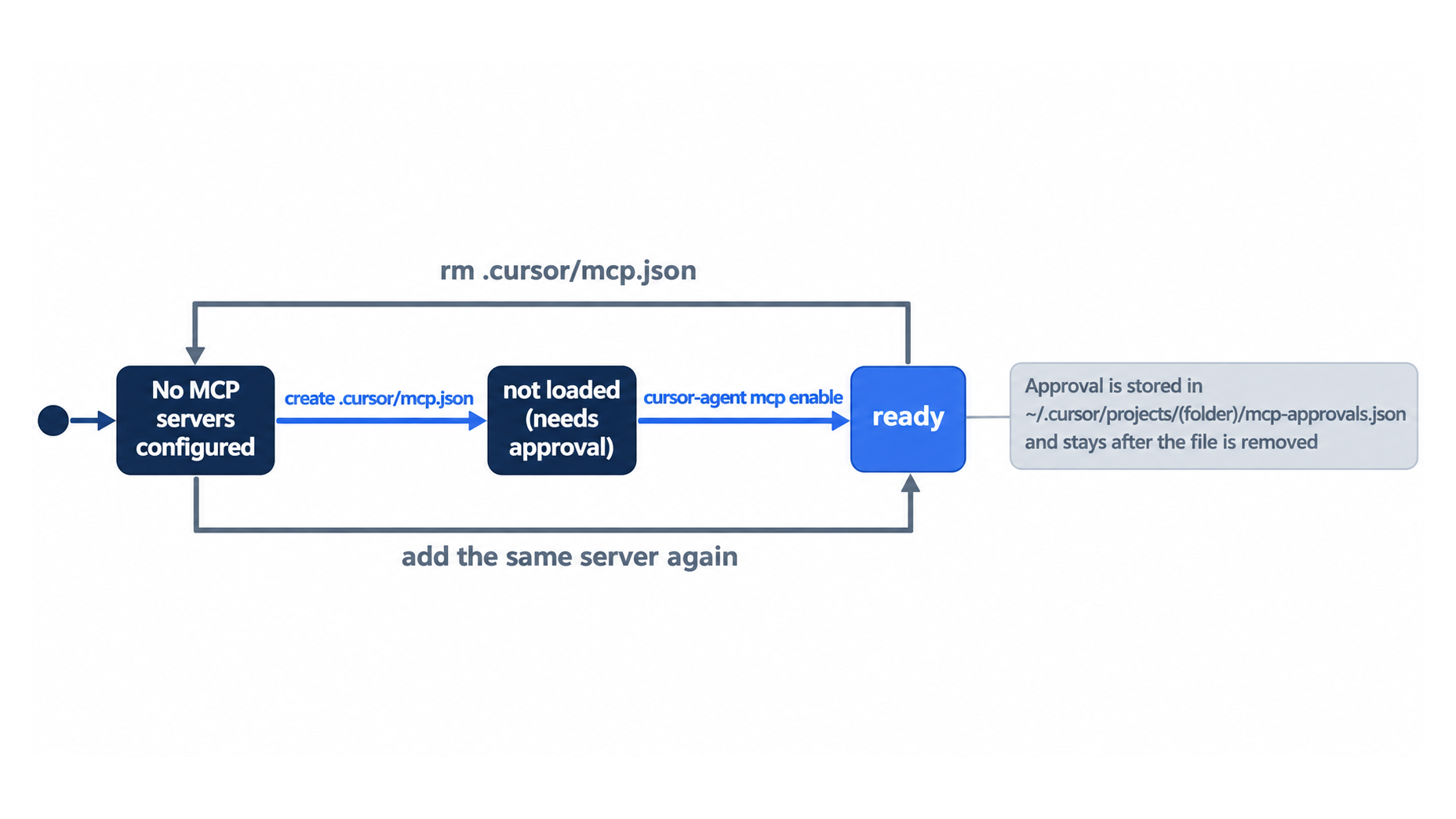
ready means the server started and answered. It does not yet prove that the agent can use it. Each tool shows its inputs in parentheses: get-sum takes a and b. The approval covers this project folder only; a copy of the repository in another folder asks again.
Call a tool from a session
Start a session and ask for the tool by name, with numbers whose sum you know.
cursor-agent
Use the get-sum tool on the tt-everything MCP server to add 17 and 25. Report the tool's exact result.
The agent looks up the tool and prepares the call, and the CLI stops to ask:
 tt-everything: get-sum
   {
     "a": 17,
     "b": 25
   }

 Run this MCP tool?
  → Run (once) (y)
    Allowlist MCP Tool (tab)
    Reject & propose changes (p)
    Skip (esc or n)
The box names the server, the tool, and the exact inputs. Read them before you approve, because they are what the server receives. Press y. The transcript shows tt-everything get-sum, and the agent reports:
The get-sum tool returned: The sum of 17 and 25 is 42.
The tool's sentence is the proof. The agent did not do the sum itself; the server wrote "The sum of 17 and 25 is 42," and the agent passed it on.
Allowlist: one prompt, Run this MCP tool?. Choose Run (once).
Auto-review: no prompt. The tool ran, and the agent reported the same sentence.
Leave the session.
/quit
Remove the server
You do not need a test server in Ticket Triage, so remove it.
rm .cursor/mcp.json
cursor-agent mcp list
git status --short
npm test
No MCP servers configured (expected in .cursor/mcp.json or ~/.cursor/mcp.json)
git status --short prints nothing, and npm test shows ℹ pass 9.
The same steps in the editor
The editor reads the same .cursor/mcp.json (CLI MCP). The steps add a file and then remove it, so do them in the CLI or in the editor, not both. Every step here is written from the docs, not yet run.
- (written from the docs, not yet run) Create
.cursor/mcp.jsonwith the same text. Open Customize in the sidebar and findtt-everythingamong the MCP servers. Turn it on there if it is off (MCP). - (written from the docs, not yet run) In the Agent panel, send the same
get-sumrequest. The docs say that Cursor asks before it uses an MCP tool, and that you can open the arguments with the arrow next to the tool name (MCP). Approve it and read the result. - (written from the docs, not yet run) Delete
.cursor/mcp.jsonand check thatgit status --shortprints nothing andnpm testshowsℹ pass 9.
Your win
You saw the win in the session: the tool call tt-everything get-sum and the answer "The sum of 17 and 25 is 42." Now check that the project is back where it started.
cursor-agent mcp list
git status --short
git log --oneline -1
npm test
The first line says No MCP servers configured. git status --short prints nothing, the last commit is still Add cracked to the damaged keywords, and npm test shows ℹ pass 9 and ℹ fail 0. You added an outside tool, proved the agent could call it, and left nothing behind in the project's files. The approval stays in your user folder, as Going deeper explains.
You can stop here. Going deeper explains why this works and where it breaks.
Going deeper
This section is for readers who want to stop the tool prompt for good, see where else servers come from, and know what MCP costs. It assumes that you finished Start here in Parts 1 to 10.
Why ready is not the finish line
Picture the usual first MCP session. You paste a config block from a README, run a list command, see a green ready, and move on. A week later the agent gives you an answer about your ticket system, and you cannot say whether it came from the server or from the model's own guess.
The ladder you climbed today has four rungs, and only the last one is proof. The config file makes the server visible. Approval lets it start. ready says it answered Cursor. Only a tool call, with inputs you read in the approval box and a result you could predict, shows that the agent used it.
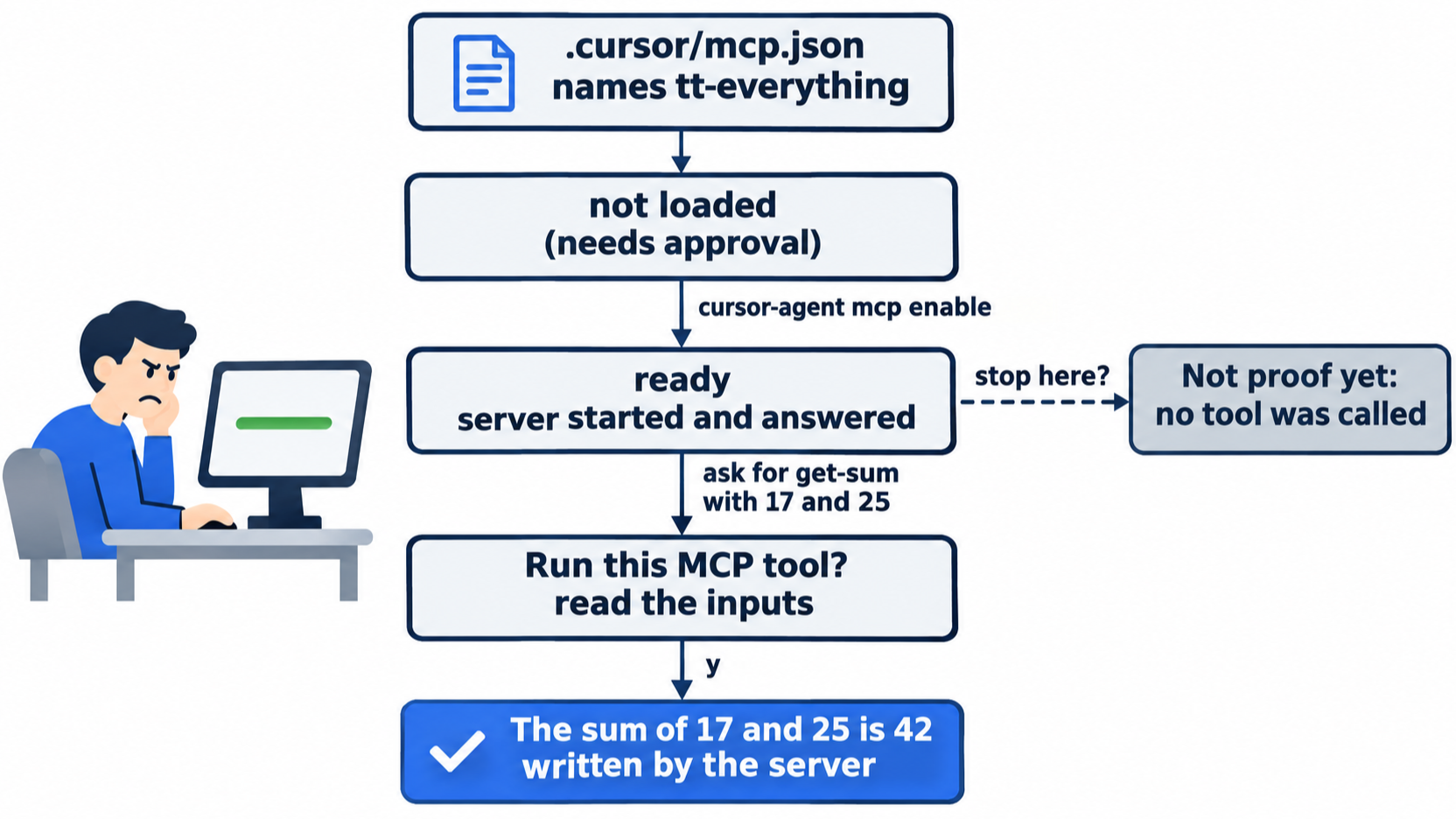
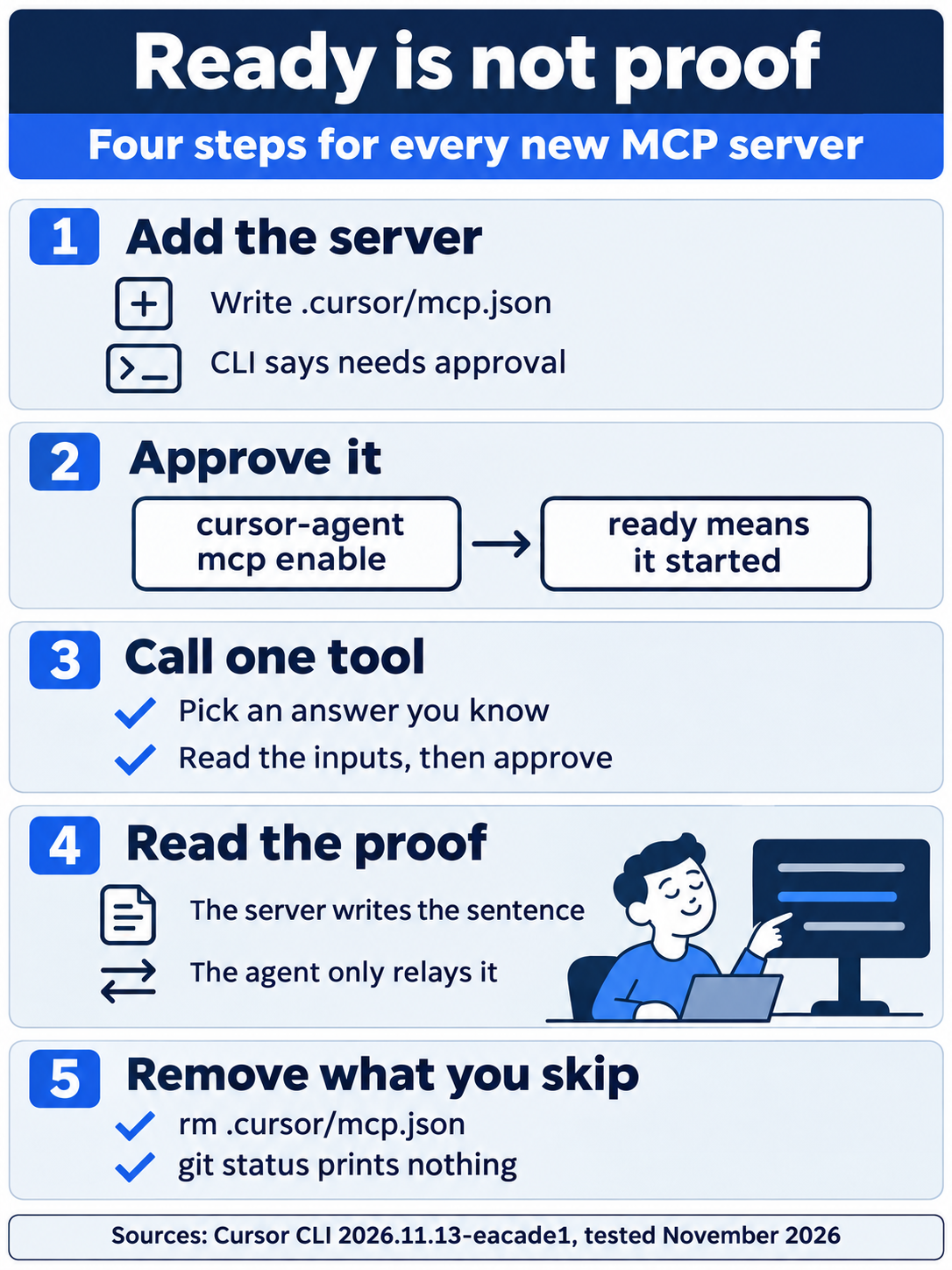
Turn the ladder into a habit for every new server: approve it, call one tool with an input whose answer you already know, read the server's own sentence in the transcript, and remove the server if you will not keep it.
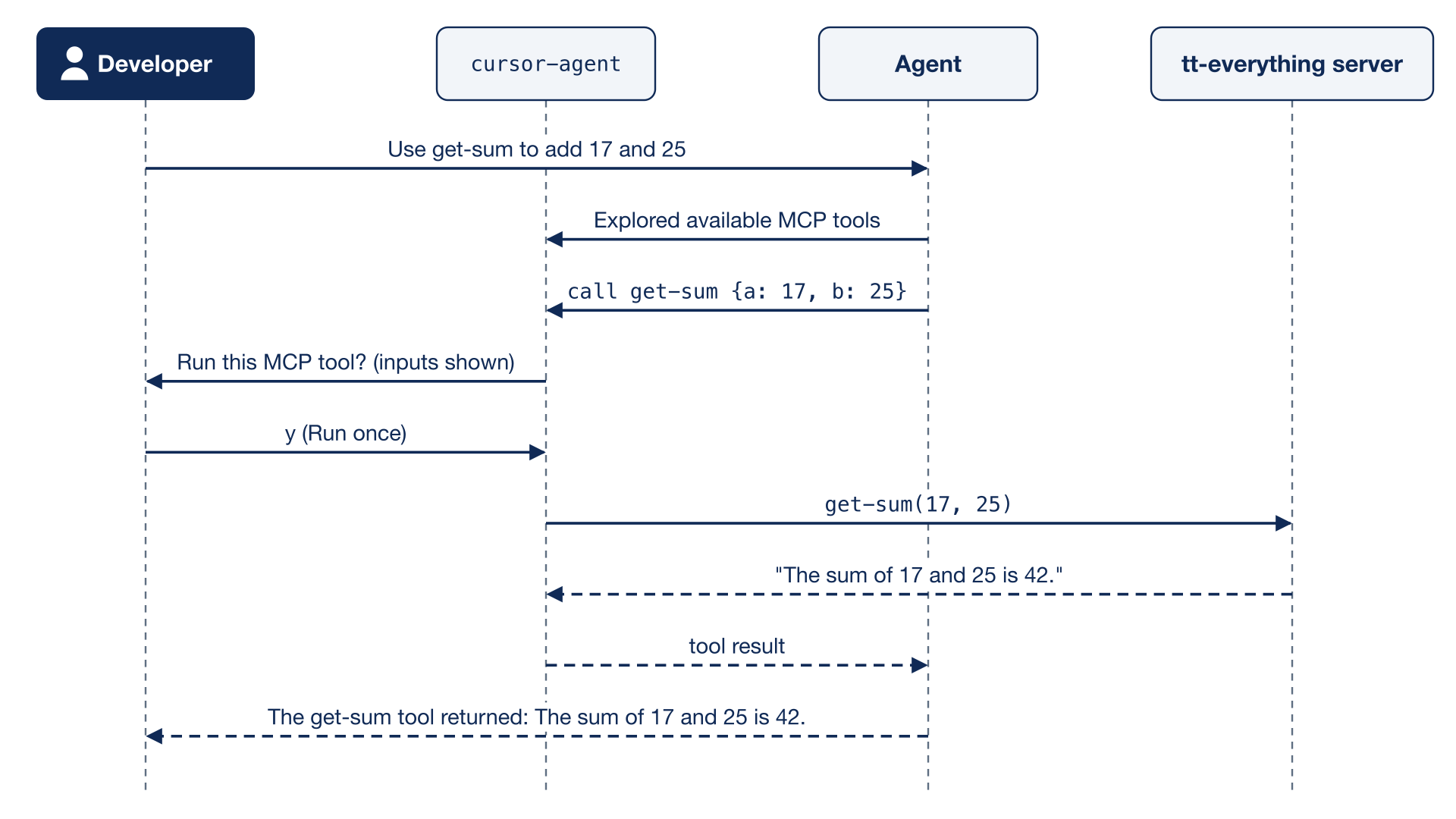

The scene is the moment the check pays off: a known input, an approved call, and a sentence the server wrote, sitting in the transcript where you can point to it.
Allow a tool without a prompt
The prompt's second choice, Allowlist MCP Tool (tab), stops the question for that tool. A permission token for an MCP tool has the form Mcp(server:tool), and Mcp(server:*) covers every tool on one server (CLI permissions). This guide tested where the entries work.
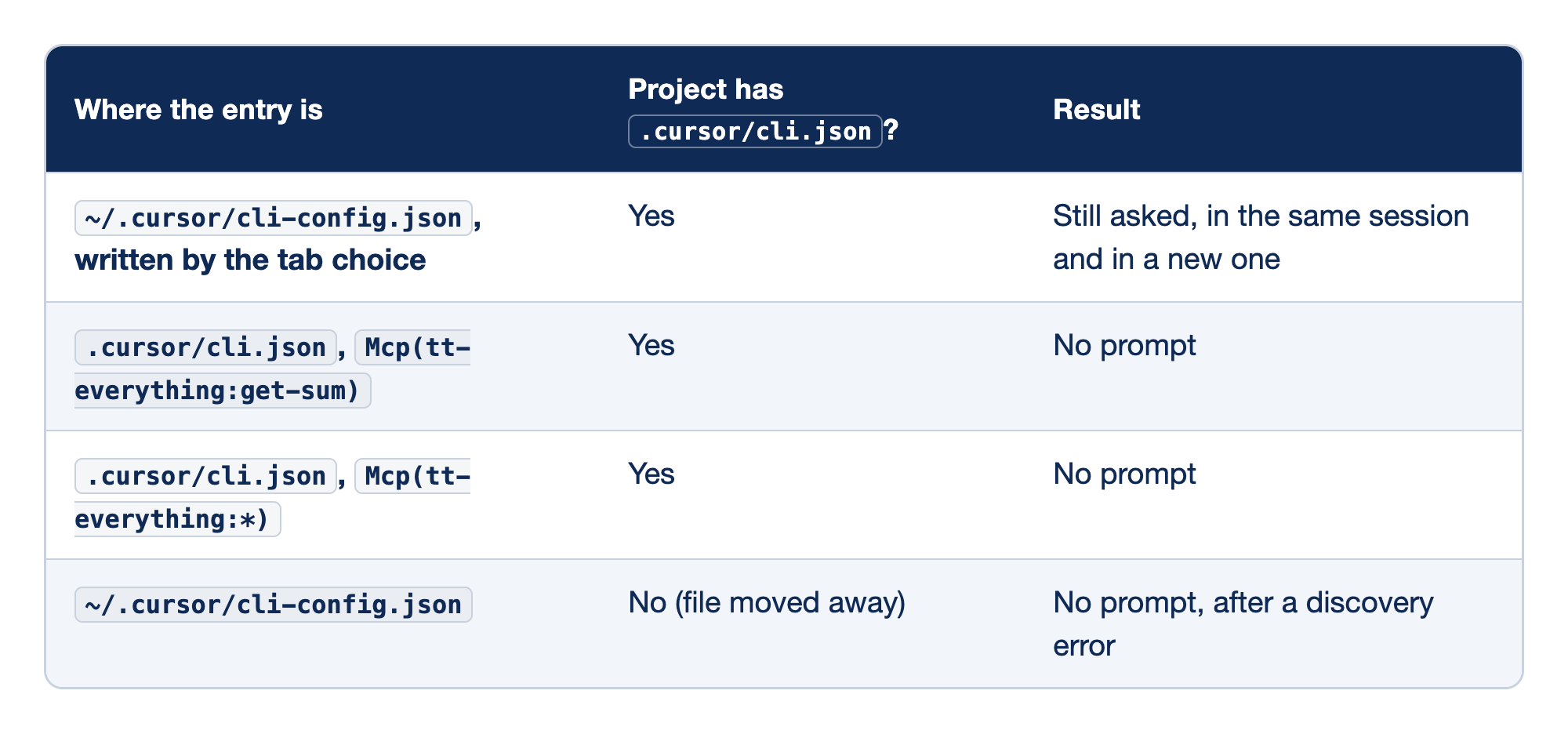
Four tested placements of an MCP allow entry show which file Cursor read. The "Where the entry is" column names the file and, for the project file, the exact token. The "Project has .cursor/cli.json?" column says whether the project kept its own permissions file during the run. The "Result" column says whether the CLI still asked before the get-sum call.
~/.cursor/cli-config.json, written by the tab choice: the tab choice wrote"Mcp(tt-everything:get-sum)"to your user file while the project had its own.cursor/cli.json, and the next call still asked, in the same session and in a new one..cursor/cli.json,Mcp(tt-everything:get-sum): the same entry in the project file stopped the prompt..cursor/cli.json,Mcp(tt-everything:*): the server-wide form in the project file also stopped the prompt.~/.cursor/cli-config.json: with the project file moved away, the user file's entry worked. In both sessions of that run, live tool discovery first failed with "This MCP server failed during live tool discovery." In one session, the agent also tried to runnpxto check the package, and the tester skipped that command. The call then ran with no prompt.
In a project with its own .cursor/cli.json, only the project file's allow list applied.
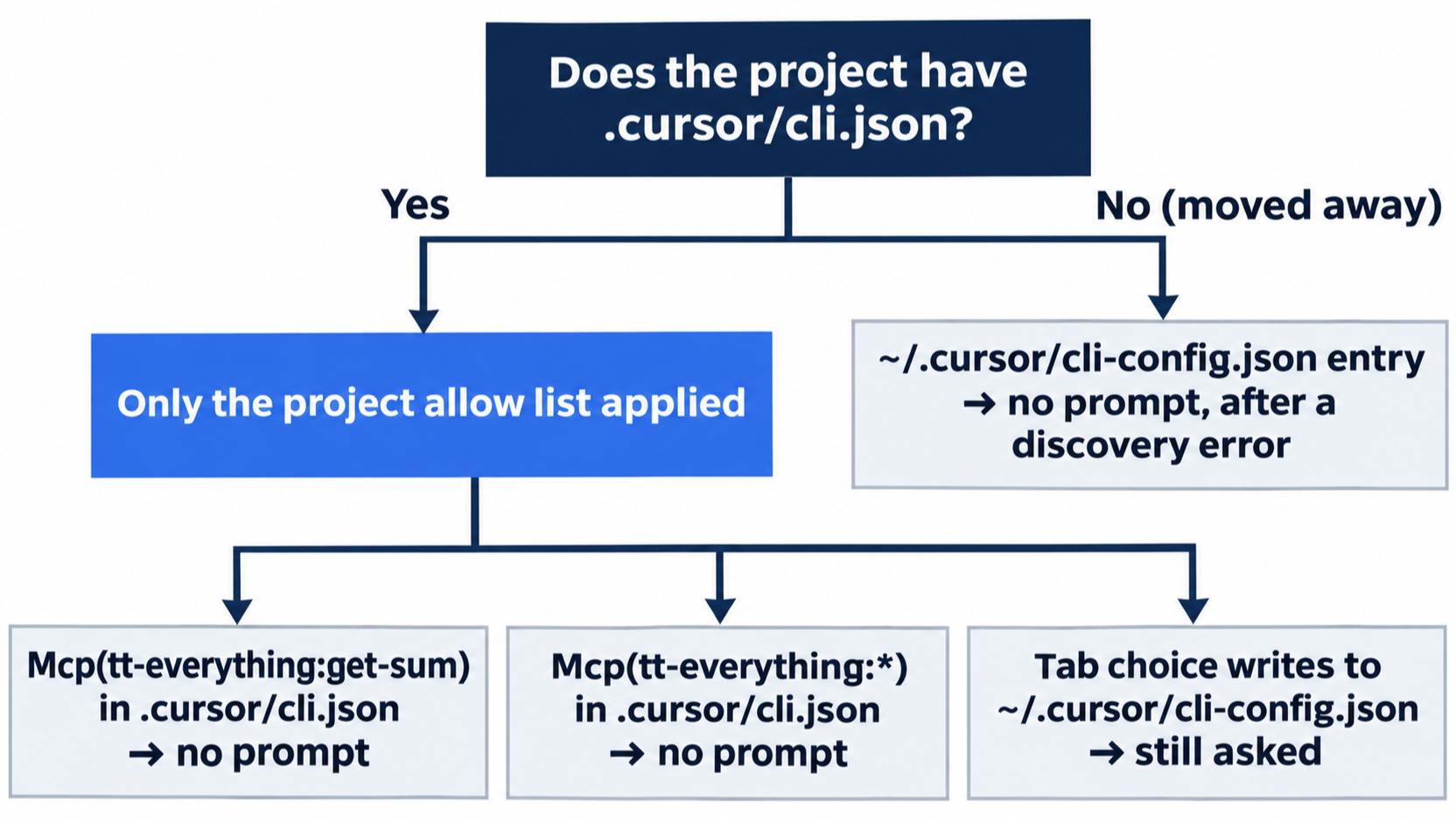
The same held for a shell command: with the project file in place, the user file's Shell(ls) entry from a new install did not apply, and ls asked. No docs page says how the two files combine, so treat this as the tested behavior on 2026.11.13-eacade1. Ticket Triage has had a project file since Day 4, so add MCP entries there:
{
  "permissions": {
    "allow": ["Shell(npm:test)", "Mcp(tt-everything:get-sum)"],
    "deny": ["Shell(git:push*)"]
  }
}
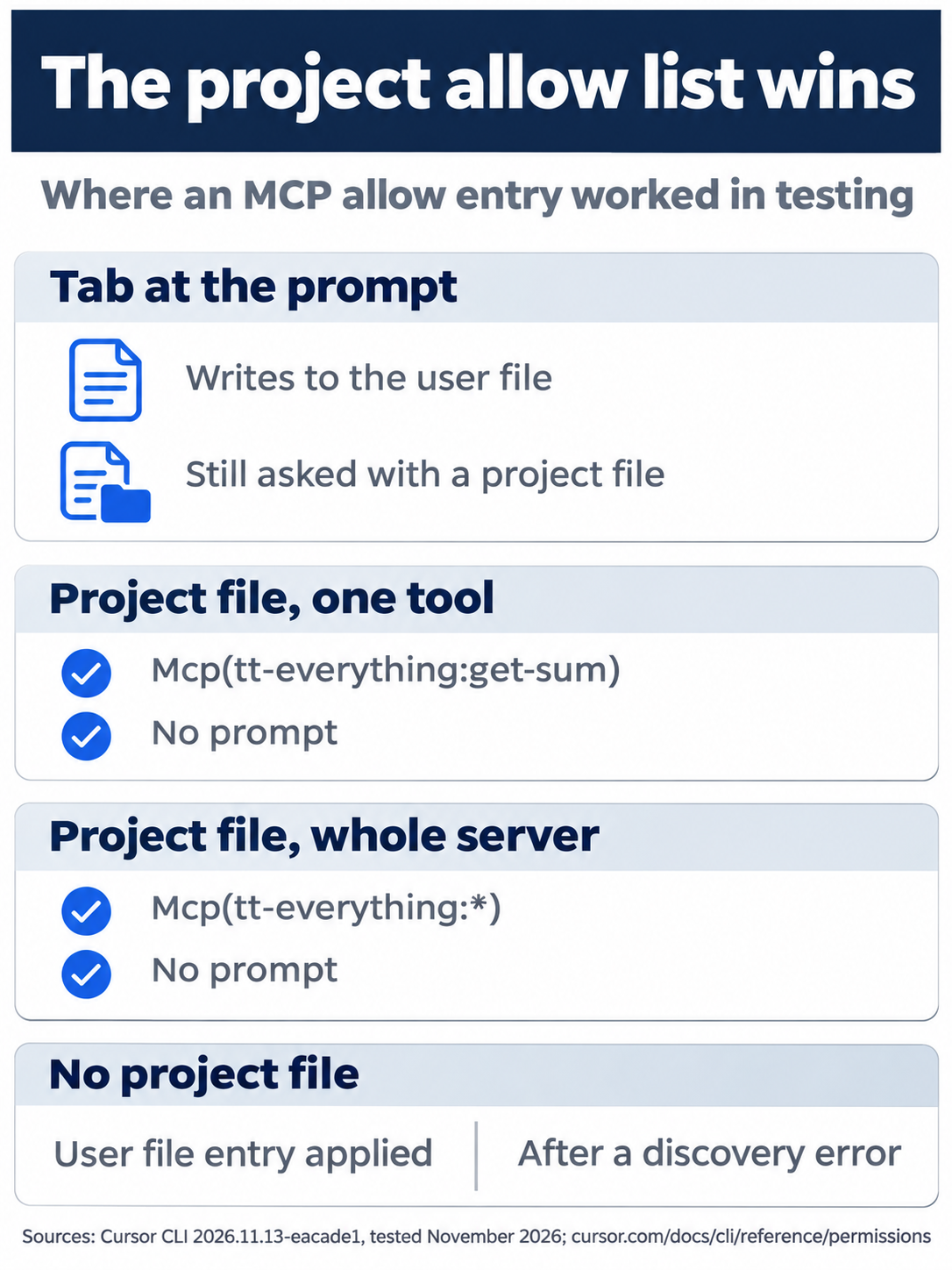
Remember this rule: in a project with its own .cursor/cli.json, the tab choice at the prompt writes to a file that does not apply, so add Mcp(server:tool) or Mcp(server:*) to the project file instead.
For one session only, cursor-agent --approve-mcps approves all MCP servers at start (CLI parameters). This guide did not test it. In Auto-review, an MCP tool that is not on the allow list goes to the classifier, as a shell command does (MCP).
Where servers come from
A project server lives in .cursor/mcp.json, and a server for every project goes in ~/.cursor/mcp.json (MCP). The CLI uses the same files and the same order as the editor: project, then global, then folders above the project (CLI MCP).
Plugins can bring servers too. Inside a session, /mcp list shows every server, grouped by source. On a new account with no plugins, the list has one section (expected, not captured):
 Project
    tt-everything - enabled
On the test account, seven of its eight plugins brought a server. Those servers filled a User section above Project, each marked (plugin) - requires auth, and the list title read MCP Servers (8 servers). The shell command cursor-agent mcp list showed only tt-everything on the test account, so use /mcp list inside a session to see every source.
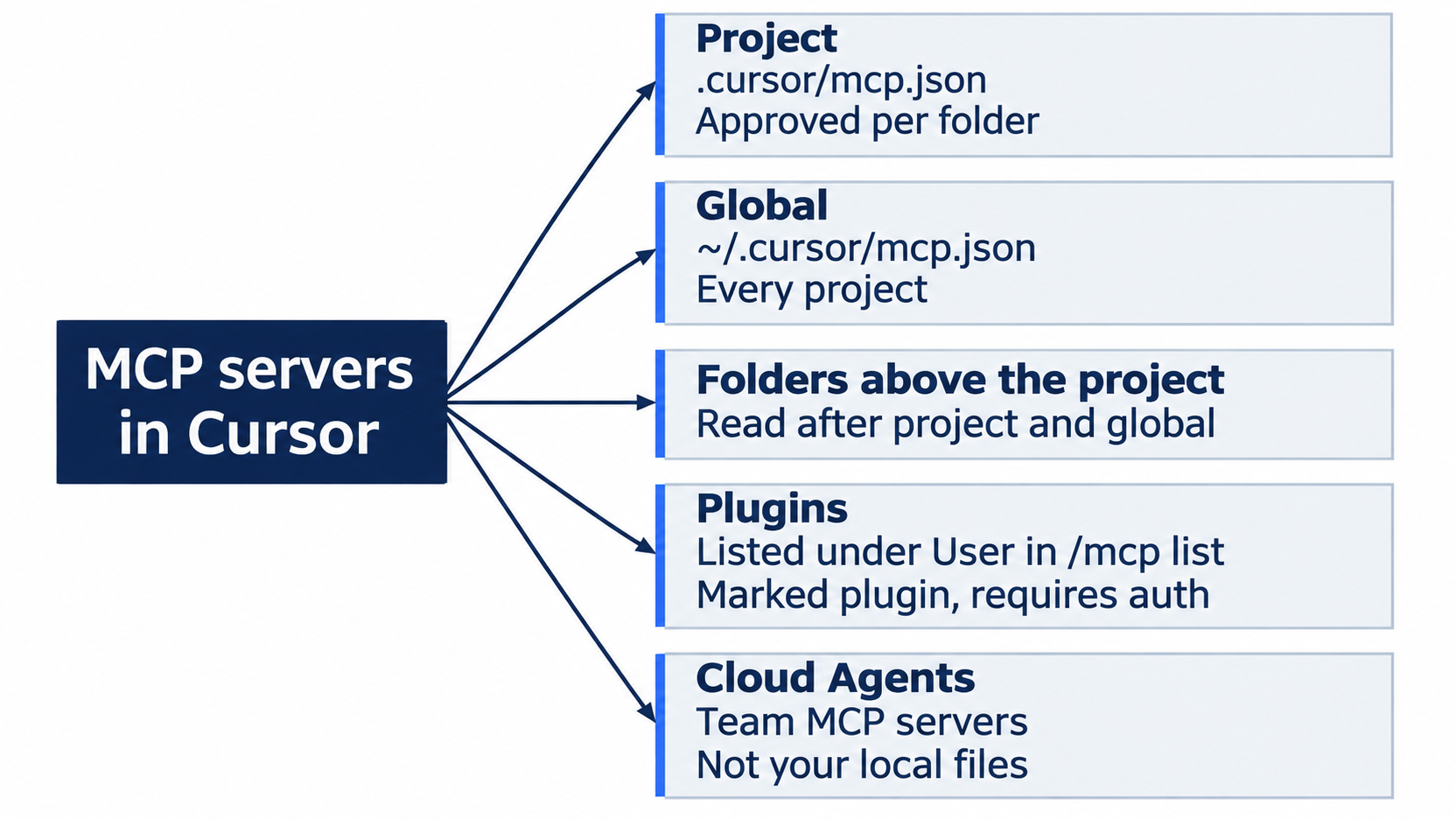
A server marked requires auth waits for cursor-agent mcp login <name>, which signs you in to that service (CLI MCP). cursor-agent mcp disable <name> stops a server from loading without deleting its entry (CLI MCP). This guide did not test it.
Approving a server writes to your user folder, not the project. On the test machine, cursor-agent mcp enable added an entry to ~/.cursor/projects/<project folder>/mcp-approvals.json. Removing mcp.json leaves that approval in place, so adding the same server back does not ask again.
If you pressed Tab at the tool prompt, your user file now holds an Mcp(...) entry. Open ~/.cursor/cli-config.json in an editor, delete that line from permissions.allow, along with the comma before it, and check:
grep Mcp ~/.cursor/cli-config.json
It prints nothing.
Transports and settings
Cursor supports three ways to reach a server (MCP):
stdio: Cursor starts the server on your machine, as today.- SSE and Streamable HTTP: the server runs elsewhere and you give its URL. These can use OAuth to sign in.
Values in mcp.json can use variables, such as ${env:NAME} for an environment variable and ${workspaceFolder} for the project folder (MCP). Keep secrets out of a committed mcp.json: use ${env:NAME} or the envFile field for a stdio server. Cloud Agents use the MCP servers set up for your team, not your local files (Cloud Agents).
What MCP costs
This guide did not measure how much context an MCP server uses. The transcripts show Explored available MCP tools before each call, so the CLI looked tools up when it needed them. Even so, every server you keep is one more program that starts with your sessions and one more source of tools to approve. Remove servers you do not use, as you did today.
If you already use Claude Code: Claude Code adds servers with claude mcp add. The Cursor CLI has no add command: you write mcp.json by hand or use the editor, and then cursor-agent mcp enable approves the server.
Do this today
Everyone
-
Repeat the win. Create
.cursor/mcp.jsonwith thett-everythingblock from "Add the server," then approve the server and start a session:cursor-agent mcp enable tt-everything cursor-agentSend this request:
Use the get-sum tool on the tt-everything MCP server to add 17 and 25. Report the tool's exact result.Allowlist: press
yatRun this MCP tool?. Auto-review: no prompt.The result: "The sum of 17 and 25 is 42." Leave the session with
/quit, then remove the server:rm .cursor/mcp.json git status --short npm testgit status --shortprints nothing, andnpm testshowsℹ pass 9. -
Start one habit: before you trust a new MCP server, call one of its tools with an input whose answer you know, and read the answer in the transcript. The result: you can name one call and its result for each server you keep.
If you read Going deeper
-
Allow the tool in the project file. Add the server as in item 1 above, and run
cursor-agent mcp enable tt-everything. Change.cursor/cli.jsonto the version in "Allow a tool without a prompt". Startcursor-agentand send:Call get-sum on tt-everything with 40 and 2. Report the tool's exact result.The result, in testing: no prompt, and "The sum of 40 and 2 is 42." Type
/quit. Reset:rm .cursor/mcp.json git checkout -- .cursor/cli.json git status --short npm testgit status --shortprints nothing, andnpm testshowsℹ pass 9. -
See every server source. Add the server as in item 1 of Everyone and approve it. Start
cursor-agentand type/mcp list. The result: yourtt-everythingunderProject, plus aUsersection if you have plugins with servers. PressEscand type/quit. Reset withrm .cursor/mcp.json, then check thatgit status --shortprints nothing andnpm testshowsℹ pass 9. -
Find the approval. After you approve the server once, run:
cat ~/.cursor/projects/*ticket-triage*/mcp-approvals.jsonThe result, in testing: a list with one entry that starts with
tt-everything-and ends with a code. The file stays after you deletemcp.json. Reset: the step only reads, sogit status --shortprints nothing andnpm testshowsℹ pass 9.
A server is a claim until a tool call proves it
The developer who stopped at ready was not careless. A status line is the natural place to stop, and it looks like success. It only says a program started.
The habit from today costs one prompt: pick a tool whose answer you can predict, read the inputs in the approval box, and find the server's own sentence in the transcript. Do it once for every server you add, and remove the ones you never call.
ready tells you the door is open. A tool call with a known answer tells you someone walked through it.
This is Part 10 of "Cursor, Day-to-Day," an 18-part guide to using Cursor's agent every day, from the CLI and the editor.