
Stop Retyping Your Best Prompt: Turn It Into a Cursor Skill
A Cursor skill turns a request you keep retyping into one SKILL.md file that costs a name and a description until it is needed, and the only real trap is keeping two copies of it.
A Cursor skill is one folder with one SKILL.md file. Write the steps for a routine change once, run them by name, watch the agent pick them on its own, and learn why two copies of one skill can quietly run different steps.
You have typed the same four-step request into the agent for the third time this week, and every time you wonder which step you forgot to mention.
In this article: Day 9 of an 18-day guide. Start here writes a
tt-add-keywordskill for Ticket Triage, a small support-ticket classifier, finds it in the Cursor CLI's/skillslist, runs it by name for one keyword, and then asks in plain words for a second keyword and watches the agent choose the skill itself. Going deeper covers every folder Cursor reads skills from, the frontmatter fields that change when a skill loads, Cursor's built-in skills, the open Agent Skills standard, a tested look at one skill name in two folders, and how Cursor compares with four other agent tools.
Tested on Cursor CLI 2026.11.13-eacade1. Key editor steps tested in the Cursor editor 3.30.14; other editor steps are written from the docs.
Part 8 read your plan and usage in /usage and found where to set a spending cap, and nothing in the project changed. Today you save a request you have typed before, so you never spell out its steps again.
Start here
By the end of today, Ticket Triage has a project skill named tt-add-keyword, the CLI lists it in /skills, and two new keywords, chipped and cracked, each have a test. You run the skill by name for the first keyword. For the second, you ask in plain words and watch the agent pick the skill on its own.
Starting fresh or fell behind? Run git switch -C main cursor/day-08. This replaces your main with the end of Day 8; to keep your own work, run git branch my-backup first.
Check your starting state
Start where Day 8 ended. Run three checks in ~/code/ticket-triage.
cd ~/code/ticket-triage
git status --short
git log --oneline -1
npm test
git status --short prints nothing. git log --oneline -1 shows the newest commit, with your own hash:
5882705 Add dented to the damaged keywords
npm test ends with ℹ pass 7 and ℹ fail 0. If any check differs, finish Day 5 first; Days 6 to 8 changed no files.
What a skill is
On Days 1 and 2 you spelled out every step of a keyword change in the prompt: which file, which test, run the tests. On Day 5, AGENTS.md carried one of those steps for you. A skill saves the steps in a file, so you write them once. It is a folder that holds one file, SKILL.md. The file starts with a short header between two --- lines, called frontmatter, with two fields: name and description. Under the header are the steps, in plain Markdown (Agent Skills).
A skill differs from an AGENTS.md rule in one way that matters. A rule from AGENTS.md goes to the agent at the start of every session. A skill does not. At the start, the agent gets only each skill's name and description. It reads the full steps only when it uses the skill, either because you typed / and the skill's name, or because your request matched the description (Agent Skills).
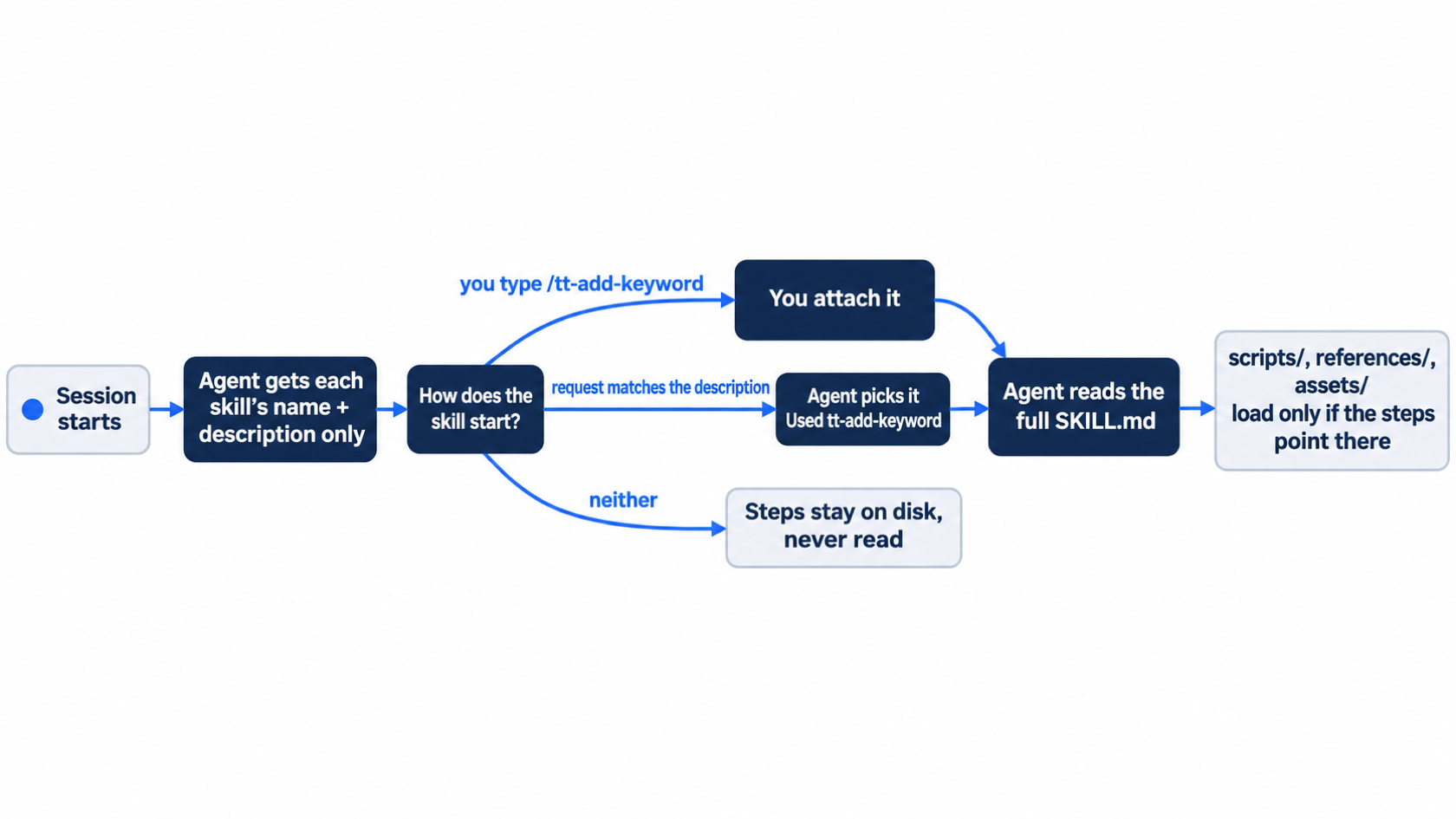
On every turn that does not use the skill, its steps stay on disk.
Cursor finds project skills in .agents/skills/ and .cursor/skills/ (Agent Skills). This guide uses .agents/skills/. The name field must match the folder name, in lowercase letters, numbers, and hyphens.
Write the skill
Make the folder and the file. Use your editor, or paste this command into the terminal.
The command makes the skill folder, then writes one SKILL.md file in two halves: frontmatter that the agent reads at the start of every session, and numbered steps that it reads only when it uses the skill.
mkdir -p .agents/skills/tt-add-keyword  # ①
cat > .agents/skills/tt-add-keyword/SKILL.md <<'EOF'  # ②
---
name: tt-add-keyword  # ③
description: Add a keyword to one category in src/classify.js, with a test named after the keyword. Use when the user asks to add a keyword or a ticket phrase to a category.  # ④
---

# Add a keyword

The user names a keyword and a category, such as "chipped as damaged".

1. Add the keyword to the check for that category in `src/classify.js`. Change no other check. <!-- ⑤ -->
2. Add one test to `test/classify.test.js`. Name the test after the keyword, and use a short ticket that contains it.
3. Run `npm test`.
4. Report the pass and fail counts. Do not commit. <!-- ⑥ -->
EOF
① The folder goes in .agents/skills/, one of the two project locations Cursor scans for skills, and the folder name is the skill's name.
② The quoted 'EOF' writes every line up to the closing EOF into SKILL.md as literal text, with no shell expansion.
③ The name field matches the folder name, in lowercase letters, numbers, and hyphens, as Cursor requires.
④ The description is the only text, besides the name, that the agent sees at the start of a session, so it says both what the skill does and when to use it.
⑤ Each step names one file and one change, and this step limits the edit to a single check.
⑥ The last step fixes what the agent reports and stops it before a commit, so you review the change first.
Note: The full extracted listing at code/cursor/part-9-skills/listings/01-tt-add-keyword-skill.sh is the complete command without the markers, ready to run from the repository root.
The tt- at the front of the name stands for Ticket Triage. A short prefix keeps your skills apart from skills that Cursor adds, or that a plugin adds. A plugin is an add-on package you install, and it can bring its own skills. The description says what the skill does and when to use it, because the agent decides from the description alone.
Check that git sees one new folder.
git status --short
?? .agents/
Find the skill in the CLI
Start a new session, because the CLI looks for skills when a session starts. Then open the skills list.
cursor-agent
/skills
The top of the list shows your skill, with (project) after its name, and then Cursor's own skills, marked (builtin):
  → + Create new skill
    tt-add-keyword (project)
    agent-sdk-create-agent (builtin)
    autopilot (builtin)
    canvas (builtin)
The title line above the list counts the skills. On a new account with no plugins, the list holds your skill and the built-in skills. The test account had eight plugins installed, and they added 14 more skills, marked (plugin), at the end of its list, for a title of Skills (38 skills).
Press ↓ to move to tt-add-keyword and press v. The CLI shows your file with line numbers and its full path, ending in .agents/skills/tt-add-keyword/SKILL.md. Press Esc twice to close the list.
Allowlist: no prompts. Auto-review: no prompts.
Run the skill by name
Type a slash and the start of the name.
/tt-add
A menu row shows /tt-add-keyword and its description, with the hint enter to attach · option+enter to use as mode. Use Enter today; Going deeper explains Option+Enter. Press Enter to attach the skill to your next message. Then finish the message after the skill name and press Enter:
/tt-add-keyword chipped as damaged
The agent says what it will do, reads src/classify.js and test/classify.test.js, and edits both. Edited classify.js +1 -1 adds chipped to the damaged check, and Edited classify.test.js +2 adds a test named after the keyword:
+ test("chipped", () =>
+   assert.equal(classify("The plate arrived chipped"), "damaged"))
A $ npm test line follows, and the agent reports "8 passed, 0 failed" in its own words. It does not commit, because step 4 of the skill says not to. Your ticket text can differ; the test name chipped comes from step 2.
Allowlist: no prompts. npm test is allowed by .cursor/cli.json from Day 4.
Auto-review: no prompts.
Leave the session, check the work, and commit the skill with the change.
/quit
git status --short
npm test
git add .agents src test
git commit -m "Add the tt-add-keyword skill and the chipped keyword"
Before the commit, git status --short shows M src/classify.js, M test/classify.test.js, and ?? .agents/. npm test ends with ℹ pass 8 and ℹ fail 0.
Let the agent pick the skill
Now ask in plain words, with no slash and no steps. Start a new session and send the request.
cursor-agent
Add the keyword cracked to the damaged category.
This time the transcript has a line that names the skill:
    Read 3 files
    Used tt-add-keyword
    Read src/classify.js
    Read test/classify.test.js
Used tt-add-keyword means the agent matched your request to the skill's description and read the full steps. It then adds cracked to the damaged check, adds a test named cracked, runs npm test, and reports "9 passed, 0 failed." When you attached the skill with /, no Used line appeared, because you had already given the agent the skill.
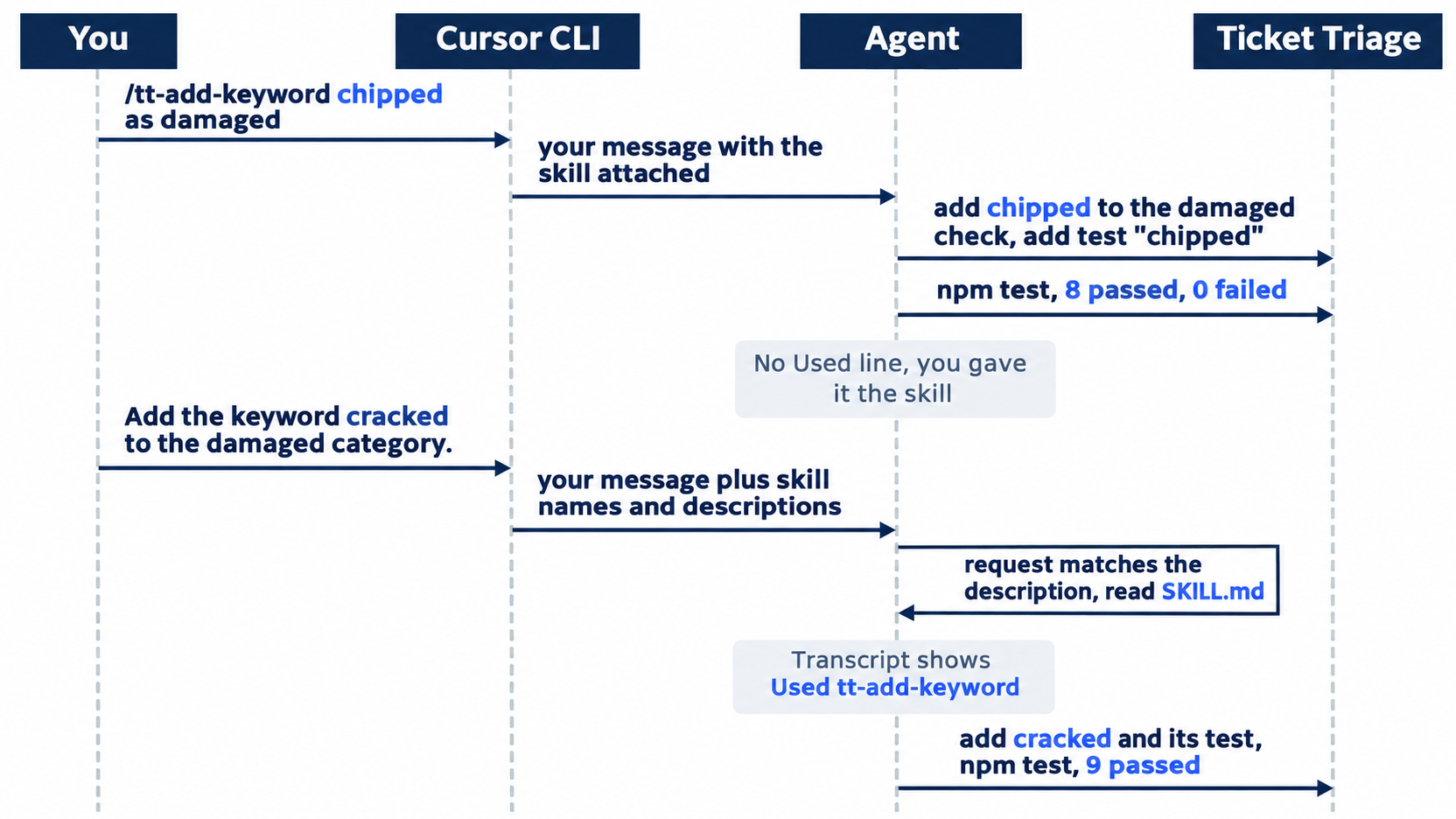
Both runs edit the same two files. The Used line tells you who chose the skill.
Allowlist: no prompts. Auto-review: no prompts.
Leave the session, check, and commit.
/quit
grep -n -E 'chipped|cracked' test/classify.test.js
npm test
git add -A
git commit -m "Add cracked to the damaged keywords"
grep prints the two new tests:
23:test("chipped", () =>
24:  assert.equal(classify("The plate arrived chipped"), "damaged"))
25:test("cracked", () =>
26:  assert.equal(classify("The vase arrived cracked"), "damaged"))
Your line numbers and ticket texts can differ. npm test ends with ℹ pass 9 and ℹ fail 0.
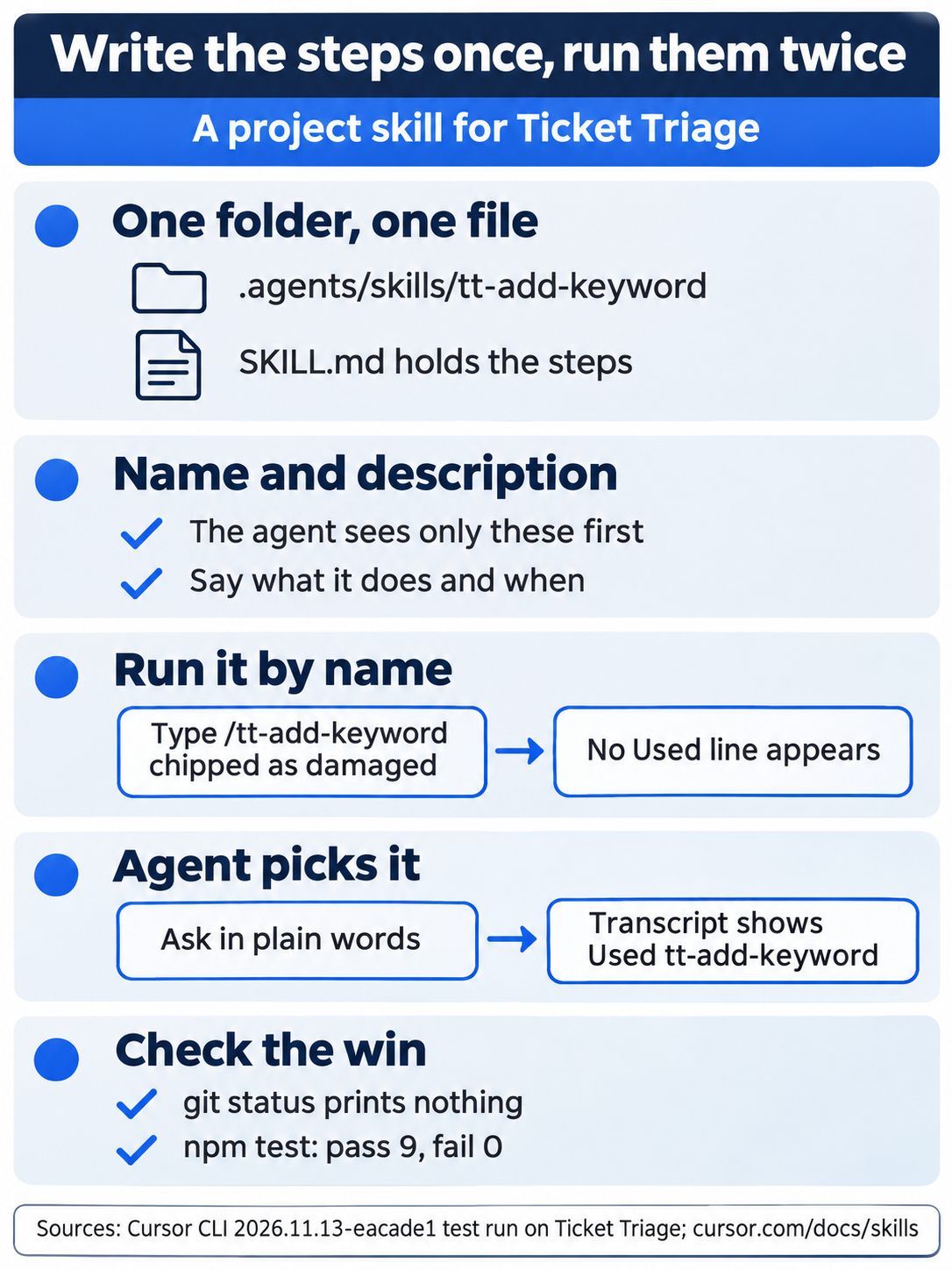
Today's loop comes down to one folder and one SKILL.md, two ways to start it, and a clean git status with 9 passing tests as the proof.
The same steps in the editor
The editor reads the same .agents/skills/ folder, so you do not write the skill again. Listing skills only reads, so you may do it in both. Pick one door for each keyword change. If you already made them in the CLI, read the rest and do not run it. The first two steps were tested in the Cursor editor 3.30.14; the last two are written from the docs, not yet run.
- (tested in the Cursor editor 3.30.14) Open Customize and type
tt-addin its search box (Agent Skills). In testing, the list showed Skills 1 andtt-add-keywordonce. - (tested in the Cursor editor 3.30.14) In the Agent panel, type
/tt-add. In testing, the menu showed one row,/tt-add-keyword, plus + Add Skills. - (written from the docs, not yet run) Pick
tt-add-keywordand sendchipped as damaged(Agent Skills). Approve the test command if the panel asks. Then run the samenpm testcheck in the terminal and commit with the same message. - (written from the docs, not yet run) In a new chat, send
Add the keyword cracked to the damaged category.and look for a sign that the agent used the skill. Check and commit as in the CLI.
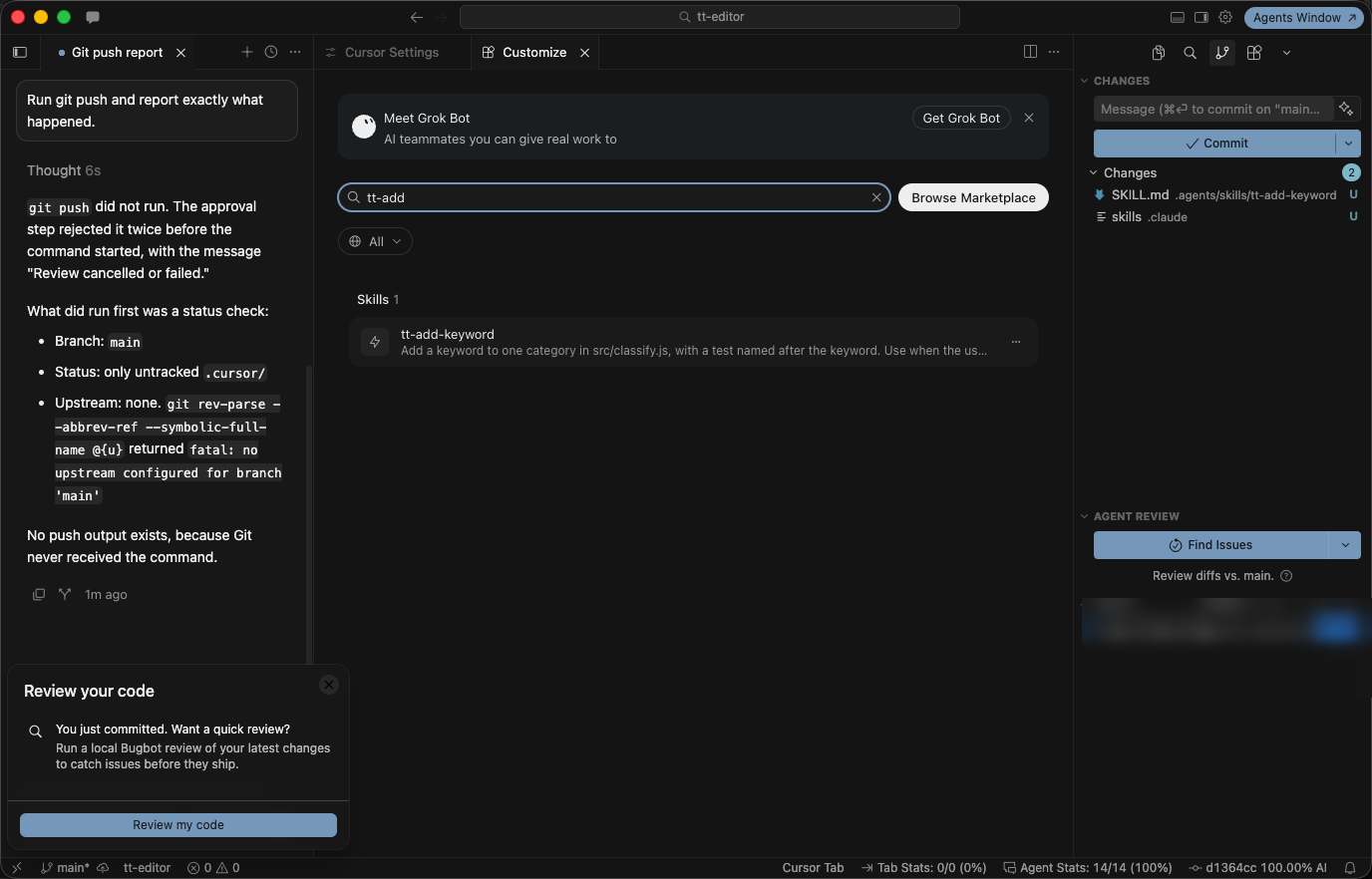
Customize lists the skill once (Skills 1), in the Cursor editor 3.30.14.
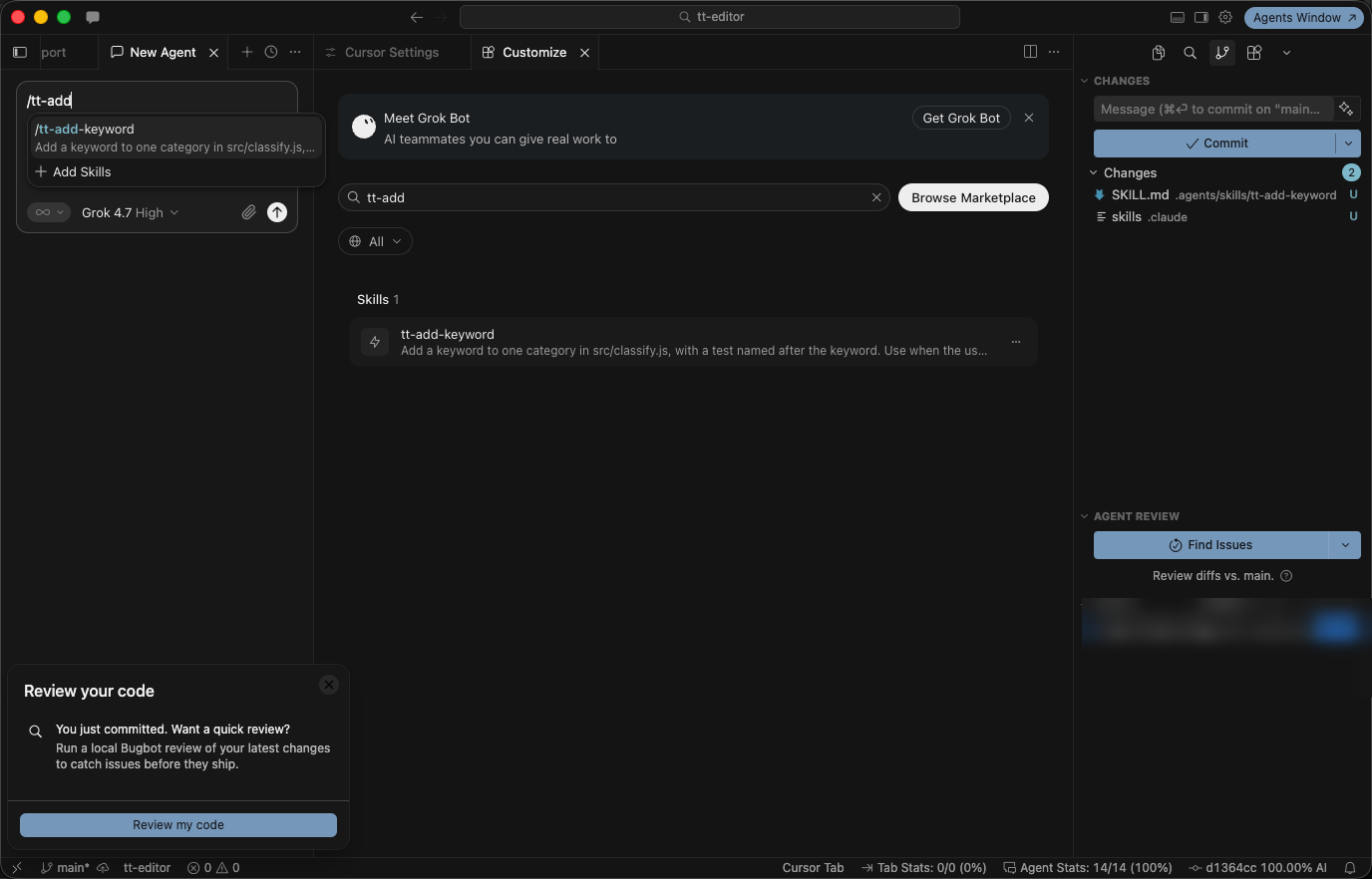
Typing /tt-add in the Agent panel shows one /tt-add-keyword row plus + Add Skills, in the Cursor editor 3.30.14.
Your win
Run cursor-agent, type /skills, find tt-add-keyword (project), press Esc, and type /quit. Then run:
git status --short
git log --oneline -2
npm test
git status --short prints nothing. git log --oneline -2 shows Add cracked to the damaged keywords and Add the tt-add-keyword skill and the chipped keyword. npm test shows ℹ pass 9 and ℹ fail 0. You wrote the steps once, ran them by name, and then saw the agent pick them on its own.
You can stop here. Going deeper explains why this works and where it breaks.
Going deeper
This section is for readers who want every folder Cursor reads, the frontmatter fields that change when a skill loads, the built-in skills, the open Agent Skills standard, and what happens when two folders hold a skill with the same name. It assumes you finished Start here in Parts 1 to 9.
Where Cursor looks for skills
The Agent Skills page lists four folders and four more for compatibility.
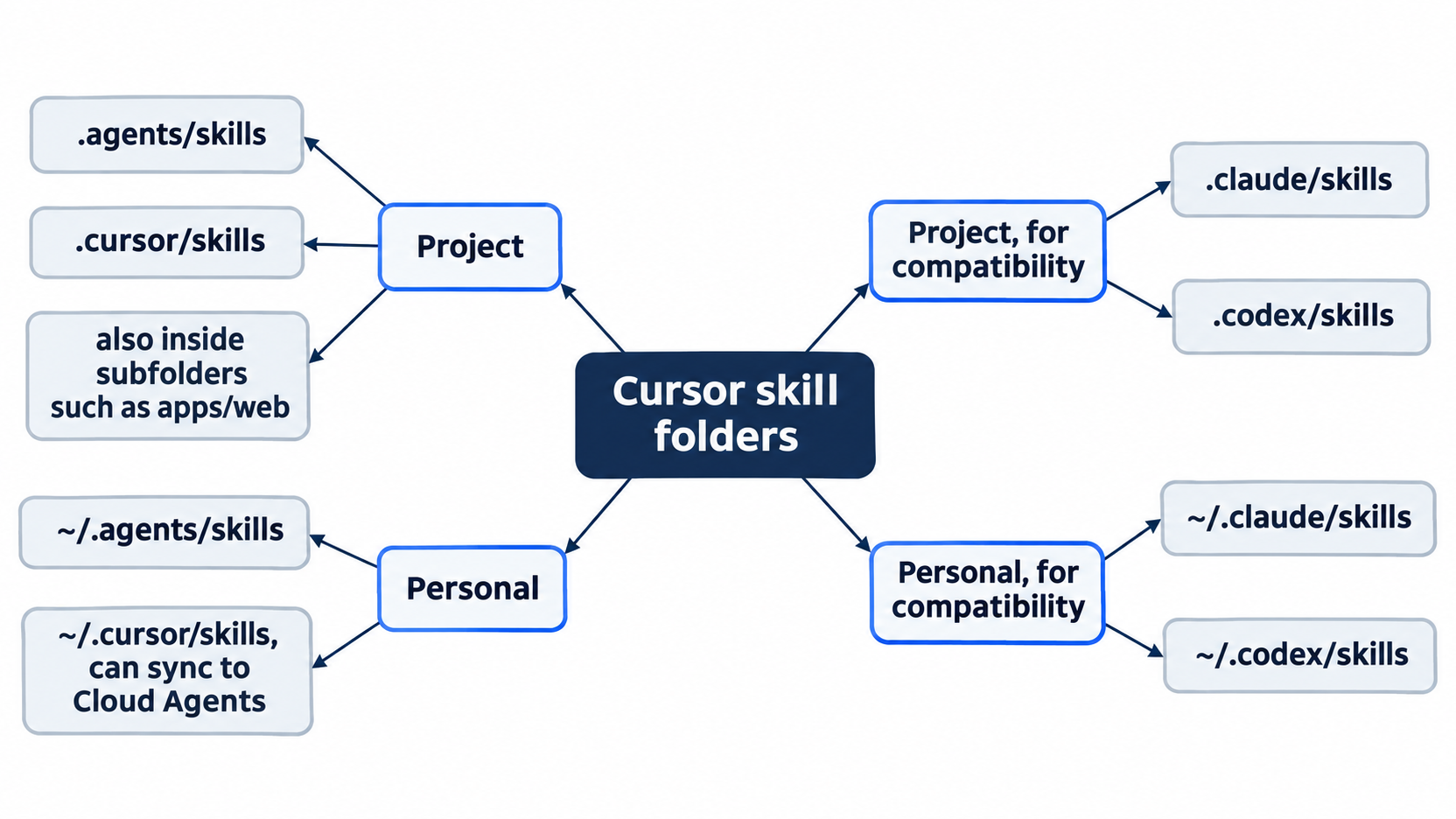
Cursor reads skills from eight folders, in four pairs:
.agents/skills/,.cursor/skills/hold skills that you commit with the project. Cursor also finds these folders inside subfolders of a repository, and a skill inapps/web/.cursor/skills/is offered only when the agent works on files underapps/web/.~/.agents/skills/,~/.cursor/skills/hold your own skills for every project. Only~/.cursor/skills/can sync to Cloud Agents, with Sync Skills for Cloud Agents under Settings > Agents (Agent Skills)..claude/skills/,.codex/skills/let project skills that you wrote for Claude Code and Codex load in Cursor with no change.~/.claude/skills/,~/.codex/skills/do the same for your personal Claude Code and Codex skills.
Skills inside a category folder, such as .cursor/skills/shipping/land-it/SKILL.md, also load. The skill's name comes from the folder that holds SKILL.md, not from the category. The CLI follows symlinked skill folders since v2026.06.22 (CLI changelog).
What loads when
At the start of a session, the agent gets each skill's name and description. It reads the rest of SKILL.md only when it uses the skill. Files in the skill's optional scripts/, references/, and assets/ folders load only when the steps send the agent to them (Agent Skills). A skill can therefore be longer than a rule: you pay for the full text only on the tasks that need it.
Three frontmatter fields change when a skill loads (Agent Skills):
paths: glob patterns, such as"**/*.tsx". The skill is offered only when the agent works on matching files.disable-model-invocation: true: the skill is left out of the list the agent gets at the start, so it loads when you type/and its name, like a saved command. In testing, the agent could still find the file by searching the project and follow it.user-invocable: false: the opposite. The skill is hidden from the/menu, and only the agent can pick it (CLI v2026.07.06, CLI changelog).
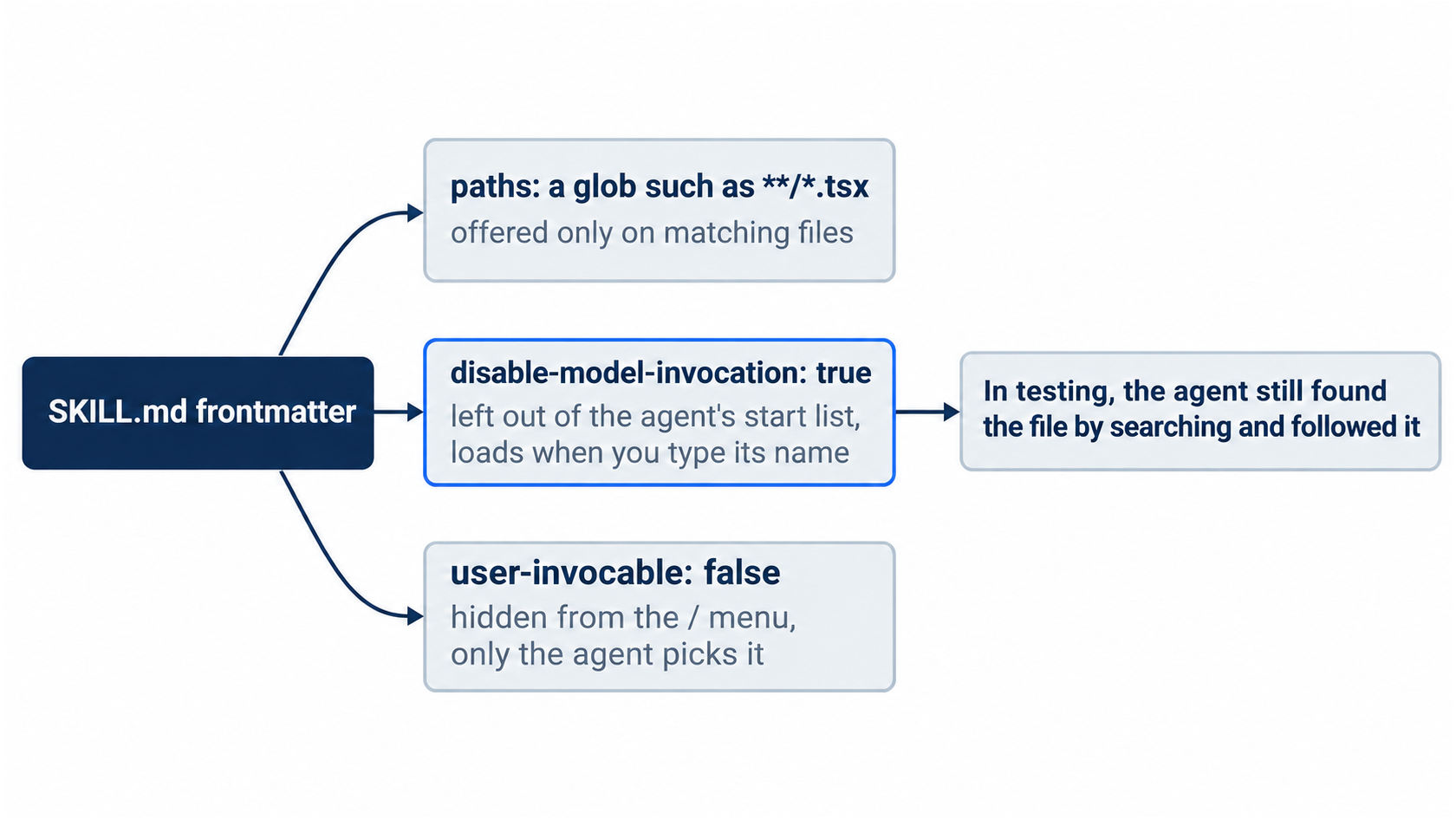
The tested caveat matters most: disable-model-invocation changes what the agent is told at the start, not what it can find by searching.
To keep a skill on for a whole session, pick it in the / menu and press Option+Enter instead of Enter. The skill then works as a Custom Mode until you leave it (Using Agent in CLI). The optional icon and color fields style the mode's badge. Skills also work in print mode: cursor-agent -p "/tt-add-keyword ..." runs the skill without the interactive screen (CLI changelog, May 7, 2026).
Built-in skills
Cursor ships its own skills, managed by Cursor, such as /create-skill, /create-rule, /review, and /loop (Agent Skills). The docs table lists 19. On the tested CLI, /skills listed 23 marked (builtin). The CLI's list had agent-sdk-create-agent, goal, new-repo, origin, rename-chat, and share, which the docs table does not name. The docs table names /automate and /cursor-blame, which the CLI's list did not show. Use /skills on your own version as the list of record.
/create-skill writes a skill for you from a description. The + Create new skill row at the top of /skills opens the same kind of form: "Describe what this skill should do:".
The Agent Skills standard
SKILL.md follows an open format, the Agent Skills specification (checked November 17, 2026). Several agent tools read the same files, which is why a skill in .agents/skills/ can work in more than one tool. The specification's limits:
name: 1 to 64 characters, lowercase letters, numbers, and hyphens, no hyphen at the start or end, no two hyphens in a row, and it must match the folder name.description: 1 to 1,024 characters.- Optional fields:
license,compatibility,metadata, and the experimentalallowed-tools. - The body: under 5,000 tokens is recommended, and
SKILL.mdshould stay under 500 lines, with long material moved to separate files.
Since v2026.10.08, /skills shows a yellow warning count for a skill that loads but breaks these limits, and selecting the skill lists what to fix (CLI changelog). The Cursor fields paths, disable-model-invocation, user-invocable, icon, and color are not in the specification, and another tool can ignore them.
One skill in two folders
This series recommends one copy of each skill in .agents/skills/, with .claude/skills as a symlink to it, so Claude Code reads the same files. Cursor reads both folders, so this guide tested what Cursor does with the same skill in two places. Each case ran once, on 2026.11.13-eacade1, and no docs page describes the behavior.
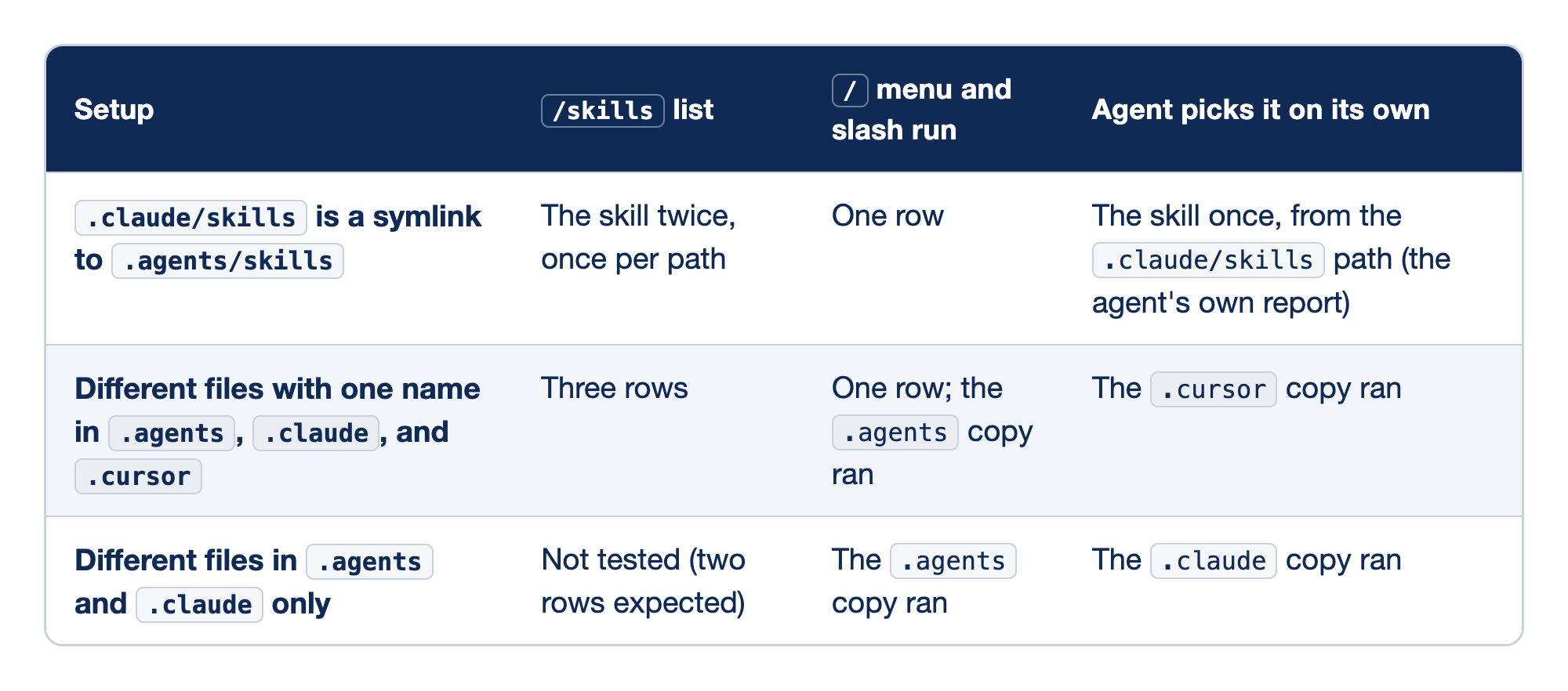
Three setups put one skill name in more than one folder. The Setup column describes the folders, and the other three columns record what the /skills list, the / menu and slash run, and the agent's own choice each did.
.claude/skillsis a symlink to.agents/skills: both paths lead to one file./skillscounts it twice, the/menu shows it once, and the agent reported getting it once, from the.claude/skillspath. The/skillsfooter offersd to delete; this guide did not test what it deletes, and both rows point to one file, so leave them alone. In the Cursor editor 3.30.14, the same symlink setup listed the skill once in Customize (Skills 1), and the/menu showed one/tt-add-keywordrow.- Different files with one name in
.agents,.claude, and.cursor:/skillsshows three rows, typing/tt-clashran the.agentscopy, and a plain request ran the.cursorcopy. - Different files in
.agentsand.claudeonly: the/skillslist was not tested (two rows expected), the slash run still chose.agents, and the agent chose.claude.
The symlink setup is safe, and two different files with one name are not.
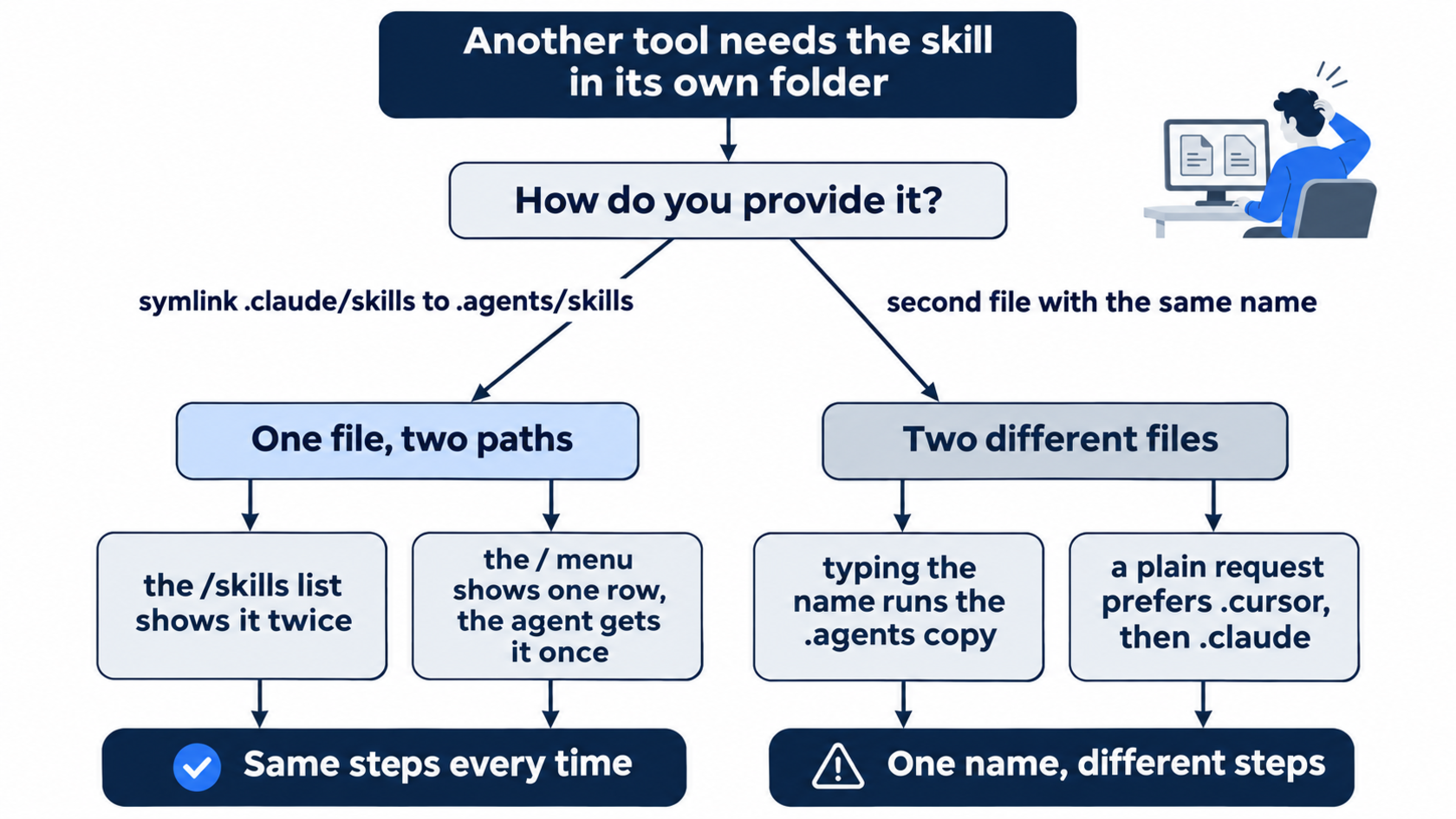
Keep one real folder per skill. If another tool needs the skill in its own folder, use a symlink, never a second copy.
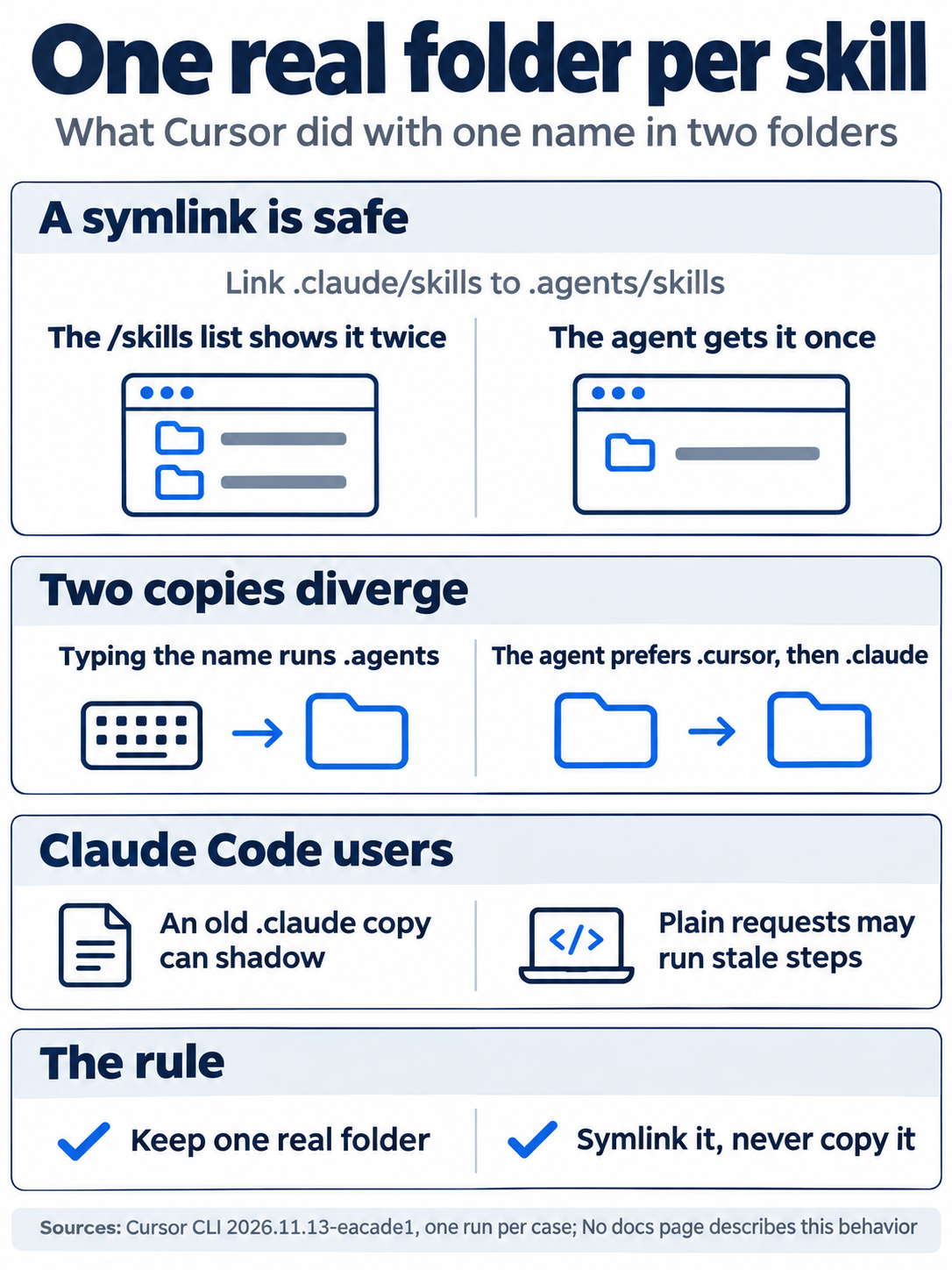
If you also use Claude Code, there is one more risk: an old .claude copy can quietly shadow a newer one in plain requests.
Cursor beside other agent tools
The day-by-day guides compare how agent tools treat the open standards. Cursor's row is new in this guide. The other four rows are copied unchanged from the series' day-by-day contract, dated November 16, 2026, which cites the Copilot CLI plugin reference, Claude Code skills, OpenCode skills, and Pi's skills docs. This guide did not retest those four tools.
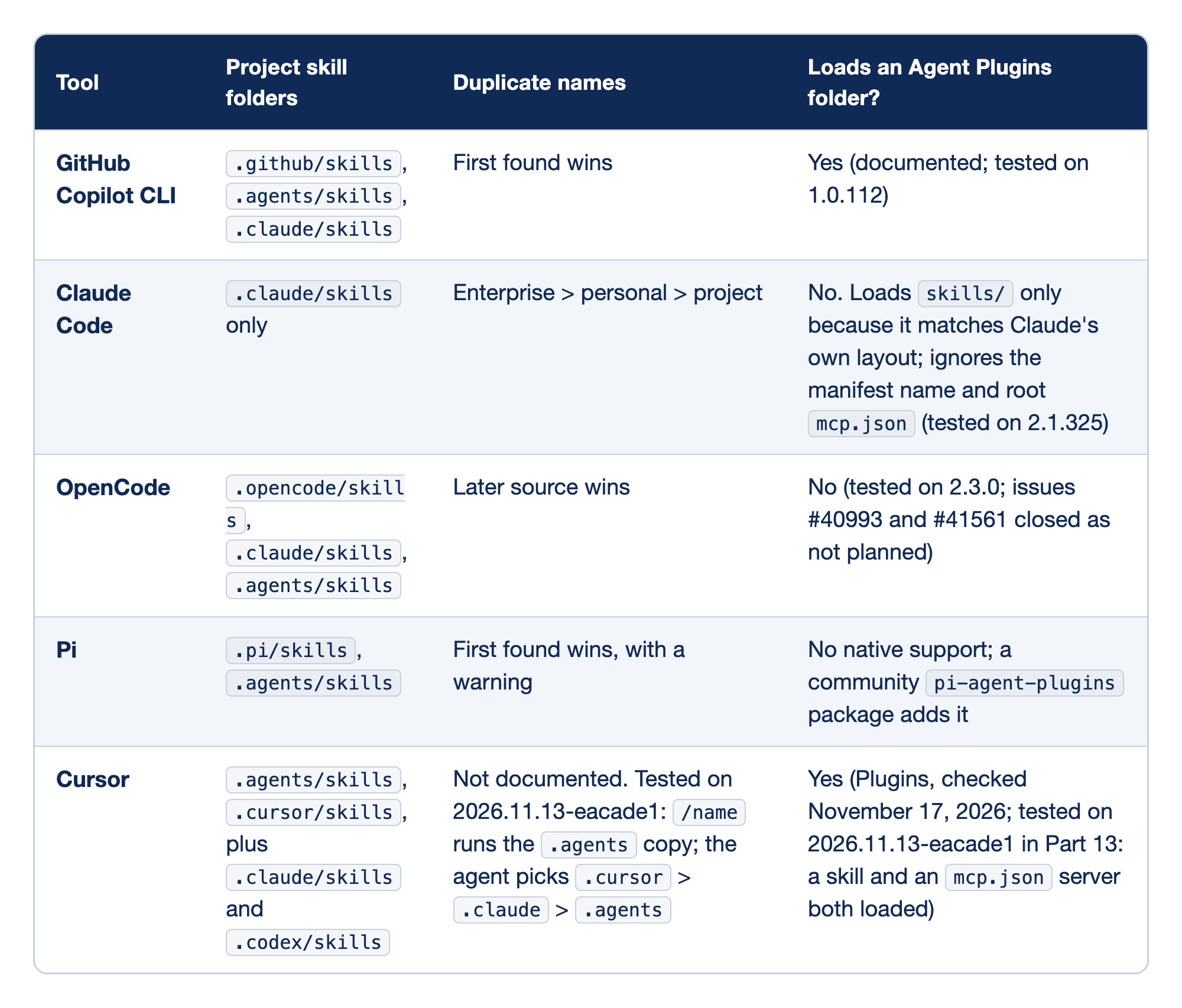
Five agent tools differ in where they look for skills and what they do with a repeated name. The Tool column names each tool, Project skill folders lists the folders it reads, Duplicate names says which copy wins, and Loads an Agent Plugins folder? says whether it loads an open-format plugin package.
- GitHub Copilot CLI reads
.github/skills,.agents/skills, and.claude/skills, keeps the first copy it finds, and loads an Agent Plugins folder (documented, and tested on 1.0.112). - Claude Code reads only
.claude/skills, ranks duplicates enterprise over personal over project, and does not load an Agent Plugins folder: it loadsskills/only because that matches its own layout, and ignores the manifest name and rootmcp.json(tested on 2.1.325). - OpenCode reads
.opencode/skills,.claude/skills, and.agents/skills, lets the later source win, and does not load an Agent Plugins folder (tested on 2.3.0; issues #40993 and #41561 closed as not planned). - Pi reads
.pi/skillsand.agents/skills, keeps the first copy with a warning, and has no native plugin support, although a communitypi-agent-pluginspackage adds it. - Cursor reads
.agents/skills,.cursor/skills,.claude/skills, and.codex/skills. Its duplicate rule is not documented; in this guide's test,/nameran the.agentscopy and the agent picked.cursorover.claudeover.agents. It loads an Agent Plugins folder (documented, and tested in Part 13: a skill and anmcp.jsonserver both loaded).
Cursor reads more skill folders than the other tools, and in this guide's test its two ways of starting a skill picked different copies.
The same tt-add-keyword folder in .agents/skills/ loaded in Cursor with no change, which is what the open format promises. An Agent Plugins package bundles skills and other parts for any tool that follows the Agent Plugins standard; the Cursor docs say such a package loads in Cursor, and Part 13 confirms it with a test package. Cursor's own plugin format keeps its manifest in .cursor-plugin/plugin.json (Plugins reference, checked November 17, 2026), and no docs page names a reverse-domain folder for Cursor's own fields.
If you already use Claude Code: your skills in .claude/skills/ and ~/.claude/skills/ already load in Cursor, with no change. The .claude/skills path also wins when the agent picks between two different copies, so an old Claude Code copy can shadow a newer .agents/skills copy in plain requests while /name runs the newer one.
Do this today
Everyone
- Repeat the win. Start
cursor-agent, type/skills, findtt-add-keyword (project), pressEsc, and type/quit. Then rungit status --short,git log --oneline -2, andnpm test. The result: nothing fromgit status --short, the two Day 9 commits, andℹ pass 9withℹ fail 0. - Start one habit: when you type the same multi-step request for the third time, save it as a skill in
.agents/skills/<name>/SKILL.mdand commit it. The result: the next new session lists it in/skills, andgit log --oneline -- .agents/skillsshows the commit.
If you read Going deeper
-
See a symlinked skill listed twice. Run these commands:
mkdir -p .claude
ln -s ../.agents/skills .claude/skills
cursor-agent
Type
/skills,/tt-add, and/quitone at a time, pressingEscafter each list. The result:/skillsliststt-add-keyword (project)twice (pressvon each row to see the two paths), and/tt-addshows one menu row. Reset withrm .claude/skills && rmdir .claude;git status --shortprints nothing andnpm testshowsℹ pass 9. -
Hide a skill from the agent. Add
disable-model-invocation: trueunder thedescriptionline inSKILL.md, startcursor-agent, and send this prompt:Do not run any tool. From the skill list you were given at the start, name every skill whose name starts with tt-, or say there is none.The result, in testing: "There is none." In a second test with the same file, the plain request
Add the keyword scratched to the damaged category.still showedUsed tt-add-keyword, because the agent searched the project, found the file, and followed it. Reset withgit checkout -- .;git status --shortprints nothing andnpm testshowsℹ pass 9. -
Run the skill in print mode. Print mode writes files without
--force(Using Headless CLI). Runcursor-agent -p "/tt-add-keyword scratched as damaged", thengit status --short. The result, in testing: the reply "Addedscratchedto the damaged check and ascratchedtest." and "10 passed, 0 failed", andgit status --shortshows the two changed files. Reset withgit checkout -- .;git status --shortprints nothing andnpm testshowsℹ pass 9.
Write it once, and keep one copy
The opening problem was never the agent. It was you, retyping the same four steps and hoping you remembered all of them. A skill moves those steps into a file the agent reads only when a task needs it, so the steps cost one name and one description on every other turn.
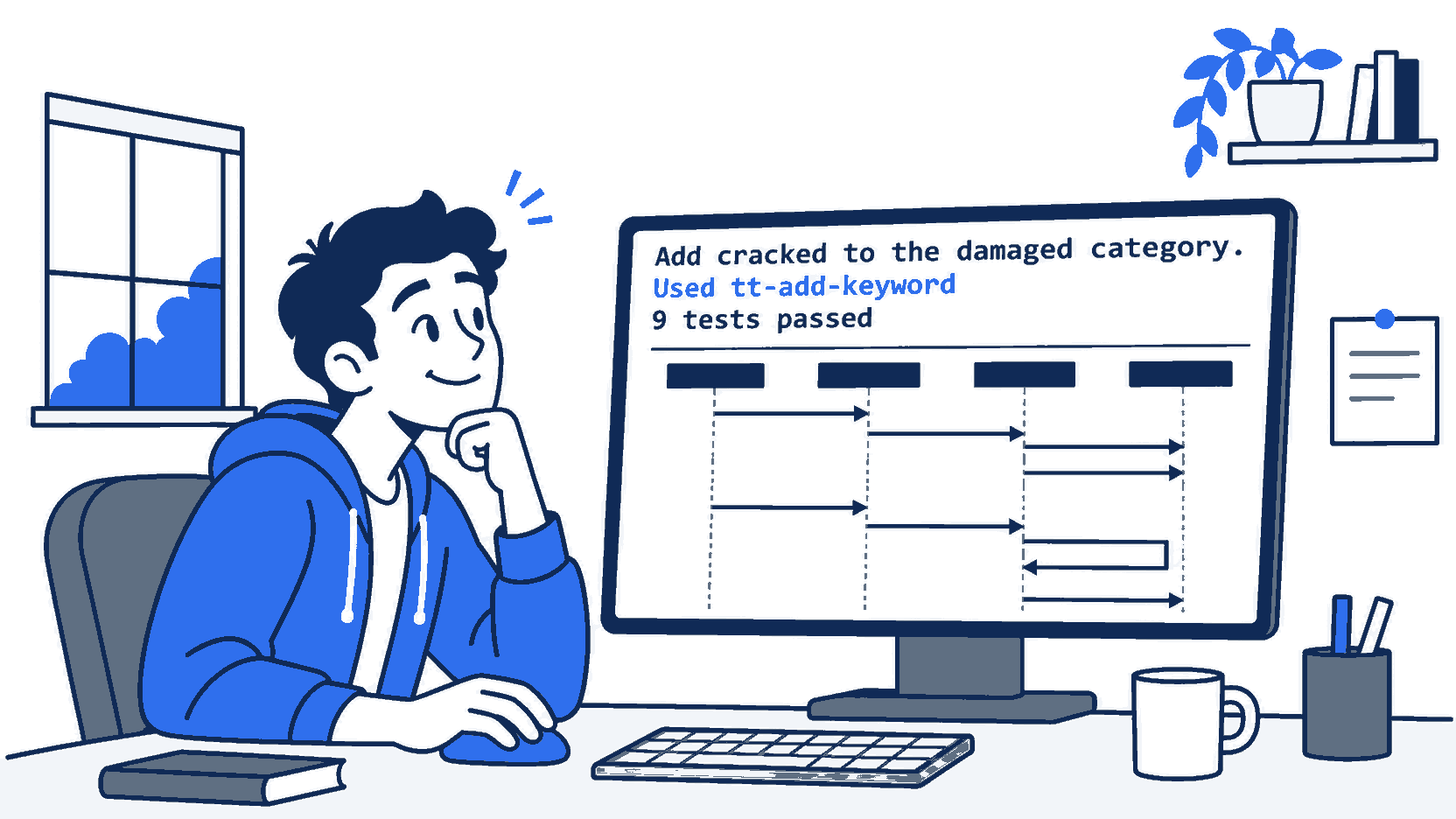
The scene is the payoff: a plain-words request, and the agent found your steps without being told where they were.
The one trap is a second copy. Cursor reads more skill folders than the other four tools in the comparison, and in testing its two ways of starting a skill picked different files. Keep one real folder in .agents/skills/, symlink it where another tool needs it, and let /skills tell you what this version of Cursor sees.
Three repeats is a pattern, and a pattern belongs in a file.
This is Part 9 of "Cursor, Day-to-Day," an 18-part guide to using Cursor's agent every day, from the CLI and the editor.