
The Agent Said 4 Tests Passed. Run Them Yourself.
Installing the Cursor CLI takes one command; the real first-day lesson is that edits land on disk without asking, commands stop for your yes, and the agent's test report stays a claim until your own test run proves it.
Install the Cursor CLI, sign in, and fix a real bug on your first day, with a test run you made, not a chat message you trusted.
The agent says four tests passed and the bug is fixed. You want to believe it, but you have never watched this tool work, and you do not yet know what it touched or what it will do without asking.
In this article: Day 1 of an 18-day guide to Cursor's agent. Start here takes you from nothing to one proven fix: the Ticket Triage repository, the Cursor CLI installed and signed in, a first session that edits two files and asks before it runs
npm test, and your own checks that confirm the result. Going deeper covers why this guide typescursor-agentinstead ofagent, native Windows, the twoPATHanswers in the docs, version pinning, browserless sign-in, why edits need no approval while commands do, Auto-review, workspace trust, the same fix in the Cursor editor, and what each plan includes.
The first time a coding agent tells you "4 passed, 0 failed," you face a quiet choice. You can take the sentence at face value, or you can treat it as a claim and check it. The agent did real work: it read files, edited two of them, and ran a command. You saw lines scroll by. You did not see proof.
This guide makes the second choice a habit from the first hour. You install the Cursor CLI, give the agent one small fix, approve the one command it asks to run, and then prove the fix with your own test run. Along the way you learn the rule that shapes every later day: Cursor's agent writes files without asking, but it stops before a terminal command.
Tested on Cursor CLI 2026.11.13-eacade1. Key editor steps tested in the Cursor editor 3.30.14; other editor steps are written from the docs.
This is Day 1 of an 18-day guide to Cursor's agent. Each day is one part. Each part opens with a Start here section of 20 to 40 minutes that ends in a result you can check. A Going deeper section follows with the details, the alternatives, and the edge cases, and you can skip it until you want it.
The roadmap, one part per day:
- Install the CLI, sign in, and fix the crushed-mug bug with a test (the editor is optional).
- Run the daily loop: start, review the diff, rewind, resume, and commit.
- Ask a question without edits, then get a plan before any code.
- Decide what the agent may run without asking, and sandbox the rest.
- Write rules that load in every session.
- See what the agent can see, and why a new session forgets.
- Pick a model for a job.
- Read your usage and find where to set a spending cap.
- Turn a repeated prompt into a skill.
- Add one MCP server and prove it was called.
- Block a dangerous command with a hook.
- Hand a review to a subagent.
- Package your skill and subagent as a plugin.
- Run two agents in two worktrees and merge one.
- Hand a task to a Cloud Agent and get a pull request.
- Have Bugbot review the pull request, then merge it.
- Run the agent headless, locally and in CI.
- Put it together: run one working day, keep a fix list, and read the glossary.
The list is the reading order. No day's Start here depends on a later day, so you can stop after any day and pick up the next one tomorrow. Day 4 comes after three days of approval prompts, when you know which ones you keep approving, and Day 6 shows why Day 5's rules file matters.
It is easy to get stuck using Cursor the way you first learned it. Cursor keeps adding features, and some of them are a big step up in productivity. This guide keeps you current, in bite-sized daily chunks, so you pick up a few new techniques every day, do not get left behind, and use Cursor the way it is meant to be used.
Start here
At the end of today, you can start Cursor's agent in a project, give it a small fix, approve the one command it asks to run, and prove the fix with your own test run.
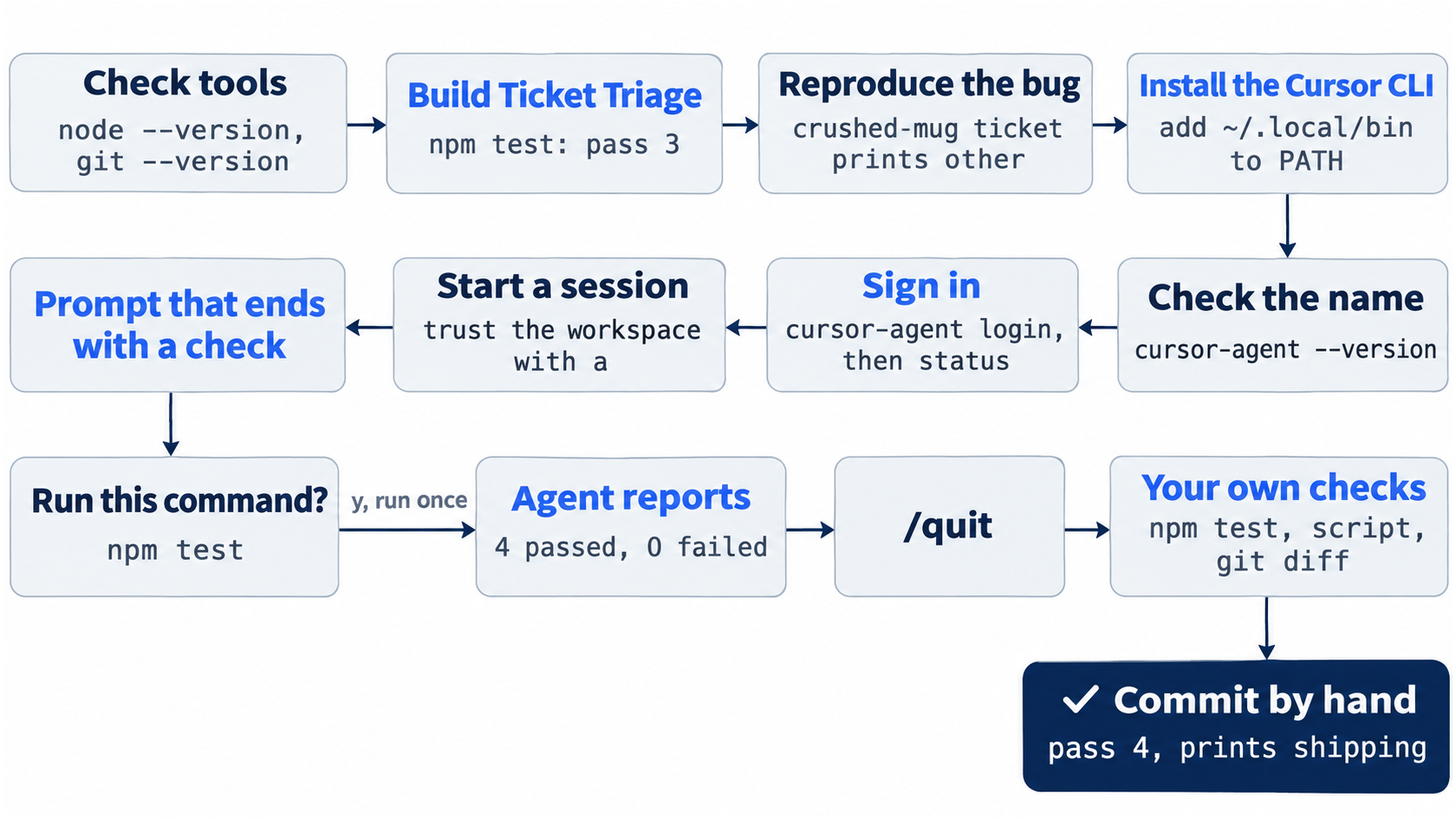
Check your starting state
You need Node.js 22 or later, git, a terminal, and a Cursor account on the Premium plan or higher. Check your tools first.
node --version
git --version
Node prints v22 or a later number, such as v22.22.1. Git prints its version, such as git version 2.47.1. If either command is not found, install it before you go on.
Build Ticket Triage
Every day in this guide changes one small repository, Ticket Triage. It is a Node.js support-ticket service at ~/code/ticket-triage that sorts a ticket into refund, shipping, or other. It has no dependencies, so npm test needs no install.
Create the folder and start a git repository in it, so you can always see what changed. The -b main flag names the first branch main.
mkdir -p ~/code/ticket-triage/src ~/code/ticket-triage/test
cd ~/code/ticket-triage
git init -b main
Create package.json. It declares ES modules and points npm test at Node's built-in test runner.
{
  "name": "ticket-triage",
  "version": "0.1.0",
  "type": "module",
  "scripts": { "test": "node --test" }
}
Save the classifier as src/classify.js. The checks run in order, and the first match wins.
// src/classify.js
// Classifies a support ticket as refund, shipping, or other.
export function classify(text) {
  const t = text.toLowerCase()
  if (t.includes("refund") || t.includes("money back")) return "refund"
  if (t.includes("shipping") || t.includes("delivery") || t.includes("package")) return "shipping"
  return "other"
}
Save one test per category as test/classify.test.js.
// test/classify.test.js
import { test } from "node:test"
import assert from "node:assert/strict"
import { classify } from "../src/classify.js"

test("refund", () => assert.equal(classify("I want my money back"), "refund"))
test("shipping", () => assert.equal(classify("Where is my package?"), "shipping"))
test("other", () => assert.equal(classify("Hello"), "other"))
Run npm test. The runner prints one line per test, then a summary. Look for these lines:
ℹ tests 3
ℹ pass 3
ℹ fail 0
Now reproduce the bug by hand. A customer writes, "The box showed up crushed and the mug inside is in pieces." Call classify() on that sentence with a one-line script. node --input-type=module -e runs the quoted JavaScript as an ES module.
node --input-type=module -e "import { classify } from './src/classify.js'; console.log(classify('The box showed up crushed and the mug inside is in pieces'))"
The script prints other. The customer said "box," not "package," so no shipping keyword matches. This is the crushed-mug ticket, and today the agent fixes it. Commit the starting point.
git add -A
git commit -m "Start Ticket Triage"
Install the Cursor CLI and check the name
The Cursor CLI is a terminal program that runs Cursor's agent. Install it on macOS, Linux, or WSL with one command (CLI installation).
curl https://cursor.com/install -fsS | bash
The installer prints a short checklist that ends with ✓ Symlink created, then tells you to add ~/.local/bin to your PATH. It does not edit your shell file for you. On zsh, the default shell on macOS, run the line it prints. On bash, use ~/.bashrc in both places instead.
echo 'export PATH="$HOME/.local/bin:$PATH"' >> ~/.zshrc
source ~/.zshrc
Neither command prints anything. This guide runs the agent as cursor-agent, so check that the name points at Cursor.
command -v cursor-agent
cursor-agent --version
The first command prints a path that ends in .local/bin/cursor-agent, such as /Users/you/.local/bin/cursor-agent. The first time you run the second command, it prints a tip, then the version:
Tip: You can start the Cursor CLI with `agent` (same as `cursor-agent`).
2026.11.13-eacade1
A later version is fine. Cursor's docs call the command agent, which also works when no other program on your machine uses that name. Going deeper explains why this guide avoids it.
Sign in
Sign in with your Cursor account.
cursor-agent login
The CLI prints Starting login process... and Waiting for browser authentication..., then opens your browser. Approve the sign-in there. Back in the terminal, it prints ✓ Logged in as you@example.com and Authentication tokens stored securely. Confirm it with cursor-agent status, which prints ✓ Logged in as and your email.
Get Ticket Triage
Ticket Triage is a small Node.js ticket classifier with no dependencies, and its tests use the test runner built into Node.js. The code for every day is in the repository SpillwaveSolutions/ticket-triage-day-by-day on the cursor-guide branch, with one tag per day, from cursor/day-00 to cursor/day-18. A tag is a fixed name for one commit. Building it by hand, as in the step above, is the recommended route on a first read.
If you built Ticket Triage by hand above, run these once in ~/code/ticket-triage, so the catch-up lines on later days work. A remote is git's name for another copy of the repository.
git remote add upstream https://github.com/SpillwaveSolutions/ticket-triage-day-by-day.git
git fetch upstream --tags
If you are restarting the guide on a new machine and skipped Build Ticket Triage, let the agent fetch the Day 0 starter. cursor-agent "<prompt>" starts a session and sends the quoted text as your first prompt. In the prompt, git switch -C main cursor/day-00 makes your main branch point at that tag's code, replacing what main held, and git branch --unset-upstream main stops your main from following the Spillwave copy.
mkdir -p ~/code
cd ~/code
cursor-agent "Clone https://github.com/SpillwaveSolutions/ticket-triage-day-by-day.git into a folder named ticket-triage. In that folder, check out the cursor-guide branch, run git switch -C main cursor/day-00 and git branch --unset-upstream main, and rename the remote origin to upstream, so a remote named origin can be added later. Then run npm test and show me the summary lines. Do not edit any file."
(written from the docs, not yet run) The Workspace Trust Required dialog asks whether the agent may work in ~/code. Press a, because the folder the agent clones is the guide's own repository, cloned on purpose. Before each command, the agent stops at a Run this command? approval prompt. Press y each time. Then check the result with your own commands.
cd ~/code/ticket-triage
npm test
git status -sb
npm test shows ℹ pass 3 and ℹ fail 0. git status -sb prints ## main with nothing after it, with no ...upstream/main. Continue at the paragraph in Build Ticket Triage that starts "Now reproduce the bug by hand": run its script, which prints other, skip its commit, and go on to Start your first session.
Start your first session
A session is one conversation with the agent, in one folder. Start it inside the project.
cd ~/code/ticket-triage
cursor-agent
The first launch in a folder shows a Workspace Trust Required dialog. Workspace trust is your yes or no on whether the agent may work in this folder. The dialog says "Cursor Agent can execute code and access files in this directory. Do you trust the contents of this directory?" and offers [a] Trust this workspace and [q] Quit. Ticket Triage is your own code, so press a. Do not trust a folder you cloned and have not read.
The screen shows Trusting workspace.... On the first launch, this step can take about a minute and a half. Then the input box appears with the placeholder → Plan, search, build anything. Under it, the footer shows Auto and ~/code/ticket-triage · main.
Auto is the model setting. Auto, the default, lets Cursor choose the model that serves each request. Keep it.
Ask for the fix
A prompt is the message you type in the input box. Type this one and press Enter. Its last sentences matter most: end every prompt that changes code with a check.
The ticket "The box showed up crushed and the mug inside is in pieces" is classified as other, but it is a shipping problem. In src/classify.js, add "crushed", "broken", and "in pieces" to the shipping check. In test/classify.test.js, add one test that expects this ticket to be shipping. Then run npm test and tell me the pass and fail counts. Do not commit.
The agent replies with a line such as "I'll update the shipping keywords and add the matching test, then run the suite." Each action it takes, such as reading a file, editing one, or running a shell command, is a tool call, and each one shows as a line: Read src/classify.js, Read test/classify.test.js, Edited classify.js +1 -1, Edited classify.test.js +5. The two edits land on disk with no question. The command does not.
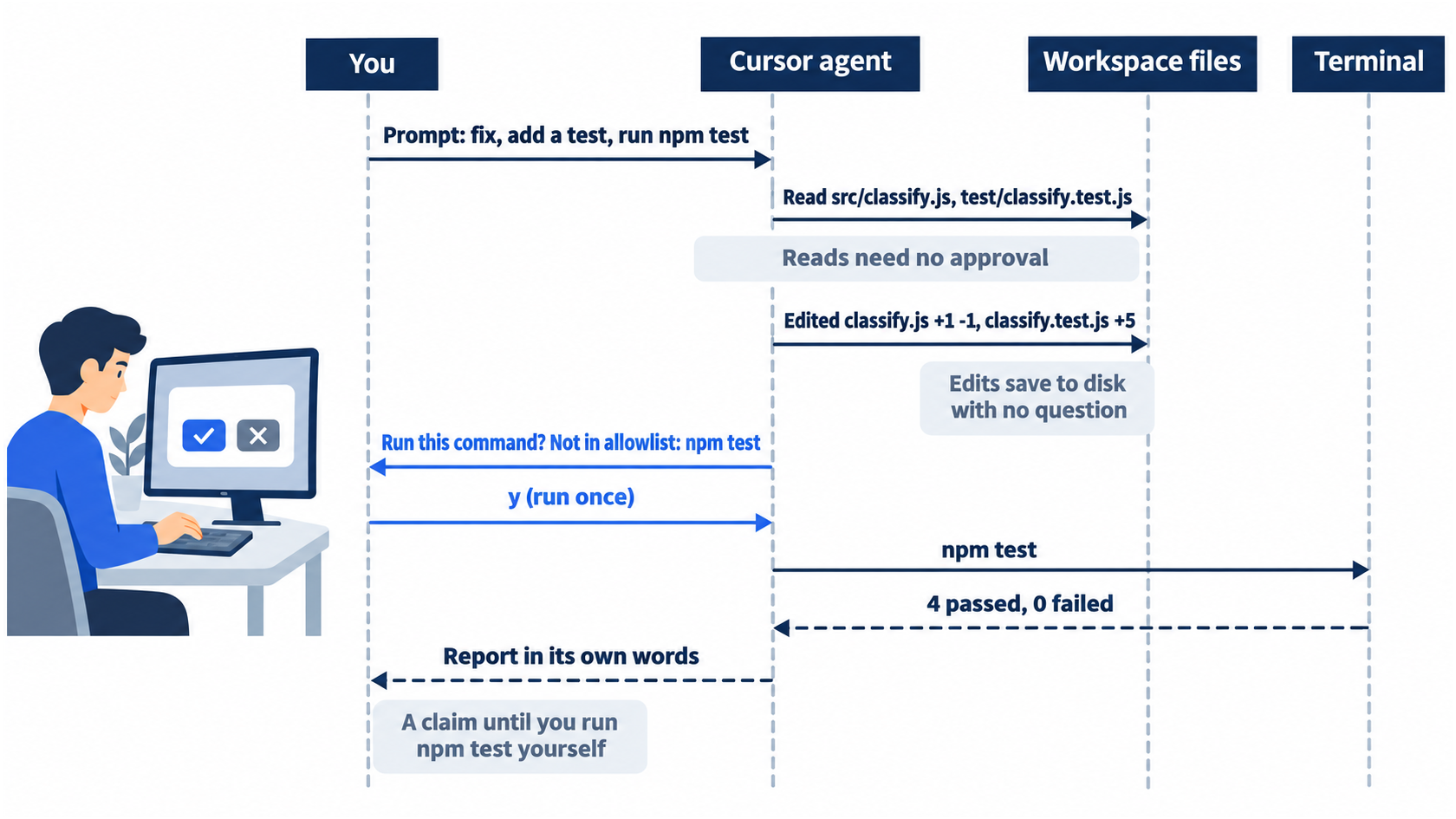
An approval prompt is the agent stopping to ask before a tool call runs. The line $ npm test Waiting for approval... appears, and below it:
$  npm test in .
Run this command?
Not in allowlist: npm test
→ Run (once) (y)
  Add Shell(npm test) to allowlist? (tab)
  Run Everything (shift+tab)
  Skip & tell the agent what to do instead (esc or n)
The allowlist is the list of commands the agent may run without asking. On a new install it holds almost nothing, so npm test needs your yes. The four choices run the command this once, add it to the allowlist so it stops asking, run every later tool call without asking, or skip it and tell the agent what to do instead. Today, run it once.
Cursor has a second approval mode, Auto-review: a classifier on Cursor's servers runs the tool calls it judges safe and prompts you for the rest (Run Modes). The CLI starts in allowlist mode unless you start it with --auto-review. Two short lines like these name each approval prompt in this guide:
Allowlist (the default on a new install): a "Run this command?" prompt for npm test. Press y.
Auto-review: no prompt. npm test runs.
The tests run, and the agent reports the result in its own words, such as:
Updated the shipping keywords and added the crushed-mug test.
npm test: 4 passed, 0 failed.
The footer now says 2 files edited. Leave the session. A command that starts with a slash is a slash command. Type /quit in the input box and press Enter. The CLI prints To resume this session: agent --resume=<id>. If you ever want this session back, type cursor-agent --resume=<id> with that id. You do not need it today.
Check the work yourself
The agent's report is a claim. Your own test run is the proof. Run npm test and look for ℹ pass 4 and ℹ fail 0. Then run the crushed-mug script again.
node --input-type=module -e "import { classify } from './src/classify.js'; console.log(classify('The box showed up crushed and the mug inside is in pieces'))"
It prints shipping. Now read what changed.
git status --short
git diff
git status --short lists M src/classify.js and M test/classify.test.js, and nothing else. In git diff, the shipping line in src/classify.js now also checks for "crushed", "broken", and "in pieces", and the test file has one new test for the crushed-mug ticket. The agent picks the test's name and layout, so yours can differ. If you like the change, commit it by hand.
git add -A
git commit -m "Route damaged items to shipping"
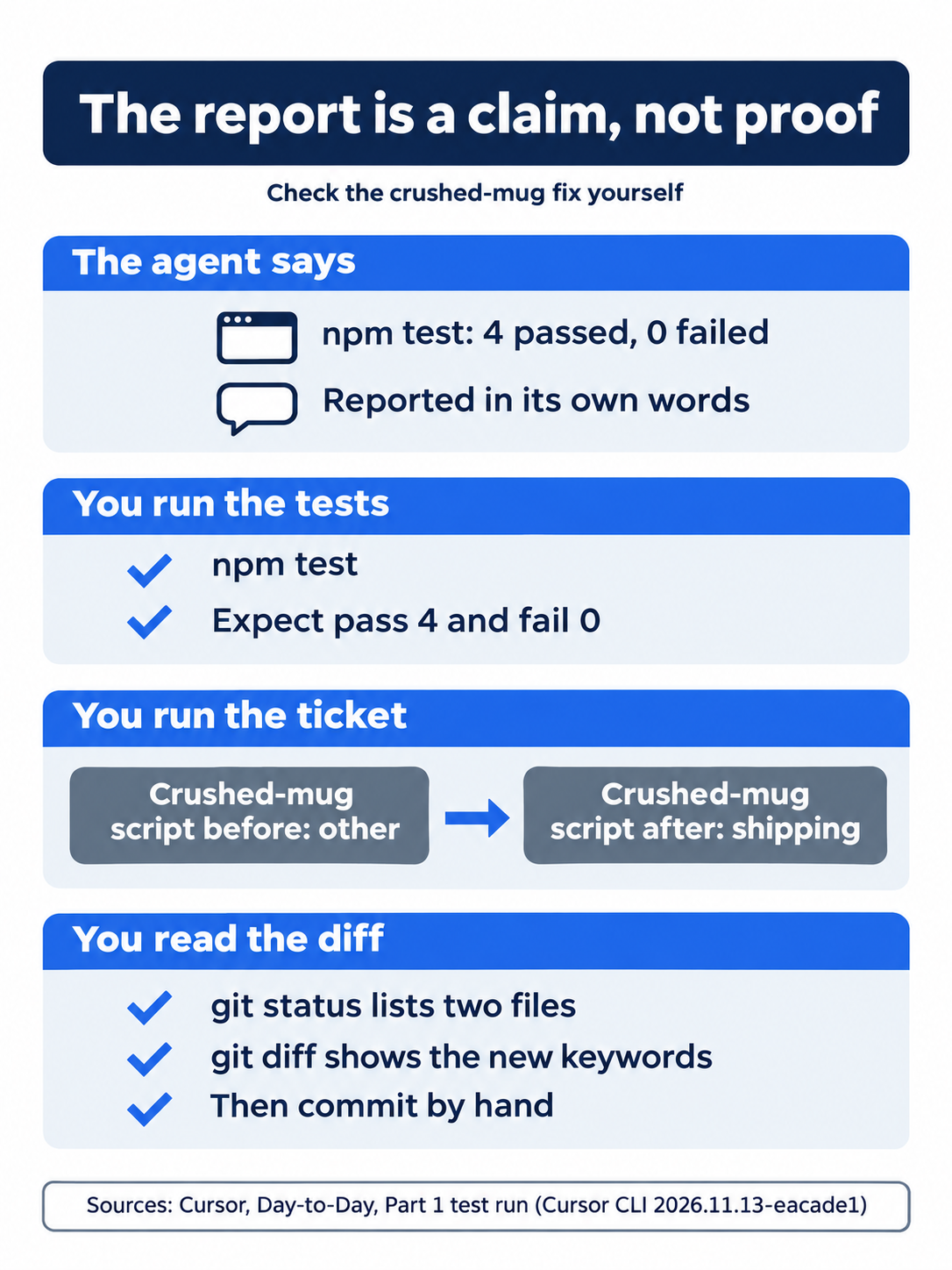
The agent's "4 passed" becomes proof only when your own npm test shows pass 4, the crushed-mug script prints shipping, and git diff shows exactly the two files you asked for.
Your win
Check all three results.
npm test
node --input-type=module -e "import { classify } from './src/classify.js'; console.log(classify('The box showed up crushed and the mug inside is in pieces'))"
git log --oneline
npm test shows ℹ pass 4 and ℹ fail 0. The crushed-mug script prints shipping. git log --oneline shows two commits, Route damaged items to shipping above Start Ticket Triage. Your commit hashes differ. You installed Cursor's agent and made one fix that your own test run proves.
You can stop here. Going deeper explains why this works and where it breaks.
Going deeper
This section is for readers who want the install alternatives, the editor path, the reasons behind today's prompts, and the plan facts. It assumes you finished Start here.
The short name agent, and why this guide does not use it
The installer creates two links in ~/.local/bin, agent and cursor-agent, and both point at the same program. Cursor's docs use the short form, agent, in every example (CLI installation). This guide types cursor-agent because the short name collides. The X Subscription, which sells Cursor, also includes Grok Build (Cursor pricing), and Grok Build installs a CLI that is also named agent. On the machine this guide was tested on, agent started the Grok CLI from ~/.grok/bin, not Cursor. No Cursor page states the collision, so check your own machine with which -a agent.
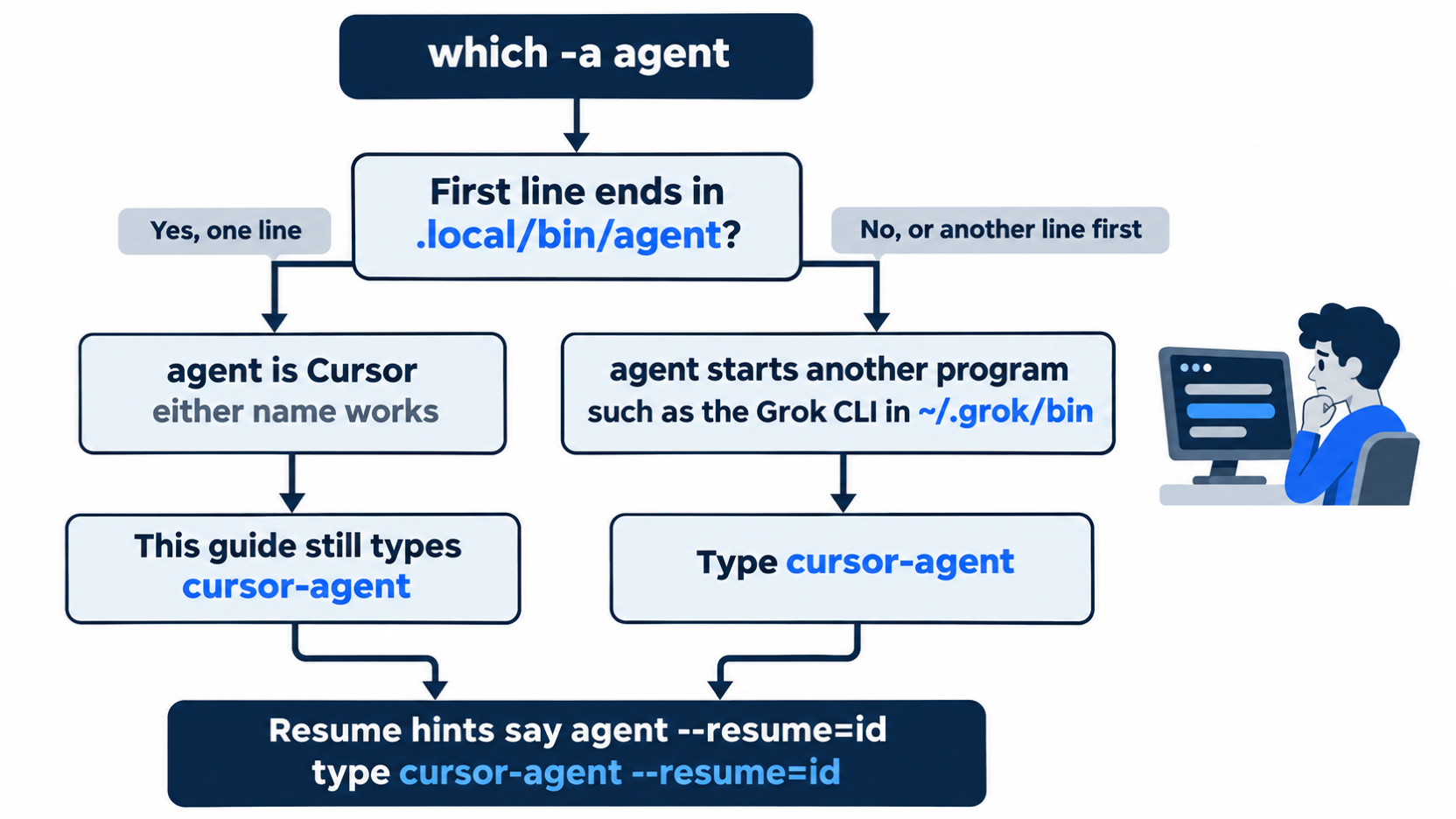
One line that ends in .local/bin/agent means agent is Cursor. Any other line, or a different first line, means agent starts another program, and cursor-agent is the name that always works.
Gotcha: two strings still say agent. The first-run tip names it, and the /quit hint prints agent --resume=<id>. Type cursor-agent --resume=<id> instead, so the id reaches Cursor and not another program.

One program sits behind two names, and one check, which -a agent, settles which agent you have. When in doubt, cursor-agent always reaches Cursor.
Native Windows, and two PATH answers
On native Windows, install from PowerShell (CLI installation):
irm 'https://cursor.com/install?win32=true' | iex
The Windows route was not part of this guide's test run. WSL uses the same curl command as macOS and Linux.
The install page tells you to add ~/.local/bin to your PATH, and the installer prints the same instruction. The GitHub Actions page adds $HOME/.cursor/bin to the path instead. On the tested macOS install, both links landed in ~/.local/bin, and each points into ~/.local/share/cursor-agent/versions/2026.11.13-eacade1/. Use ~/.local/bin on your own machine. If command -v cursor-agent prints nothing after you open a new terminal, the export line did not reach the shell file your terminal reads. Check ~/.zshrc or ~/.bashrc for it.
Versions and updates
CLI versions are dates, in the form vYYYY.MM.DD (CLI changelog). This guide pins 2026.11.13-eacade1 for the week of November 16, 2026. The binary is ahead of the docs: the newest changelog entry on November 17, 2026 was v2026.10.22. cursor-agent about prints the version, your system, and your account, and --format json gives the same data as JSON (CLI parameters).
The CLI tries to update itself by default. To update by hand, run cursor-agent update, or type /update in a session (CLI installation). The channel field in the CLI config file sets the "Release channel used for CLI updates" (CLI configuration). To keep one version for a session, start the CLI with cursor-agent --disable-auto-update, which "turns background updates off" (CLI changelog). Every test run for this guide used it. If a step looks different on your screen, compare your about version with the Tested on line.
Sign in without a browser, or with an API key
On a remote machine with no browser, set NO_OPEN_BROWSER=1. The CLI prints the login URL, and you open it on any device (CLI authentication).
NO_OPEN_BROWSER=1 cursor-agent login
Scripts and CI use an API key instead. Generate one under Dashboard > API Keys, then export CURSOR_API_KEY, which the docs recommend over the --api-key flag. cursor-agent logout signs you out. Neither the browserless sign-in nor the API key was part of today's test run. The tested Start here path used the browser, and it also printed a fallback link and Press q to show a QR code while it waited.
Where the CLI keeps its settings
Global CLI settings live in ~/.cursor/cli-config.json on macOS and Linux. A project can add .cursor/cli.json, which sets permissions only. CURSOR_CONFIG_DIR moves the config folder, and on Linux XDG_CONFIG_HOME gives $XDG_CONFIG_HOME/cursor/cli-config.json (CLI configuration). Read your own file without changing it.
grep -E '"approvalMode"|Shell\(ls\)' ~/.cursor/cli-config.json
approvalMode takes one of three values: allowlist, auto-review, or unrestricted. On a new install of this version, the file held "approvalMode": "allowlist" and an allow list of ["Shell(ls)"], which matches the minimal example on the configuration page. The page shows that example but does not state the defaults. The command reads the file and changes nothing.
Why the edits needed no approval, but npm test did
Cursor's Agent security page draws the line. Reading files and searching code need no approval. The agent can change workspace files without approval, except configuration files, and "Changes save immediately to disk." Terminal commands need your approval by default. With Shell(ls) as the only allowlist entry, npm test was not on the list, so the CLI showed Not in allowlist: npm test.
The rule means git is your undo for edits. A bad edit is already on disk by the time you read about it, and git diff shows it. Commit before you prompt, so git restore . can always take you back to a known state.
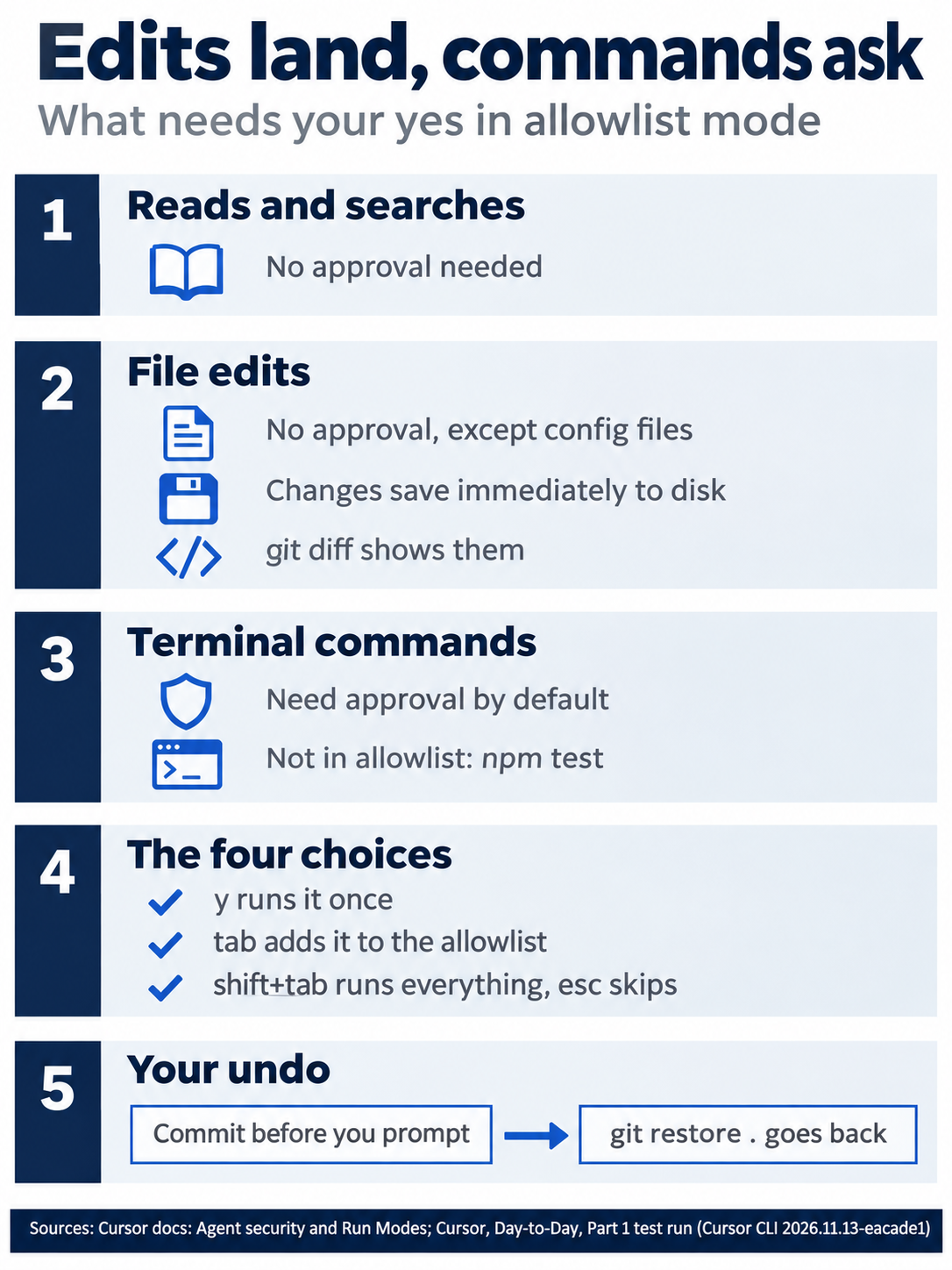
Reads and edits go straight through, a terminal command stops at the prompt, and a commit made before each prompt is the undo that covers the edits nobody asked you about.
The second choice in the prompt, Add Shell(npm test) to allowlist?, stops the question for good. Today you chose Run once on purpose, so you saw the prompt and know what it guards. The third, Run Everything, runs every later tool call without asking (Run Modes).
Auto-review in more detail
Auto-review checks shell, MCP, and Fetch tool calls in order. Allowlisted calls run at once. Other shell commands run in a sandbox when they can. Everything else goes to a classifier on Cursor's backend, which can read files on your machine to judge the call (Run Modes). The page is plain about the limit: "Auto-review is not a security boundary." The classifier uses Gemini 3.5 Flash Lite, with Haiku as the fallback (Run Modes).
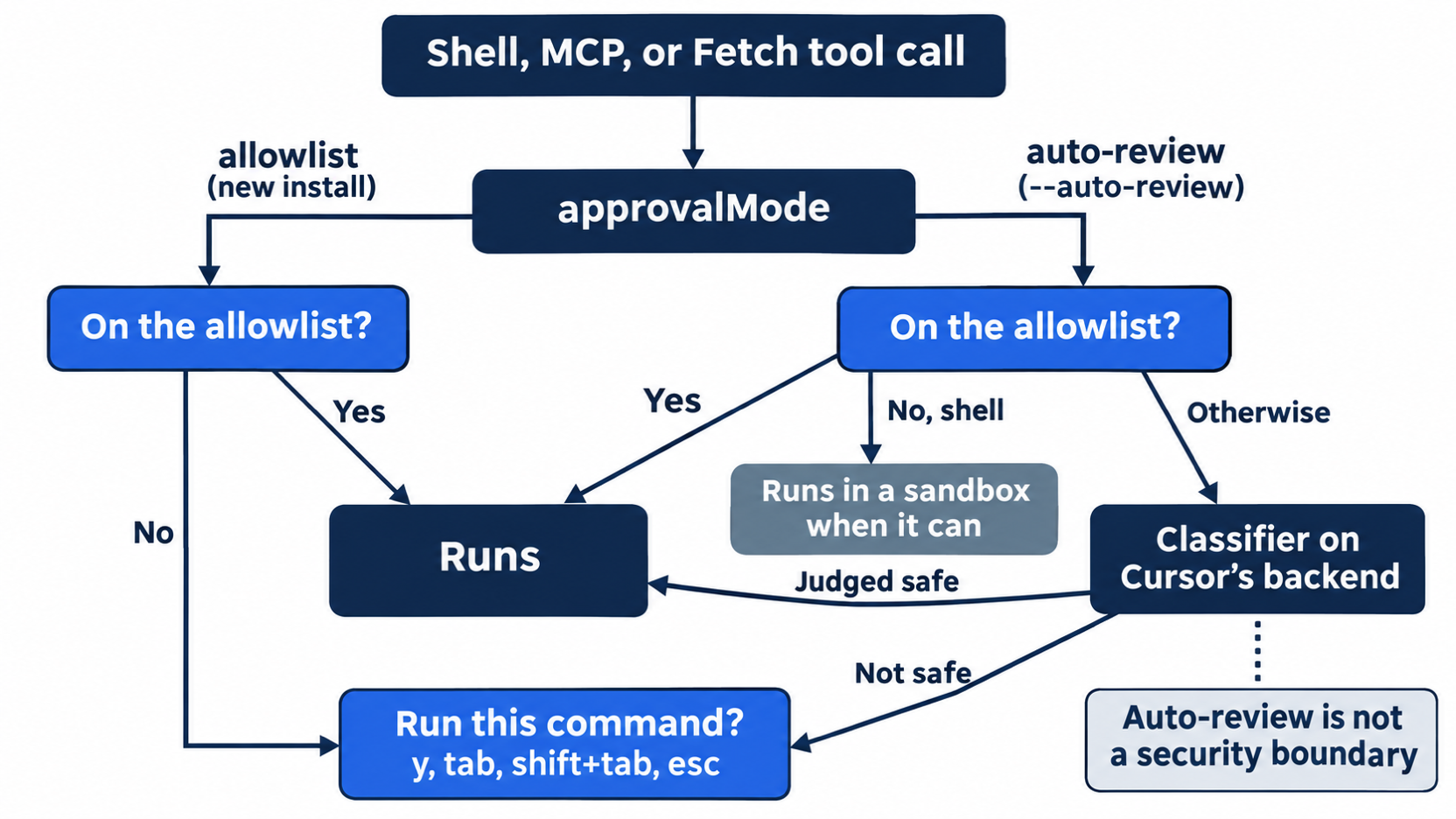
The editor made Auto-review "the recommended default" in Cursor 3.6, on May 29, 2026 (Run Modes changelog). The Agent security page still says "By default, terminal commands need your approval," and no page states which mode a new editor account starts in. In testing, the Cursor editor 3.30.14 showed Run Mode Allowlist (with Sandbox) under the heading Execution and Approvals. On the same page, Read Access was System, Auto-Run Network Access was sandbox.json + Defaults, and the Command Allowlist was empty, with suggestions such as cd, pwd, and ls shown only as "+" chips. The test did not open the Run Mode menu, so this guide does not list its options. In that mode, the editor ran npm test on Day 1 with no prompt. In the CLI, --auto-review turns it on for a session, and /auto-review or /config turns it on from inside one (CLI changelog).
Today's prompt was also run with cursor-agent --auto-review in a fresh copy of the repository at the Start Ticket Triage commit. The agent made the same fix and ran npm test with no prompt, and the footer showed Auto-review on the right. It wrote the new test on one line instead of five. The fix was the same, but the shape was not. For this reason, Start here checks pass 4 and not the exact diff.
Workspace trust in the CLI and the editor
The CLI asks for trust once per folder. A new folder, including a fresh clone of a repository you already trust, shows the dialog again. The parameters page says the --trust flag is for headless runs only, while changelog v2026.07.20 says it also skips the dialog in interactive sessions (CLI parameters, CLI changelog). This guide did not test --trust. Press a at the dialog instead.
The editor works differently. Workspace trust is supported there but turned off by default. With "security.workspace.trust.enabled": true, the editor asks whether to open a new folder in normal or restricted mode, and restricted mode breaks AI features (Agent security). For a repository you do not trust, the docs suggest a plain text editor. In testing, the Cursor editor 3.30.14 showed no trust prompt, and File > Open Folder opened the folder straight into the editor. The test did not turn the setting on.
The editor, briefly
The CLI and the editor are two doors to one account. The editor needs macOS 12 or later, Windows 10 or later, or Linux through the apt or dnf repository or an AppImage (Quickstart). The IDE release notes reached 3.27 on November 17, 2026. Cursor 3 added the Agents Window on April 2, 2026 (Agents Window). The CLI commands in this guide were tested with cursor-agent. The key editor steps were tested in the Cursor editor 3.30.14 and carry the label "tested in the Cursor editor 3.30.14." Other editor steps are described from the docs and keep the label "written from the docs, not yet run."
The same step in the editor
Pick one door for today's fix. If you already made the fix in the CLI, read this section and do not run it, because the fix is done. If you prefer the editor, use these steps instead of the CLI session in Start here, then run the same checks in the terminal. Steps 2 to 4 were tested in the Cursor editor 3.30.14. Step 1 is written from the docs, not yet run.
- (written from the docs, not yet run) Download Cursor from cursor.com/download, install it, and sign in with your Cursor account when prompted (Download and install Cursor).
- (tested in the Cursor editor 3.30.14) Choose File > Open Folder (
Cmd+Oon macOS) and open~/code/ticket-triage, the folder itself, not its parent. In testing, no trust prompt appeared. The folder opened straight into the editor, and the Agent panel showed New Agent with the model Grok 4.7 High, while the Default Model setting read Cursor Default. Leave the model as it is today; Day 7 covers models. - (tested in the Cursor editor 3.30.14) Press
Cmd+Ion macOS orCtrl+Ion Windows and Linux to focus the agent input (Quickstart). In testing,Cmd+Ifocused the input, and the mode label next to the ∞ icon read Agent. - (tested in the Cursor editor 3.30.14) Check that the mode label reads Agent (Agent mode), paste the same prompt, and send it. In testing, no approval prompt appeared at all. The agent applied both edits, ran
npm testby itself in a card titled "Run the Node test suite," and reported 4 passed and 0 failed. While it worked, the buttons above the input read 2 Files · Stop · Review. Afterward, they read 2 Files · Undo All · Keep All · Review.
In the editor, the agent's edits save to disk as it makes them, and git diff shows them (Agent security). Run the same checks: npm test, the crushed-mug script, and git diff. Then commit with the same message.
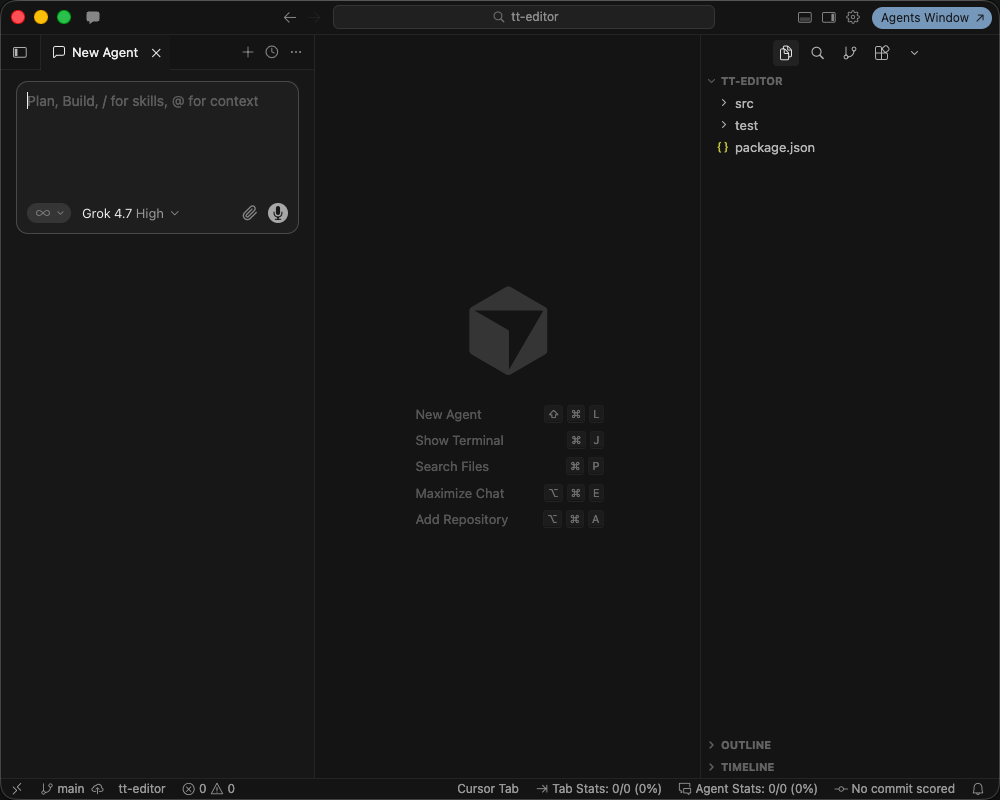
The test folder opened straight into the editor with no trust prompt, and the Agent panel was ready, in the Cursor editor 3.30.14.
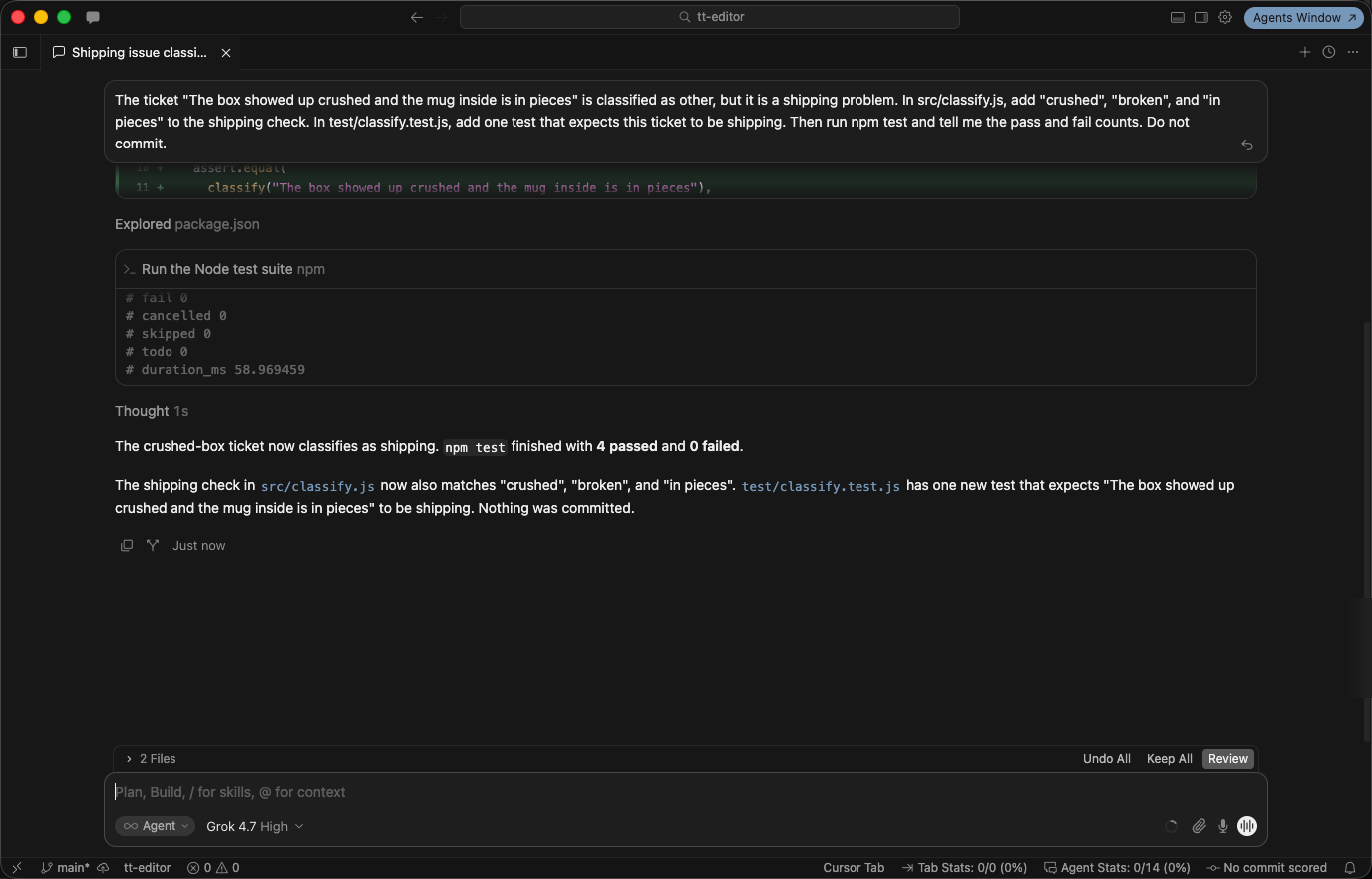
The agent ran npm test with no approval prompt and reported 4 passed, in the Cursor editor 3.30.14.
Plans and what today cost
Cursor is sold as part of The X Subscription, with Grok and X in one bundle (Pricing and plans). The list prices on November 17, 2026 were Free at $0, Plus at $8, Premium at $30, Super at $100, and Ultra at $200 a month (Cursor pricing). Premium is billed at $300 a year if you pay annually (Models & Pricing).
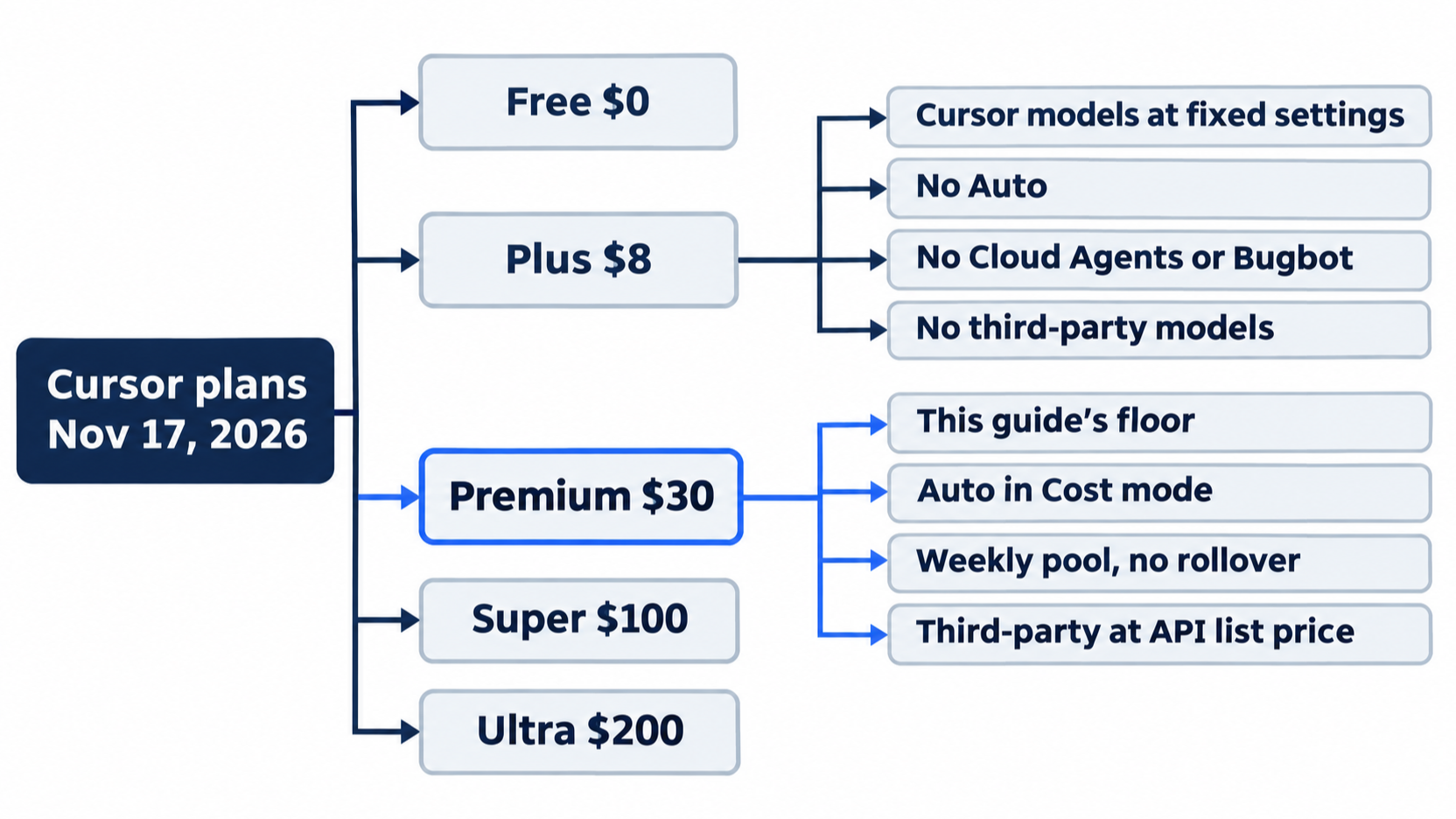
Plus runs the agent with Cursor's own models at fixed settings, and it has no Auto, Cloud Agents, Bugbot, or third-party models (Models & Pricing). The missing Auto is why this guide's floor is Premium. On individual plans, Auto runs in Cost mode, which "bills as a Cursor-model request and draws from your weekly pool whatever model serves it" (Models & Pricing auto modes). The included pool refreshes weekly, is shared with Grok Bot and the Grok apps, and does not roll over (Usage and limits). Third-party models such as Claude, GPT, and Gemini are not in that pool (Models & Pricing). On Premium and above, they bill at API list price from prepaid credit (Models & Pricing plans). Day 1 keeps Auto, so it uses none.
If you already use Claude Code: the command is cursor-agent, not claude. Edits also land without a per-edit approval. If you run Claude Code in Manual mode, where it asks before each edit, expect Cursor to write both files before the first question, and read git diff afterward.
Do this today
Everyone
- Repeat the win. In
~/code/ticket-triage, runnpm test, the crushed-mug script, andgit log --oneline. The result:ℹ pass 4andℹ fail 0, thenshipping, then two commits. - Start one habit: end every prompt that changes code with a check, then run the check yourself. Today's prompt ended with "Then run npm test and tell me the pass and fail counts. Do not commit." You ran
npm testafter the agent did. The result: your own pass count matches the agent's report before you commit.
If you read Going deeper
- Find out what
agentmeans on your machine. Runwhich -a agent. If the first line does not end in.local/bin/agent, keep typingcursor-agent. Reset: nothing changed. - Read your CLI's version and account. Run
cursor-agent about. The version matches theTested online at the top of this article, or is later. Reset: nothing changed. - Read your approval mode. Run
grep '"approvalMode"' ~/.cursor/cli-config.json. The result is"approvalMode": "allowlist"on a new install. Reset: the command only reads the file, sogit status --shortin~/code/ticket-triagestill prints nothing. - Confirm the sign-in survives a new terminal. Open a new terminal window and run
cursor-agent status. The result:✓ Logged in asand your email. Reset: nothing changed.
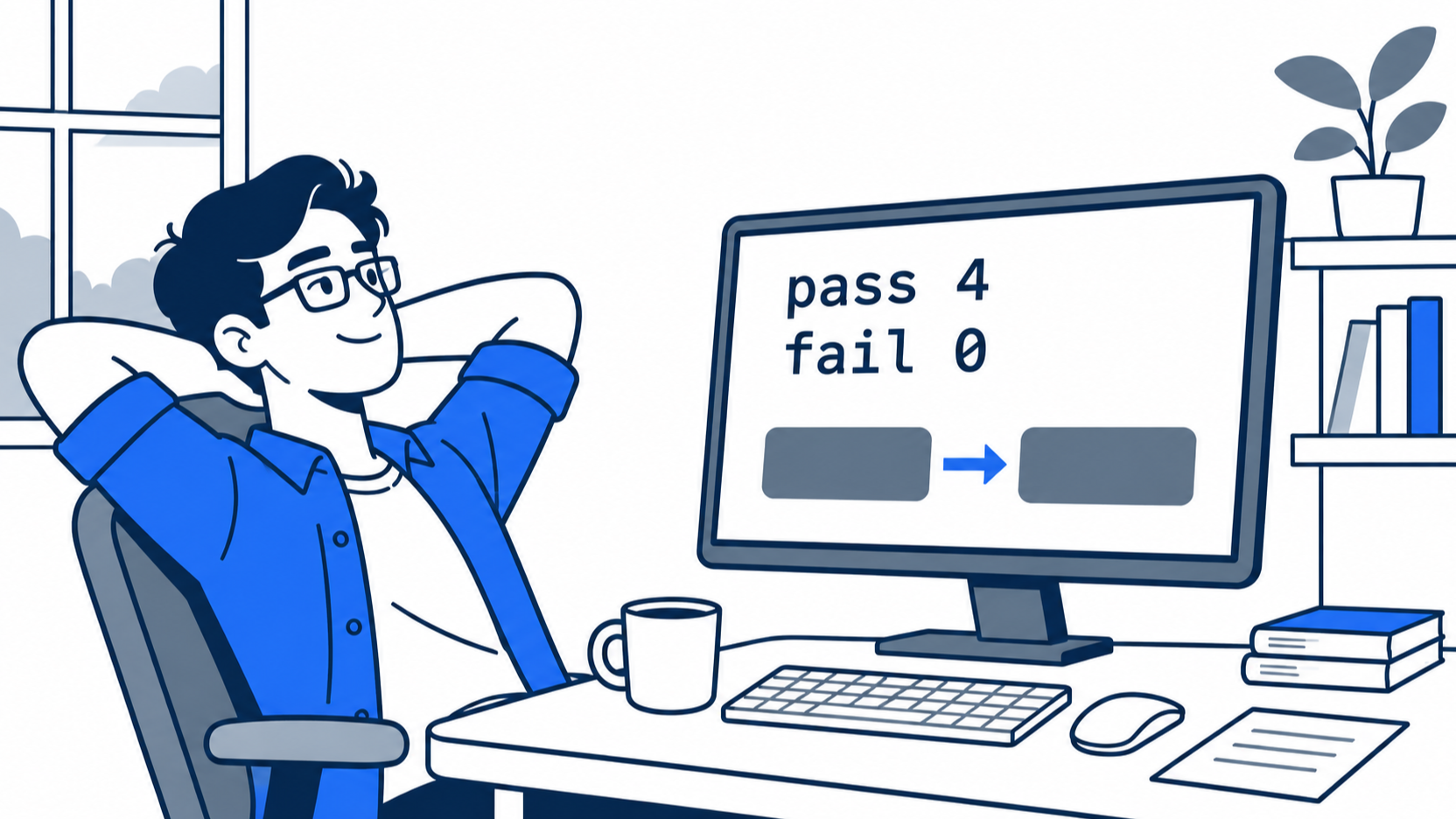
The scene is the end of Day 1: the agent claimed four passing tests, and the developer's own terminal agrees. The relief comes from the check, not from the claim.
Trust the check, not the sentence
The opening question had a simple answer. The agent's "4 passed, 0 failed" was true, but you only knew it after npm test printed pass 4 in your own terminal, the crushed-mug script printed shipping, and git diff showed the two files you asked for and nothing else.
The rest of the day explains why the habit matters. Cursor's agent writes files without asking and saves them to disk at once, so git is your undo. It stops before a terminal command, so an approval prompt is a moment to read, not a key to press by reflex. And cursor-agent is the name that always reaches Cursor, whatever else lives on your PATH.
End every prompt with a check, and then run the check yourself.
This is Part 1 of "Cursor, Day-to-Day," an 18-part guide to using Cursor's agent every day, from the CLI and the editor.