
Stop Pasting Scrollback: Publish Your Claude Code Test Report as an Artifact
An artifact turns a Claude Code result from terminal scrollback into a private web page that Claude can republish at the same link, without a single change to your project, as long as you check the page's numbers and Claude's reply before you share it.
Ask Claude to turn a test run into a private web page, find it again with /artifacts, update it at the same link, and leave your project untouched.
You had the test results right there in your terminal, and the only way to show a teammate was to copy lines out of the scrollback.
In this article: Day 23 of a day-by-day guide to Claude Code. Start here: you ask Claude to publish your test results as a private web page, find it again with
/artifacts, update it at the same link, and check that your project did not change. Going deeper: what a page can hold, who can see and share it, and when Claude Code asks before it publishes.
Tested on Claude Code 2.1.327.
Yesterday one dynamic workflow audited the rules in Ticket Triage, and you committed Add a rule audit.
Start here
At the end of today, you can ask Claude to publish your test results as a web page, find the page again with /artifacts, update it at the same link, and check that your project did not change.
Starting fresh or fell behind? Run git switch -C main claude-code/day-22. This replaces your main with the end of Day 22; to keep your own work, run git branch my-backup first.
Until today, every result that Claude produced stayed in your terminal. To show a teammate a test run, you copied lines out of the scrollback. An artifact is a live web page that Claude Code publishes from your session to a private link on claude.ai. Claude writes the page, publishes it, and prints the link. You open the link in a browser. When you ask for a change, Claude edits the page and publishes it again to the same link.
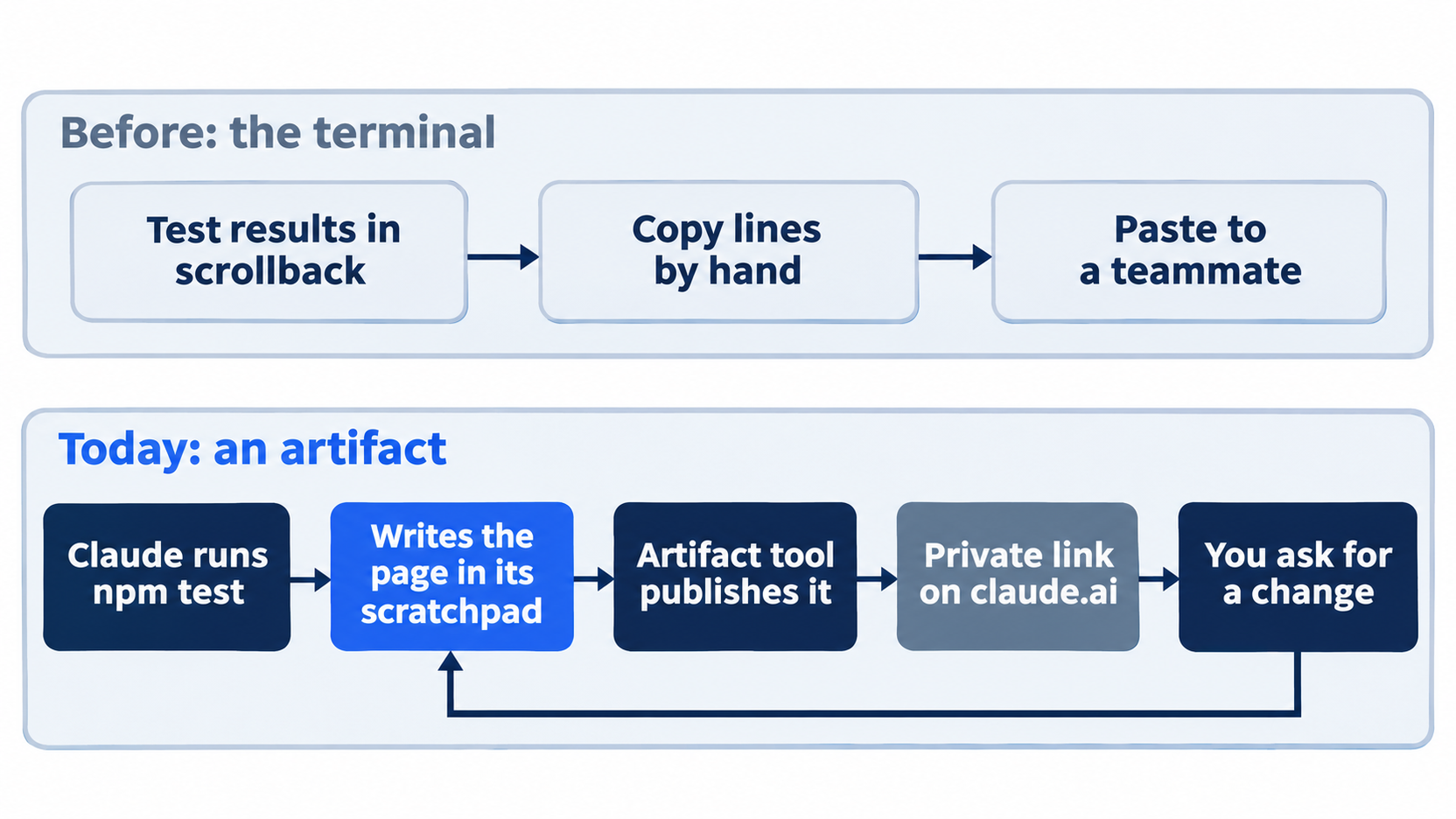
The result leaves the terminal as a page with a link. Each change goes back through the same page file and comes out at the same link.
Today's page is a test report for Ticket Triage: the pass and fail counts, one row per test, and the last commit. Claude writes the page in a temporary folder outside your project, so nothing in Ticket Triage changes.
What you need
From the docs:
- A claude.ai sign-in. Artifacts need the login from Day 1, choice
1. Claude account with subscription. To sign in again, run/login. - A Pro, Max, Ultra, Team, or Enterprise plan.
- The Claude Code CLI or the Desktop app. Today uses the CLI.
You also need a browser that is signed in to claude.ai with the same account.
If you chose 2. Anthropic Console account on Day 1, artifacts do not work for you. Type the prompt in "Publish the report" once. The docs say that Claude then says that it cannot publish, or it writes a local HTML file with no link. Your check for today is that no Published line with a claude.ai link appears. If git status then shows a new HTML file in Ticket Triage, delete it. Then read the rest of Start here and Going deeper. If you also have one of the plans above, run /login, sign in with that Claude account, and publish again. Going deeper lists the other conditions. This guide did not test this, because the tests used a claude.ai sign-in.
Check your version
Days 1 to 22 were tested on Claude Code 2.1.326. Days 23 to 28 were tested on 2.1.327, because each week of this guide pins the release that is current when that week is tested. Update first, then check the version:
claude update
claude --version
claude update updates Claude Code to the latest version (setup docs). On the test machine, Claude Code was already on the latest version, so it printed:
Current version: 2.1.327
Checking for updates to latest version…
Claude Code is up to date (2.1.327)
Check: claude --version prints 2.1.327 (Claude Code) or a later number. If it prints an older number, do today's steps anyway. Some screens can differ from the ones quoted here. Going deeper explains why an update can stay behind.
Check the starting state
Open a terminal in Ticket Triage:
cd ~/code/ticket-triage
git status
git log --oneline -1
npm test
Git prints nothing to commit, working tree clean. The log shows Add a rule audit after the hash. The tests show ℹ fail 0 and the same pass count as at the end of Day 22. Both tested runs started at 22, the auto chain's count. If you followed the Manual chain, you can have 23. Write your number down.
Start a session
Start Claude Code:
claude
The status bar shows ⏵⏵ auto mode on (shift+tab to cycle). If it shows ⏸ manual mode on, keep it, and follow the Manual mode: lines below.
Publish the report
Type this as one line and press Enter:
Run npm test and publish the results as an artifact: the pass and fail counts, one row per test, and the last commit. Do not change any files in this project.
Read the prompt in parts:
Run npm testgives Claude fresh results, not old ones from the conversation.publish the results as an artifactasks for a page on claude.ai, not a file in your project.the pass and fail counts, one row per test, and the last commitsays what the page must hold.Do not change any files in this project.keeps the run read-only.
Claude first runs the tests and reads the last commit with Bash. Then it uses the Artifact tool, the tool that publishes pages. On the tested auto run, the screen showed this, with the Bash output removed:
⏺ Bash(cat package.json && git log -1 --format='%H%n%h%n%an%n%ad%n%s' --date=iso && npm test 2>&1; echo "EXIT=$?"; git status --short)
  ⎿  Allowed by auto mode

⏺ Artifact(quickstart other)
  ⎿  sent page-design guidance

  Made 1 scratchpad edit +99 (ctrl+o to expand)

⏺ Artifact("ticket-triage-tests.html")
  ⎿  Published ⧉ https://claude.ai/artifact/<id>
Read it from the top:
- The Bash call ran the tests, read the last commit, and checked
git status. Artifact(quickstart other)asked the Artifact tool for advice on how to design the page.Made 1 scratchpad editis the page file. Claude wrote it in its scratchpad, a temporary folder outside your project.Publishedgives the page's link. Your link has its own ID in place of<id>. Use the link that Claude prints.
Claude then replies with a summary. The tested auto reply began I ran npm test and all 22 tests passed, with 0 failing. It ended with The link is private, so only you can open it until you share it from the page's Share menu. Claude names the page file, so yours can differ. The Manual run named it test-report.html.
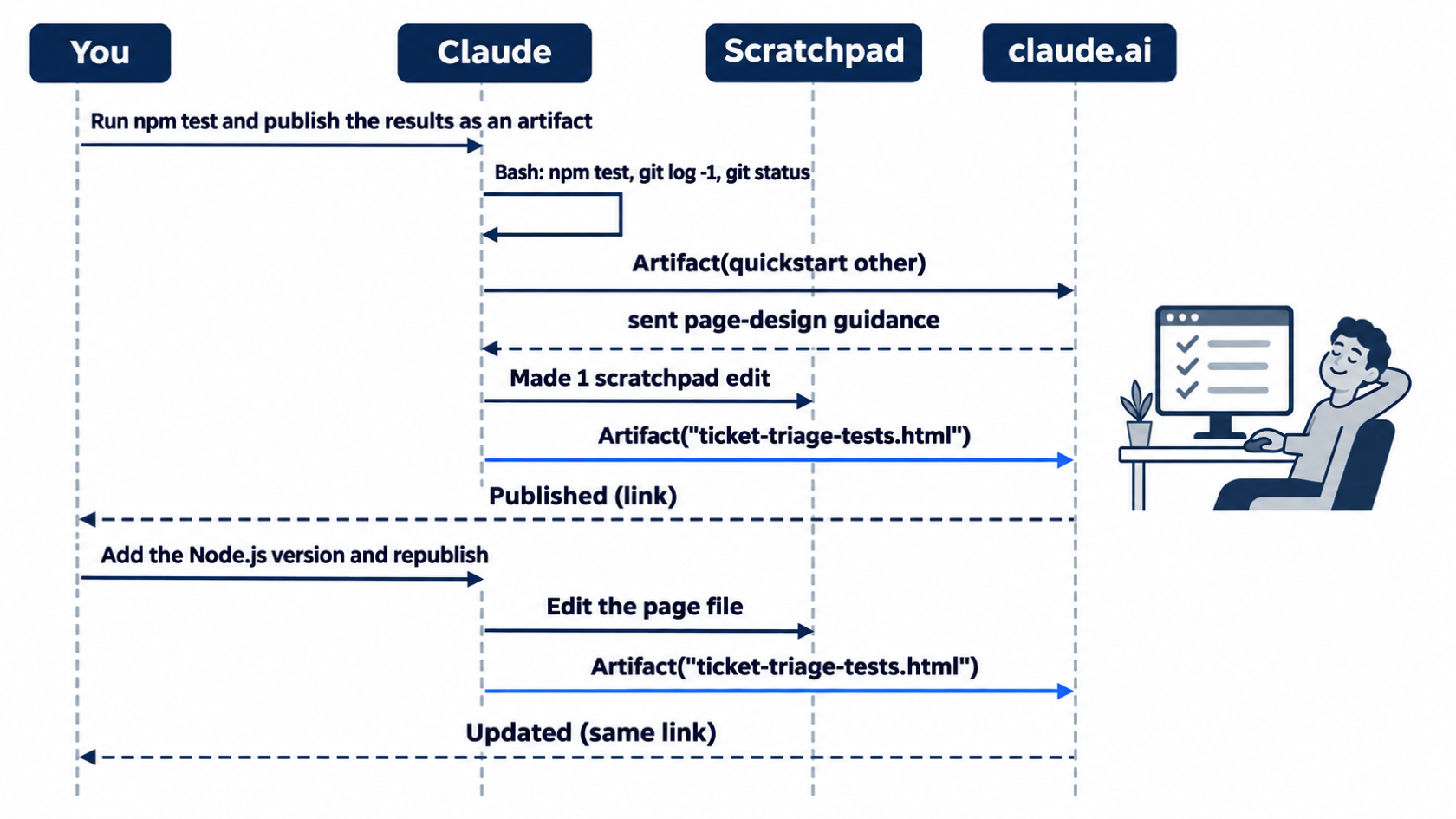
The publish and the update follow the same path. Only the last word changes, from Published to Updated, and the link stays the same.
The status bar now ends with a pill, a short label with the ⧉ sign and the page's name, such as ⧉ ticket-triage-tests. It tells you that this session has published a page.
Manual mode: one prompt on the tested run, a Bash command that Claude wrote to run each test file on its own, described as List per-file test results and confirm tree clean, with the line A variable in this command can't be checked before it runs. The command only reads, so choose 1. Yes, and ignore the tip about auto mode. Claude writes its own commands, so yours can differ, and you can get a different prompt or none. The publish itself asked nothing, in either mode. The docs say the same for a page that you ask for in a prompt that you type.
Open the page
The docs say that on the first publish, your browser opens to the new page. The tested runs turned this off, so that part comes from the docs. If no tab opens, open the link that Claude printed in your signed-in browser. On the tested run, the printed link opened the page on claude.ai.
The page header shows the page's title with a menu arrow, and Chat and Share buttons on the right. Claude designs each page, so yours will look different. The page from the tested auto run had the title Ticket Triage Test Run and the heading All 22 tests pass. It showed three totals: 22 passed, 0 failed, and 58.6 ms. It also had a Last commit card with Add a rule audit and its hash, and a table with 22 rows, one per test. Check that your page shows your own pass count and your own last commit.
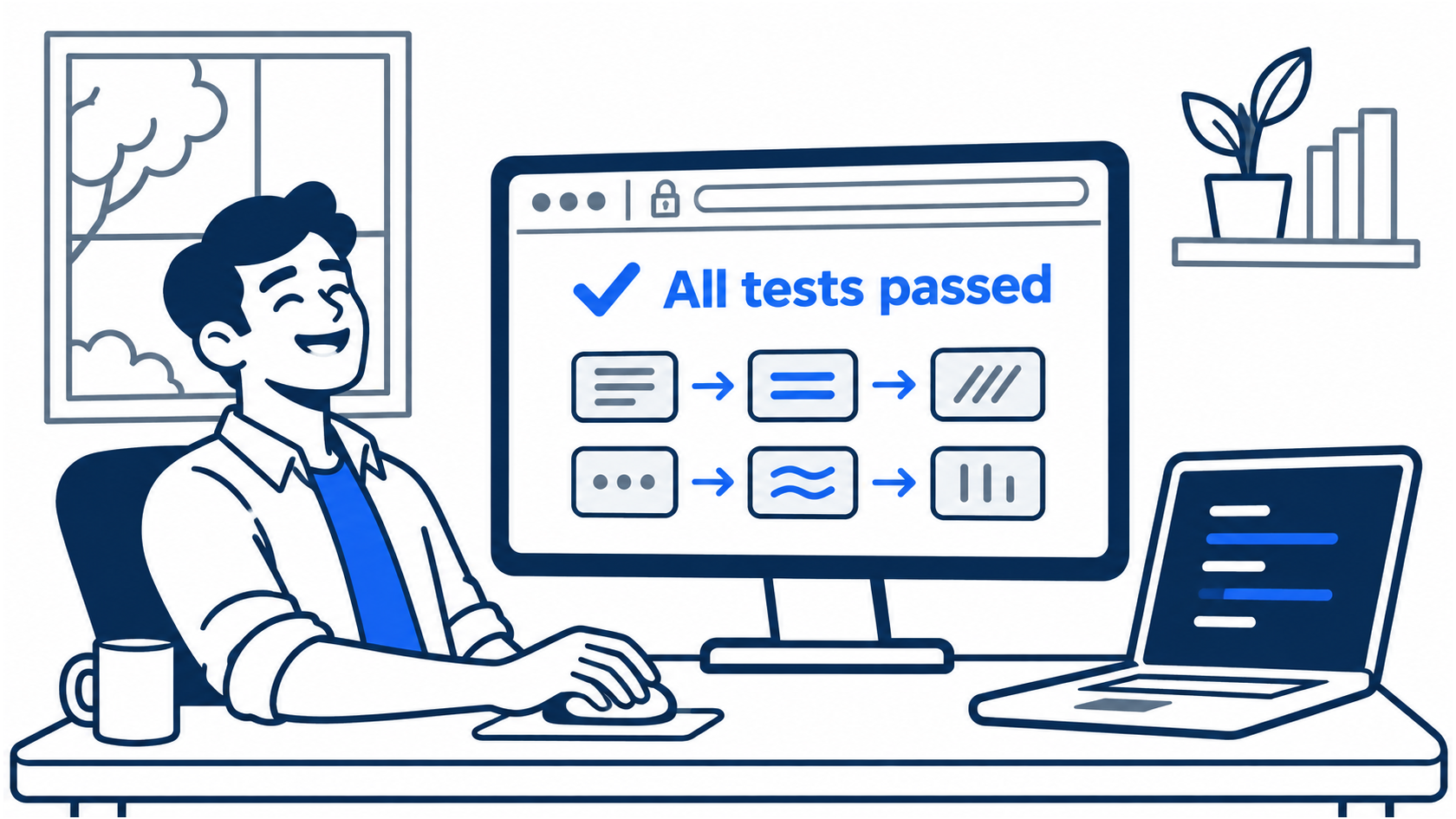
The test run that used to live in scrollback now has a page and a link.
The page is private. Only you can open it until you share it. Do not share it today. Going deeper explains sharing.
Find it again with /artifacts
Back in Claude Code, type /artifacts and press Enter. The list opens. On the tested auto run, it showed this, shortened here:
  Artifacts  All   Mine   Shared

    This session
  ❯ ⧉ Ticket Triage Test Run          ticket-triage-tests.html · private · 14s ago

    Other artifacts

  x to dismiss · c to copy url · d to delete · p to pin · / to search · r to refresh · Enter to open · Ctrl+R to rename · Esc to close
The pages from this session come first, under This session. Each row shows the page's title, its file, private, and its age. Other artifacts lists pages that you published before, if you have any. The last line names the keys. Do not press d. It deletes the page for good.
Press Esc to close the list. The screen shows Artifacts panel closed.
Manual mode: no prompts.
Update the page
Type this and press Enter:
Add a line under the title that says which Node.js version ran the tests, and republish the same artifact.
Claude checks the Node.js version, edits the page file, and publishes it again. On the tested auto run, the publish line read:
⏺ Artifact("ticket-triage-tests.html")
  ⎿  Updated ⧉ https://claude.ai/artifact/<id>
Updated replaces Published, and the link is the same as before. The auto reply said The page now has the line "Ran on Node.js v22.22.1" under the title, and it's republished at the same link. The Manual reply said that the line reads Tests ran on Node.js v22.22.1. Your version can differ. The docs say that a page that is open in your browser updates in place. If yours did not change, open the printed link again. On the tested run, the browser then showed the new line under the heading All 22 tests pass, in capitals as the page styled it: RAN ON NODE.JS V22.22.1. Check that your page shows the new line under its heading.
Manual mode: no prompts. The page file is in Claude's scratchpad, not in your project, so the edit and the publish asked nothing.
Check the win
Type /exit, and in the terminal, run:
git status
git log --oneline -1
npm test
Git prints nothing to commit, working tree clean. The log still shows Add a rule audit, so Claude made no commit. The tests show ℹ fail 0 and the same count as this morning. The page lives on claude.ai, and its file lives in a temporary folder outside Ticket Triage, so there is nothing to commit. Tomorrow starts from this state.
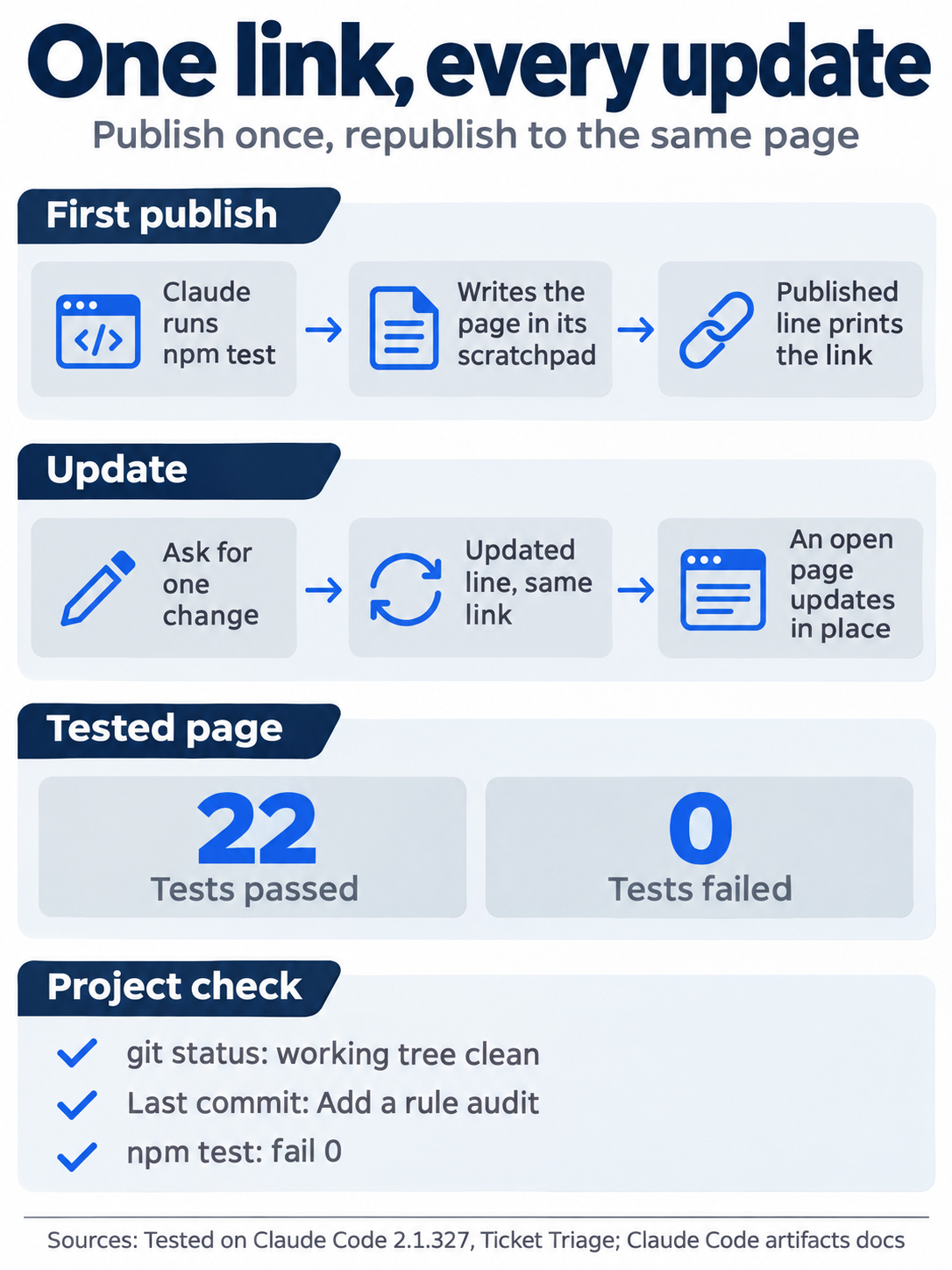
One link carries every version of the page, and the project itself does not change.
You published a test report as a private page, found it in /artifacts, updated it at the same link, and left your project unchanged.
You can stop here. Going deeper explains why this works and where it breaks.
Going deeper
This section is for readers who want to know what a page can hold, who can see it, when Claude Code asks before it publishes, and how to remove a page. It assumes that you finished Start here in Parts 1 to 23. Unless a line says that this guide tested it, everything here comes from the artifacts docs.
When claude update stays behind
From the setup docs, not tested here. Claude Code follows a release channel. The latest channel gets each release when it ships. The stable channel gets releases later, so an install on stable can print an older number after claude update. /config shows the channel in its Auto-update channel row, and the autoUpdatesChannel setting changes it. A Homebrew install does not update itself. Run brew upgrade claude-code instead.
Why the two runs differed
Both tested runs answered the same prompt with different steps. The auto run read the tests and the last commit in one Bash call. The Manual run used two. The first, which ran npm test, asked nothing. The second ran node --test once per test file and set a shell variable, which caused the prompt. The Manual page grouped its rows by file: There are 9 in test/classify.test.js and 13 in test/priority.test.js. The auto run asked for design guidance with Artifact(quickstart other), and the Manual run with Artifact(quickstart other without design systems), which left out any design system that the account has. Both pages had the title Ticket Triage Test Run.
On the update, the Manual run did more than the prompt asked. Its reply said The version was already in the subtitle, so I removed it from there to avoid showing it twice. Read Claude's reply after each update, as you read a diff, because Claude can change the parts of a page that you did not name.
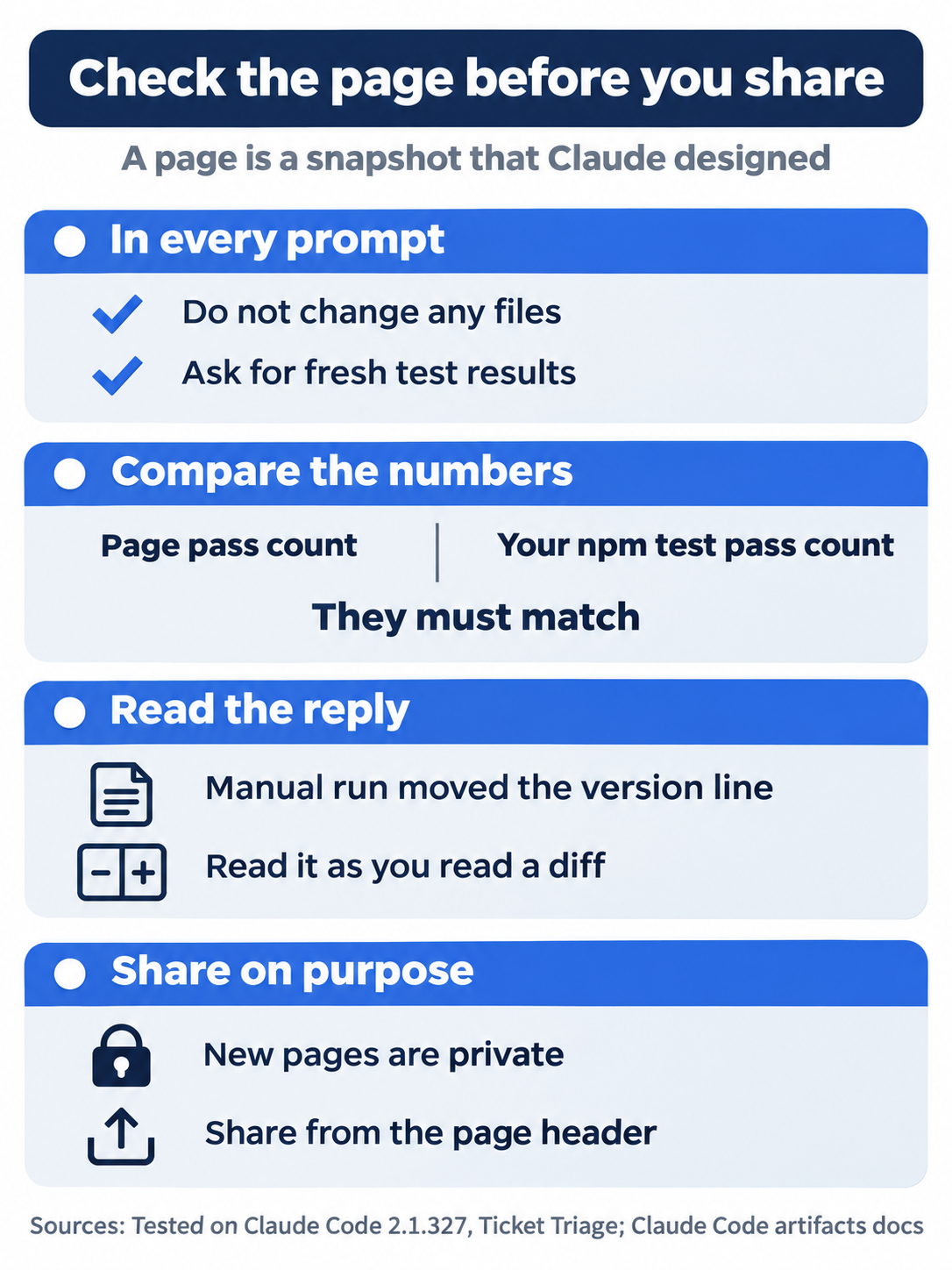
Claude designs the page and can change more than you asked. Your own test run and Claude's reply are the two checks before anyone else sees it.
What a page can and cannot do
An artifact is one self-contained page with no backend. It cannot serve more than one route, and it cannot sign viewers in by itself. The docs suggest your own infrastructure for a hosted tool with a backend. Claude Code serves the page under a strict Content Security Policy (CSP), a set of browser rules that limit what the page can load:
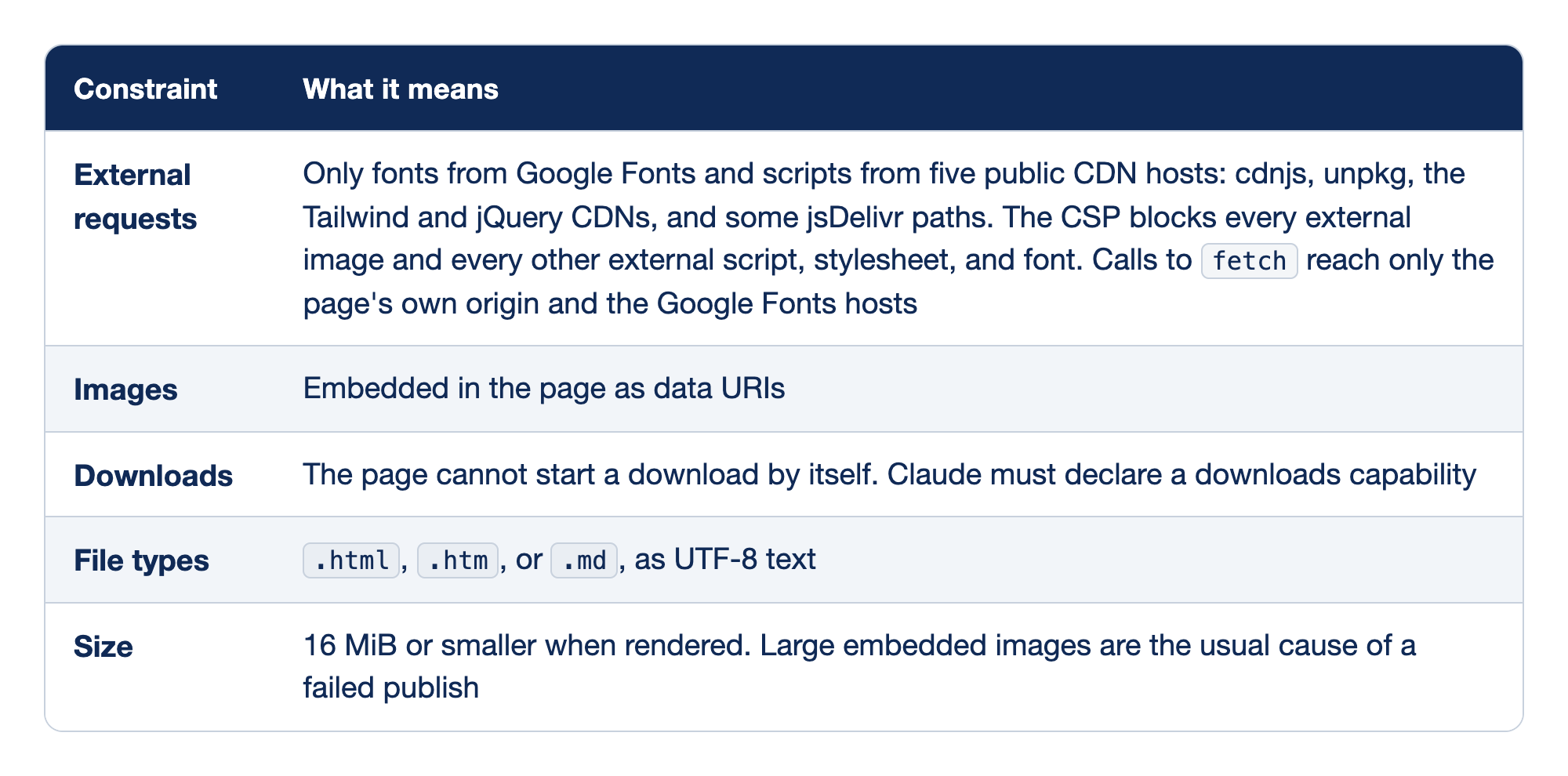
These are the limits that the Content Security Policy and the page format set on an artifact. The Constraint column names a kind of limit, and the What it means column says what a page can and cannot do under it.
- External requests: a page can load fonts from Google Fonts and scripts from five public CDN hosts only, and the CSP blocks every other external image, script, stylesheet, and font, while
fetchcalls reach only the page's own origin and the Google Fonts hosts. - Images: a page carries its images embedded as data URIs.
- Downloads: a page cannot start a download by itself, and Claude must declare a downloads capability for one.
- File types: a page must be an
.html,.htm, or.mdfile in UTF-8 text. - Size: a page must be 16 MiB or smaller when rendered, and large embedded images are the usual cause of a failed publish.
A page can show live data with connector calls, such as a list of pull requests that it fetches each time someone opens it. Each call runs through the viewer's own claude.ai connectors, and claude.ai asks each viewer before the first call. Today's page is a snapshot. To see new results, ask Claude to run the tests and republish.
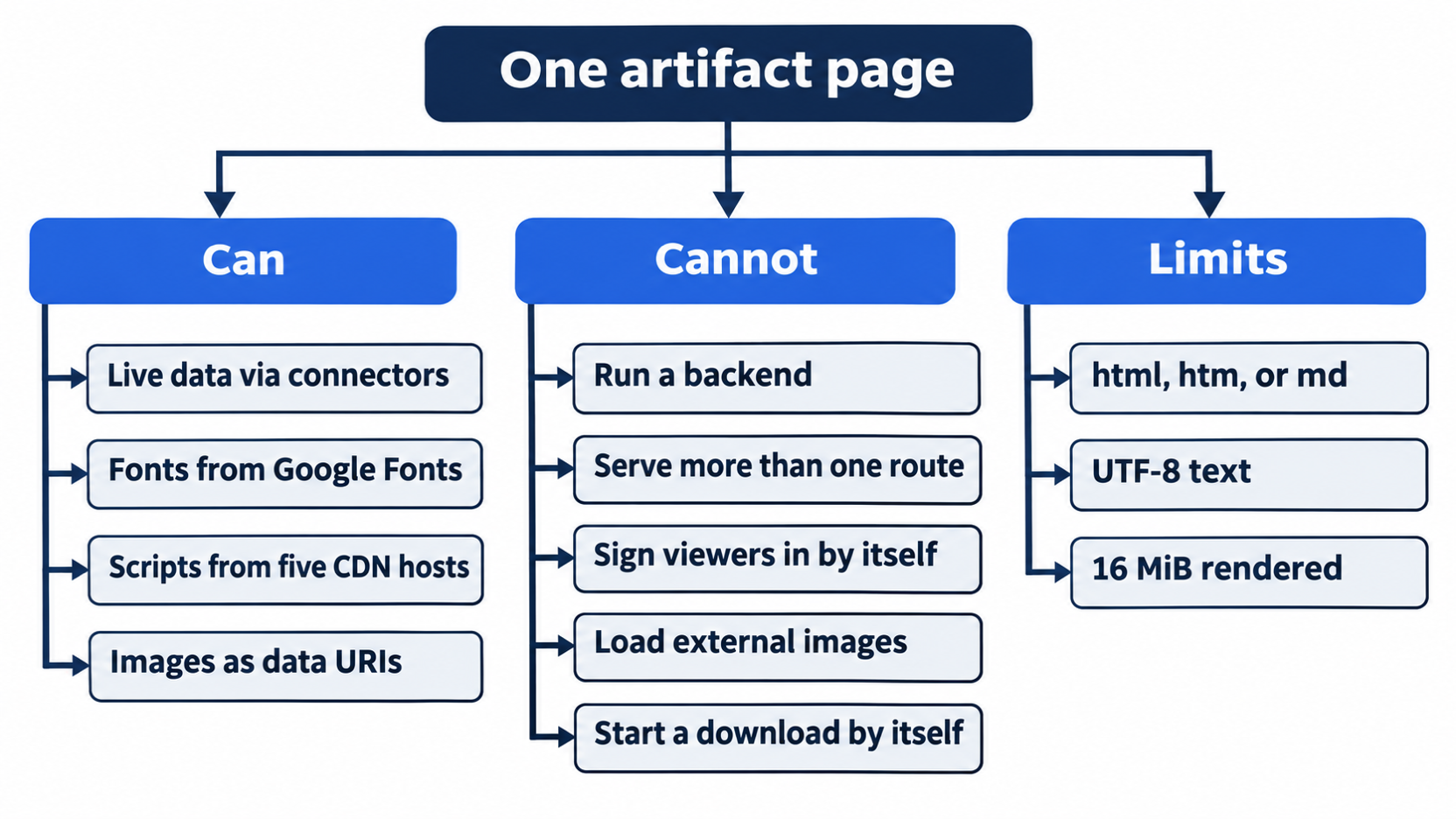
A page is one self-contained file. Anything that needs a server belongs on your own infrastructure.
Who can see a page, and how to share it
A new page is visible only to you. To share it, open it and use the Share control in the page header. The header also links to your gallery at claude.ai/code/artifacts, which lists every page that you created. Who you can share with depends on your plan:
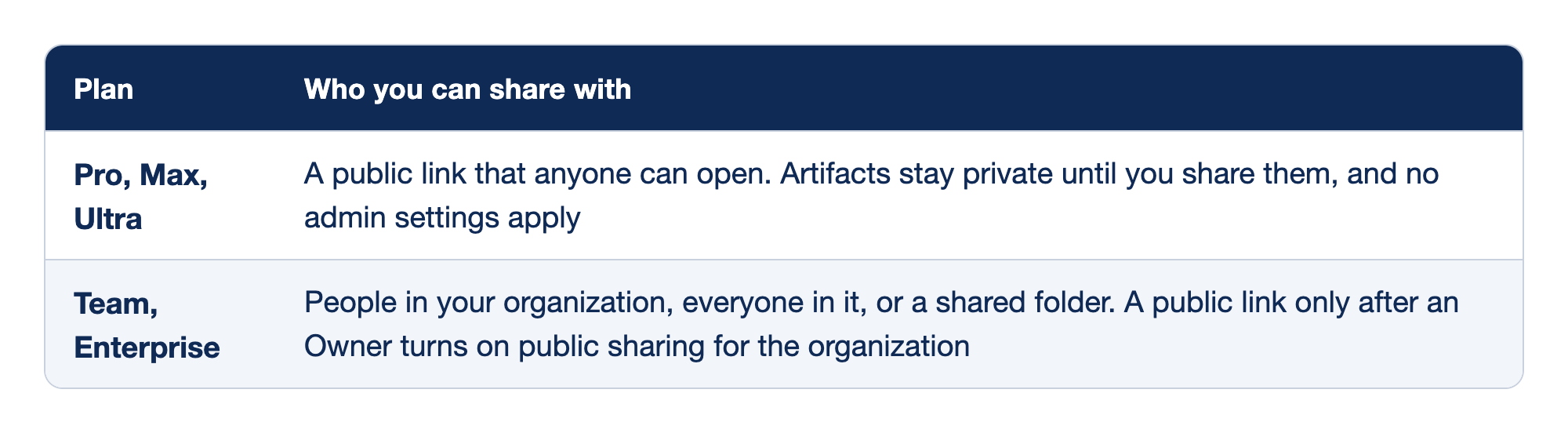
Sharing depends on your plan. The Plan column names the plans, and the Who you can share with column says who can open a page that you share.
- Pro, Max, Ultra: you can share a public link that anyone can open, pages stay private until you share them, and no admin settings apply.
- Team, Enterprise: you can share with people in your organization, with everyone in it, or through a shared folder, and a public link works only after an Owner turns on public sharing for the organization.
On Team and Enterprise plans, an Owner can turn artifacts off for the whole organization. The Availability section of the docs lists more requirements. The session must use a claude.ai sign-in, not an API key, a gateway token, or a cloud-provider credential. A gateway token is a token for a company proxy that ANTHROPIC_BASE_URL points to, an LLM gateway. The model provider must be the Anthropic API, not Amazon Bedrock, Google Cloud's Agent Platform, or Microsoft Foundry. The organization must not have customer-managed encryption keys, HIPAA, or Zero Data Retention turned on. When one requirement is not met, Claude writes a local HTML file or says that it cannot publish. This guide did not test sharing or these requirements.
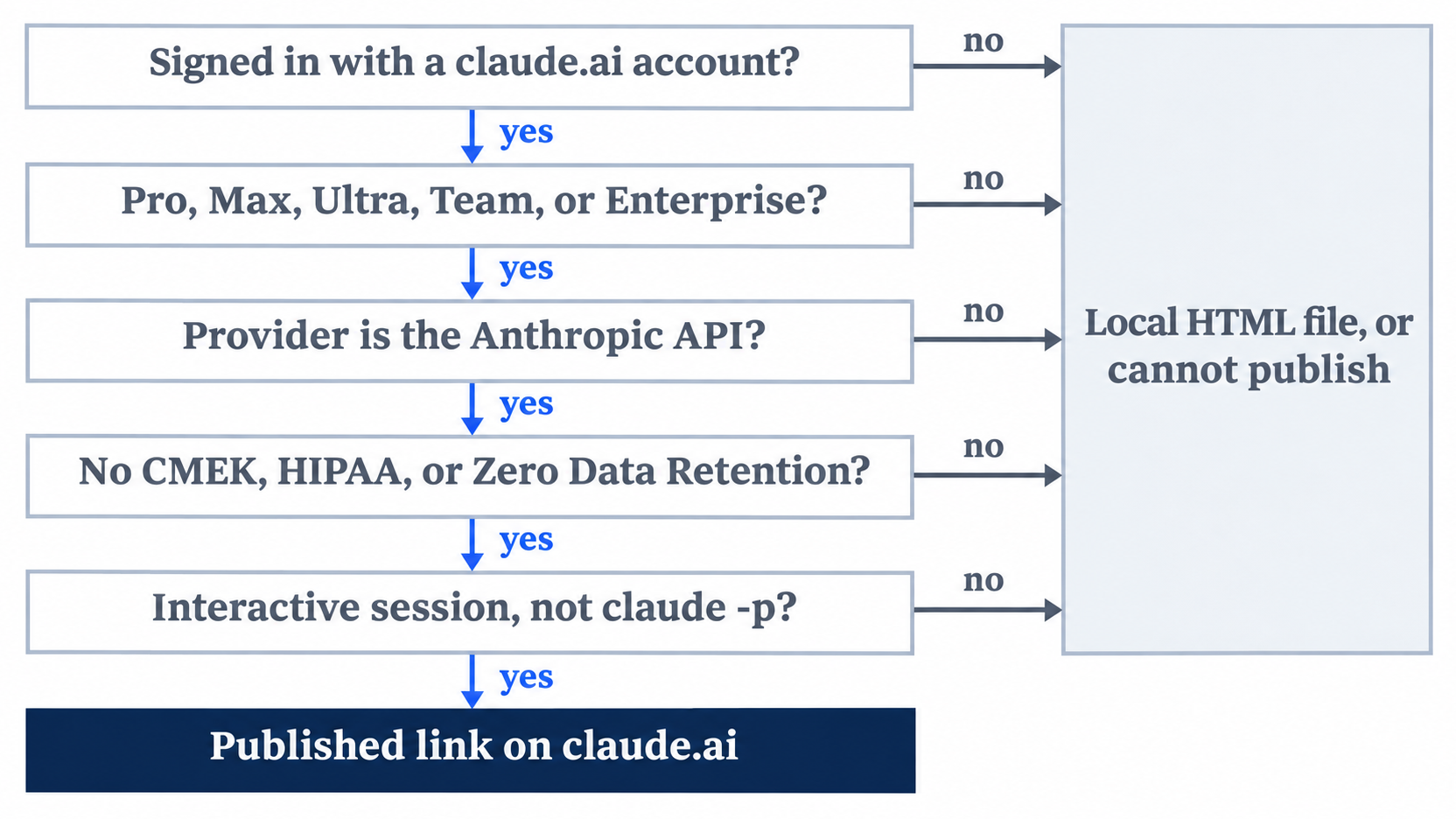
Every requirement must hold for a published link. When one fails, you get a local file or a refusal, not a link.
Versions and comments
Each publish becomes a version. The tested update made a second version of the same page. From the Share control, you choose which version viewers see. Anyone with the page open sees an update in place. To update a page from a different session, give Claude its link, or attach it in /artifacts with Enter. Without one of those, a new session makes a new page. This guide did not test the version picker or an update from a second session.
When you share a page in your organization, viewers can leave comments on it. Give Claude the link and ask it to read the comments, or let someone who can edit the page send a comment to Claude, which reaches your session. Your permission mode decides whether Claude replies by itself or waits for you. This guide did not test comments.
Find, reopen, and delete pages
On 2.1.327, the tested links had the form https://claude.ai/artifact/<id>. The docs show links of the form claude.ai/code/artifact/.... The tested auto link opened the page in a signed-in browser, so use the link that Claude prints.
/artifacts reads the list from your claude.ai account, so it works in a new session and after /clear. The tested footer named these keys: x to dismiss · c to copy url · d to delete · p to pin · / to search · r to refresh · Enter to open · Ctrl+R to rename · Esc to close. The tabs at the top read All, Mine, and Shared. The docs say that Enter opens a page that is already attached to the session and attaches one that is not. They also list o, which opens the page in your browser, a key that the tested footer did not show. This guide tested only the list and Esc.
The ⧉ pill in the status bar arrived in v2.1.281, which also made /artifacts list the session's pages first. The pill shows a count when the session has several pages. Ctrl+] reopens the session's most recent page in your browser. This guide did not test it.
CLAUDE_CODE_ARTIFACT_AUTO_OPEN=0 in your environment stops the browser from opening on the first publish. The tests set it, and no browser tab opened on the test computer. Set it if you publish many pages and want to open each one yourself.
d deletes a page that you own, after you confirm. The docs say that the deletion is permanent, and the link stops working for everyone, including you. Since v2.1.305, the confirmation takes 1 or Enter to keep the page, 2 to delete it, and Esc to cancel. The docs also say that d does not work in a cloud session. This guide did not test d, and the tested pages stay private on the test account.
When Claude Code asks before it publishes
The tested publishes asked nothing in either mode, because a new page that you ask for in a typed prompt goes through with no permission prompt. The docs list the cases that do ask:
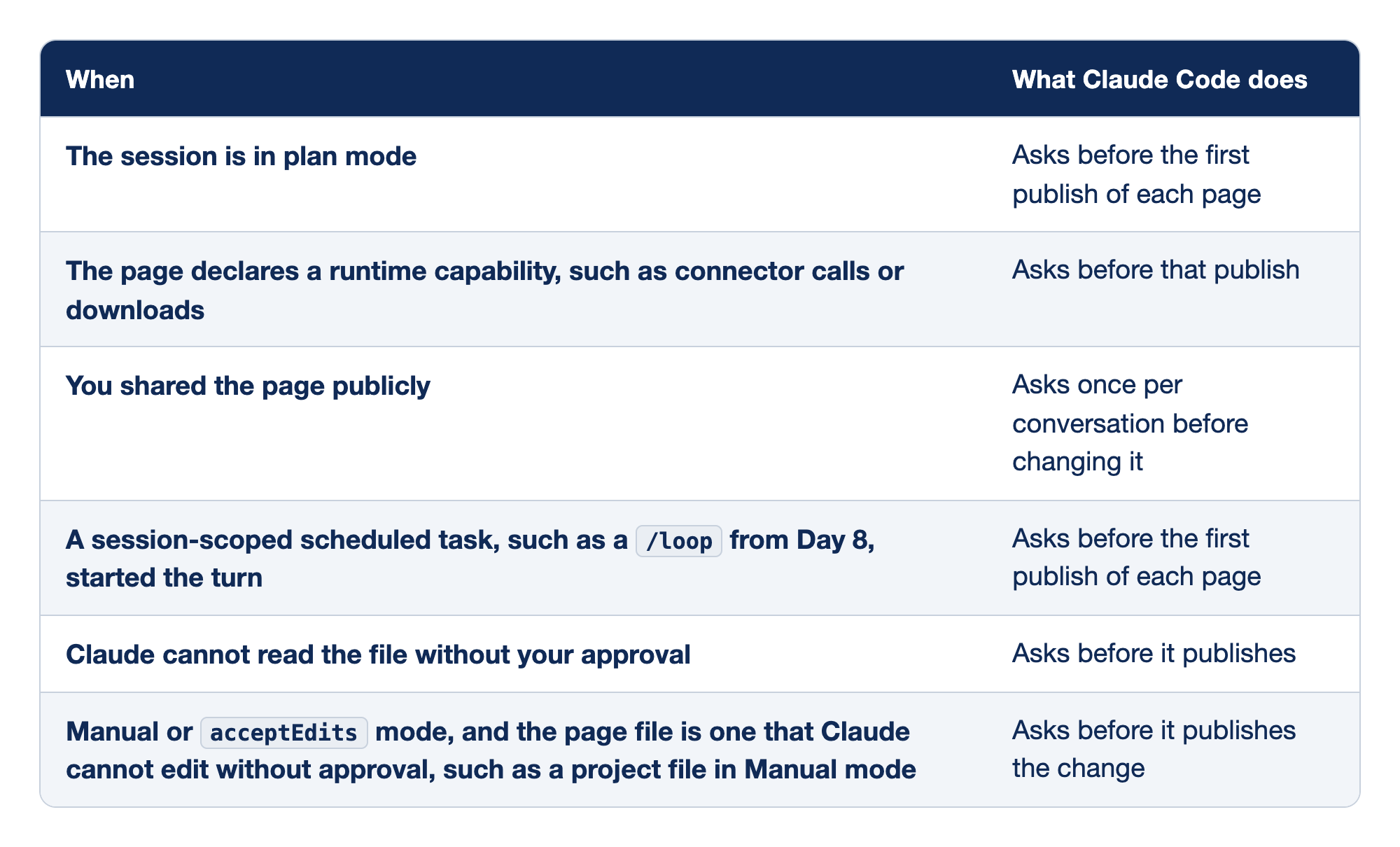
Most publishes ask nothing, and a few cases make Claude Code ask first. The When column names the situation, and the What Claude Code does column says when the prompt appears.
- The session is in plan mode: Claude Code asks before the first publish of each page.
- The page declares a runtime capability, such as connector calls or downloads: Claude Code asks before that publish.
- You shared the page publicly: Claude Code asks once per conversation before it changes the page.
- A session-scoped scheduled task, such as a
/loopfrom Day 8, started the turn: Claude Code asks before the first publish of each page. - Claude cannot read the file without your approval: Claude Code asks before it publishes.
- Manual or
acceptEditsmode, with a page file that Claude cannot edit without approval, such as a project file in Manual mode: Claude Code asks before it publishes the change.
The last row explains the Manual-mode update. The page file was in the scratchpad, which Claude reads and writes without asking, so the update asked nothing. If you ask Claude to write the page into your project instead, the docs say that Manual mode asks before the edit, and git status then shows a new file.
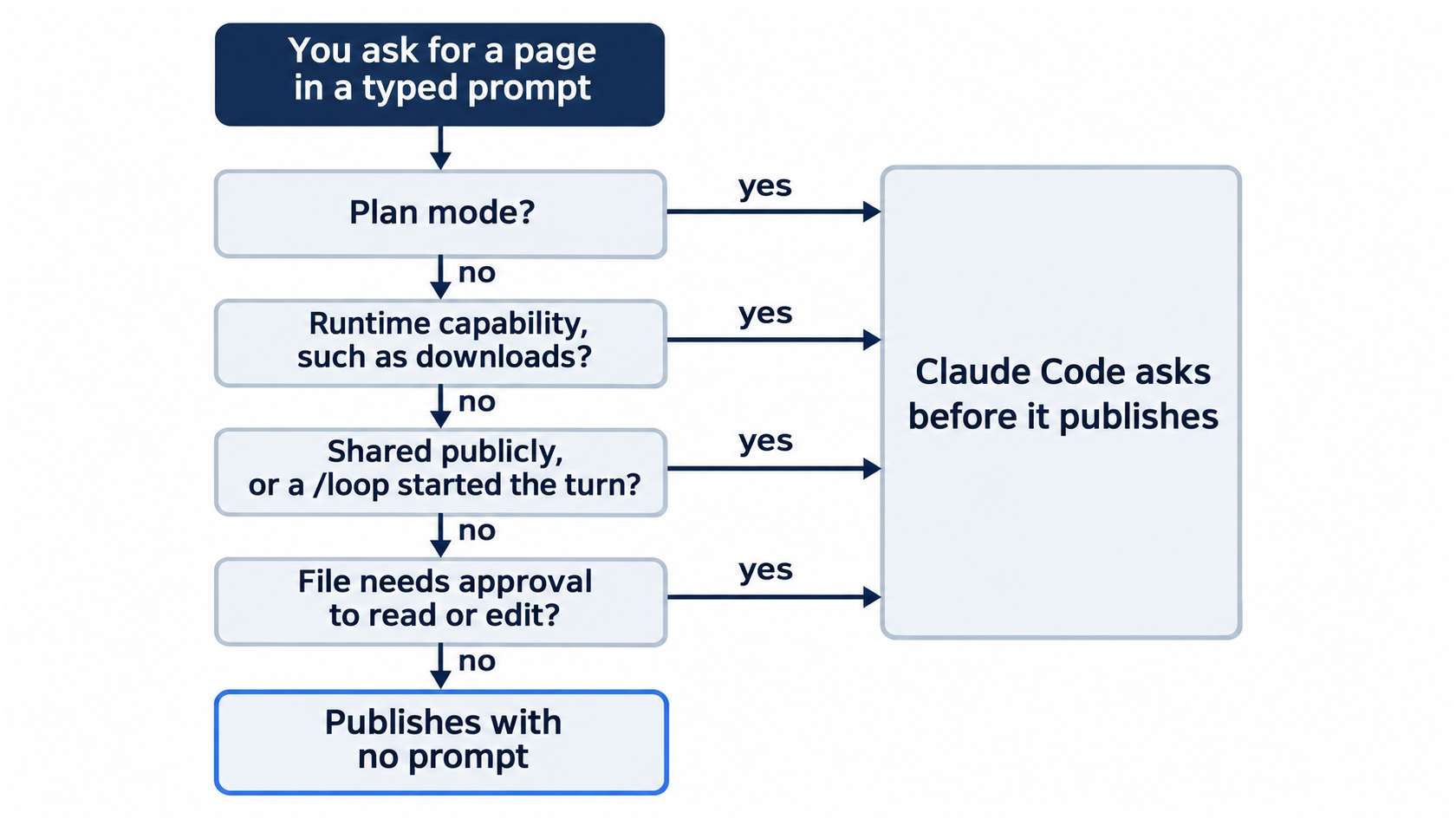
A page in the scratchpad, asked for in a typed prompt, passes every check and publishes with no prompt.
Token cost
A page costs output tokens like any reply, and a styled page costs more than the same text in the terminal. Inline CSS, scripts for interactive controls, and images embedded as data URIs cost the most. To keep a page cheap, prefer SVG or HTML and CSS over embedded images, leave out controls that you do not need, and have the page summarize a large dataset instead of including all of it.
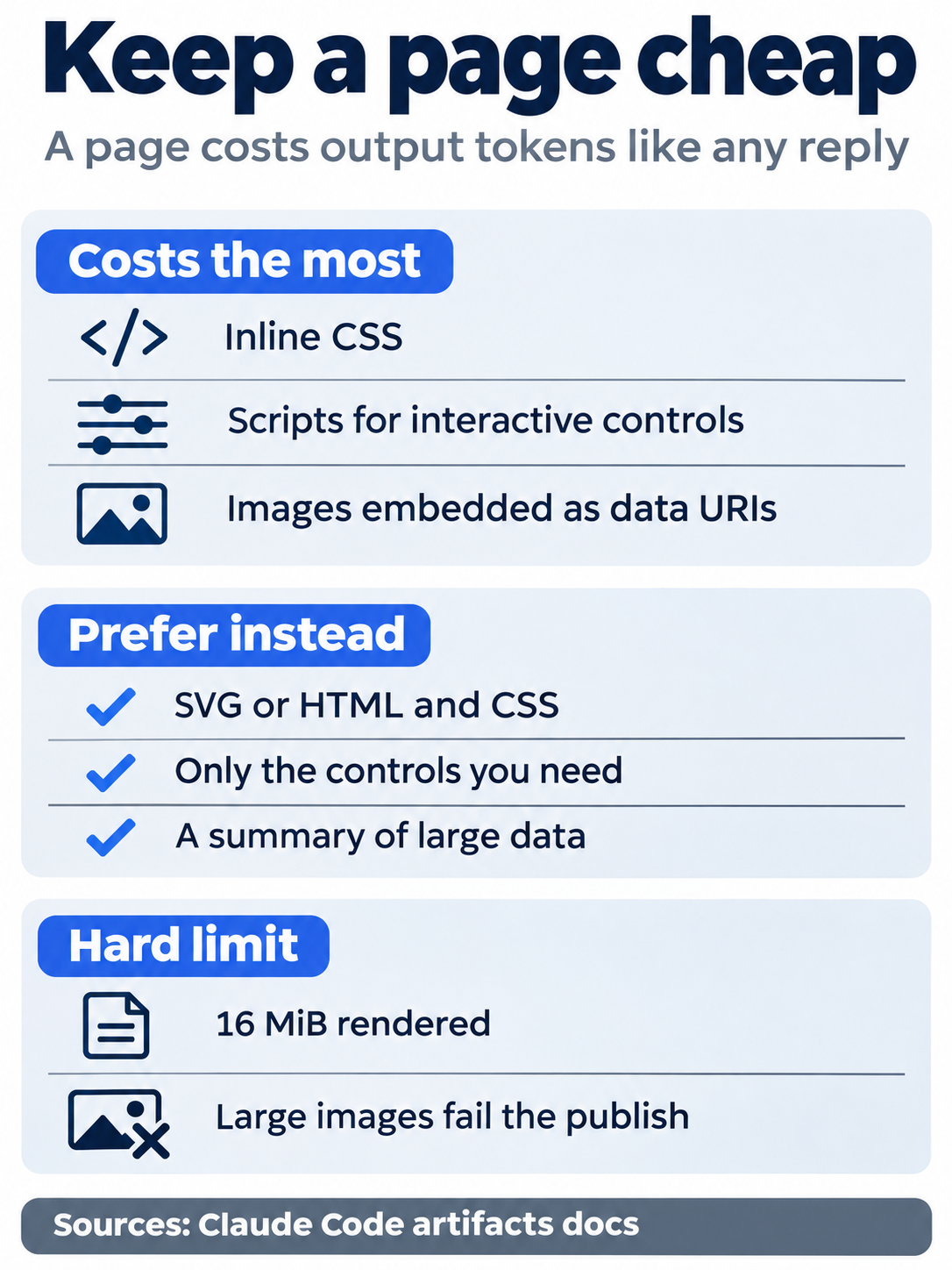
Plain HTML and a summary cost less than a heavy, interactive page.
Turn artifacts off
To turn artifacts off for your own sessions, use any one of these:
- In
/config, turn the Artifacts row off, which writes"enableArtifact": falseto your user settings. - Set
"enableArtifact": falsein a settings file. In a project's.claude/settings.json, it turns artifacts off for that project only. - Set
CLAUDE_CODE_DISABLE_ARTIFACT=1in your environment. - Add
Artifacttopermissions.deny, as on Day 4.
This guide did not test these steps.
Headless runs cannot publish by default
The docs say that artifacts are off by default when you run Claude Code with -p from your terminal or a script, in the GitHub Action, and in the Agent SDK. A -p run that you ask for a page writes a local file or says that it cannot publish. This guide did not test this. Tomorrow you run claude -p from a script.
Fixes in 2.1.327
The 2.1.327 changelog lists these artifact changes:
/artifactsno longer shows part of your list, orNo artifacts yet, when a request for more of the list fails. It tries again, then warns if it cannot load the whole list.- A publish no longer fails with
the source file changed between approval and publishwhen a synced folder changed only the file's timestamp. - The Artifact tool now refuses calls once settings turn artifacts off, in sessions that are already running too.
- In organizations that require approval of each new artifact, a session with nobody to ask now refuses a new page at once, with no prompt.
- The publish prompt no longer offers "don't ask again" in subagents, or after a background task result, someone else's message, or a compaction.
Go further: Share session output as artifacts adds prompts for other pages: a pull request walkthrough with annotated diffs, several layouts side by side, sliders to tune a value, a triage board with a "Copy as prompt" button, and a checklist that Claude keeps current while a long task runs.
Do this today
Everyone
- Publish the test report, find it in
/artifacts, and update it once. Check the win: the update line readsUpdatedwith the same link as the publish line,git statusprintsnothing to commit, working tree clean,git log --oneline -1still showsAdd a rule audit, andnpm testshowsℹ fail 0with the same count as this morning. - Habit: put
Do not change any files in this project.in each prompt that asks for a page, and read the page's numbers against your ownnpm testbefore you share it. Check: your next page shows the same pass count as your terminal, andgit status --shortprints nothing after it.
If you read Going deeper
- Copy the page's link from
/artifacts. Startclaude, type/artifacts, select today's page, and pressc. Check: paste the link into your browser, and today's page opens. This guide tested the list but did not pressc. Reset: pressEsc, type/exit, and check thatgit status --shortprints nothing. - Optional: delete today's page. Start
claude, type/artifacts, select the page, pressd, and choose2at the confirmation. The deletion is permanent, and the link stops working for everyone. Check: the page is gone from the list, and the old link no longer opens it. This guide did not test this step. Reset: none needed. Type/exit, and check thatgit status --shortprints nothing.
From scrollback to a link
An artifact moves a result out of your terminal and onto a page with a private link. Claude runs the tests, writes the page in its scratchpad, and publishes it. When you ask for a change, it republishes to the same link, and your project never sees a new file.
The page is only as good as the numbers on it. Ask for fresh results, keep the prompt read-only, and compare the page with your own test run before anyone else opens the link.
This is Part 23 of "Claude Code, Day-to-Day (second edition)," a day-by-day guide to Claude Code in which each day takes 20 to 40 minutes. Part 23 is Day 23. All 28 days are out now.