
Leave the Desk, Keep the Session: Claude Code Remote Control in One Tested Afternoon
Remote Control does not move Claude off your machine; it adds a second window, and the safe way to use it is to approve remotely and verify at the desk.
Claude Code Remote Control turns a browser or your phone into a second window on a session that keeps running on your own machine. This is the tested path from /rc to a committed change, and the places where it breaks.
You started a long task, and now you are stuck at the desk because Claude might stop and ask you something while you are away.
In this article: Day 7 of a day-by-day guide to Claude Code. Start here: you connect a running session to a browser and your phone, approve its edit from there, and prove the result in the terminal. Going deeper: the three ways to start Remote Control, what the phone can do, and why Remote Control fails to start.
Tested on Claude Code 2.1.326.
Yesterday you read /context, watched one prompt fill the window, and emptied it with /clear.
Start here
At the end of today, you can connect a Claude Code session in Ticket Triage to a browser, send it a prompt from there, approve its permission prompt from there, and check the result in the terminal. Then you do the same from your phone.
Starting fresh or fell behind? Run git switch -C main claude-code/day-06. This replaces your main with the end of Day 6; to keep your own work, run git branch my-backup first.
Remote Control links a Claude Code session on your machine to claude.ai/code in a browser and to the Claude app on your phone. Claude keeps running on your machine. It reads your files, runs your commands, and uses your settings, the same as in the terminal. The browser and the phone show the same conversation, and a prompt that you type there goes to the same Claude. Use it when a task runs long and you want to leave the desk without stopping it: start a slow test run before lunch, then check it and answer Claude's questions from another computer or your phone.
What you need
- A Claude subscription login. Remote Control needs the login from Day 1, choice
1. Claude account with subscription. It does not work with an Anthropic Console account. If you use a Console account, run/remote-controlonce. Your check for today is the error that says Remote Control needs a claude.ai subscription. Then read the rest of Start here and Going deeper. - On a Team or Enterprise plan, an Owner's approval. An Owner must turn on Remote Control in the Claude Code admin settings first.
- A browser signed in to claude.ai with the same account. For the phone path, the Claude app for iOS or Android, signed in to the same account.
Check the starting state
Open a terminal in Ticket Triage:
cd ~/code/ticket-triage
git status
npm test
Git prints nothing to commit, working tree clean. The tests show ℹ fail 0 and the pass count from Day 5, such as ℹ pass 16. Write down the pass count.
Connect the session
Start Claude Code with claude. Today you approve an edit from the browser, and Manual mode makes Claude ask for it. Look at the status bar first. If it does not show ⏸ manual mode on, press Shift+Tab until it does. On the tested run, one press switched auto mode to Manual mode. Manual mode: the status bar already shows ⏸ manual mode on, so do not press Shift+Tab.
Then type:
/remote-control Ticket Triage
The words after the command name the session. The first time, the docs say that Claude Code asks you to confirm Remote Control, and you select Enable Remote Control. This guide's test account had confirmed it before, so that dialog was not run.
Claude Code prints one line in the conversation:
/remote-control is active · Continue here, on your phone, or at https://claude.ai/code/session_...
The right end of the status bar now shows /rc. The indicator means that the session is connected. /rc is also the short form of the command: typing /rc does the same as typing /remote-control. Connecting runs no tool, so no permission prompt appears.
Open the session in a browser
Copy the https://claude.ai/code/session_... link from the terminal and open it in your browser. The page shows the session named Ticket Triage, with No messages yet, and its footer says Manual.
Two questions can appear first. Enable notifications asks whether the browser may notify you. Choose either one. Sign in again to verify your device asks you to sign in again. Sign in, or choose Not now. On the tested run, Not now kept the session working.
Send a prompt and approve it from the browser
In the browser's message box, type this prompt and press Enter:
Add one test to test/priority.test.js for the ticket "Please answer ASAP!!", which should be high. Then run the tests and tell me the pass count.
Claude works on your machine. When it wants to edit the test file, the browser shows a box: Allow Claude to edit priority.test.js?, with the file path and the new test line. The terminal shows the same request, Do you want to make this edit to priority.test.js?.
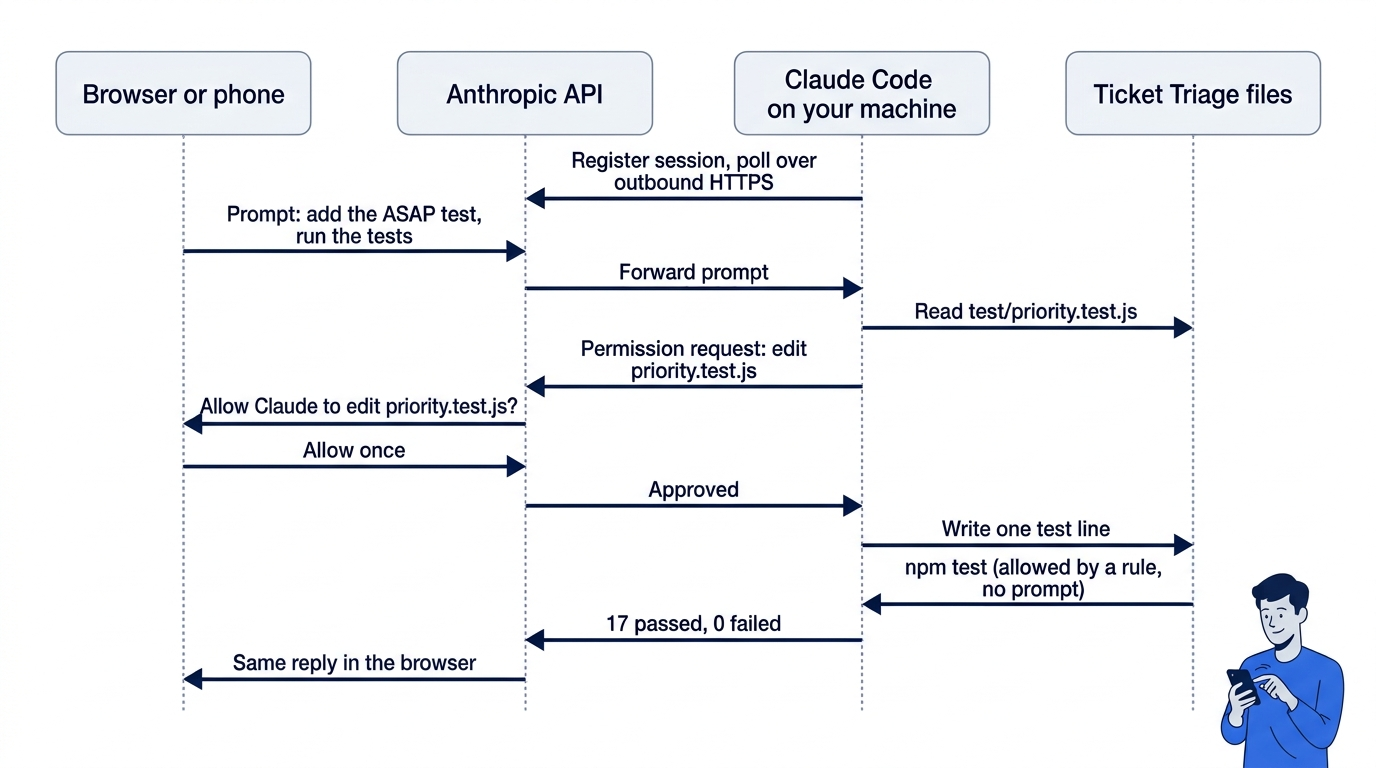
Answer in the browser. Next to Always allow is a small arrow that opens a menu. Open it and choose Allow once. Always allow would approve every edit for the rest of the session, and today you want to approve each one.
The terminal's prompt closes, because you answered it in the browser. Claude then runs the tests. If it runs npm test, no prompt appears, because of the Day 4 rule. If it runs another test command, such as node --test, the browser asks again. Choose Allow once for a test command, and Deny for any other command. On the tested run, Claude ran npm test, and the reply in both places was 17 passed, 0 failed across both test files. Your count is the pass count that you wrote down, plus one.
Check the win
Look at the terminal. It shows your browser prompt, the edit, the test run, and the same reply as the browser. In a second terminal, run:
git diff --stat
npm test
Git shows test/priority.test.js | 1 +. The tests show ℹ fail 0, and the pass count is one more than this morning. Commit the change:
git commit -am "Add ASAP punctuation test"
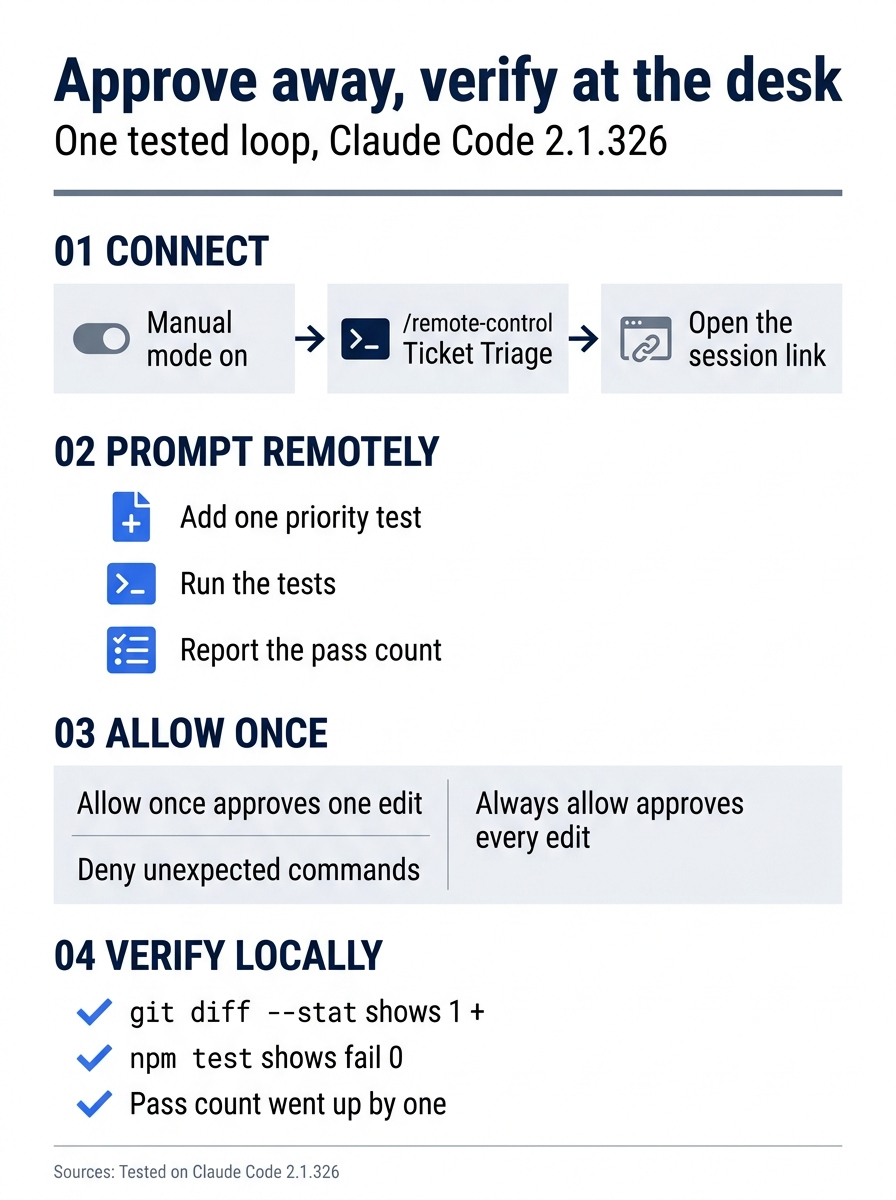
The loop has four steps: connect in Manual mode, prompt from another device, allow each edit once, and verify locally with git diff --stat and npm test. The point is that the remote approval is never the last word. The terminal proves the change.
Do it again from your phone
The phone path was tested once on 2.1.326. The steps are the same as the browser path, with the Claude app in place of the browser.
-
In the terminal, run
/remote-controlagain. A panel opens with Disconnect this session, Show QR code, and Continue. Select Show QR code and pressEnter. A QR code appears in the panel. -
Point your phone's camera at the QR code and tap the link. The Claude app opens on the session named
Ticket Triage. -
In the app's message box, send this prompt:
Add one test to test/priority.test.js for the ticket "Cancel my order Immediately.", which should be high. Then run the tests and tell me the pass count. -
When Claude wants to edit the test file, the app shows the permission request. Allow it once, not always. If Claude asks to run a test command, such as
node --test, allow that once too. Deny any other command.
The terminal shows your phone prompt, the edit, and the test run. The test kept no pictures of the app, so this guide does not quote its button names.
Check it in the second terminal. git diff --stat shows test/priority.test.js | 1 +, and npm test shows ℹ fail 0 with one more pass than after the browser test. Commit the change:
git commit -am "Add Immediately test from the phone"
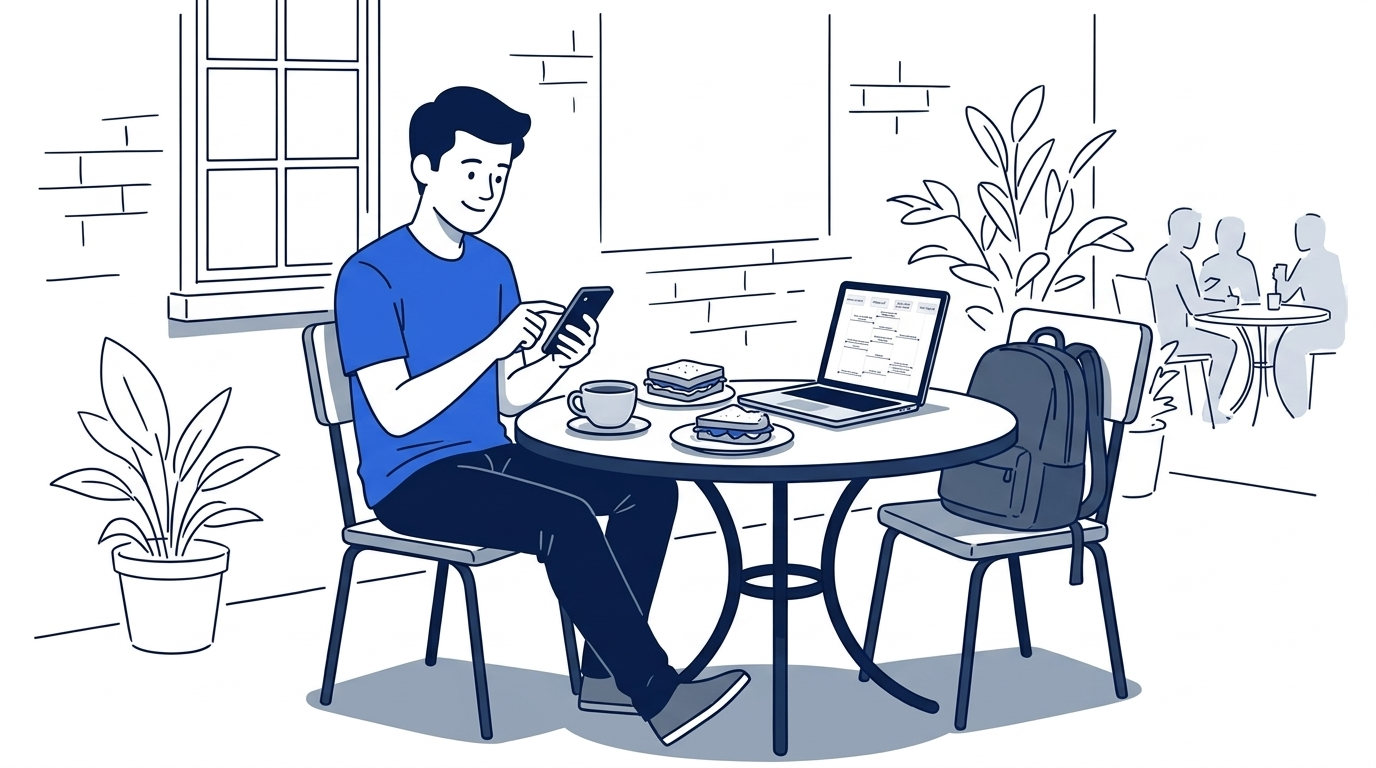
The scene shows the payoff: the work stays on the machine at the desk, and the phone only answers the question Claude asked.
Disconnect
Run /remote-control in the terminal. A panel opens with Disconnect this session, Show QR code, and Continue. Select Disconnect this session and press Enter. Claude Code prints:
⎿ Remote Control disconnected.
The /rc indicator goes away. The session keeps running in the terminal, and only the remote link stops. Disconnect when you are back at the desk: while Remote Control is connected, Anthropic's servers keep a copy of the conversation so that your devices stay in sync. Type /exit to end the session.
You sent prompts from a browser and from your phone, approved Claude's edits there, and checked in the terminal that the work ran on your machine. Write down the new pass count.
You can stop here. Going deeper explains why this works and where it breaks.
Going deeper
This section is for readers who want the other ways to start Remote Control, what the phone can and cannot do, and the security model. It assumes you finished Start here in Parts 1 to 7.
How it works
Your machine does all the work. When Remote Control starts, the session registers with the Anthropic API and polls for messages. It makes outbound HTTPS requests only and opens no inbound port, so it works behind most firewalls. When your phone connects, the Anthropic API passes messages between the phone and your session.
While Remote Control is connected, Anthropic's servers store the session transcript: your messages, Claude's replies, and the tool activity. The stored transcript keeps your devices in sync and lets the session reconnect after a network drop. Your files and your commands stay on your machine. Each part of the connection uses its own short-lived credential.
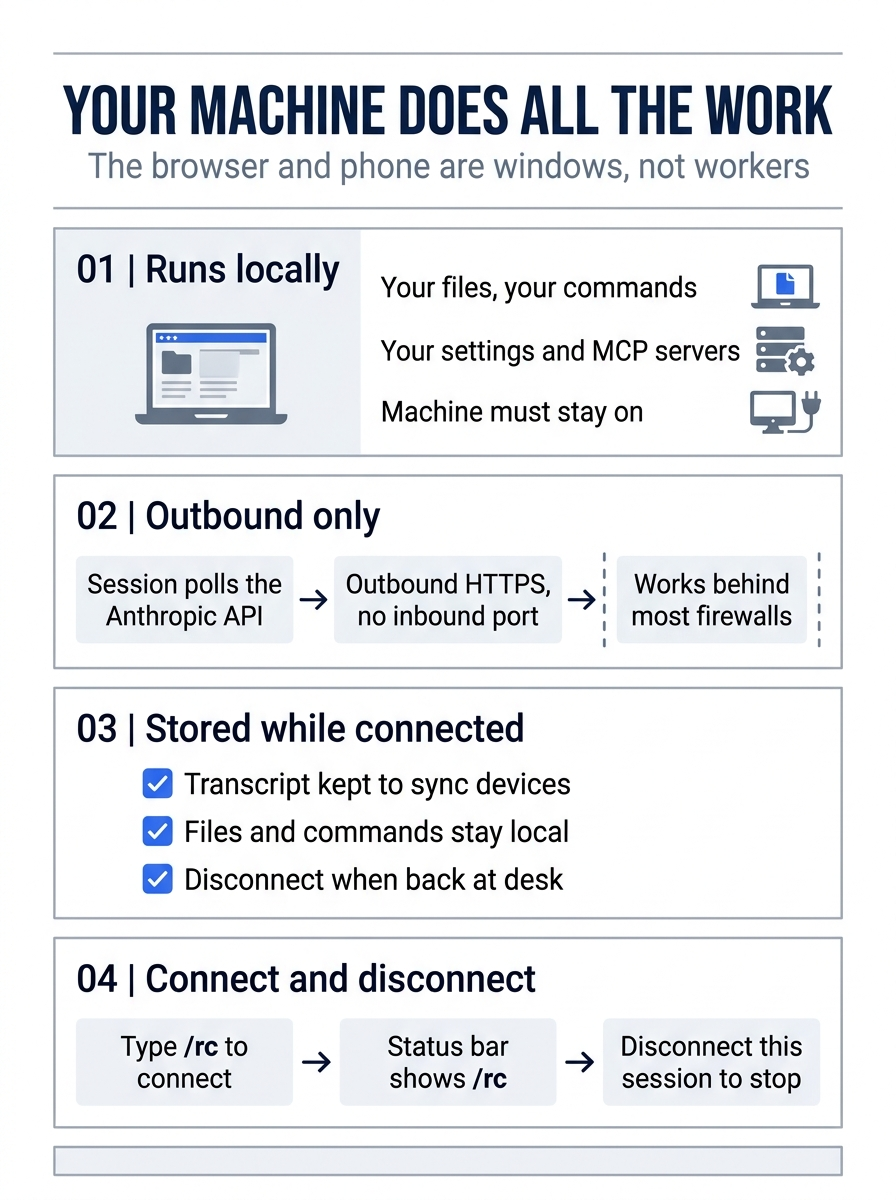
In short, the browser and the phone are windows, not workers. Everything that touches code happens locally, and the only thing that leaves the machine while you are connected is the conversation.
Three ways to start
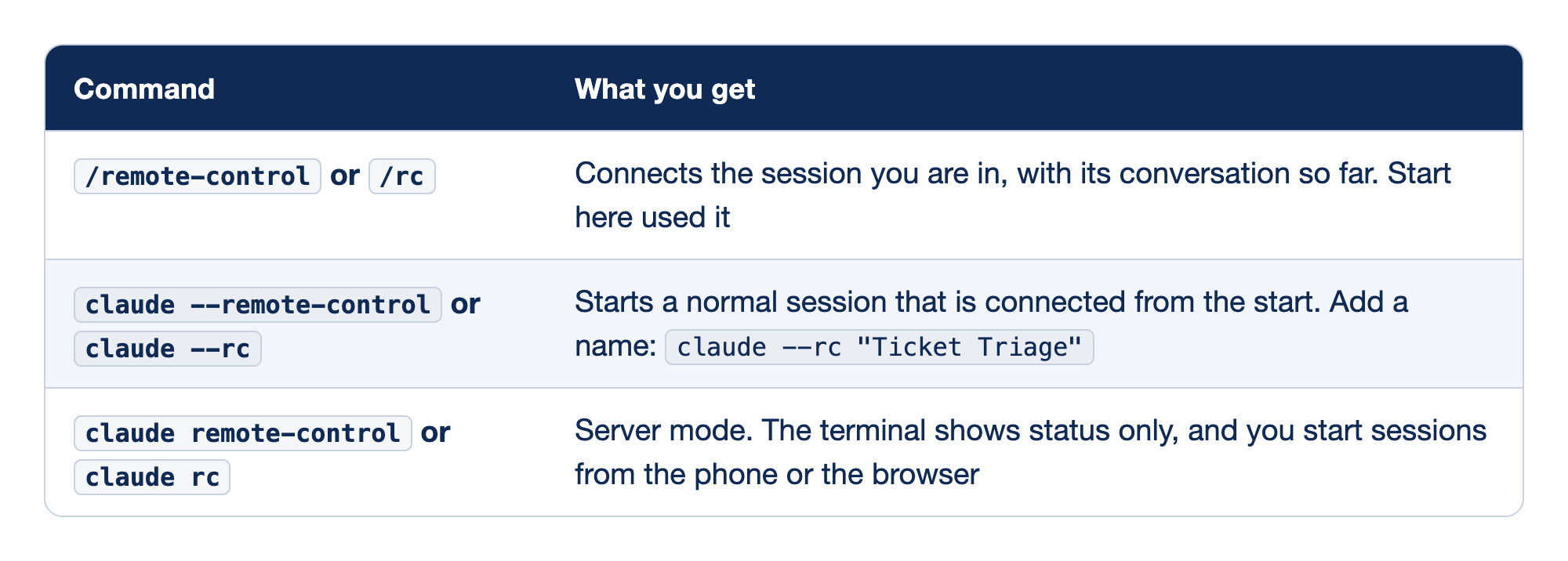
Remote Control has three entry points, compared by the command you type and what you get. The Command column holds the long form and the short form of each entry point, and the other column says which session becomes remote and how the terminal behaves.
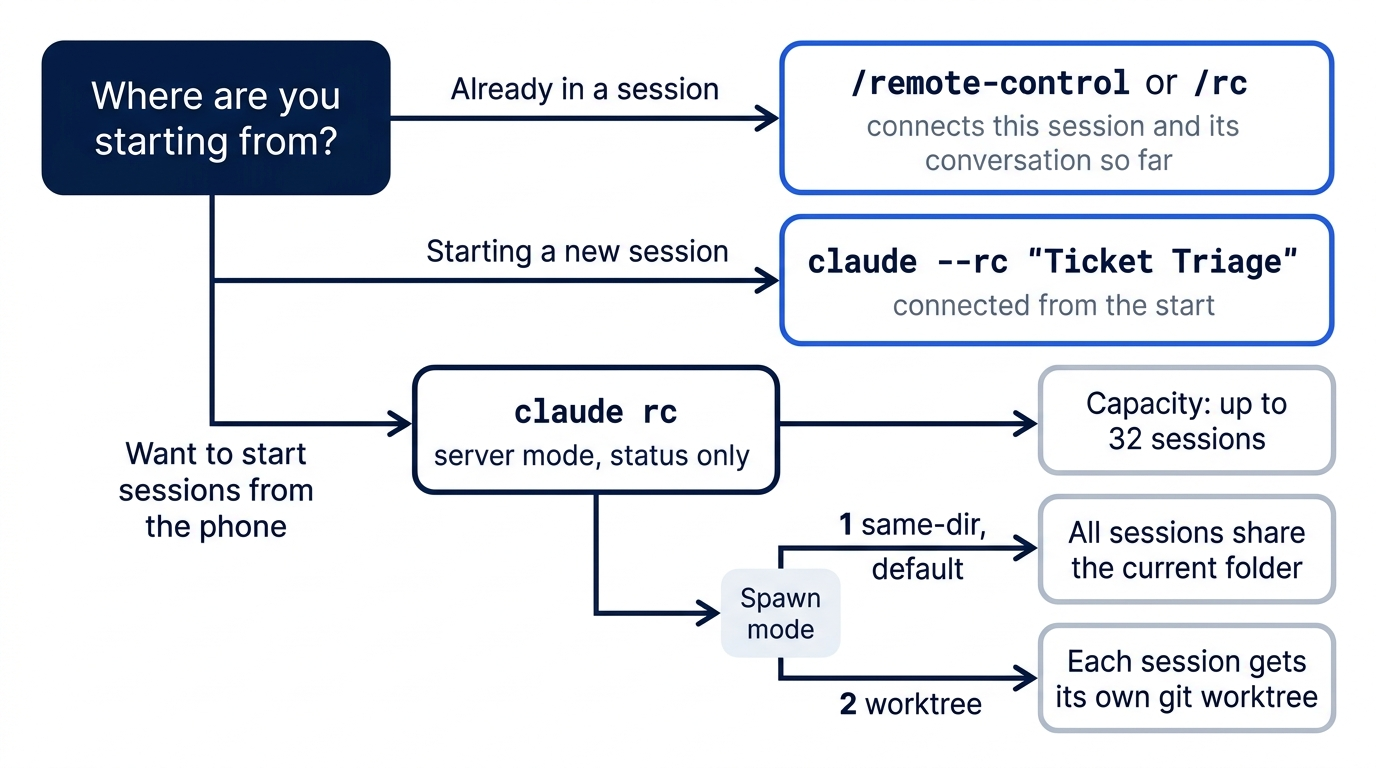
/remote-controlor/rcconnects the session you are already in, and it carries the conversation so far. Start here used it.claude --remote-controlorclaude --rcstarts a normal interactive session that is connected from the first prompt, and you can name it, as inclaude --rc "Ticket Triage".claude remote-controlorclaude rcstarts server mode, where the terminal shows status only and you start new sessions from the phone or the browser.
If the Claude app is not on your phone yet, run /mobile. On 2.1.326 it showed Get the Claude app on your phone, a QR code, Scan the QR code, or visit claude.ai/mobile, and Then run /rc to continue this session from your phone.
A name sets the session title in the list on your phone. Without one, Claude Code uses the title that you set with /rename, then your conversation, then a generated name such as myhost-graceful-unicorn.
Server mode on 2.1.326 first asked for a spawn mode, then showed the connection:
Spawn mode for this project:
  [1] same-dir — sessions share the current directory (default)
  [2] worktree — each session gets an isolated git worktree
Choose [1/2] (default: 1): 1
Spawn mode: same-dir (saved for this folder; press w to change)
·✔︎· Connected · ticket-triage · main
    Capacity: 0/32 · New sessions will be created in the current directory
space to show QR code · w to toggle spawn mode
In same-dir mode, every session that you start from the phone works in the same folder, so two of them can edit the same file. In worktree mode, each session gets its own git worktree, a separate checkout of the same repository. Press Ctrl+C to stop the server. The first time, the docs say that server mode asks Enable Remote Control? (y/n) before it starts, and /remote-control shows a dialog with Enable Remote Control. This guide's test account had confirmed it before, so the test did not show either one.
In a folder that you have not trusted yet, server mode asks Trust <directory>? [y/N] first. Ticket Triage has been trusted since Day 1.
What the phone sees, and what it can do
The phone shows the conversation as it happens, including subagents and background work. A /clear in the terminal clears the phone's view too. When the folder is a git repository, the phone has a diff pane with your uncommitted changes.
Some commands work from the phone: /clear, /compact, /context, /exit, and /usage. /model and /effort work with the value as an argument, such as /model sonnet. Commands that need the terminal's own screens, such as /plugin and /resume, work only in the terminal.
Permission prompts and Claude's questions stay open until someone answers them, at the desk or on the phone. Other dialogs that Claude Code forwards to the phone close after five minutes by default. The dialogExpiry setting changes that limit.
Push notifications
With the Claude app installed and signed in, Claude Code can send your phone a notification when a long task finishes or when Claude needs a decision. Run /config and turn on Push when Claude decides, Push when actions required, or both. You can also ask for one in a prompt: "notify me when the tests finish." Claude Code does not push while you are typing in the connected terminal. On iOS, Focus modes can hold notifications back. This guide's test did not use push notifications.
Connect every session
To connect every interactive session without typing /rc, run /config and set Enable Remote Control for all sessions to true. The settings key is remoteControlAtStartup in your user ~/.claude/settings.json. A project's .claude/settings.json can turn it off for that repository with false, but it cannot turn it on: Claude Code ignores a true there. Each claude process gets its own remote session. Headless runs with claude -p do not connect.
Limits
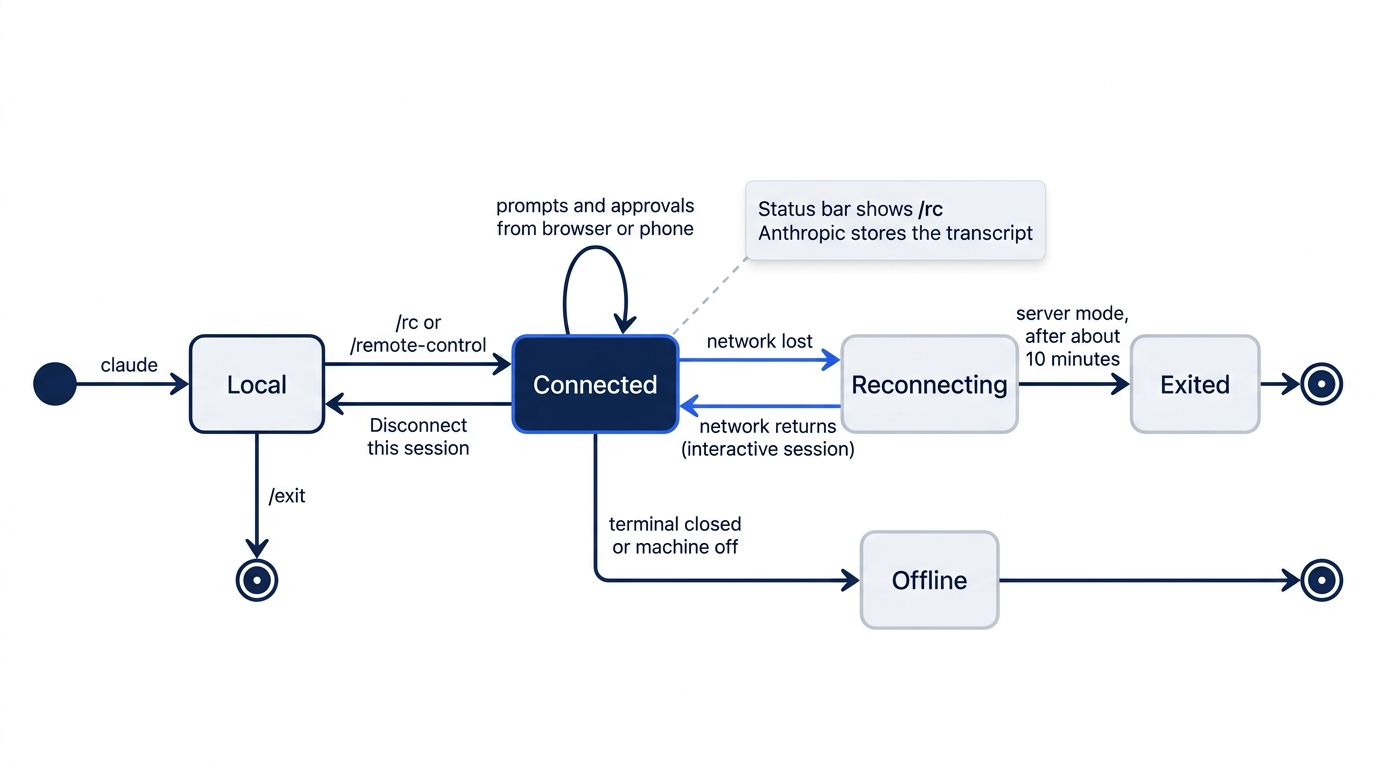
- The process must keep running. If you close the terminal or the machine turns off, the session goes offline. On a remote machine, start Claude Code inside
tmuxorscreen, so that it survives an SSH disconnect. - One remote session per interactive process. Server mode runs up to 32 sessions from one process.
- Network loss. An interactive session keeps working locally and reconnects when the network returns. A server gives up after about 10 minutes and exits.
Remote Control and cloud sessions
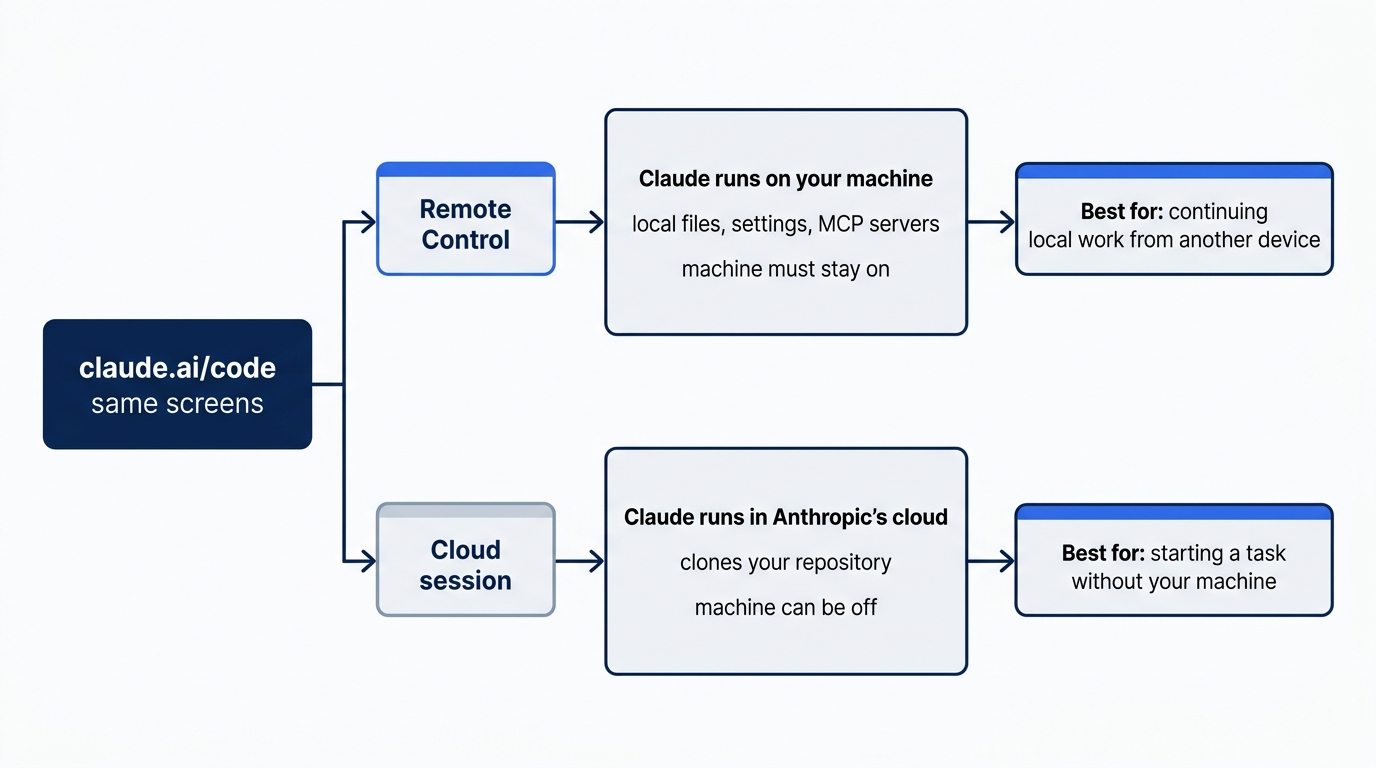
Both use the claude.ai/code screens. The difference is where Claude runs.
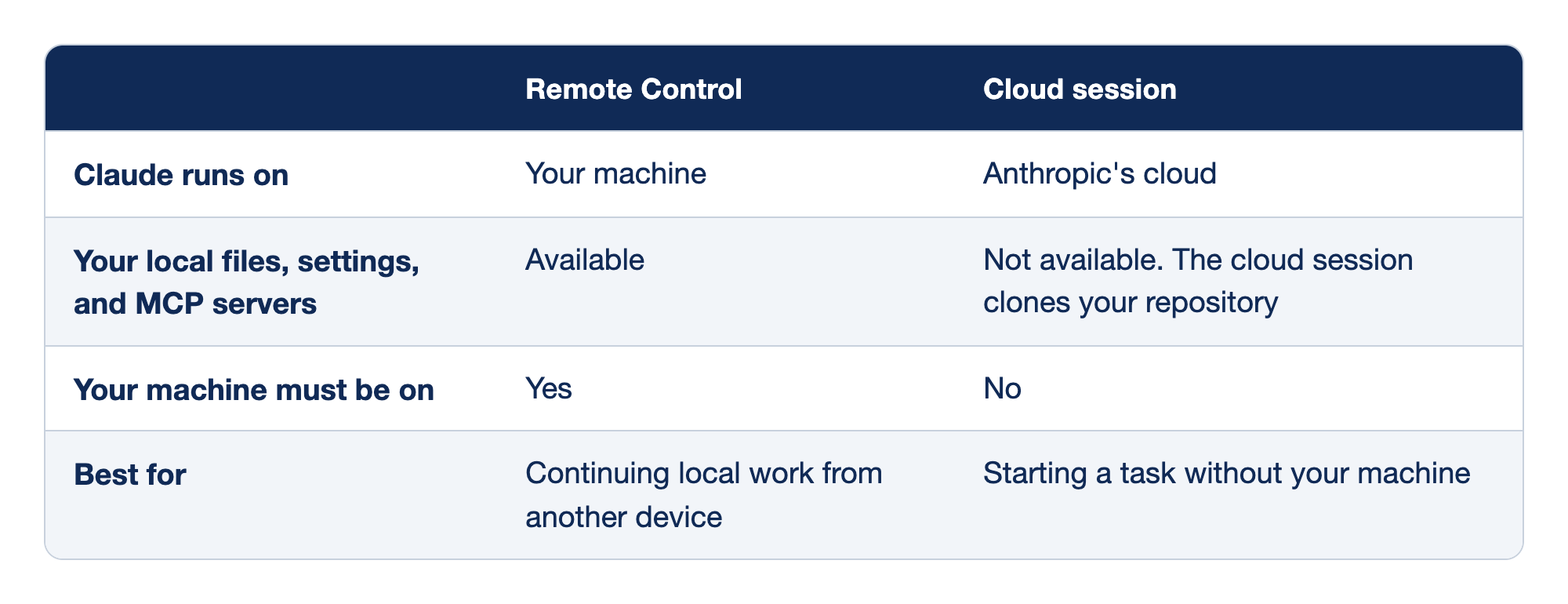
Remote Control and a cloud session differ in where Claude runs, what it can reach, and when to use each one.
- With Remote Control, Claude runs on your machine. In a cloud session, Claude runs in Anthropic's cloud.
- Remote Control can use your local files, settings, and MCP servers. A cloud session cannot, because it clones your repository.
- Remote Control needs your machine to be on. A cloud session does not.
- Remote Control is best for continuing local work from another device. A cloud session is best for starting a task without your machine.
Docs pages: Cloud session, MCP servers.
Days 19 to 21 cover three more ways to work away from the terminal: Channels, Dispatch, and Routines. Day 15 covers the other places where Claude Code runs.
Turning it off, and why it fails
The disableRemoteControl setting turns Remote Control off. Organizations with Zero Data Retention or the HIPAA configuration cannot turn it on. The common errors, from the troubleshooting docs:
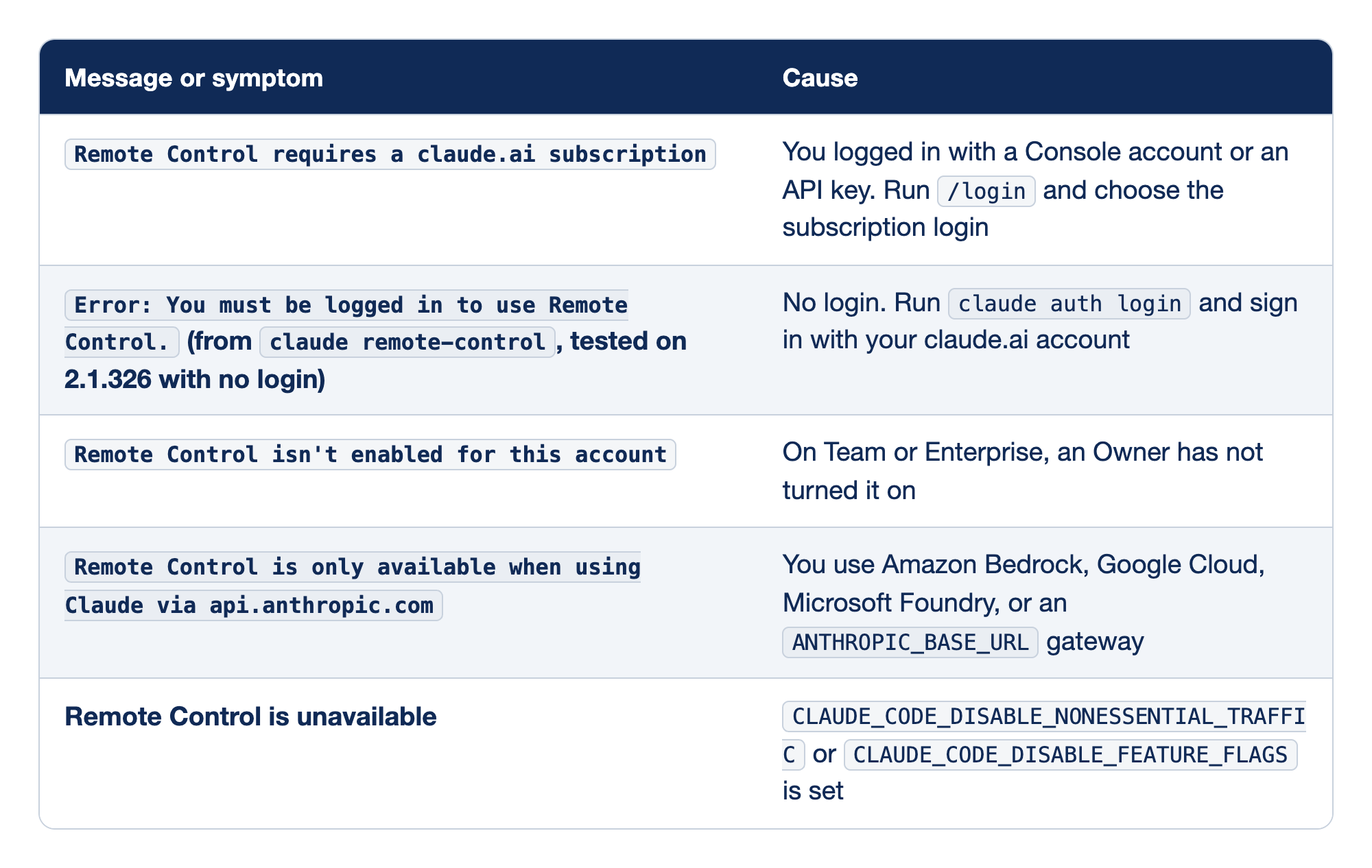
Each Remote Control failure has a recognizable message and one cause. The first column holds the exact text Claude Code prints, or the symptom when there is no message. The Cause column says what is wrong and, where there is one, the fix.
Remote Control requires a claude.ai subscriptionmeans you logged in with a Console account or an API key. Run/loginand choose the subscription login.Error: You must be logged in to use Remote Control.came fromclaude remote-controlon 2.1.326 with no login at all. Runclaude auth loginand sign in with your claude.ai account.Remote Control isn't enabled for this accountmeans you are on a Team or Enterprise plan and an Owner has not turned the feature on.Remote Control is only available when using Claude via api.anthropic.commeans your requests go to Amazon Bedrock, Google Cloud, Microsoft Foundry, or anANTHROPIC_BASE_URLgateway instead of the Anthropic API.- Remote Control is unavailable, with no specific message, when
CLAUDE_CODE_DISABLE_NONESSENTIAL_TRAFFICorCLAUDE_CODE_DISABLE_FEATURE_FLAGSis set in your environment.
Docs pages: Amazon Bedrock, Google Cloud, Microsoft Foundry, gateway.
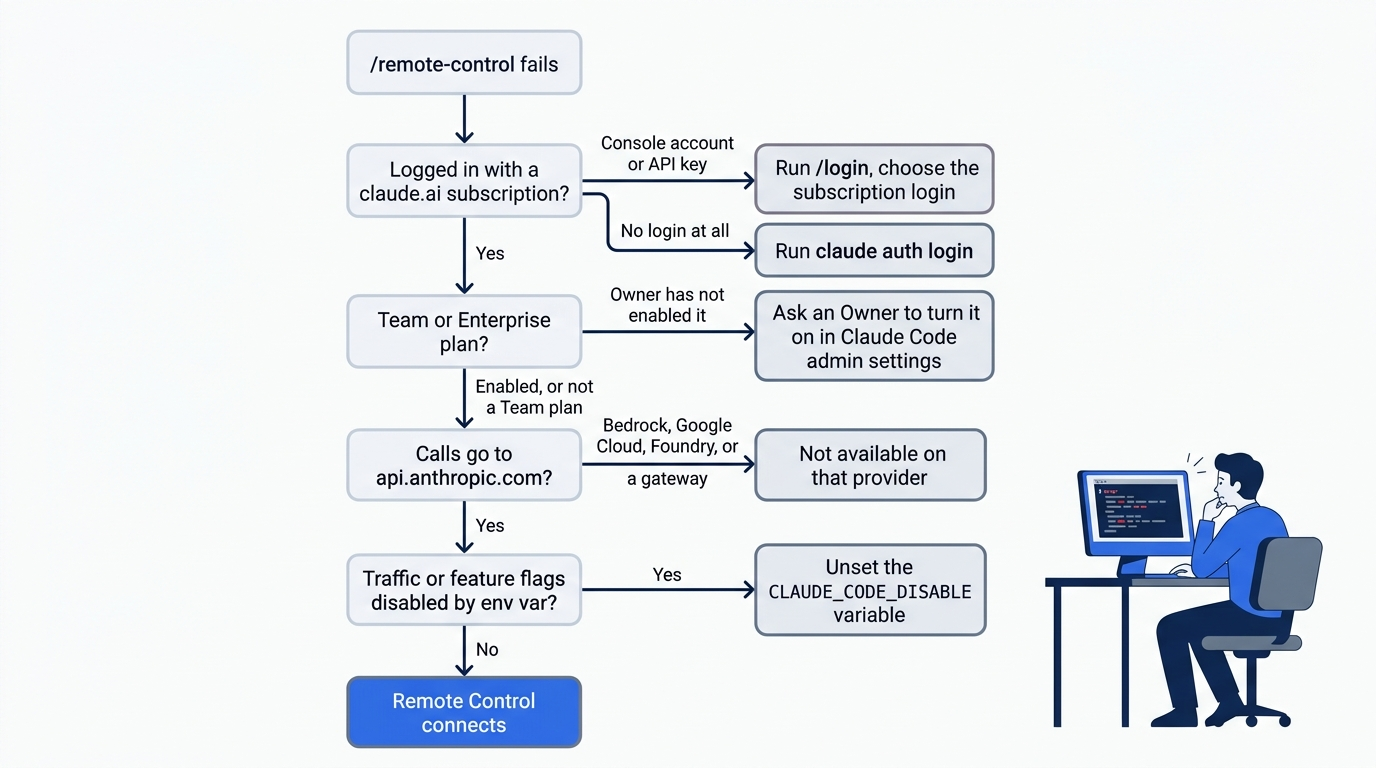
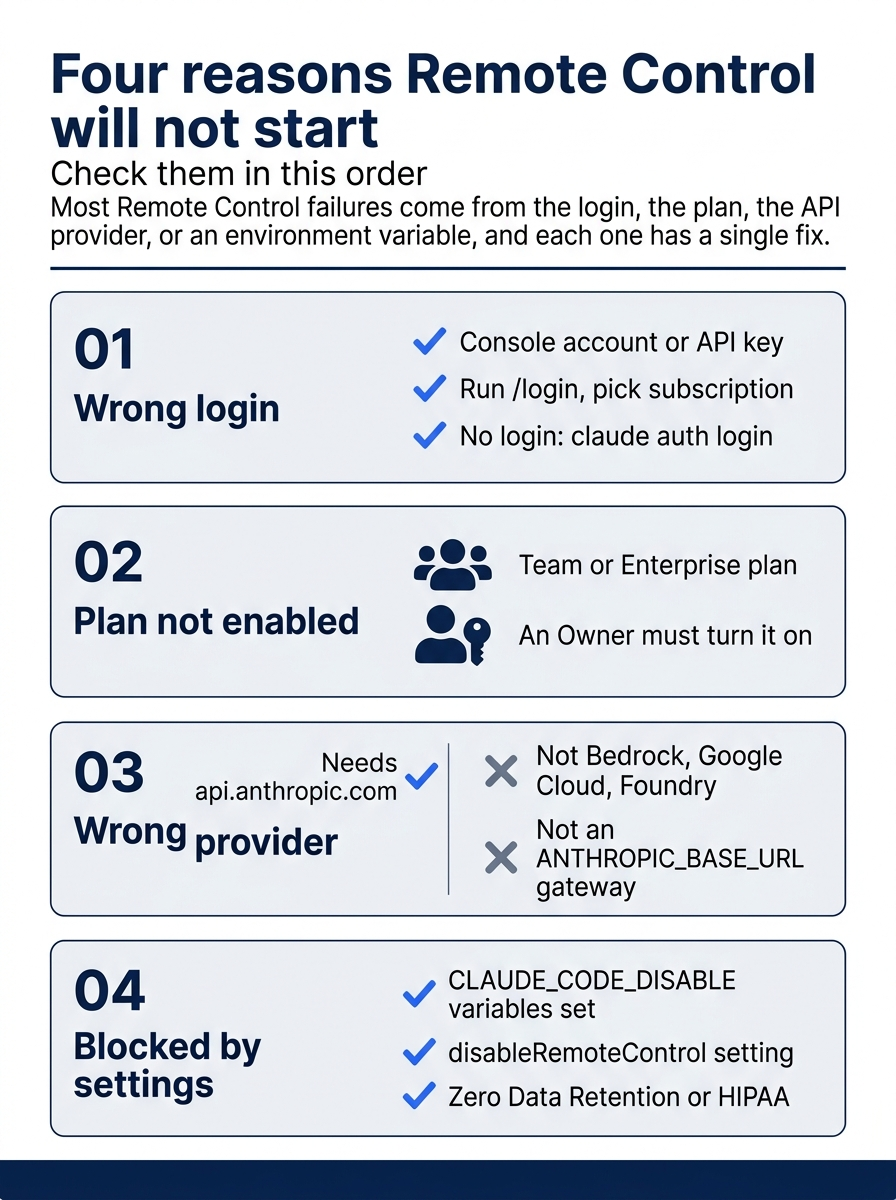
Check the four causes in order: the login, the plan, the API provider, and then the settings and environment. Most failures stop at the first one.
Corrections to the first edition
"Claude Code Away from the Terminal," Part 3, was written in May 2026. This guide checked it against Claude Code 2.1.326 on November 16, 2026:
- The
--sandboxand--no-sandboxflags were removed fromclaude remote-controlin v2.1.300. To sandbox the sessions, turn on sandboxing in a settings file. /remote-controlfrom a session does not show a QR code at once. On 2.1.326, the QR code is behind Show QR code in the status panel.- Server mode asks for a spawn mode, and it can run sessions in separate worktrees.
- Push notifications have two switches, Push when Claude decides and Push when actions required.
- Remote Control is also on the Ultra plan.
Go further: Drive Your Local Claude Code Session From Your Phone, Your Browser, Anywhere covers the first edition's Remote Control walkthrough, with diagrams of the connection model.
Do this today
Everyone
- Connect Ticket Triage with
/remote-control, open the link in a browser, sendRun npm test and tell me the pass count.from the browser, and disconnect. Check the win: the terminal shows the browser prompt and the pass count, andgit statusprintsnothing to commit, working tree clean. - Habit: before you leave the desk with a task still running, type
/rc. Check: the status bar shows/rc.
If you read Going deeper
- Run
claude remote-controlin Ticket Triage and choose1forsame-dir. Press the space bar to show the QR code. Check: the screen showsConnectedandCapacity: 0/32. Reset: pressCtrl+C. Check thatgit status --shortprints nothing. - Run
/configand find Push when actions required. Turn it on, connect with/rc, and ask Claude for a change in Manual mode. Check: your phone shows a notification for the permission prompt. Reset: choose No at the prompt, turn the switch off again if you do not want it, and disconnect. Check thatgit status --shortprints nothing. - Run
/mobile. Check: Claude Code shows a QR code for the app download page. Reset: pressEsc.
A second window, not a second machine
Remote Control looks like a way to move Claude Code to your phone. It is not. Claude never leaves your machine: your files, commands, settings, and MCP servers stay where they were, and the browser and the phone only show the conversation and answer its questions.
The habit that makes it trustworthy is the one the tested afternoon kept repeating. Approve one edit at a time from wherever you are, then let git diff --stat and npm test in the terminal tell you what really happened. The long task no longer holds you at the desk, and the desk still has the final say.
This is Part 7 of "Claude Code, Day-to-Day (second edition)," a day-by-day guide to Claude Code in which each day takes 20 to 40 minutes. Part 7 is Day 7. All 28 days are out now.