
You Already Have a GitHub Copilot Agent. Prove It Left the Files Alone.
The Copilot already in the editor can run tools and change files, so the first session sets a hard stop on spend and then proves an explanation left Ticket Triage untouched.
Set a user-level budget that hard-stops the billing cycle, then let Agent explain Ticket Triage while git status stays empty.
You already use Copilot for completions, and a work account can keep billing after the included allowance. A reply that says the agent only looked is not proof the files stayed put.
In this article: You will open the AI usage page, save a user-level budget that hard-stops the billing cycle, and stand up Ticket Triage, a three-test Node classifier. Then you will use Copilot Ask and, only if the budget is saved, the GitHub Copilot agent to explain
classify()without editing. The win is an emptygit status --shortand three passing tests, checked by you, not by the model's reply.
Preview: written November 16, 2026, before Microsoft Ignite. Some paid steps are not yet tested live; this guide will be updated November 21, 2026.
The Copilot icon in VS Code already does more than finish a line. On Copilot Business and Copilot Enterprise, additional paid usage is on by default as of November 16, 2026. An agent turn can keep going after the included allowance, and the reply can say it only looked while a file on disk changed. A chat sentence does not close either gap.
The included allowance, also called the included pool, is the usage that already comes with the plan. A user-level budget stops all Copilot usage for the billing cycle, including that pool. You set the ceiling at the total you mean to spend, then you prove the explanation left the project untouched. Git is the proof. The model is not.
By the end of this session the AI usage page is open. A user-level budget is saved, or a note names the admin who must save one. Ticket Triage is on disk with three passing tests. A Copilot chat reply explains the classifier, and git status --short prints nothing.
It is easy to get stuck using GitHub Copilot the way you first learned it. GitHub Copilot keeps adding features, and some of them are a big step up in productivity. This guide keeps you current, in bite-sized daily chunks, so you pick up a few new techniques every day, do not get left behind, and use GitHub Copilot the way it is meant to be used.
Close the billing gap first
Two behaviors are the risk if you already use Copilot for completions. A work account can keep billing after the included allowance. An agent turn can write a file while the reply says that it only looked. You close the billing gap first.
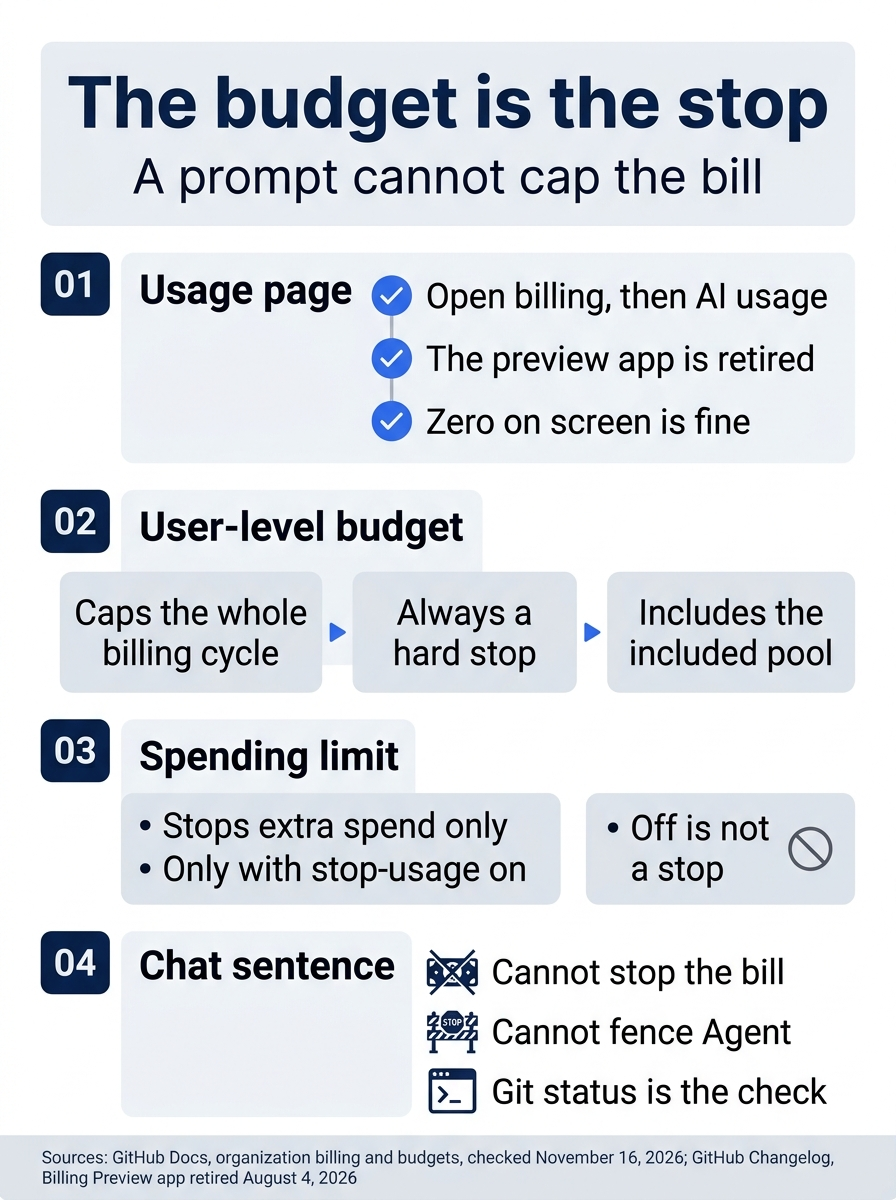
The poster is the rule for this session. Open the AI usage page, save a user-level budget if you can, and do not confuse that budget with a spending limit or with a sentence in the prompt. A spending limit stops extra spend only when its stop-usage option is on. A sentence cannot stop the bill, and it cannot keep Agent from writing.
Open the AI usage page
The Copilot Billing Preview app retired on August 4, 2026. Spend now shows on the AI usage page in billing settings. Open GitHub, open billing settings, and open AI usage. The changelog says "See your AI usage on the AI usage page in your billing settings." Leave any bookmark that still opens the old preview app.
You are done when that page is on screen. Zero is a fine number. You do not need to interpret every column.
Save a budget that hard-stops
As of November 16, 2026, additional paid usage is enabled by default for Copilot Business and Copilot Enterprise. An admin turns it off by disabling the AI credits paid usage policy. Until then, agent work can continue into paid usage. A chat sentence cannot stop that.
Open the budgets documentation beside the usage page. Do not guess a click path. Save a user-level budget. User-level budgets cap total consumption per billing cycle and always hard-stop, including the included pool. Set the ceiling at a total you are willing to hit and then stop. The page defines the fields. Do not copy a dollar figure from a forum post.
The step is done when the billing view shows that budget. If your role cannot save one, write "Additional usage still on. Admin required." and name the admin if you know who it is. Skip the Agent turn below and do only the read-only explanation. A spending-limit budget is a separate control that stops extra spend only when its stop-usage option is on. You do not use it today.
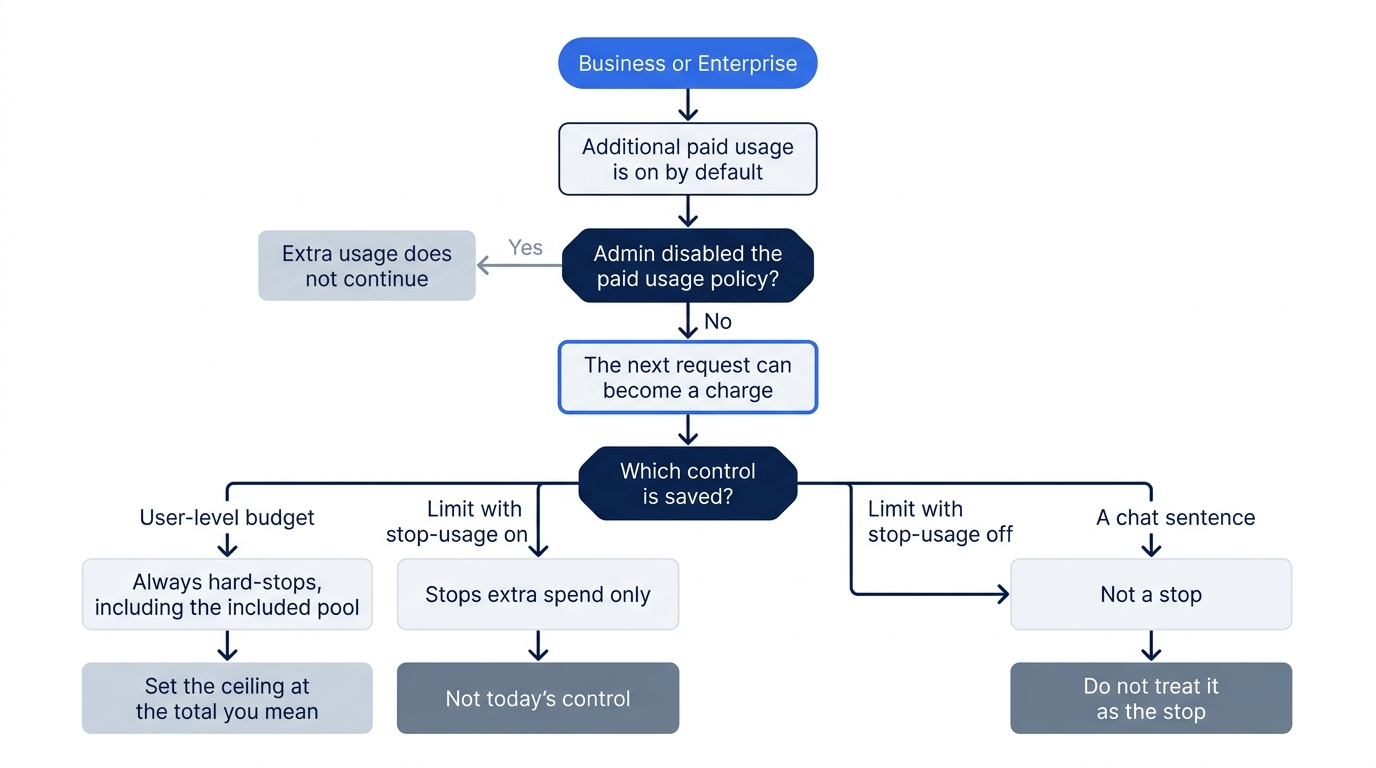
For Business and Enterprise, the default is extra usage on. Disabling the AI credits paid usage policy is how an admin turns that off. If the policy stays on, the control you save matters. A user-level budget always hard-stops, and the ceiling should be the total you mean to spend, because a very low ceiling can stop you inside the allowance you already paid for. A spending limit with stop-usage off is not a stop. A spending limit with stop-usage on caps extra spend only, and it is not the control for this session. A prompt is not a control at all.
Get Ticket Triage
Ticket Triage is the small Node.js program this guide grows one day at a time. It classifies a support ticket, has no dependencies, and its tests use the test runner built into Node.js. The code for every day is in the ticket-triage-day-by-day repository on the copilot branch, with one tag per day, copilot/day-00 to copilot/day-16. A repository is Git's record of a project, a branch is a named line of work, and a tag is a fixed name for one saved state of the code. Building it by hand in the next step is the recommended route on a first read.
If you build Ticket Triage by hand, run these two commands once in ~/code/ticket-triage, after the commit at the end of the next step, so the catch-up lines on later days work. They add upstream, a remote, which is Git's name for another copy of the repository.
cd ~/code/ticket-triage
git remote add upstream https://github.com/SpillwaveSolutions/ticket-triage-day-by-day.git
git fetch upstream --tags
If you are restarting the guide on a new machine, skip the build. The shortcut uses Copilot CLI, GitHub's terminal agent, whose command is copilot. A Copilot CLI session counts toward your usage, so run the shortcut only after the budget above is saved. On Windows, run these blocks in Git Bash, the Bash terminal installed with Git for Windows, and use /c/code wherever a block says ~/code. First check that the folder is free and that the CLI is installed.
test -d ~/code/ticket-triage && echo exists || echo missing
copilot --version
If the first line is exists, do not run the shortcut. It must never write over a checkout you already have. Build by hand instead, and the next step tells you how to treat that folder. copilot --version prints the installed version. If it does not print a 1.0.x line, install the CLI with npm install -g @github/copilot, which needs Node.js 22 or later. Then create ~/code, enter it, and start Copilot CLI with the shortcut prompt. mkdir -p makes the folder if it is missing, cd enters it, and -i starts an interactive session that runs the prompt at once.
mkdir -p ~/code
cd ~/code
copilot -i "Clone https://github.com/SpillwaveSolutions/ticket-triage-day-by-day.git into a new folder named ticket-triage in the current directory. In ticket-triage, check out the copilot branch, then run git switch -C main copilot/day-00 and git branch --unset-upstream main. Rename the remote origin to upstream. Run npm test and show the summary. Do not edit or create any other file."
Not run: shortcut (written from the docs, not yet run).
git switch -C main copilot/day-00 makes your main branch point at the Day 0 code, replacing what main held. git branch --unset-upstream main stops your main from following the Spillwave copy. If Copilot CLI asks you to sign in, type /login and follow the steps on screen. When it asks whether you trust the files in this folder, choose the option that trusts it for this session only (the docs call it The currently running session only), because ~/code can hold other projects. For each request to run a command, check that it is one of the Git or npm steps above, and approve only that command. Refuse anything else. When the summary appears, type /exit, the slash command that closes the session. Then check the result yourself.
cd ~/code/ticket-triage
npm test
git status -sb
Check: Three tests pass with zero failures, and git status -sb prints ## main with nothing after it, not ## main...upstream/main.
npm test runs node --test, Node's built-in test runner, and -sb prints a short status with the branch first. Continue at the crushed-mug command in Put Ticket Triage on disk. Read the commit step after it, but do not run it, because copilot/day-00 already holds that commit.
Put Ticket Triage on disk
Ticket Triage is the small Node project this session uses. It classifies a support ticket as refund, shipping, or other. Check the folder before you create files.
test -d ~/code/ticket-triage && echo exists || echo missing
exists means you already have a checkout. Run npm test there. If you see 3 passes and 0 failures, leave the files alone. If the folder exists and the tests fail, stop and pick an empty directory. Do not overwrite a project you did not just create.
missing means you create it. On macOS or Linux:
mkdir -p ~/code/ticket-triage/src ~/code/ticket-triage/test
cd ~/code/ticket-triage
On Windows, create C:\code\ticket-triage plus src and test in VS Code. Git Bash is the Bash terminal installed with Git for Windows. In that shell, this folder is /c/code/ticket-triage. Use that path anywhere a block in this section says ~/code/ticket-triage.
Save package.json with this content. "type": "module" lets the test import classify.js.
{
  "name": "ticket-triage",
  "version": "0.1.0",
  "type": "module",
  "scripts": { "test": "node --test" }
}
Save src/classify.js with this content. The function lowercases the text, returns refund for two phrases, returns shipping for three words, and returns other otherwise.
// Classifies a support ticket as refund, shipping, or other.
export function classify(text) {
  const t = text.toLowerCase()
  if (t.includes("refund") || t.includes("money back")) return "refund"
  if (t.includes("shipping") || t.includes("delivery") || t.includes("package")) return "shipping"
  return "other"
}
Save test/classify.test.js with this content. Each test is one sentence and one category.
import { test } from "node:test"
import assert from "node:assert/strict"
import { classify } from "../src/classify.js"

test("refund", () => assert.equal(classify("I want my money back"), "refund"))
test("shipping", () => assert.equal(classify("Where is my package?"), "shipping"))
test("other", () => assert.equal(classify("Hello"), "other"))
Run the check.
cd ~/code/ticket-triage
npm test
npm test on this sample prints TAP. Ignore the timings. You want three ok lines, # pass 3, and # fail 0.
ok 1 - refund
ok 2 - shipping
ok 3 - other
# tests 3
# suites 0
# pass 3
# fail 0
A reply that says that the tests would pass is not this check.
Run the crushed-mug sentence from ~/code/ticket-triage. You do not change the function today.
node --input-type=module -e "import { classify } from './src/classify.js'; console.log(classify('The box showed up crushed and the mug inside is in pieces'))"
The command prints other. "box", "crushed", "mug", and "pieces" are not shipping, delivery, or package, and the sentence never says refund or money back. Leave classify.js as it is.
Commit a clean tree so that a later empty status means that the chat changed nothing. If git says that this is not a repository, initialize it. If git status --short already prints lines, commit or set that work aside first. If the commit fails for a missing name or email, set those the way you usually do, then commit again.
cd ~/code/ticket-triage
git init
git add package.json src/classify.js test/classify.test.js
git commit -m "Add the Ticket Triage classifier"
git status --short
git status --short prints nothing. No output is the pass. If git reports nothing to commit, the tree was already clean. You need that same empty result after the chat. If you built Ticket Triage by hand, now run the two upstream commands from Get Ticket Triage, once.
Ask, then Agent, then git
Open the folder in VS Code. Sign in with the Copilot account if Chat asks. Skip preview features.
A harness is the runtime around the model: tools, context, permissions, and session behavior. In Copilot Chat, select the Copilot harness, not Local. Local is the older runtime in the same picker, and you do not use it today. If you see no harness choice, update VS Code and the GitHub Copilot extension, reopen the folder, and look again.
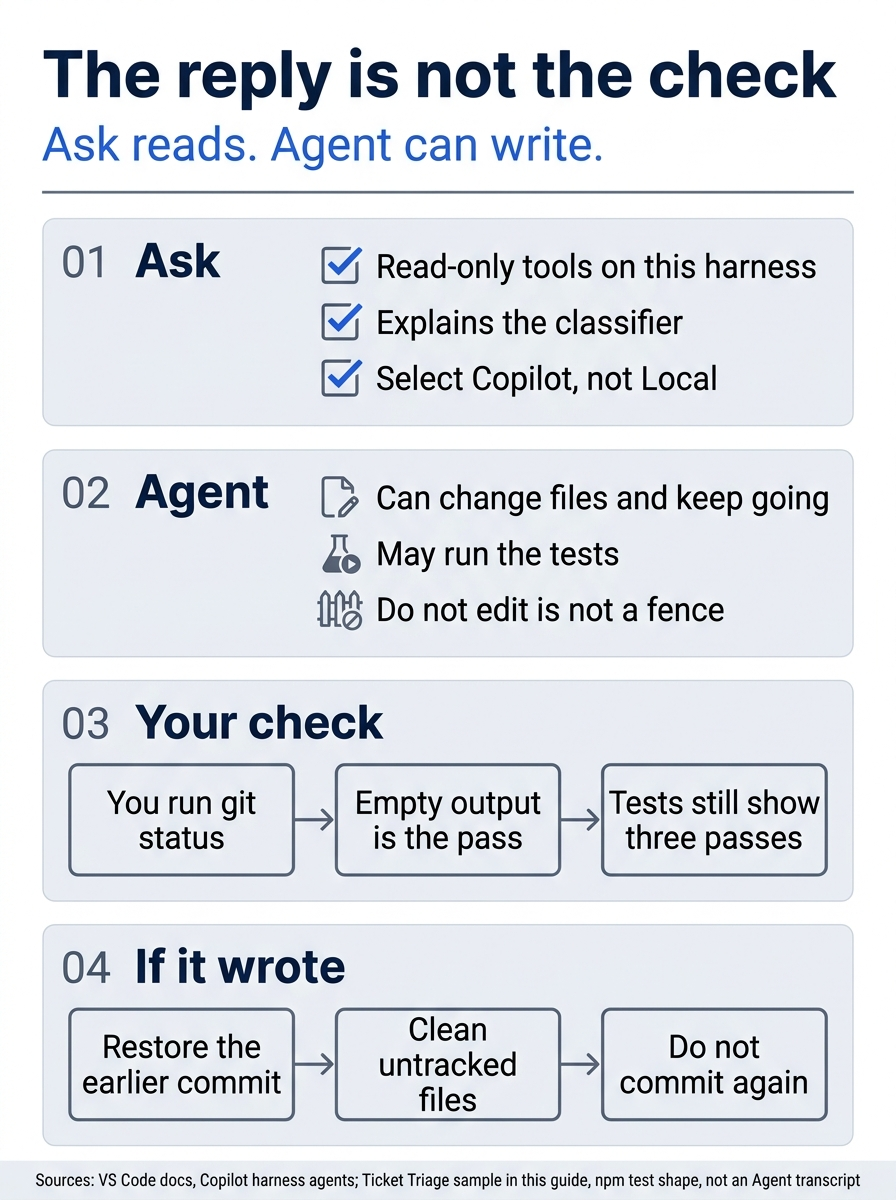
Ask answers questions and researches the codebase without making changes. On the Copilot harness, Ask is limited to read-only tools. Agent can select tools, change files, and keep going. The line "do not edit" does not move Agent into Ask. If the turn writes, you restore the commit you made before the chat, and you do not commit again.
Select Ask and paste this.
Explain src/classify.js. Say what classify() returns for a refund, a shipping question, and any other text. Do not edit files.
Check the reply against the file. The function lowercases the text, returns refund for refund or money back, returns shipping for shipping, delivery, or package, and returns other otherwise. The crushed-mug sentence is other. If the reply disagrees, the file is right.
This guide did not run that turn, or the Agent turn below, as a paid Agent turn on November 16, 2026. Compare the reply to src/classify.js. Re-run this on your account before you trust the wording. There is no sample transcript.
Switch to Agent only if the user-level budget is saved. If the admin note is what you have, stop after Ask.
A sentence that says "do not edit" is not a permission boundary. Ask is limited to read-only tools. Agent is not. You check git yourself.
Select Agent on the Copilot harness and paste this.
Explain src/classify.js and run npm test. Do not edit files. Do not create files. Do not commit.
Allow a request to run npm test. Refuse a request to write, create, or delete a file. When the turn ends, run the checks. Do not ask the model whether it edited.
cd ~/code/ticket-triage
git status --short
npm test
The required result is no output from git status --short, and # pass 3 with # fail 0. Both are required.
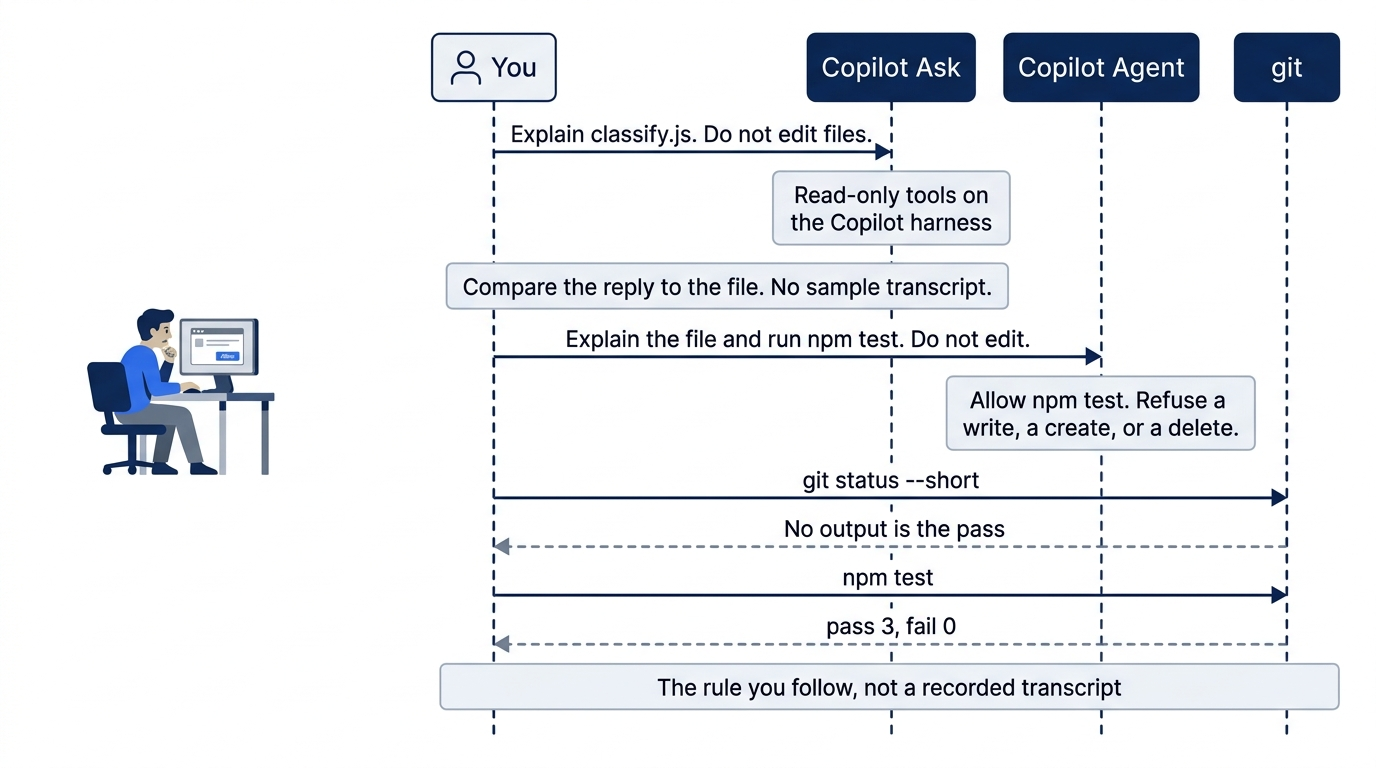
You compare the Ask reply to src/classify.js. On Agent, you allow npm test and you refuse a write, a create, or a delete. Then you run git status --short and npm test yourself. Empty status plus three passes is the result. The diagram is that rule. It is not a recorded session, and this guide has no sample transcript of the paid turn.

The picture is the moment the check passes. The reply can sound tidy while a tool writes beside it. Relief belongs to the empty status, not to the paragraph the model wrote.
If status prints anything, restore the commit you made before the chat.
cd ~/code/ticket-triage
git restore .
git clean -fd
git status --short
npm test
You should see an empty status and three passes. Do not commit again. There is nothing new to commit.
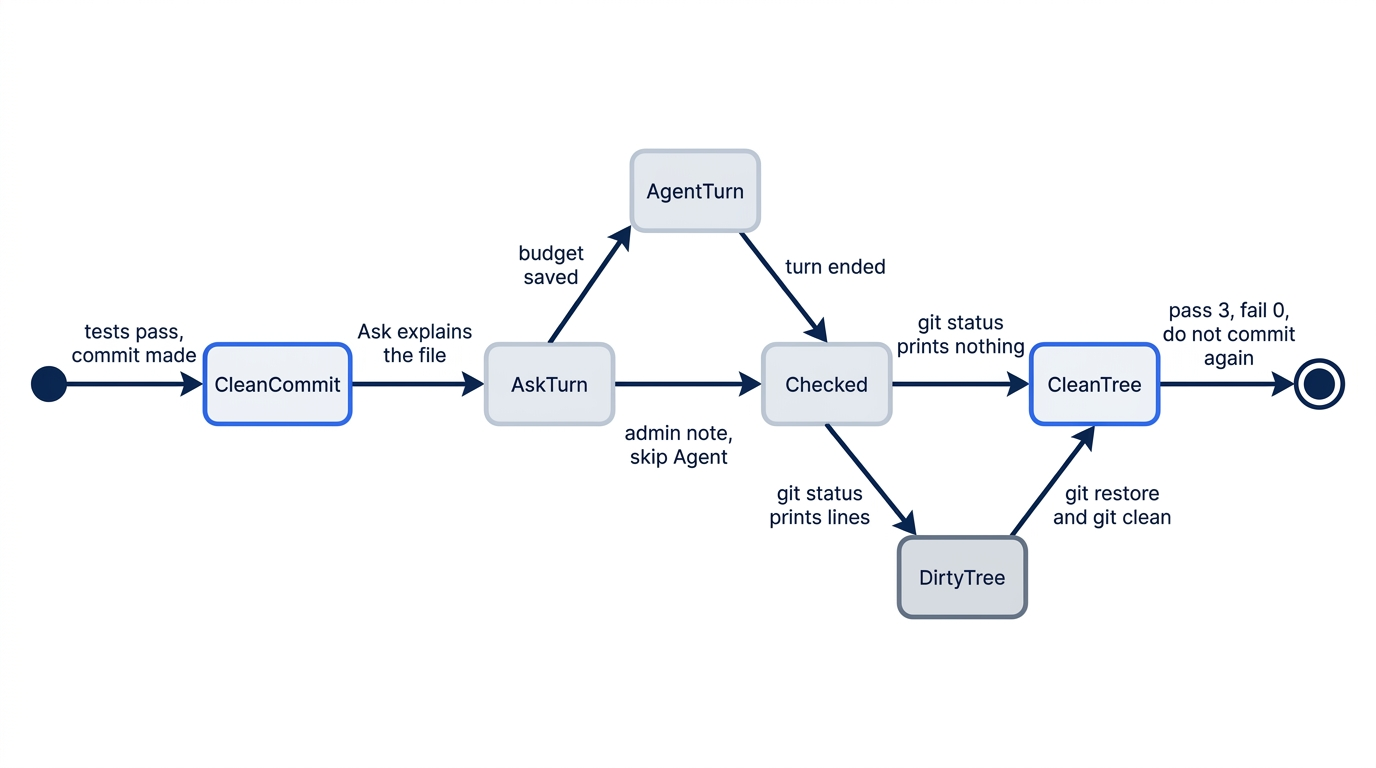
The commit you made before chat is the baseline. Ask explains the file either way. Agent runs only when the user-level budget is saved. When the turn ends, git status --short either prints nothing or it prints lines. Lines mean you restore and clean. The pass is an empty status and # pass 3 with # fail 0. You do not make a second commit, because nothing new belongs in the history.
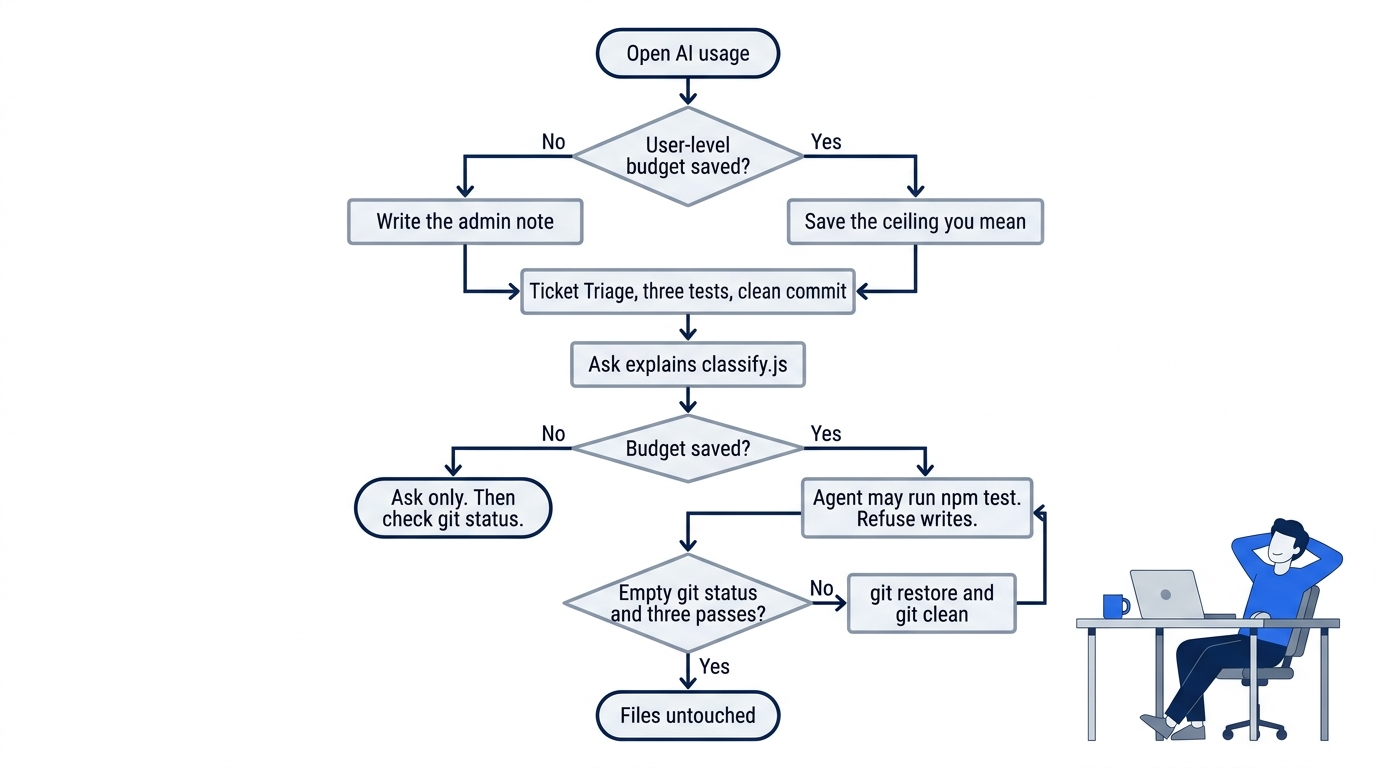
If you cannot save a budget, you still create Ticket Triage and use Ask, and you do not open Agent. If the budget is saved, Agent may run the tests, and you still refuse a write. Either way you check git yourself. The pass is files untouched.
You can stop here. The sections after this explain why the budget is first, which harness to trust, and where else Copilot already runs.
One Copilot, many surfaces
You used one surface, VS Code, on one harness. Copilot also appears in other editors, a terminal, a desktop app, pull requests, and github.com. The statuses are as of November 16, 2026. You do not install any of them today.
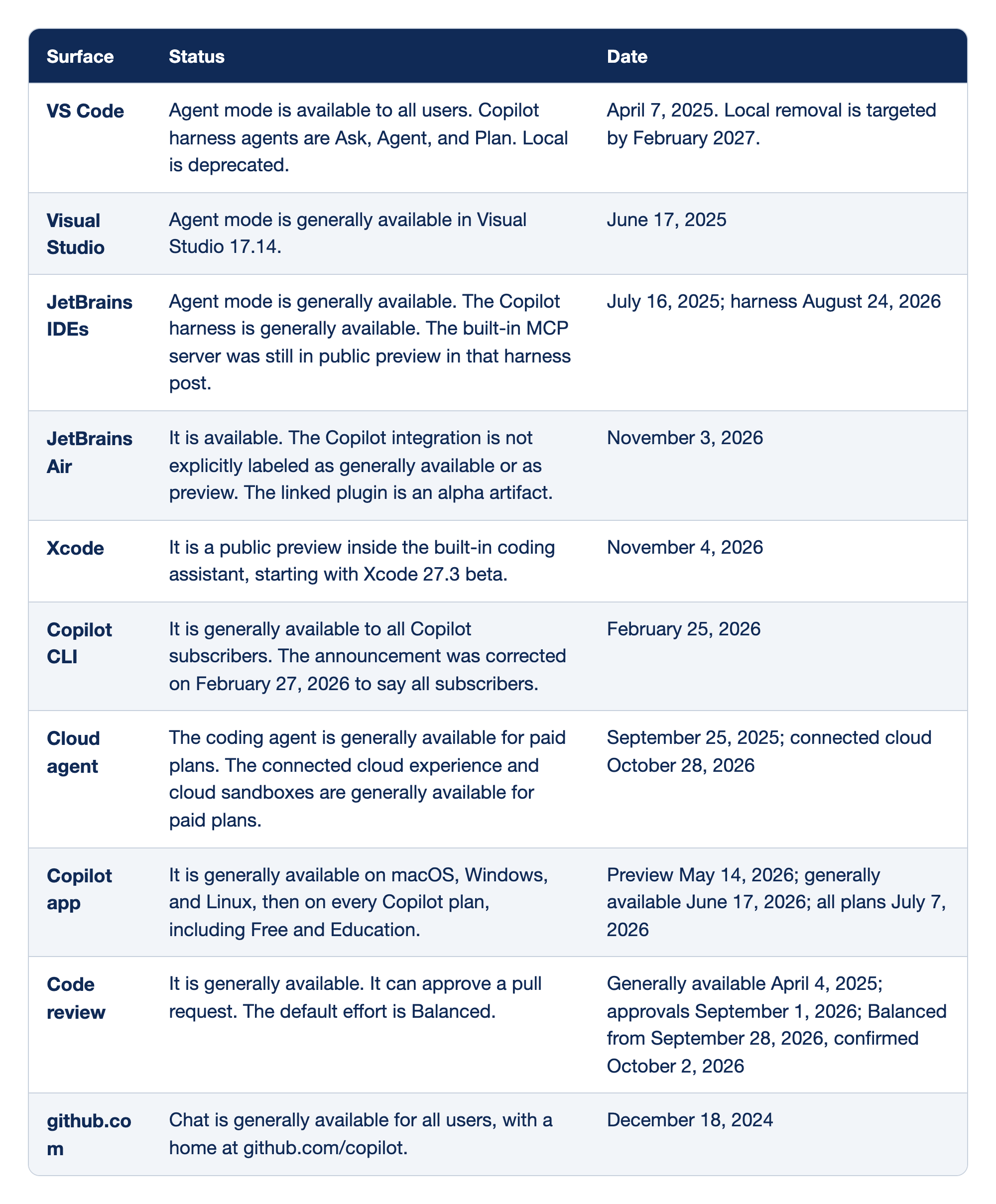
The comparison lists where Copilot already runs, so a second icon does not look like a second product you must learn today. Surface names the place. Status says what is available there as of November 16, 2026. Date points at the changelog or the docs page for that claim.
- VS Code is the surface you used. Agent mode has been available to all users since April 7, 2025. The current Copilot harness list is Ask, Agent, and Plan. The harness docs deprecate Local for removal by February 2027. Plan is on that list. You did not use it today.
- Visual Studio is a different application, with its own solution context. Agent mode became generally available in Visual Studio 17.14 on June 17, 2025. Do not treat a newer SDK-powered agent preview as that same generally available mode. The September update posted October 22, 2026 is a separate change.
- JetBrains IDEs gained generally available agent mode on July 16, 2025. The Copilot harness in the JetBrains plugin became generally available on August 24, 2026. The August 24 post still marks the built-in JetBrains MCP server as public preview. The July 16 post's title also names other editors. This row is only the JetBrains claim.
- JetBrains Air is not the JetBrains plugin. Copilot in Air was announced on November 3, 2026. It uses the Agent Client Protocol and draws tasks on the Copilot plan rather than JetBrains AI credits. The launch page does not label the integration as generally available or as preview, and the linked plugin is an alpha artifact. Call it available, not generally available.
- Xcode's built-in coding assistant gained Copilot as a public preview on November 4, 2026, from Xcode 27.3 beta. The July 16, 2025 agent-mode post also names Xcode. Those are two dated claims. Do not read the 2026 preview as a cancellation of the 2025 post. Do not read the 2025 post as this assistant.
- Copilot CLI is the terminal agent, command
copilot. It became generally available on February 25, 2026, and that page was corrected on February 27, 2026 to say all Copilot subscribers. It is not the chat you just used, and it is not the oldergh copilotshell helper. You do not install it today. - Cloud agent assigns work to a remote environment and comes back with a draft pull request. The coding agent became generally available for paid plans on September 25, 2025. The connected cloud experience and cloud sandboxes became generally available for paid plans on October 28, 2026. Local chat and a cloud session are different trust and billing contexts.
- Copilot app is GitHub's desktop app for agent sessions. Technical preview was May 14, 2026. It became generally available for macOS, Windows, and Linux on June 17, 2026. It became generally available for every Copilot plan, including Free and Education, on July 7, 2026.
- Code review comments on a pull request. It is not the same as asking Agent to read a diff in your editor. It became generally available on April 4, 2025. It can approve a pull request as of September 1, 2026. Balanced replaced Lite as the default effort starting September 28, 2026, which the October 2, 2026 post confirms. An approval from Copilot is not your merge.
- github.com is both a chat surface and a place to manage agent work. Copilot Chat on GitHub became generally available for all users on December 18, 2024, at github.com/copilot. An August 28, 2026 policy post proposed unifying web chat, mobile chat, and the cloud agent. The connected service became generally available on October 28, 2026. Do not describe the current site as only the old chat sidebar.
You stay in VS Code. The other surfaces are a map, not a second install.
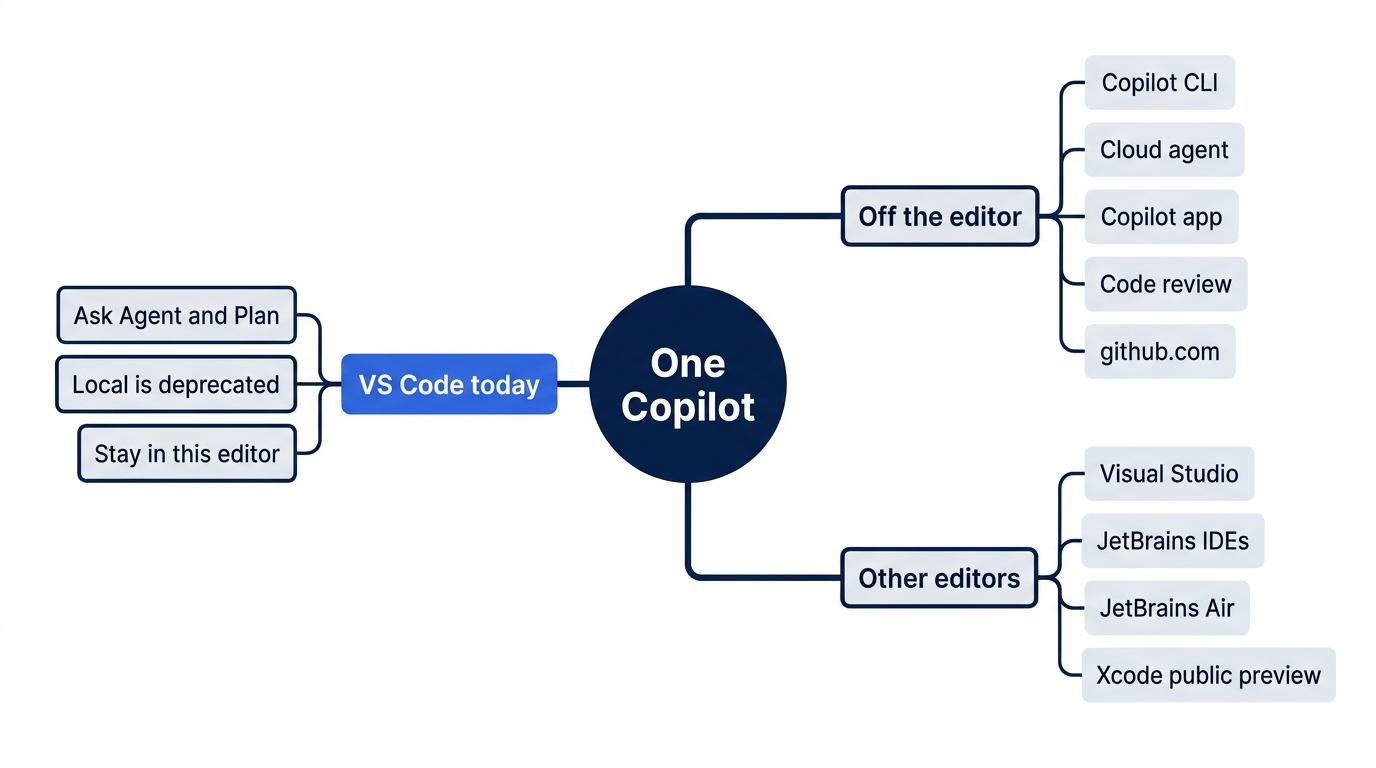
The map groups the places Copilot already runs: the VS Code harness you used, other editors, and the surfaces that are not an editor chat. Nothing on the map is an install for today, and Local is not the harness you practice.
Local is leaving, and Edit is not an agent
Local is the older VS Code harness. The Copilot harness docs deprecate it and target removal by February 2027. New habits belong on Copilot, which is why this session told you to select that harness even when Local is still in the picker. A screenshot of four modes from an older build is the wrong map.
The same page lists Ask, Agent, and Plan for the Copilot harness. Edit is not in that list. The sources checked for this guide do not give an exact date when Edit disappeared. They do not prove that every supported install has already dropped the menu item. If your picker still shows Edit, do not treat it as one of the three Copilot harness agents, and do not hunt for a retirement day that this guide does not have. Focused inline edits are a different workflow from picking Edit as an agent. Label any screenshot you keep with the VS Code version and the harness name on screen. This guide has no screenshots.
The harness restricts Ask to read-only tools. The harness page says that Ask answers questions and researches your codebase without making changes. Agent can change files and run tools. The prompt you pasted does not move Agent into Ask. git status --short is how you find out which one actually ran.
The organizations billing page lists VS Code 1.120 as a minimum for correct usage-based billing displays in the editor, not as a minimum for every agent feature. The AI usage page on github.com is still the page you opened, whatever your editor version is.
Why the ceiling comes before the agent
Gotcha: As of November 16, 2026, Business and Enterprise leave additional paid usage on unless an admin disables the AI credits paid usage policy. The included allowance can run out in the middle of an agent session. The next request can then become a charge. A user-level budget is the stop this session trusts, because it always hard-stops. A spending-limit budget is a different control. It stops usage only when you enable the stop-usage option. A spending limit with that option off is not a stop.
The protective default is not "stop at the included allowance." A very low user-level ceiling can hard-stop you inside the allowance you already paid for, so set the ceiling at the total you mean. Use a spending-limit budget, with stop usage enabled, only when you have read that section of the budgets page and you specifically want the extra spend capped rather than the whole cycle.
Rate limits are not this budget. The usage-limit page does not publish one permanent numerical throughput guarantee. A rate limit can still stop you with credits left. A budget does not promise that every click succeeds. It promises a ceiling you chose.
The scare version of this story is GitHub Community discussion 207246. The opening claim was that Free had uncapped charges and no spending controls. On September 10, 2026, the author corrected that account. They had paid for Pro+ and Max. Budgets and alerts existed. A budget had been removed and then raised. August usage stopped at the configured limit, which they reported as $550. The figure is their bill, not a price, a quota, or a typical cost for this guide. Do not copy it into your budget field. The correction is the part worth keeping: the stop exists, and it worked at the limit they had configured. The remaining complaint is discoverability. The controls are easy to miss, which is why you opened the usage page before you opened Agent.
As of November 16, 2026, one AI credit is $0.01. The usage page is denominated in those credits. On paid plans, completions and next edit suggestions are not billed in AI credits. They remain unlimited. A hard-stop on agent usage is not a switch that turns completions off. The October 28, 2026 GitHub Enterprise access note says that an exhausted budget never removes access to completions and the seat. The exhausted-budget sentence is about that access model. The paid-plan completions rule is the broader one, and it lives on the individuals billing page.
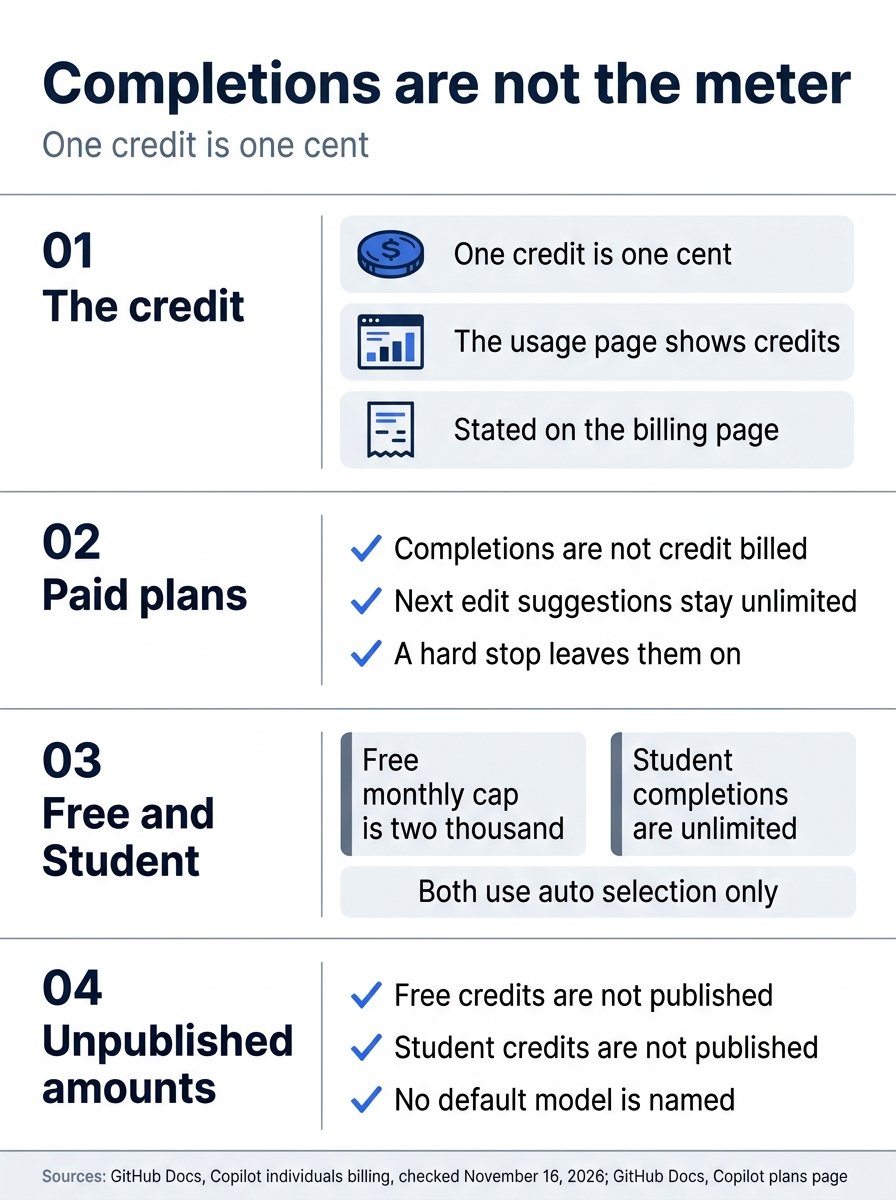
The poster separates the meter from the completions you already use. One AI credit is $0.01, and the usage page is in credits. On paid plans, completions and next edit suggestions stay unlimited and are not billed in AI credits, so a hard stop on agent usage does not turn them off. Free includes 2,000 completions a month, and Student completions are unlimited. Both use auto model selection only. The individuals billing page and the plans page do not publish Free and Student credit amounts. This guide does not name a default model. Do not fill the blank with a number from a blog.
If you have used Claude Code: You have probably asked it to explain a file. Copilot Ask can do that too. The paragraph that either tool writes is a summary. A summary can sound tidy while a tool writes beside it. Read classify.js, then read git status --short. Empty status is the result you keep.
Do this today
Everyone
- Open the AI usage page in GitHub billing settings. The check is that the page loads, and that you are not in the Billing Preview app that retired on August 4, 2026.
- Save a user-level budget, using the budgets page, or write the admin note if you cannot save one. The check is the budget visible on the billing view, or a note that says additional usage is still on and names who has to change it.
- From
~/code/ticket-triage, runnpm test. The check is# pass 3and# fail 0. - After Ask, and after Agent if you ran it, run
git status --short. The check is no output. Runnpm testagain and confirm the same three passes. The habit to keep: after any Copilot turn that can use tools, you rungit status --shortyourself. "I did not edit" is not the check.
If you read past the first session
- Write down the VS Code version from the About dialog and the harness name shown in Copilot Chat. The check is two strings in a note. The harness string should be Copilot, not Local. If the editor is older than the 1.120 billing-display minimum, keep using the AI usage page on github.com for spend, and write that version down anyway.
Empty status is the result you keep
You opened this because the Copilot you already have can do two things completions never did. It can keep spending after the included allowance, and it can change a file while sounding like it only looked. The first session answers both with something you can see: a user-level budget on the AI usage page, and a git status you ran yourself.
Ticket Triage is still the classifier you committed. The crushed-mug sentence is still other. Three tests still pass. If Agent was allowed to run, it was allowed to run npm test, not to rewrite the function. If it was not allowed to run, that was because the budget was not yours to save, and the admin note says so.
Set the ceiling at the total you mean. Refuse a write. Trust the empty status. The terminal agent is a different surface, and you do not install it in this session.
This is Part 1 of "GitHub Copilot, Day-to-Day," a 16-part guide to using GitHub Copilot as a daily coding agent.