
Two Agents, One Repository, Zero Collisions: Cursor Worktrees in the CLI
Running two Cursor agents at once is safe only when each one has its own folder, and `cursor-agent -w <name>` gives every agent a git worktree with its own branch, a setup step that proves the copy works, and a clean way to merge the result you keep and delete the one you do not.
Give each Cursor agent its own git worktree with cursor-agent -w, let a setup file prove every copy works, then merge the result you keep and delete the one you do not.
You wanted two agents working at once, but in one folder they edit the same files, and you cannot tell which change is whose or which one quietly overwrote the other.
In this article: Day 14 of an 18-day guide. Start here runs two Cursor agents at the same time on a small sample project, each in its own git worktree, with a
.cursor/worktrees.jsonsetup that runs the tests in every new copy. You merge one agent's keyword, throw the other away, and finish with a cleanmainthat passes eleven tests. Going deeper covers the other worktree flags, setup and workspace trust, automatic cleanup, and how worktrees relate to subagents and the Agents Window.
Picture the obvious way to get twice the work done: open a second terminal in the same project folder and start a second agent. Both agents read classify.js. Both edit it. One saves, then the other saves over it, and the test file now holds half of each change. Neither agent knows the other exists, so both report success.
The fix is old git, not new AI. A git worktree gives each agent its own folder on its own branch, and the Cursor CLI creates one for you with a single flag. This article walks through the whole loop on a real project: two agents at once, one merge, one deletion, and a clean main checkout at the end.
Yesterday you moved the skill and the reviewer into the tt-triage-kit plugin and used it to add shattered.
Tested on Cursor CLI 2026.11.13-eacade1. Editor steps: written from the docs, not yet run.
Start here
At the end of today, two agents have each added a keyword in their own copy of the project at the same time. You merge one, smashed, throw the other away, and main passes eleven tests.
Starting fresh or fell behind? Run git switch -C main cursor/day-13. This replaces your main with the end of Day 13; to keep your own work, run git branch my-backup first.
Check your starting state
Start where Day 13 ended. Run three checks in ~/code/ticket-triage.
cd ~/code/ticket-triage
git status --short
git log --oneline -1
npm test
git status --short prints nothing. git log --oneline -1 shows the newest commit, with your own hash:
d38d7d5 Move the skill and reviewer into the tt-triage-kit plugin, add shattered
npm test ends with ℹ pass 10 and ℹ fail 0. If any check differs, finish Day 13 first.
Check that the plugin loads
Since Day 13, the tt-add-keyword skill lives in the plugin, and the CLI loads it when you start with --plugin-dir. Check it before you rely on it.
cursor-agent --plugin-dir plugins/tt-triage-kit
/plugin
Move to tt-triage-kit (extension) and press Enter. The details screen must show:
 Skills: 1 (tt-add-keyword)
 Agents: 1 (tt-reviewer)
If it does not, finish Day 13 first. Press Esc twice and type /quit. Every command today that needs the skill carries --plugin-dir plugins/tt-triage-kit.
What a worktree is
Two agents working in one folder edit the same files at the same time, and one overwrites the other. A git worktree is a second working folder for the same repository, on its own branch. The two folders share the history, but each has its own files, so an agent working in one does not change the files in the other.
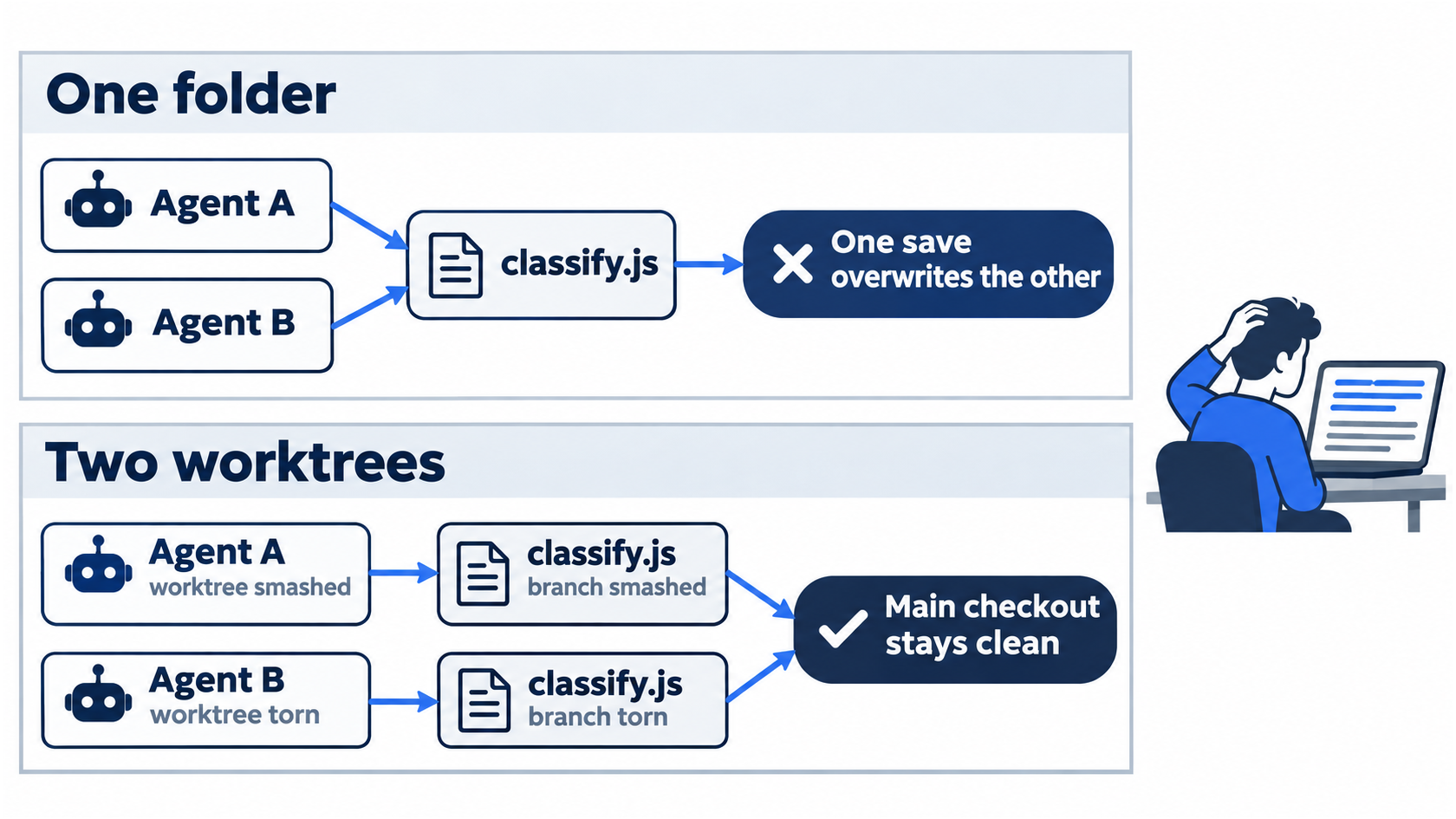
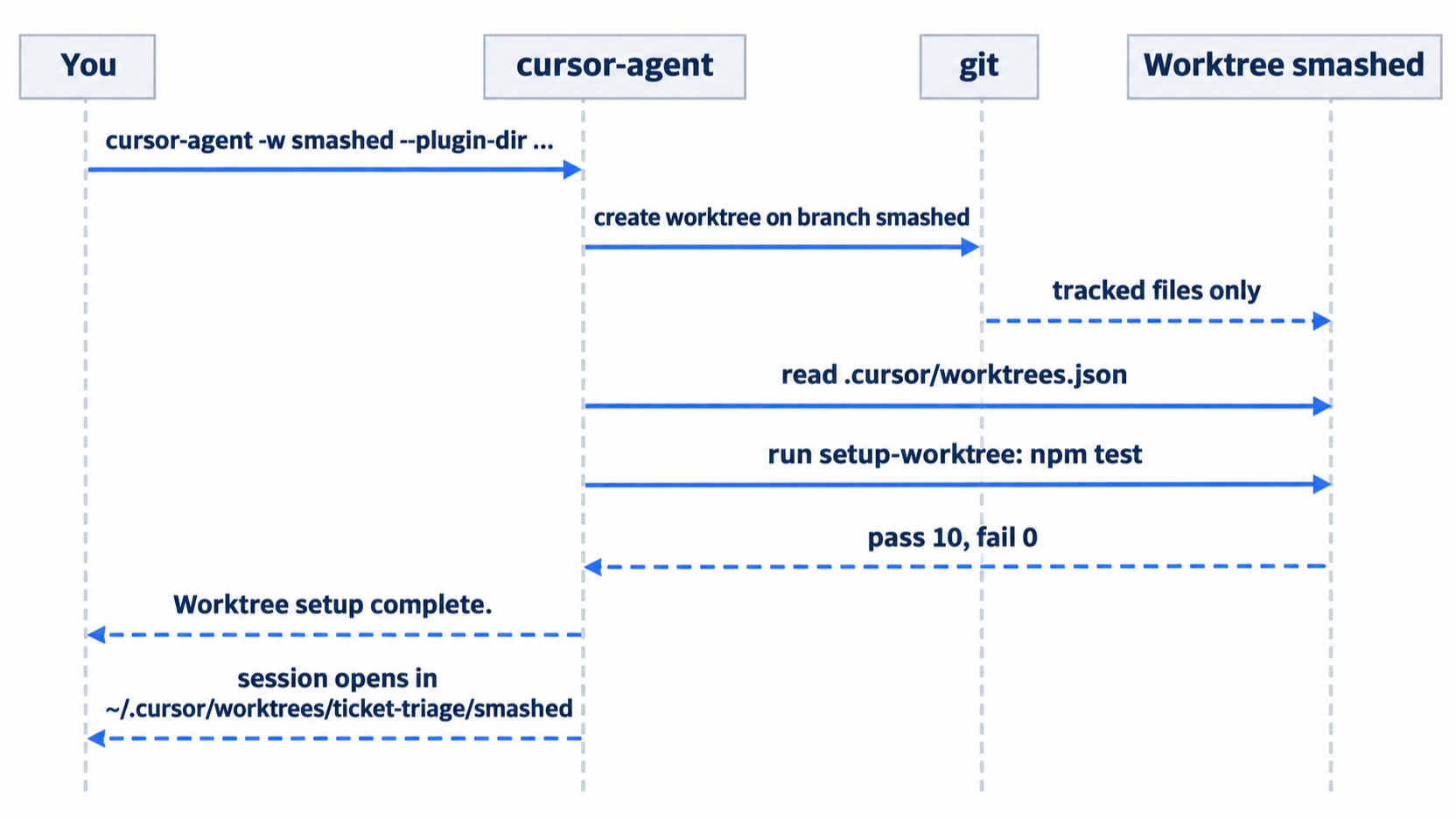
The CLI makes one for you. cursor-agent -w <name> creates a worktree at ~/.cursor/worktrees/<repository>/<name> and starts the agent there (CLI parameters). Your main checkout in ~/code/ticket-triage stays as it is.
Tell Cursor how to set up a worktree
A new worktree holds only the files that git tracks: no installed packages and no untracked files such as .env. Cursor reads .cursor/worktrees.json and runs its setup-worktree commands in each new worktree (Worktrees). Ticket Triage has no packages to install, so today's setup runs the tests, which proves the copy works before the agent starts.
cat > .cursor/worktrees.json <<'EOF'
{
  "setup-worktree": ["npm test"]
}
EOF
git add .cursor/worktrees.json
git commit -m "Add worktree setup that runs the tests"
Commit it first, so every worktree starts with the file and your main checkout stays clean.
Start two agents
Open a second terminal window and run this in both:
cd ~/code/ticket-triage
In the first, start an agent in a worktree named smashed:
cursor-agent -w smashed --plugin-dir plugins/tt-triage-kit
In the second, start one named torn:
cursor-agent -w torn --plugin-dir plugins/tt-triage-kit
Each terminal shows the worktree and the setup before the session opens:
Using worktree: /Users/you/.cursor/worktrees/ticket-triage/smashed
Running worktree setup commands...
A box labeled worktree setup holds the npm test output, including ℹ pass 10 and ℹ fail 0, and then Worktree setup complete. The bottom line of the session shows where the agent works: ~/.cursor/worktrees/ticket-triage/smashed · smashed, the folder and its branch.
Now give each agent its keyword, one in each terminal, without waiting for the other:
/tt-add-keyword smashed as damaged
/tt-add-keyword torn as damaged
Each agent edits classify.js and classify.test.js in its own worktree and reports the result in its own words. In testing, each reported "11 passed, 0 failed." Each counts eleven: its own keyword plus the ten before. Neither sees the other's.
Allowlist: no prompts. Auto-review: no prompts.
Type /quit in both terminals.
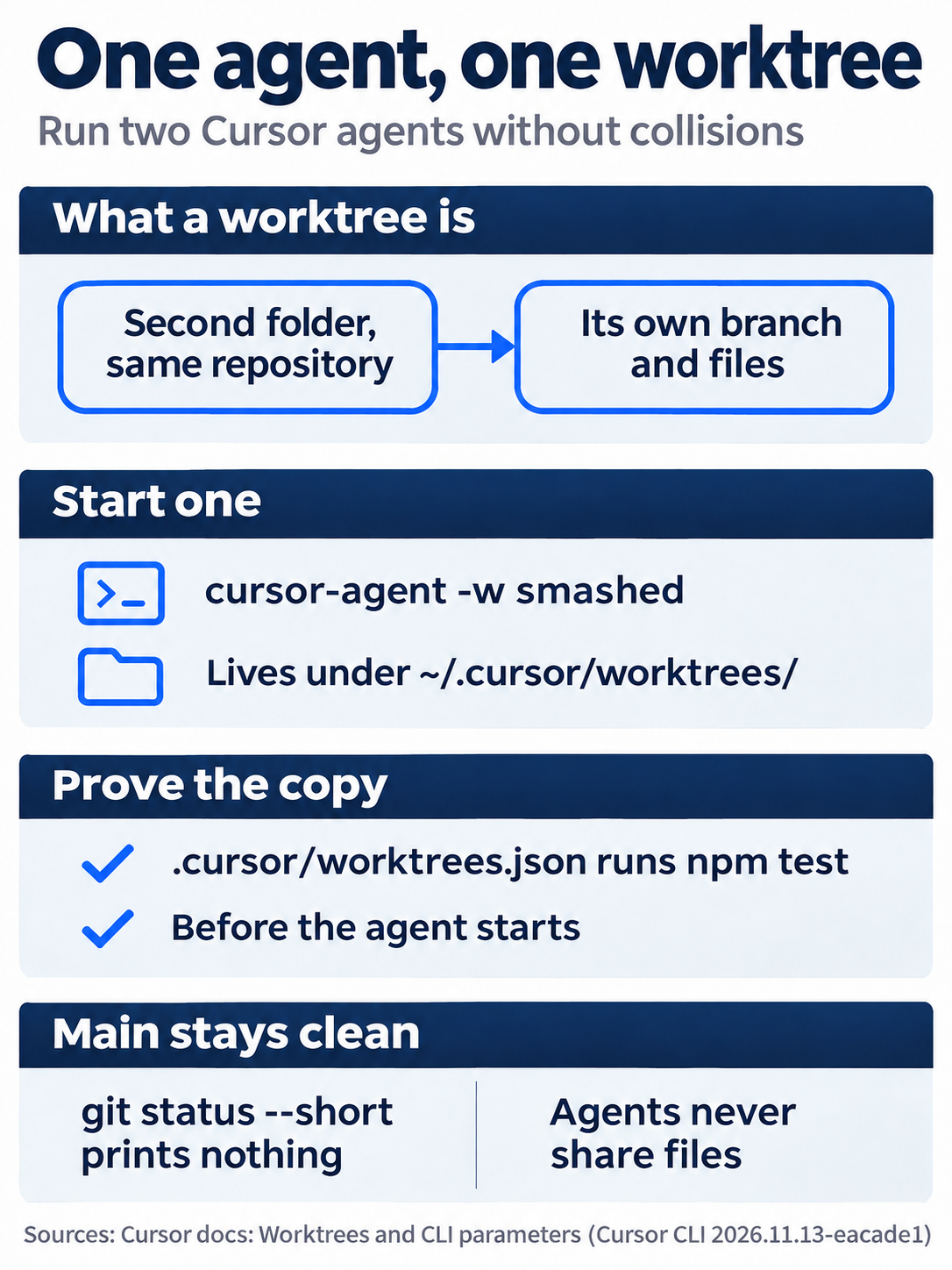
In short, each agent gets its own folder and branch from cursor-agent -w <name>, .cursor/worktrees.json runs npm test in every new copy before the agent starts, and your main checkout never changes while the agents work.
Look at the three folders
Back in your main checkout, nothing changed:
git status --short
npm test
git worktree list
git status --short prints nothing, npm test still shows ℹ pass 10, and git worktree list shows three folders, each on its own branch:
/Users/you/code/ticket-triage                       e8c6b3c [main]
/Users/you/.cursor/worktrees/ticket-triage/smashed  e8c6b3c [smashed]
/Users/you/.cursor/worktrees/ticket-triage/torn     e8c6b3c [torn]
All three show the same commit because the agents did not commit; the skill says not to. Their changes wait in their worktrees.
Keep one, drop the other
Commit each agent's work on its own branch. git -C <folder> runs a git command in another folder.
git -C ~/.cursor/worktrees/ticket-triage/smashed commit -am "Add smashed to the damaged keywords"
git -C ~/.cursor/worktrees/ticket-triage/torn commit -am "Add torn to the damaged keywords"
Merge smashed into main and run the tests:
git merge smashed
npm test
Git reports a Fast-forward, because main had not moved. npm test shows ℹ pass 11 and ℹ fail 0.
Now remove both worktrees and their branches. git branch -D deletes torn even though it was never merged, and --force removes a worktree even when it has changes you did not commit:
git worktree remove --force ~/.cursor/worktrees/ticket-triage/torn
git branch -D torn
git worktree remove ~/.cursor/worktrees/ticket-triage/smashed
git branch -d smashed
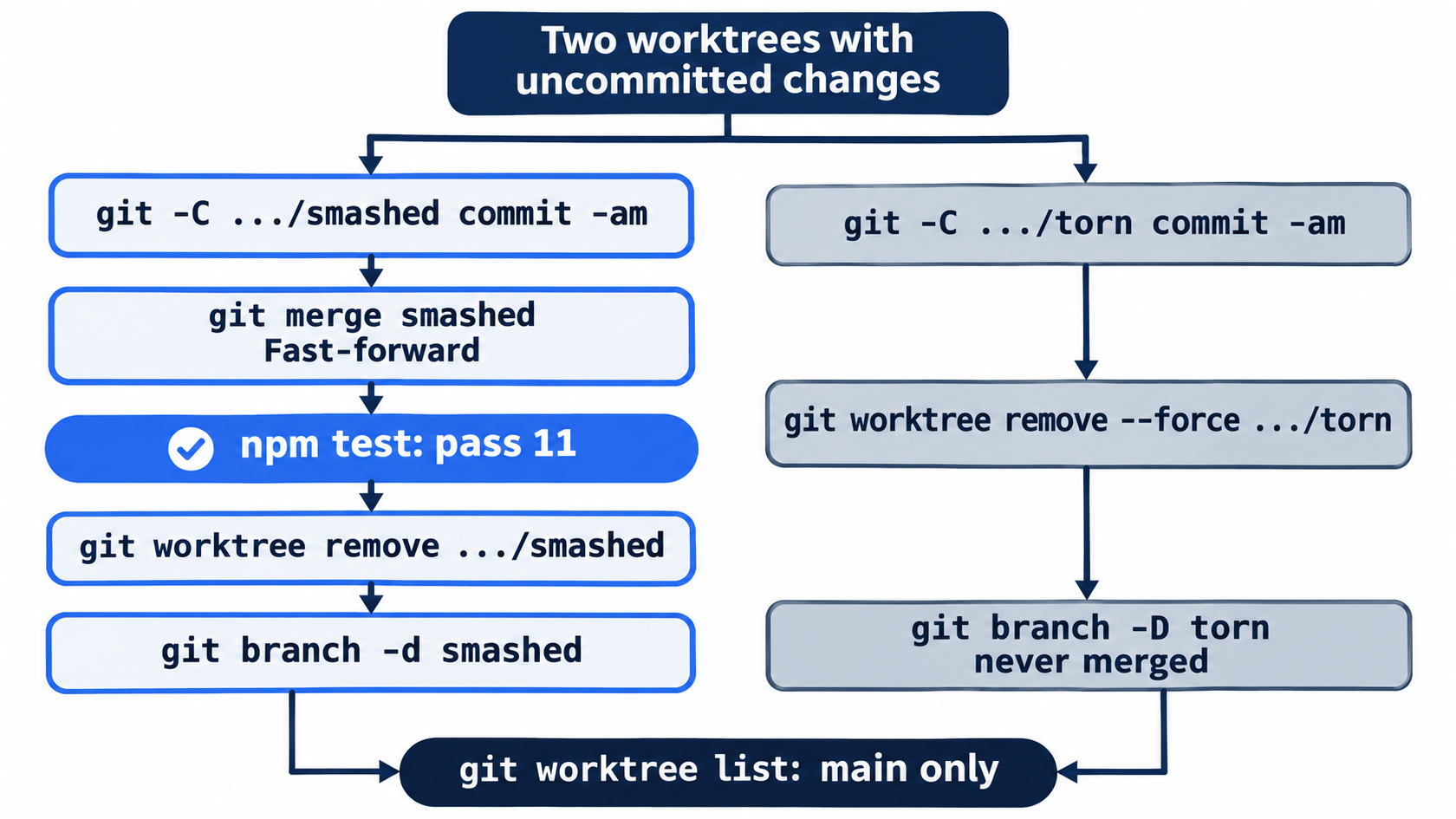
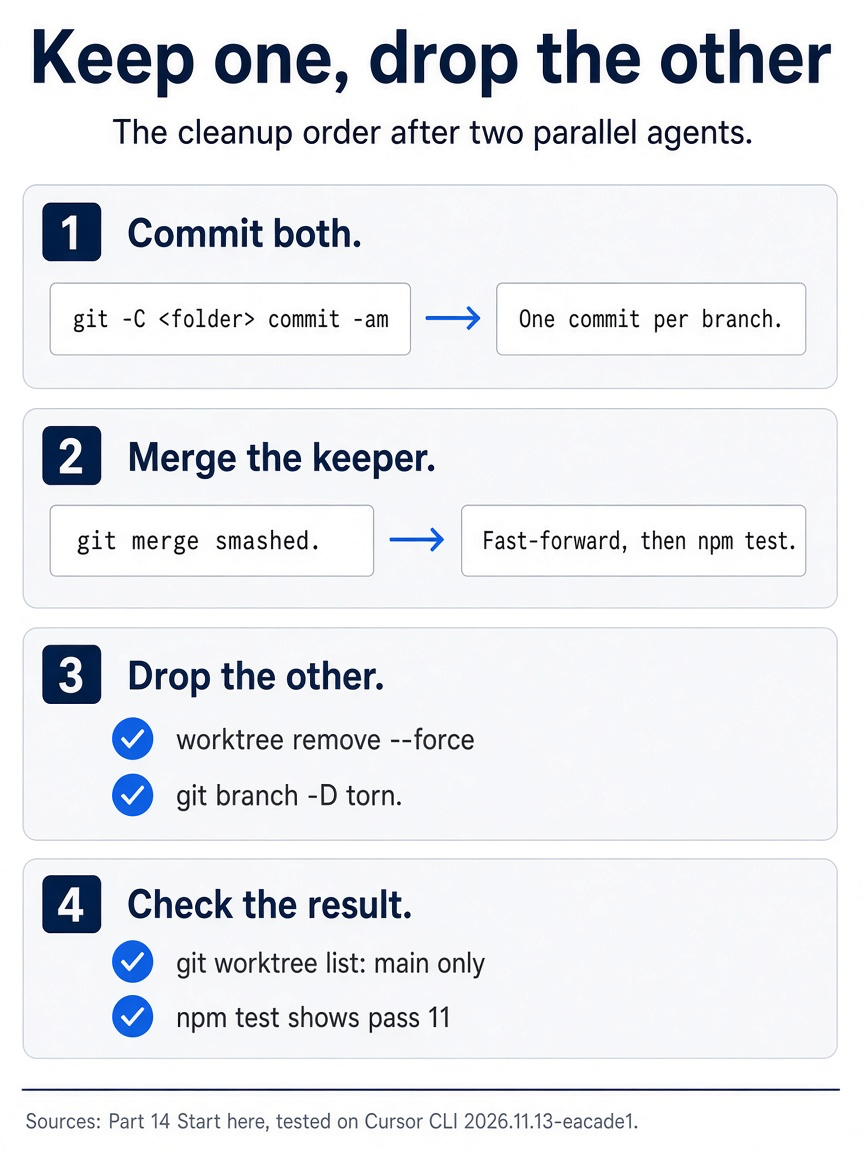
The cleanup goes in this order: commit each agent's work on its own branch, merge only the one you keep, run npm test on main, then remove both worktrees and both branches, with --force and -D reserved for the one you throw away.
The same steps in the editor
The editor has two ways in. The docs say that the worktree screens exist only in the Agents Window, Cursor 3's agent-first window. In the classic editor, you use commands instead (Worktrees). The steps change the repository, so do them in the CLI or the editor, not both. The editor needs the plugin too, so copy it first and remove the copy at the end. Every step here is written from the docs, not yet run.
Load the plugin:
- (written from the docs, not yet run)
mkdir -p ~/.cursor/plugins/local && cp -R plugins/tt-triage-kit ~/.cursor/plugins/local/, then Developer: Reload Window from the Command Palette.
In the Agents Window:
- (written from the docs, not yet run) Open it with Cmd+Shift+P, Open Agents Window (Agents Window). Start one agent in a worktree with
/tt-add-keyword smashed as damagedand a second with/tt-add-keyword torn as damaged. - (written from the docs, not yet run) Bring the
smashedresult back into your main checkout, and discardtorn.
In the classic editor:
- (written from the docs, not yet run) In the Agent panel, send
/worktree /tt-add-keyword smashed as damaged, then in a new chat/worktree /tt-add-keyword torn as damaged(Worktrees). - (written from the docs, not yet run) In the
smashedchat, run/apply-worktreeto bring its changes into your checkout; in thetornchat, run/delete-worktree. - (written from the docs, not yet run) Open the Output panel and choose Worktrees Setup to see the
npm testrun.
Either way, finish with the checks in Your win, then remove the plugin copy: rm -r ~/.cursor/plugins/local/tt-triage-kit.
Your win
Run the check now.
git worktree list
git status --short
git log --oneline -1
npm test
git worktree list shows one line, your main checkout on main. git status --short prints nothing, the last commit is Add smashed to the damaged keywords, and npm test shows ℹ pass 11 and ℹ fail 0. Two agents worked at once and never touched each other's files.

The scene shows the moment the loop pays off: two agents finished side by side, and the main checkout is back to one clean line in git worktree list.
You can stop here. Going deeper explains why this works and where it breaks.
Going deeper
This section is for readers who want more worktree options, the cleanup rules, and how worktrees relate to subagents and the Agents Window. It assumes you finished Start here in Parts 1 to 14.
More flags and settings
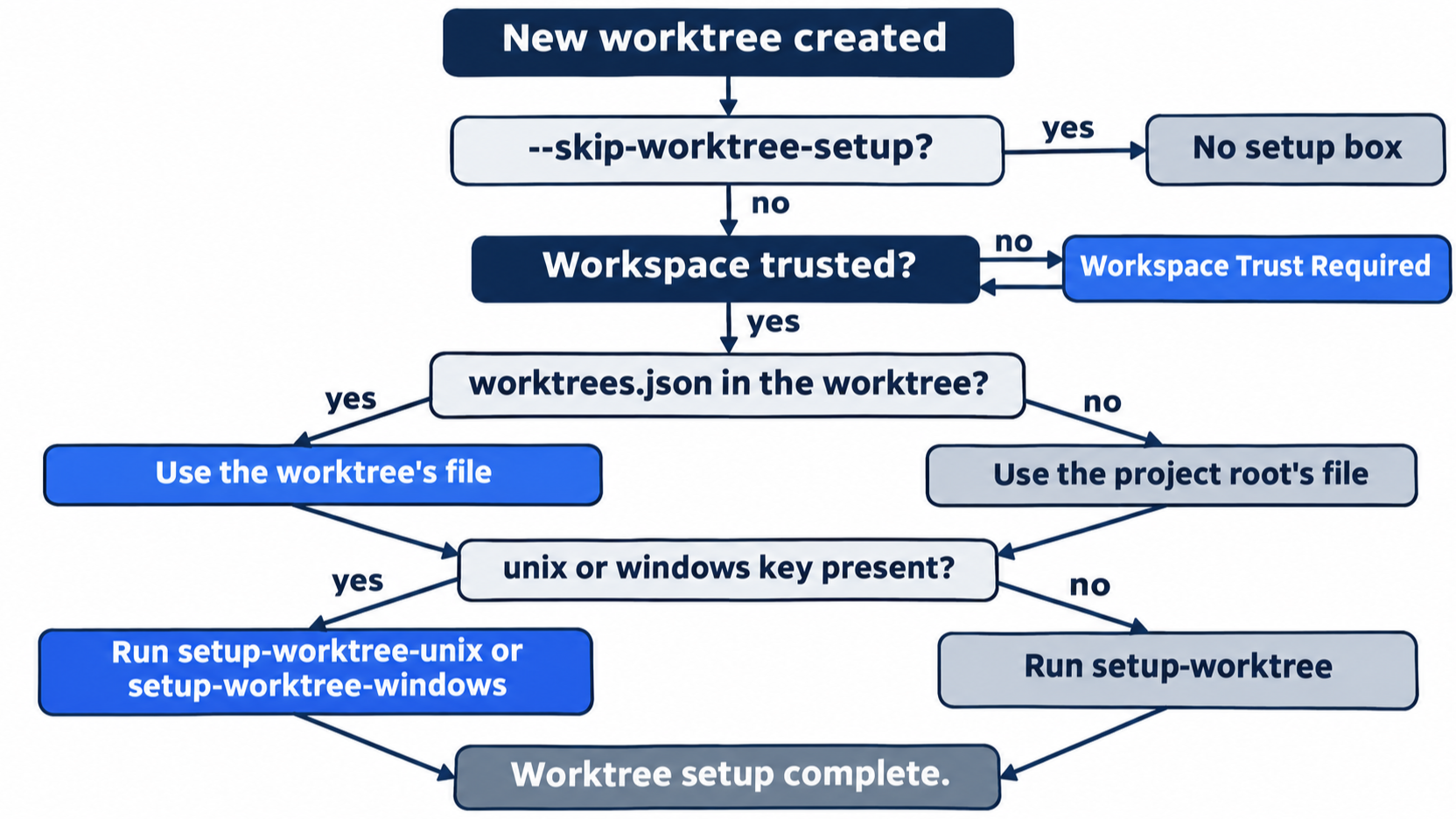
--worktree-base <branch>starts the worktree from another branch instead of your current commit (CLI parameters).--skip-worktree-setupskips.cursor/worktrees.json.-wwith no name lets Cursor pick one.setup-worktree-unixandsetup-worktree-windowsoverridesetup-worktreeon each system. Each key takes a list of commands or a path to a script (Worktrees).$ROOT_WORKTREE_PATHpoints to your main checkout, so a setup can copy a file that git does not track, such ascp $ROOT_WORKTREE_PATH/.env .env.
Cursor looks for .cursor/worktrees.json in the worktree first, then in the project root. The docs advise against symlinking node_modules into a worktree; install with a fast package manager instead.
Setup and trust
Worktree setup runs only in a trusted workspace (CLI changelog). In testing, a fresh copy of Ticket Triage showed Workspace Trust Required for the new worktree's folder, and the npm test setup ran only after the trust choice. You already trusted the main checkout on Day 1, so Start here showed no prompt.
Cleanup
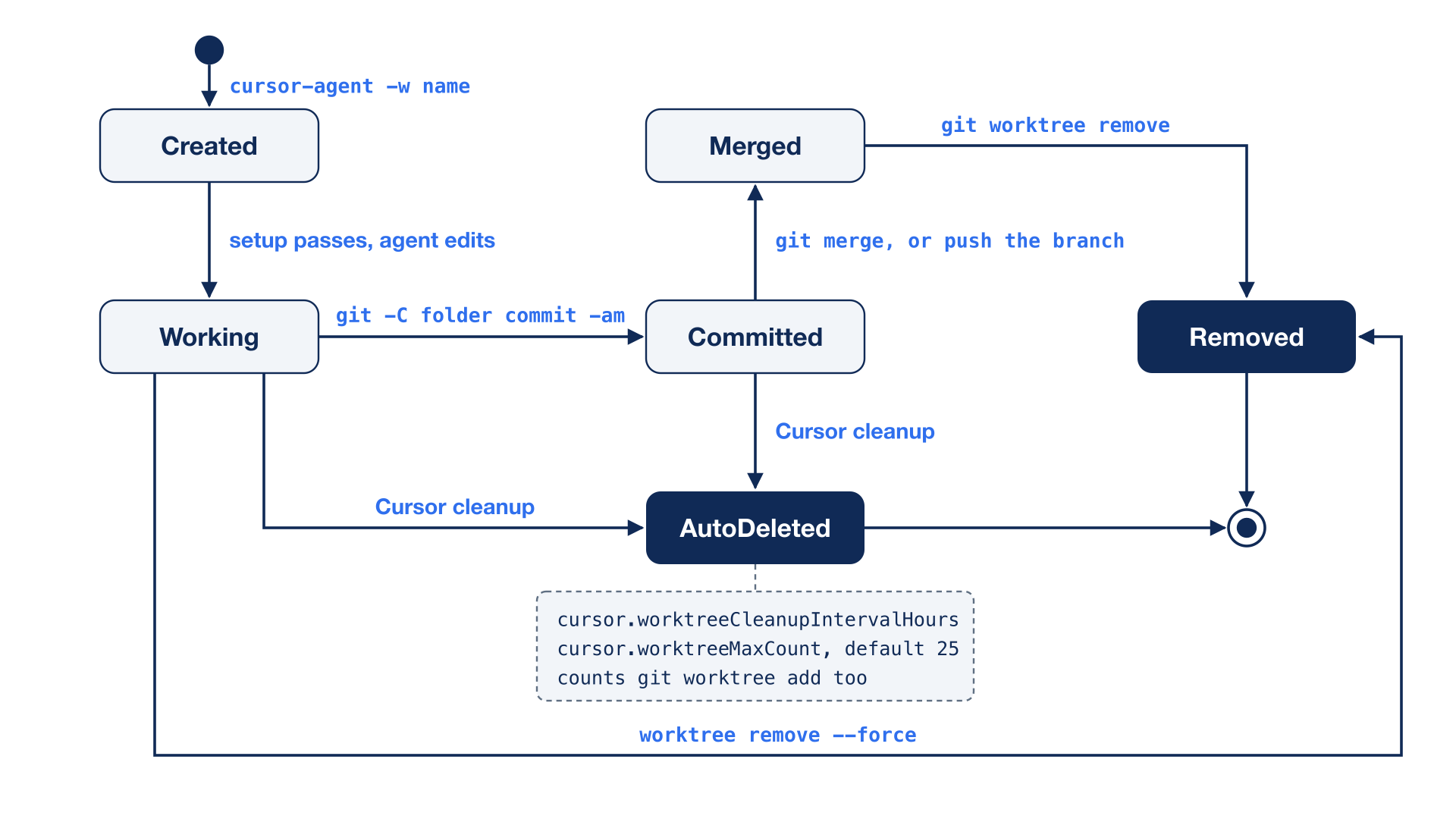
Cursor deletes old worktrees on its own. The editor settings cursor.worktreeCleanupIntervalHours and cursor.worktreeMaxCount control how often and how many; the default cap is 25 worktrees for the whole machine (Worktrees). Cleanup also counts worktrees you made with git worktree add, so do not keep long-lived work in ~/.cursor/worktrees/. Commit and merge, or push the branch.
Worktrees, subagents, and the Agents Window
Day 12's subagents can also work in isolated worktrees: ask for isolation, and each subagent gets its own worktree and branch (Subagents). In the editor, /best-of-n runs one task on several models, each in its own worktree, so you can compare the results (Worktrees). This guide did not test either. The Agents Window manages many agents, local and cloud, in one place (Agents Window).
If you already use Claude Code: Claude Code's worktree option creates worktrees inside the repository's own folder. Cursor puts them under ~/.cursor/worktrees/<repository>/ in your home folder, so they never show up in git status of the main checkout, and you do not need a .gitignore entry for them.
Do this today
Everyone
-
Repeat the win. Run:
git worktree list
git status --short
git log --oneline -1
npm test
The result: one worktree, nothing from
git status --short,Add smashed to the damaged keywords, andℹ pass 11. -
Start one habit: when you want a second agent on the same project, start it with
-w <name>instead of in the same folder. The result:git worktree listshows your main checkout plus one line for each worktree until you remove it, and your main checkout'sgit status --shortstays clean.
If you read Going deeper
-
Start a worktree from an older commit. Run:
cursor-agent -w tt-old --worktree-base HEAD~1 --skip-worktree-setupThe result, in testing: no setup box. Type
/quit, then check where the worktree starts:git -C ~/.cursor/worktrees/ticket-triage/tt-old log --oneline -1It prints
Add worktree setup that runs the tests. Reset:git worktree remove --force ~/.cursor/worktrees/ticket-triage/tt-old git branch -D tt-old git worktree list git status --short git log --oneline -1 npm testOne worktree, nothing from
git status --short,Add smashed to the damaged keywords, andℹ pass 11. -
Watch the setup run in a new worktree. Run:
cursor-agent -w tt-checkRead the
worktree setupbox. The result, in testing: thenpm testoutput, includingℹ pass 11, becausemainnow has eleven tests. Type/quit. Reset:git worktree remove ~/.cursor/worktrees/ticket-triage/tt-check git branch -d tt-check git worktree list git status --short git log --oneline -1 npm testOne worktree, nothing from
git status --short,Add smashed to the damaged keywords, andℹ pass 11.
Parallel work needs separate folders
The two agents in the opening did not fail because they were weak. They failed because they shared a desk. A worktree gives each agent its own desk: its own folder, its own branch, and a setup step that proves the copy works before the agent touches it.
The rest is ordinary git. Commit each result on its branch, merge the one you keep, delete the one you do not, and let git worktree list confirm that only main is left. One flag, -w, turns a collision into a choice.
Run more agents when you need them. Just never run two in one folder.
This is Part 14 of "Cursor, Day-to-Day," an 18-part guide to using Cursor's agent every day, from the CLI and the editor.