
Move a Claude Code Session from the Terminal into the Desktop App
A Claude Code session is a saved conversation with an ID, not a terminal window: read the ID with /status, move the session into the Desktop app with /desktop, and find the same conversation in the Code tab with the repository untouched.
A Claude Code session is a saved conversation, not a terminal window. Read its ID with /status, hand it to the Desktop app with one command, and find the same conversation in the Code tab.
You built up a long conversation in a terminal window and assumed that closing the window, or switching apps, meant starting over.
In this article: Day 15 of a day-by-day guide to Claude Code. Start here: you ask Claude one question in a terminal session, read its session ID with
/status, and move the session into the Desktop app with/desktop. Going deeper: the places Claude Code runs, the other ways to move a session, and what the docs say about Desktop's mode selector.
Tested on Claude Code 2.1.326.
Yesterday you installed the commit-commands plugin at project scope and committed the setting that turned it on.
Start here
At the end of today, you can ask Claude a question in a terminal session, read that session's ID, move the session into the Desktop app with one command, and see the same conversation there.
Starting fresh or fell behind? Run git switch -C main claude-code/day-14. This replaces your main with the end of Day 14; to keep your own work, run git branch my-backup first.
For fourteen days you ran Claude Code in a terminal. The terminal is one place where Claude Code runs. Another is the Claude Desktop app, Anthropic's app for your computer that holds chat and Claude Code in one window. Claude Code lives in the app's Code tab, at the top of its sidebar. The Code tab runs the same Claude Code as your terminal, with a graphical screen: a list of sessions in the sidebar, a prompt box, and a view of the changes Claude made.
A session is one saved conversation with Claude in one project folder. Claude Code keeps it on disk as you work, which is why you can leave and come back. Each session has a session ID, a long unique string that names it. Today you read an ID, then hand the session to the Desktop app and keep the whole conversation.
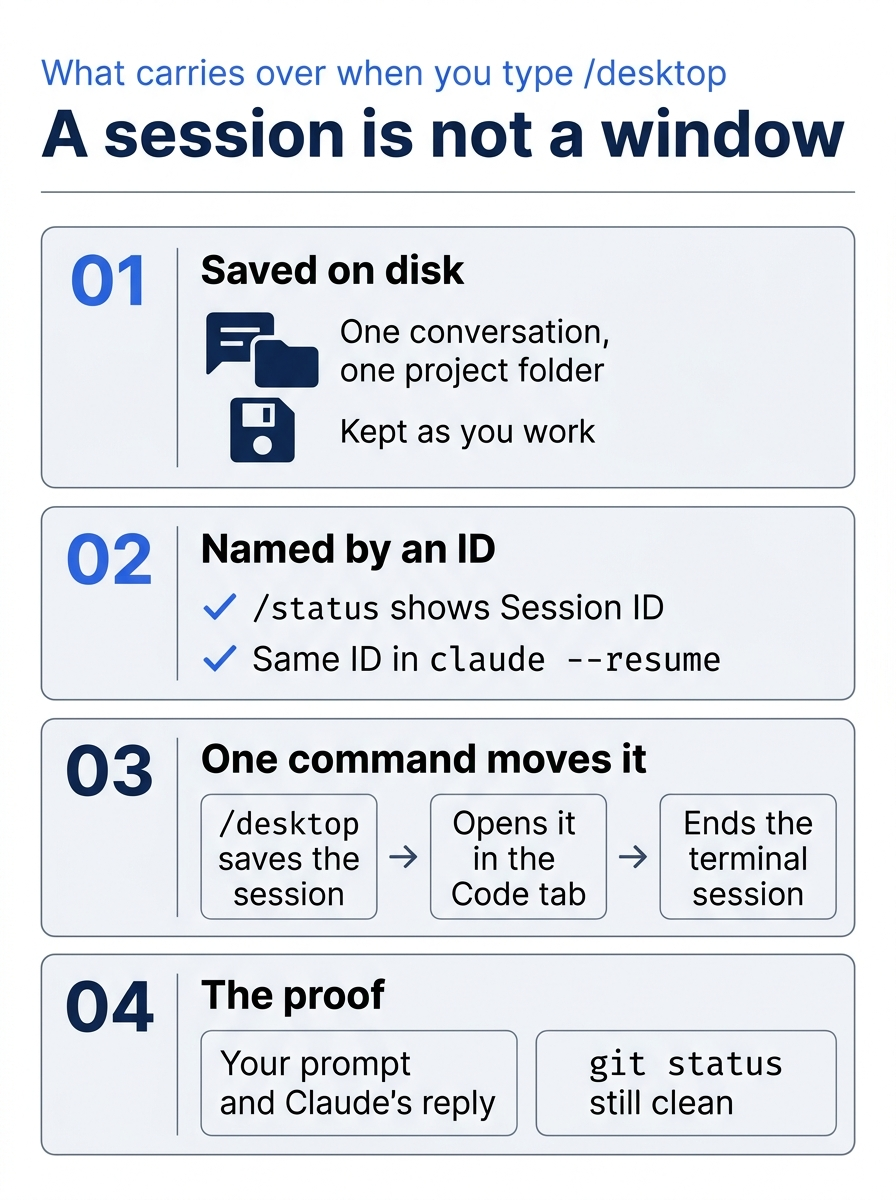
The conversation lives on disk under an ID, so the window you started it in does not own it, and one command can hand it to another app.
What you need
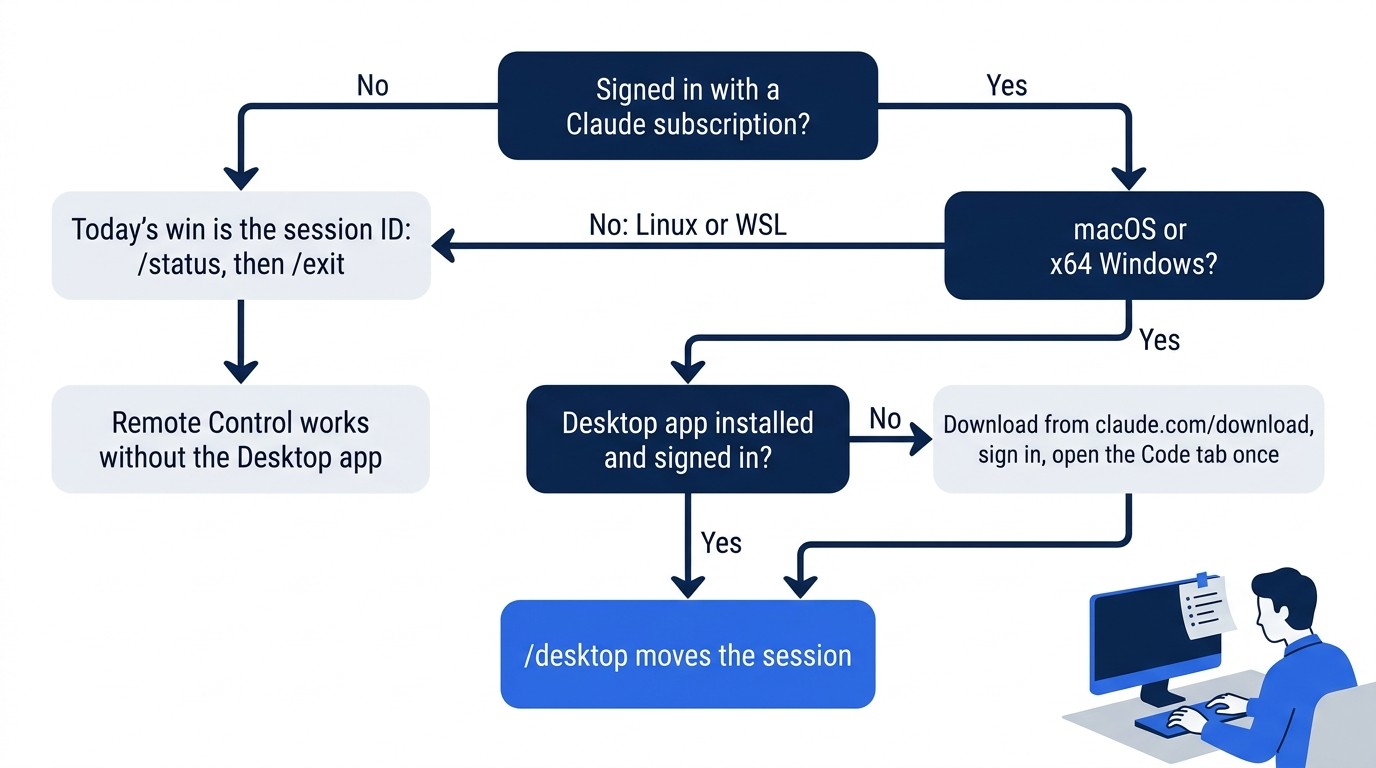
- A Claude subscription login. The move needs the login from Day 1, choice
1. Claude account with subscription. The docs say that it does not work with an API key or an Anthropic Console account. - macOS, or Windows on an x64 processor. The docs say that
/desktopworks only on these two systems. A session that runs on Linux, or inside WSL on Windows as Day 1 set up, cannot move this way. - The Desktop app, installed and signed in with the same claude.ai account. If you do not have it, the docs say to download it from claude.com/download, sign in, and click the Code tab once. The tested computer already had the app, so this guide did not test the install.
If one of these is missing, your win today is the session ID. Do the steps through "Read the session ID", and check that /status shows a Session ID line. Then type /exit and read Going deeper. Of the other ways to reach a session that it covers, Remote Control from Day 7 is the one that works without the Desktop app.
Check the starting state
Open a terminal in Ticket Triage:
cd ~/code/ticket-triage
git status
npm test
Git prints nothing to commit, working tree clean. The tests show ℹ fail 0 and the pass count from yesterday, ℹ pass 19. Today changes no file, so these results stay the same all day.
Ask one question
Start a session:
claude
Give Claude a small task, so the conversation has something in it to carry over:
Run npm test and tell me the pass count in one short sentence.
Claude runs the tests and answers. On the tested runs, the tool line was Bash(npm test 2>&1 | tail -15), and the replies were:
⏺ All 19 tests passed and none failed.
and, in Manual mode, All 19 tests passed. Your wording can differ. Your count is the one from this morning.
Manual mode: no prompts. The allow rule from Day 4 lets npm test run without asking.
Read the session ID
Type:
/status
A settings panel opens. Its top row is Settings Status Config Usage Stats, and it opens on Status. Among its lines, on the tested run, were these three:
  Session name:      npm test pass count
  Session ID:        5b4009de-d92a-4f6b-9033-cc3b010c69f2
  cwd:               ~/code/ticket-triage
Today you need the first two:
- Session name is a short title. You did not set one, so Claude Code named the session from your prompt. Your name can differ.
- Session ID is the unique ID. Yours is a different string of the same shape. Copy it or write down its first few characters, because you will see it again in a moment.
cwd is the folder that the session works in. Your screen shows the full path where this text shows ~. The panel shows more lines, about the version, your account, and your setup. Today you can skip them.
Press Esc to close the panel. The terminal prints ⎿ Settings dialog dismissed.
Manual mode: no prompts. The panel only reads.
Move the session to Desktop
Type:
/desktop
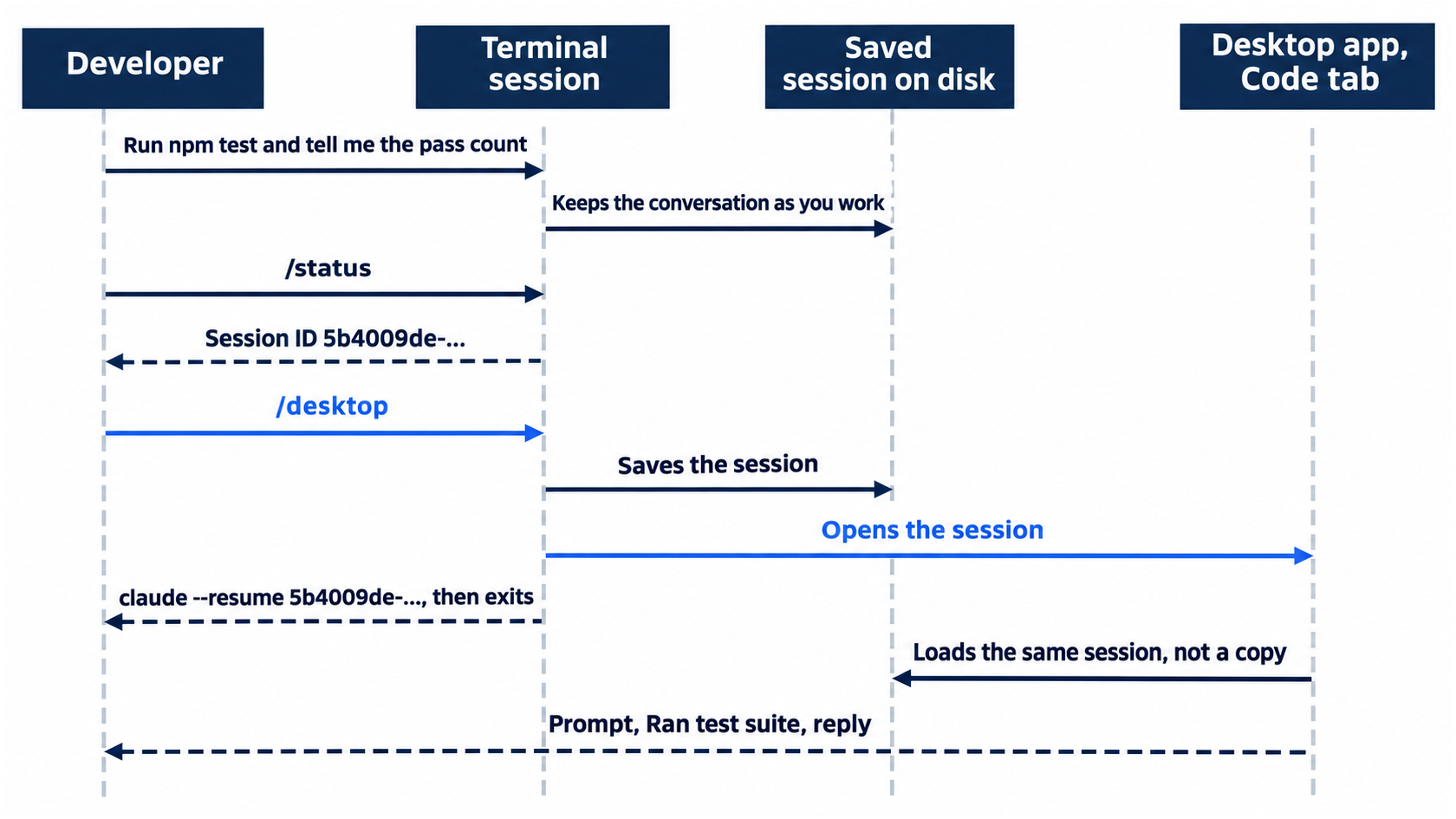
The /desktop command saves the session, opens it in the Desktop app, and ends Claude Code in the terminal. On the tested run, the terminal printed:
✳ Opening in Claude Desktop…

Resume this session with:
claude --resume 5b4009de-d92a-4f6b-9033-cc3b010c69f2
Then the terminal returned to your shell prompt. Compare the ID in that last line with the session ID from /status. They match, because this is the same session. The docs say that claude --resume with that ID reopens the session in a terminal. This guide did not test it.
Manual mode: no prompts.
Find the conversation in Desktop
The Desktop app comes to the front with the Code tab open on the session. On the tested runs, the session showed:
Started on this computer ·and the folder name, which say where the session began. In your session, the folder name isticket-triage.- Your prompt,
Run npm test and tell me the pass count in one short sentence. - A
Ran test suiterow, which is Desktop's label for thenpm testtool call. - Claude's reply, such as
All 19 tests passed and none failed. Settings dialog dismissed, from when you closed/status.
In the auto-mode run, the session also showed Session transferred to Claude Desktop. Your screen can show it or not. The row under the prompt box showed the model, Opus 5.5, and the effort, High. Desktop keeps the conversation that you started in the terminal. The docs say that the session continues there with its full context.
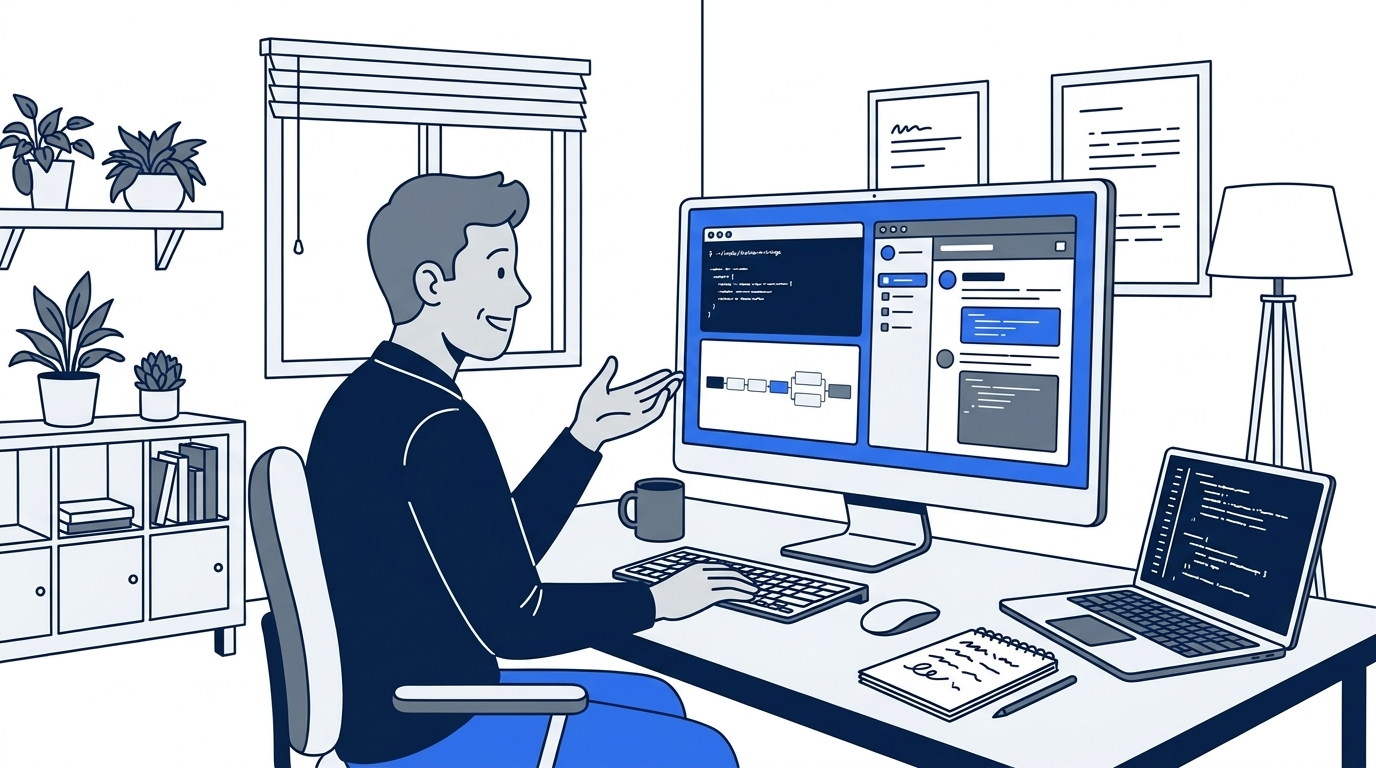
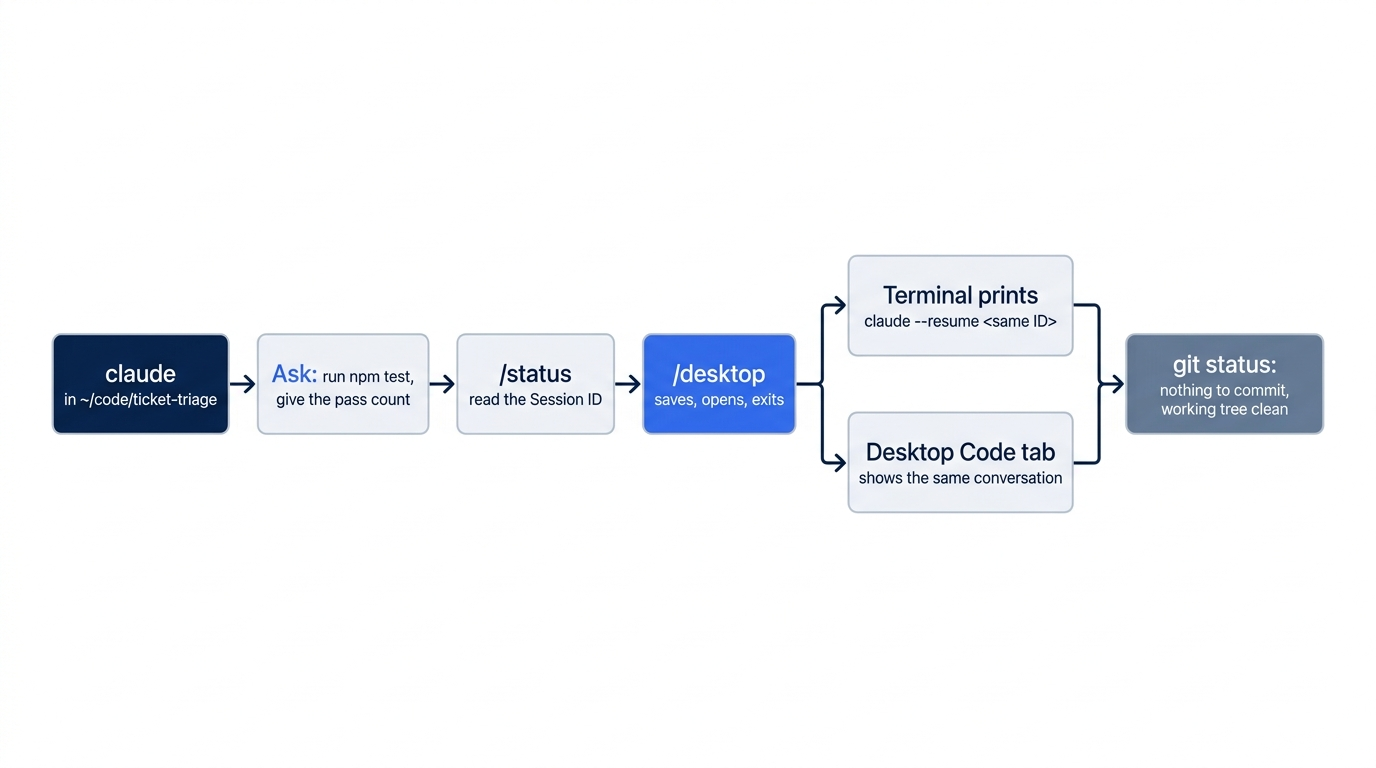
The scene shows the proof moment of the day. The terminal is back at the shell prompt, and the Code tab holds the prompt, the test run, and Claude's reply from a moment ago.
Check the mode before you type
The row under the prompt box also holds Desktop's mode selector, which names the permission mode for this session. On both tested runs, it read Auto. In the Manual-mode run, the terminal session had ⏸ manual mode on, and Desktop still showed Auto. The test did not find out why.
Read the selector before you send a prompt from Desktop. If you work in Manual mode, the docs say to click the selector and choose Manual. This guide did not test the change. With Auto, Claude can run commands without asking you. The tests only read the selector and did not send a prompt from Desktop. Going deeper has what the docs say about the selector.
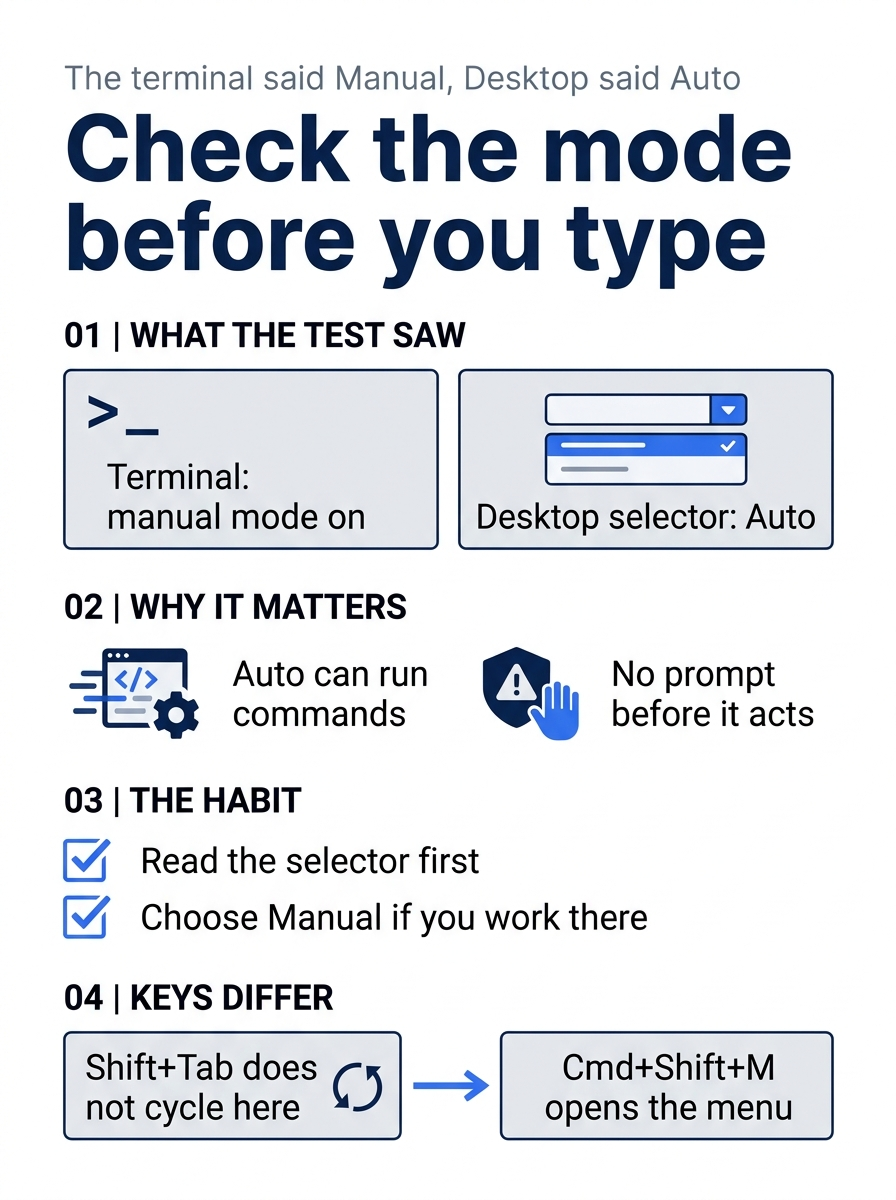
Turn the surprise from the test into a habit. Desktop keeps its own mode, so one glance at the selector comes before the first prompt you send there.
Check the win
Back in your terminal, run:
git status
Git prints nothing to commit, working tree clean. The move changed no file in Ticket Triage. The session moved, and your repository stayed as it was. There is nothing to commit today.
You asked Claude a question in the terminal, read the session ID with /status, moved the session with /desktop, and found the same conversation in the Desktop app's Code tab.
You can stop here. Going deeper explains why this works and where it breaks.
Going deeper
This section is for readers who want to know the other places Claude Code runs, the other ways to move a session, and what the docs say about Desktop's mode selector. It assumes you finished Start here in Parts 1 to 15.
The places Claude Code runs
The docs page on platforms says that Claude Code runs the same engine everywhere, and that each place suits a different way of working:
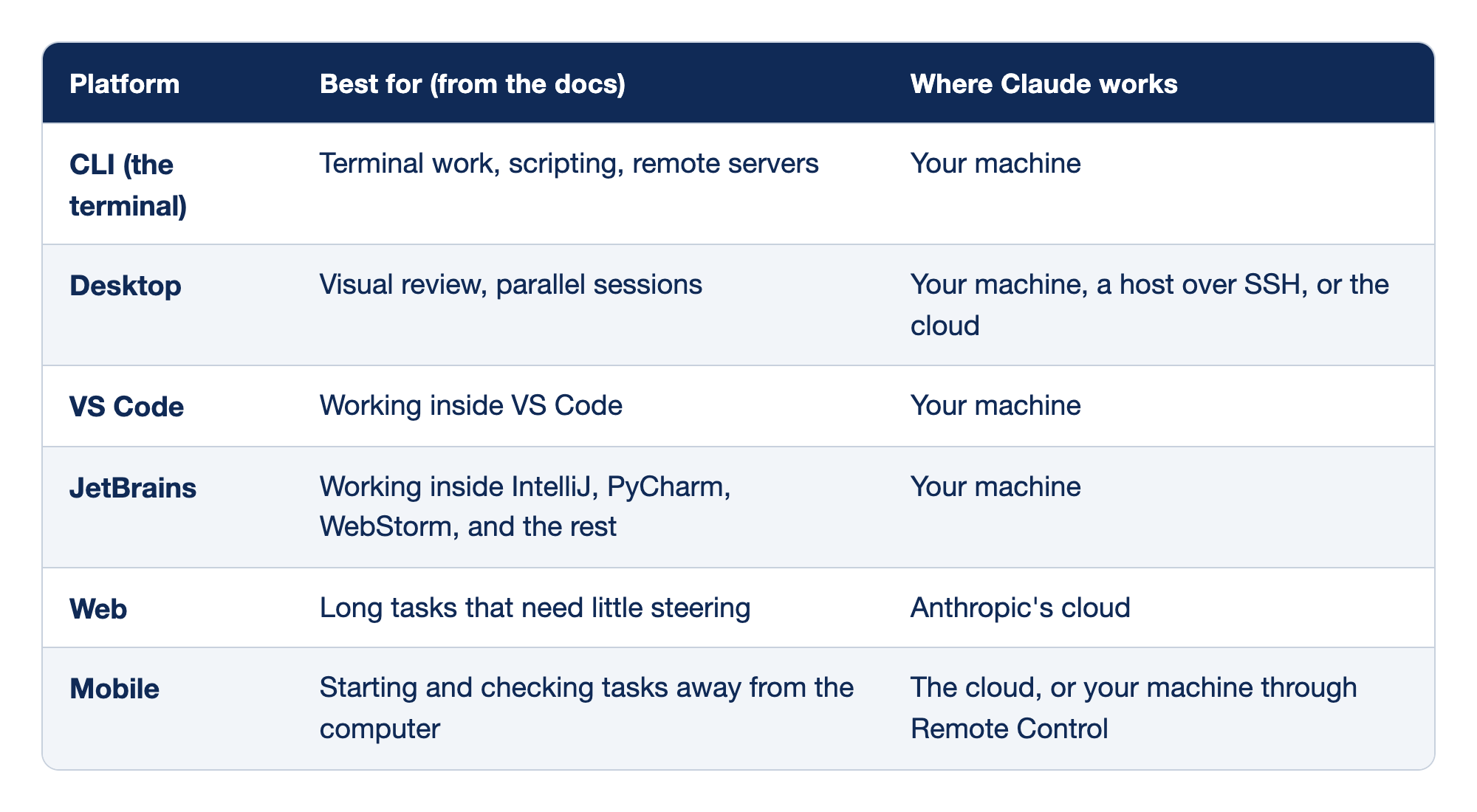
Each place that Claude Code runs suits a different way of working and keeps Claude's work in a different location. The Platform column names the surface, with a link to its docs page where one exists. The "Best for (from the docs)" column gives the kind of work the docs recommend it for, and the "Where Claude works" column says which computer runs Claude.
- CLI (the terminal) is best for terminal work, scripting, and remote servers, and Claude works on your machine.
- Desktop is best for visual review and parallel sessions, and Claude works on your machine, on a host over SSH, or in the cloud.
- VS Code is best for working inside VS Code, and Claude works on your machine.
- JetBrains is best for working inside IntelliJ, PyCharm, WebStorm, and the rest, and Claude works on your machine.
- Web is best for long tasks that need little steering, and Claude works in Anthropic's cloud.
- Mobile is best for starting and checking tasks away from the computer, and Claude works in the cloud, or on your machine through Remote Control.
Docs pages: Desktop, VS Code, JetBrains, Web, Mobile.
The docs say that the CLI is the most complete surface, and that scripting and the Agent SDK are CLI-only. They also say that configuration, project memory, and MCP servers are shared across the local surfaces. The Desktop docs name what both read: CLAUDE.md files (Day 5), skills (Day 10), hooks (Day 11), MCP servers saved in ~/.claude.json (Day 13), and the settings files. This guide tested only the move, not each of these in Desktop.
The docs list Desktop downloads for macOS, x64 Windows, and ARM64 Windows, and a Linux beta. The move with /desktop is a narrower case, covered next.
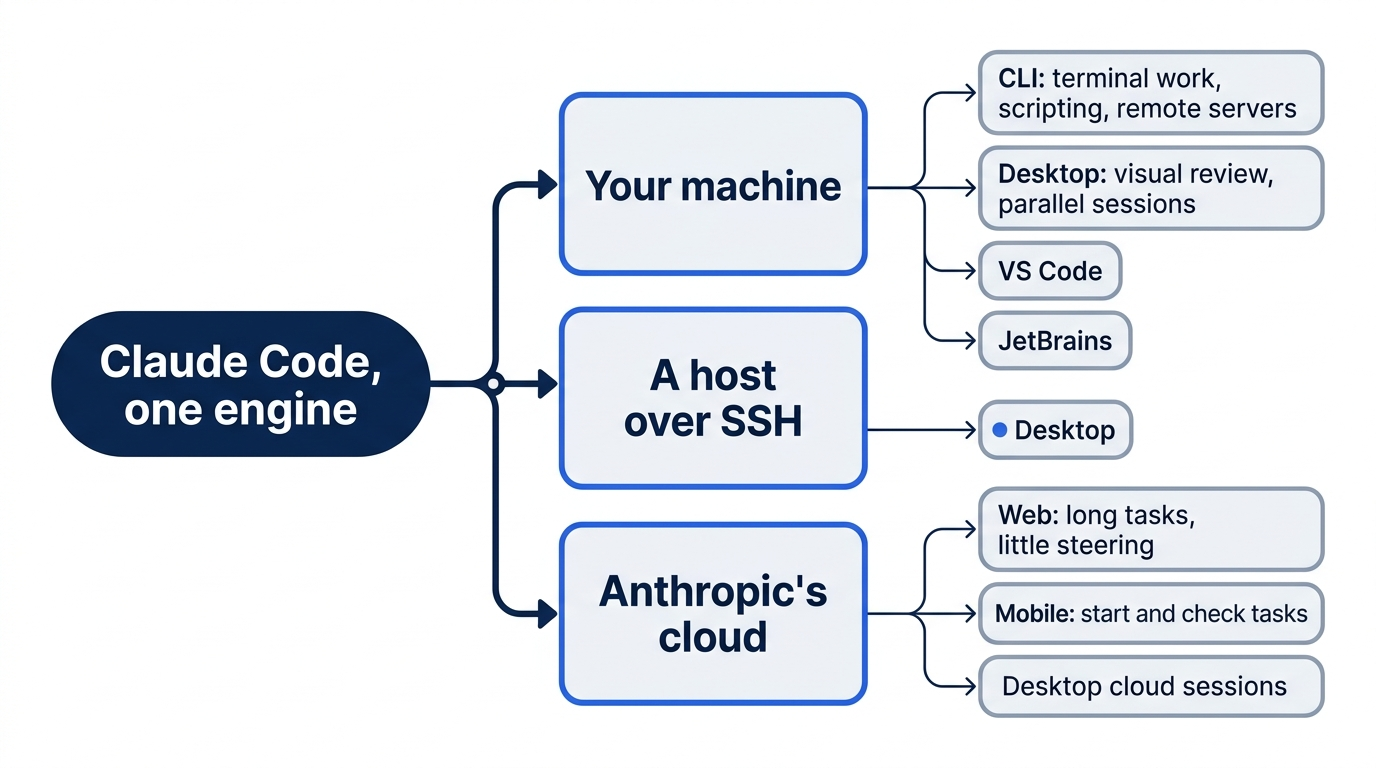
What /desktop does, and when it is not there
The Desktop docs say that /desktop saves the session, opens it in the app, and exits the CLI. It works on macOS and x64 Windows when you are signed in with a Claude subscription. It does not work with an API key, or on Amazon Bedrock, Google Cloud's Agent Platform, or Microsoft Foundry. On the tested runs, Claude Code exited without an error after it printed the claude --resume line.
The docs also say that Desktop continues the same session, not a copy, so claude --resume <id> in the terminal still finds it afterward. This guide did not test the return trip, because it needs typing in the Desktop window. Work in one place at a time. The docs say that Claude Code does not move a session that is open in another terminal or still running in the background.
Open a session in Desktop from your shell
Version 2.1.285 added claude --desktop, which opens the Desktop app without starting a terminal session. With no other arguments, it opens Desktop on the current folder. To send an existing session, the docs give two forms:
claude --desktop --continue
claude --desktop --resume <session-id>
--continue sends the most recent conversation in this folder. --resume takes the ID that /status showed. The docs say that a session name does not work in place of the ID, that the command prints Opening session <session-id> in Claude Desktop, and that it prints a download link if the app is not installed. It has the same system and sign-in rules as /desktop. This guide did not test it.
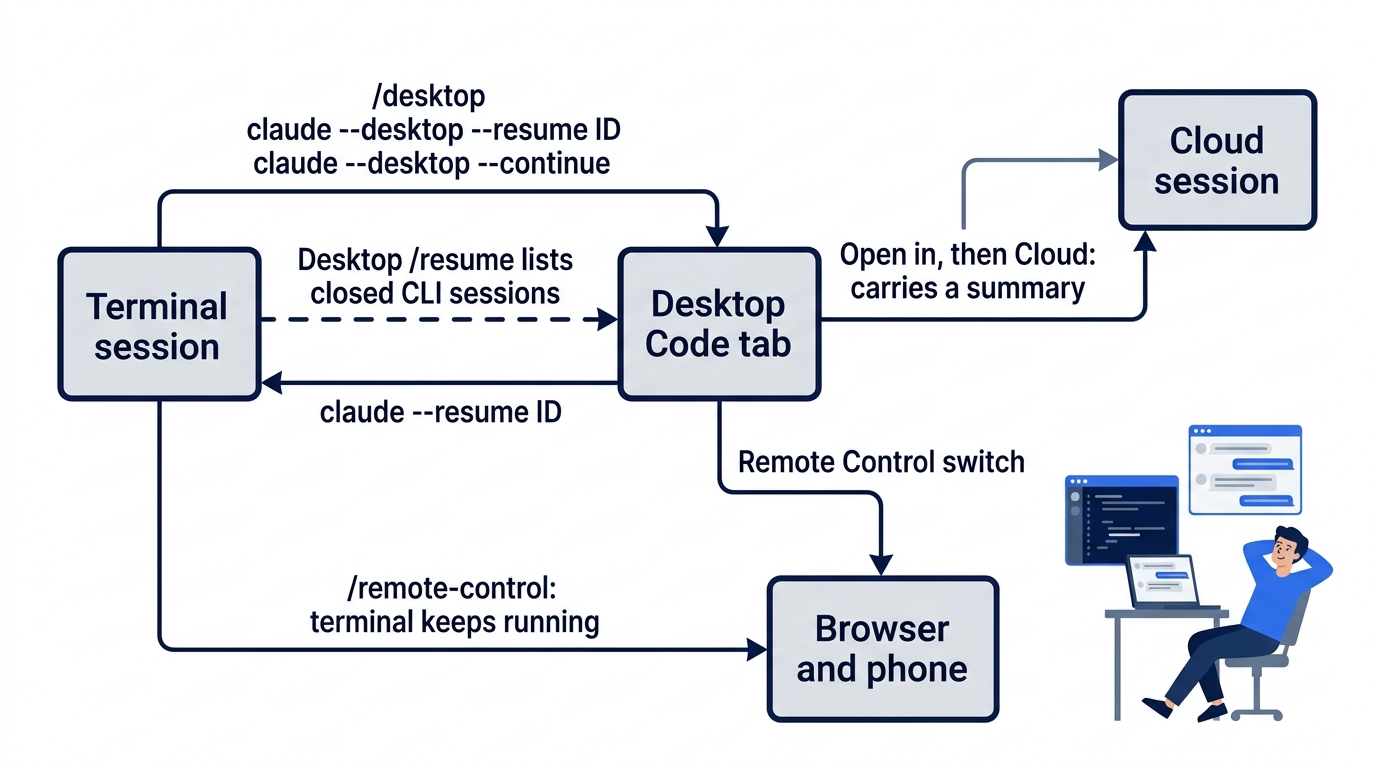
Pick up a CLI session from inside Desktop
The move also works in the other direction, started from the app. The docs give three steps:
- Close the session in the terminal.
- In a Desktop session's prompt box, type
/resume. Desktop lists the sessions that you started from the CLI on this computer. You can search by title, folder, or branch. - Select the session. It continues in the app with its full conversation.
Desktop's /resume works in local sessions, not in SSH, WSL, or cloud sessions. Desktop and the CLI each keep their own session list. This guide did not test this path.
Desktop's mode selector
Desktop has its own mode selector, in the row under the prompt box. It offers Manual, Accept edits, Plan, and Auto, plus Bypass permissions once you turn that on. The dontAsk mode is CLI-only. The docs say that a mode that you pick in a local session is remembered per folder, and that a new local session can start in a defaultMode from ~/.claude/settings.json or managed settings. They tell you to check the selector before your first message, which is the habit from Start here.
Keys differ in Desktop. Shift+Tab does not cycle modes there, as it does in the terminal. The docs give Cmd+Shift+M on macOS to open the mode menu. This guide's test only read the selector, and it did not find out why the Manual-mode run showed Auto.
Remote Control is the other way to reach a session
On Day 7 you connected a terminal session to a browser and your phone with /remote-control. The two moves differ:
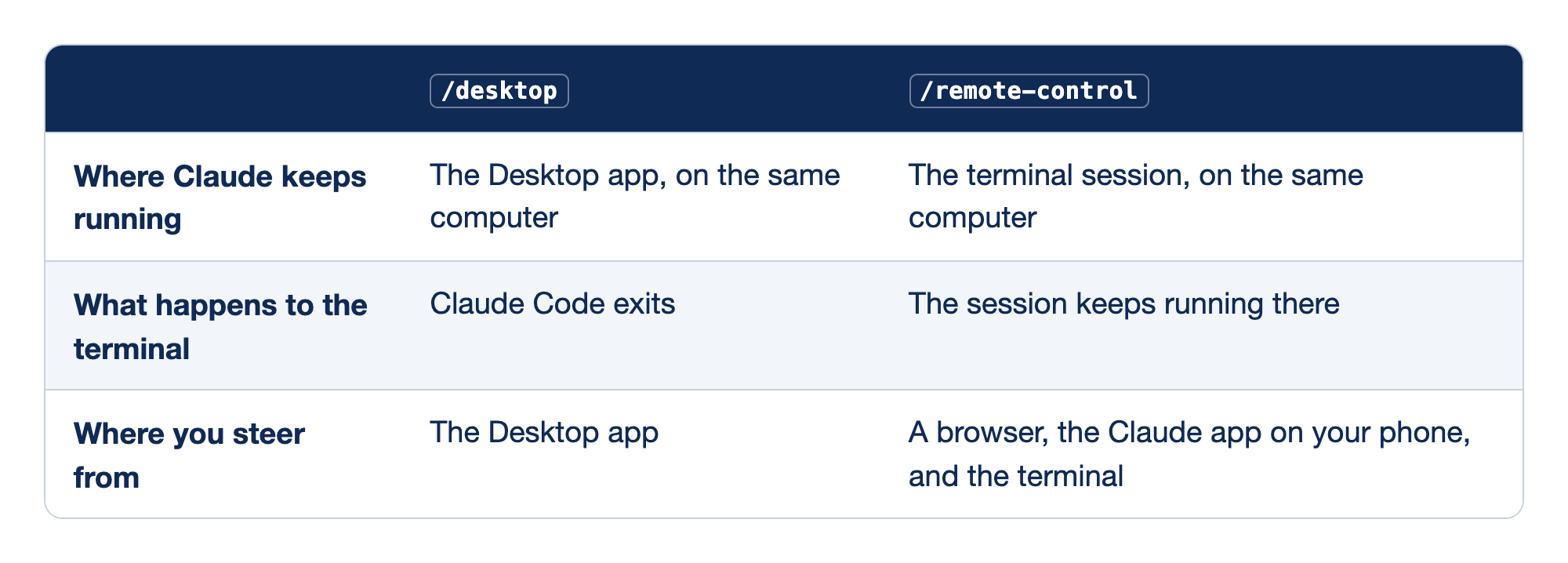
The two commands both take a session out of the plain terminal, and they differ in where Claude keeps running and where you steer from. The first column names the question, the /desktop column answers it for the move to the Desktop app, and the /remote-control column answers it for Remote Control.
- Where Claude keeps running: with
/desktop, it runs in the Desktop app on the same computer, and with/remote-control, it keeps running in the terminal session on the same computer. - What happens to the terminal:
/desktopmakes Claude Code exit, and/remote-controlleaves the session running there. - Where you steer from: with
/desktop, you steer from the Desktop app, and with/remote-control, you steer from a browser, the Claude app on your phone, and the terminal.
Desktop sessions can use Remote Control too. The docs say that a session in the Code tab connects when you turn on its Remote Control switch or type /remote-control in its prompt box. They also say that new Desktop sessions connect by themselves while Connect new sessions to Remote Control is on in Settings > Code or Settings > Claude Code. To hide a session from your other devices, archive it in Desktop, which archives its Remote Control copy too. None of this was tested here.
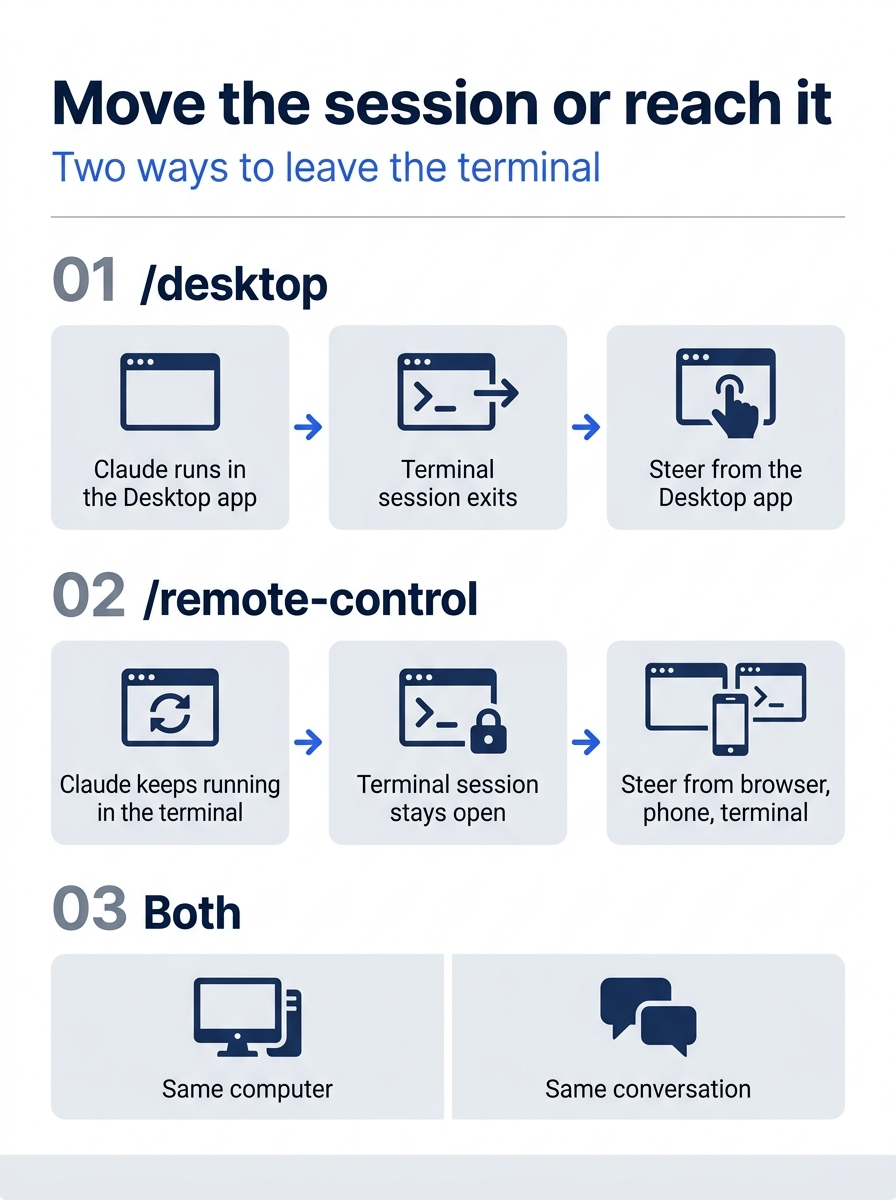
Pick /desktop when you want to keep working in the app, and Remote Control when the terminal session should keep running while you step away.
Cloud sessions
A cloud session runs in Anthropic's cloud, not on your computer. The docs say it keeps going after you close the app or disconnect, which makes it the choice for a long task that needs little steering. You start one at claude.ai/code, from the mobile app, or from the environment selector in Desktop's Code tab. A session that you started on your computer can move too: the session menu in Desktop has Open in, then Cloud, which carries the conversation over as a summary. Before you confirm, the dialog says whether your files move and whether the local session is archived. This guide did not test cloud sessions.
The platforms page also lists ways to reach Claude Code with no terminal open: Dispatch, Channels, Slack, scheduled tasks, and self-hosted environments for teams. Later days in this guide cover several of them, one each.
Archive the moved session
The moved session stays in Desktop's sidebar. To tidy it, hover over the session in the sidebar, open its menu, and select Archive. The docs say that it then moves to your archived sessions. Archiving touches no file in Ticket Triage. Check with git status --short, which prints nothing. This guide did not test the archive.
Go further: Stop Picking a Favorite: Where to Actually Run Claude Code is the first edition's platforms chapter, with a longer look at what each surface is good at and a decision tree for picking one. The Five Ways Claude Code Works Without You maps the ways to start work when you are not at the keyboard. Read both with today's docs in mind. The platforms chapter says that Desktop is not available on Linux, but the current docs list a Linux beta. It also says that /desktop works on Windows, where the docs now limit it to x64.
Do this today
Everyone
- Ask Claude one question in a terminal session, read the session ID with
/status, and move the session with/desktop. Check the win: the Desktop app's Code tab shows your prompt and Claude's reply, the ID in the terminal'sclaude --resumeline matches the one from/status, andgit statusprintsnothing to commit, working tree clean. If you cannot use/desktop, check instead that/statusshows aSession IDline before you type/exit. - Habit: read Desktop's mode selector before you send a prompt there. Check: the selector names the mode that you want, such as Manual.
If you read Going deeper
- Start a new terminal session, ask one question, read its ID with
/status, and type/exit. Then runclaude --desktop --resume <session-id>with that ID. This guide did not test this. Check: the terminal printsOpening session <session-id> in Claude Desktop, and the conversation opens in the Code tab. Reset: archive the session in Desktop. Check thatgit status --shortprints nothing. - In a Desktop session in Ticket Triage, type
/resume. This guide did not test this. Check: the list shows sessions that you started from the CLI in Ticket Triage. PressEscto close it without choosing one. Reset: nothing changed. Check thatgit status --shortprints nothing. - Reset today's session if you want: archive the moved session in Desktop from its menu in the sidebar. It does not touch the repository. This guide did not test this. Check: the session leaves the sidebar's main list, and
git status --shortin Ticket Triage prints nothing.
One conversation, two places
A session felt like a terminal window, and today it turned out to be a saved conversation with an ID. The ID from /status showed up again in the claude --resume line, and the Desktop app opened the same prompt and the same reply. Your repository did not change at all.
Before you type in a new place, read its mode. Then the conversation can travel with you, and your safety settings travel too.
This is Part 15 of "Claude Code, Day-to-Day (second edition)," a day-by-day guide to Claude Code in which each day takes 20 to 40 minutes. Part 15 is Day 15. All 28 days are out now.