
Did Claude Look It Up or Make It Up? Connect Your First MCP Server and Watch It Call
An MCP server is only useful if you can prove Claude used it: connect one safe, hosted server in three steps, and treat the Called line on screen as the evidence.
An MCP server gives Claude Code new tools. Connect one hosted server in three commands, check it from both sides, and learn to read the one line on screen that proves Claude used it.
Claude gave you a confident answer about something outside your repository, and you had no way to tell whether it looked it up or made it up.
In this article: Day 13 of a day-by-day guide to Claude Code. Start here: you connect Claude Code to a hosted MCP server, check that it is connected, and see Claude call one of its tools to answer a question. Going deeper: how a server's tools reach Claude, what Code Mode changes, the three scopes where a server is saved, other kinds of server, and what to do when a server does not connect.
Tested on Claude Code 2.1.326.
Yesterday you added a failing "critical" test by hand and gave the failure to Claude. Claude fixed src/priority.js until all 19 tests passed. You reviewed the change with /code-review and committed "Rate critical tickets high".
Start here
At the end of today, you can connect Claude Code to an MCP server, check that it is connected, and see Claude call one of its tools to answer a question.
Starting fresh or fell behind? Run git switch -C main claude-code/day-12. This replaces your main with the end of Day 12; to keep your own work, run git branch my-backup first.
On Day 6 you saw a line about MCP in /context and skipped it. MCP, the Model Context Protocol, is an open standard that connects Claude Code to other programs. An MCP server is one of those programs. It gives Claude extra tools, actions that Claude can call beside its built-in ones such as Read, Edit, and Bash. A server can search an issue tracker, query a database, or drive a browser. Some servers run on your machine. Others are hosted at a URL.
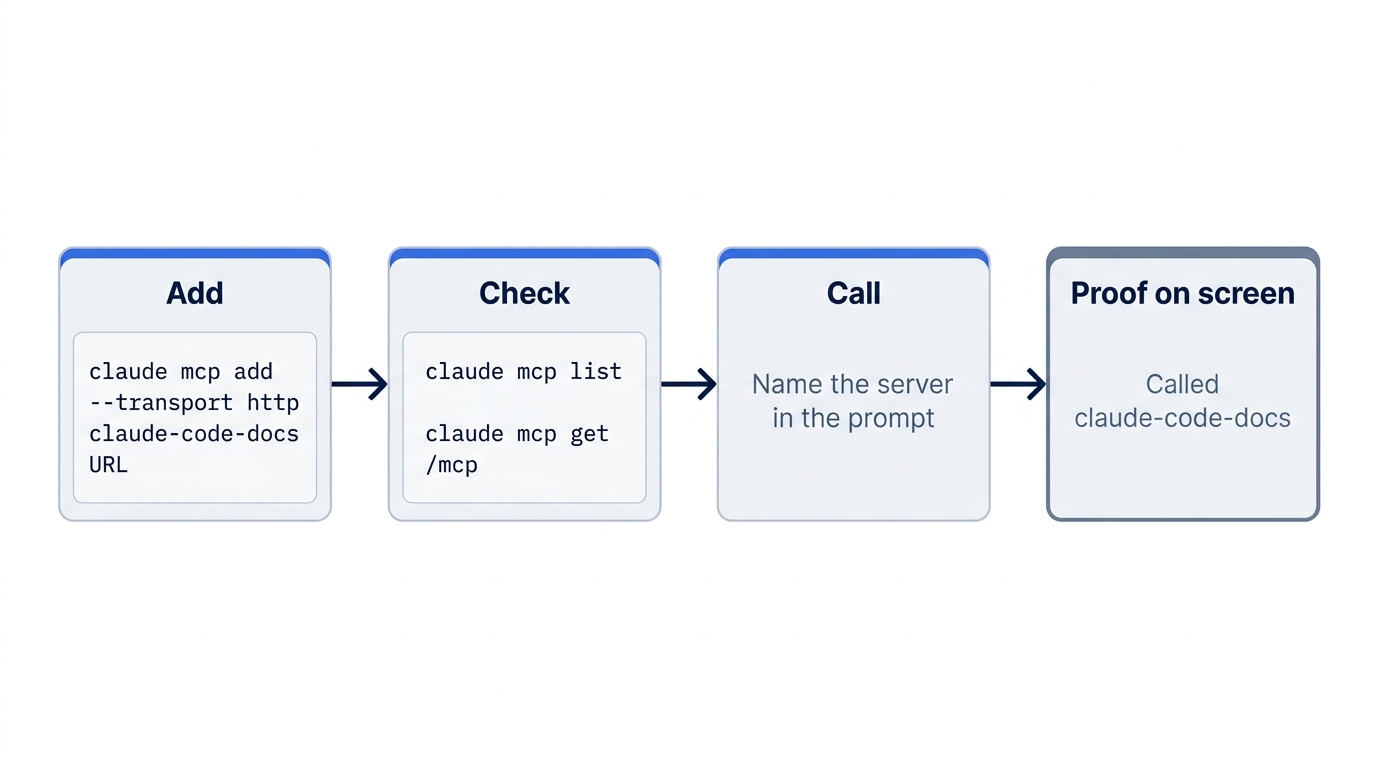
Today you connect the server that the Claude Code docs use as their own first example. It is a hosted server that searches the Claude Code documentation. It needs no account and no key, and it changes nothing in Ticket Triage. The steps are the same for every server: add it, check it, and make Claude call it.
Check the starting state
Open a terminal in Ticket Triage:
cd ~/code/ticket-triage
git status
npm test
Git prints nothing to commit, working tree clean. The tests show ℹ fail 0 and the pass count from yesterday, ℹ pass 19.
Add the server
Run this command in your terminal, not inside a Claude Code session. You set up a server before a session starts, and the next session loads it.
claude mcp add --transport http claude-code-docs https://code.claude.com/docs/mcp
Read it part by part:
claude mcp addregisters a server with Claude Code.--transport httpsays that the server is hosted at a URL. A server that runs on your machine uses a different transport. Going deeper covers it.claude-code-docsis a name that you choose. Claude Code uses it to label the server's tools on screen and to find the server in otherclaude mcpcommands.- The last part is the URL where the server runs.
The command prints:
Added HTTP MCP server claude-code-docs with URL: https://code.claude.com/docs/mcp to local config
A second line starts with File modified: and names .claude.json in your home folder and the Ticket Triage folder. Local config means local scope: the server is private to you and active only in this project. Claude Code saves it in ~/.claude.json, outside the repository, so no file in Ticket Triage changes. If you start Claude Code in a different folder, this server is not there.
Check the connection
claude mcp list
The command prints Checking MCP server health… and waits a few seconds while it contacts each server. Then it prints one line per server. The list shows every server that you have, not only today's. If you connected other servers before, or your account brings some, they are in the list too. Look for the claude-code-docs line:
claude-code-docs: https://code.claude.com/docs/mcp (HTTP) - ✔ Connected
✔ Connected means that the server answered and is ready. To see the details of one server, ask for it by name:
claude mcp get claude-code-docs
claude-code-docs:
  Scope: Local config (private to you in this project)
  Status: ✔ Connected
  Type: http
  URL: https://code.claude.com/docs/mcp

To remove this server, run: claude mcp remove claude-code-docs -s local
The Scope line says the same thing as above in plain words: private to you, in this project. Keep the server for today. Going deeper shows how to remove it.
Manual mode: no prompts. The claude mcp commands run in your shell, outside a session, so Claude asks nothing.
Check it inside a session
Start Claude Code with claude and type:
/mcp
/mcp opens the MCP panel, titled Manage MCP servers. It lists every server that the session loaded, grouped by where each one comes from. Today's server is under a Local MCPs heading that names your .claude.json file and this project:
❯ ✔ claude-code-docs 2 tools
2 tools is the number of tools that this server gives Claude. Your panel can show other groups, such as connectors from your claude.ai account. Ignore them today. Press Esc to close the panel. The conversation shows MCP dialog dismissed.
Manual mode: no prompts.
Make Claude call it
Type this prompt:
Use the claude-code-docs MCP server to find what the /context command shows. Answer in two sentences and name the docs page you used.
The prompt names the server on purpose. Claude chooses its tools by itself, and without the name it could answer from what it already knows or fetch a web page instead. Naming the server makes today's test certain. Asking for the page name gives you a second check: the answer must point to a real page in the docs.
When Claude finishes, the conversation shows a tool line above the answer:
Called claude-code-docs (ctrl+o to expand)
The Called claude-code-docs line is today's win. It tells you that Claude called a tool from the server that you added and did not answer from memory. On the tested run, the answer was:
⏺ The /context command shows everything currently taking up the session's
  context window, broken down by category: system prompt, system tools, MCP
  tools, custom subagents (with the source each loaded from), memory files,
  skills (including bundled skills), and conversation messages. You can use it
  to check whether your CLAUDE.md, rules or skill descriptions loaded at all,
  and in fullscreen mode /context all expands the per-item breakdown.

  Source: the "See what loaded into context" section of the Debug your config
  page (https://code.claude.com/docs/en/debug-your-config#see-what-loaded-into-context).
Your words can differ, because Claude writes a new answer each time. Check two things: the Called claude-code-docs line is on screen, and the answer names a page on code.claude.com. Compare the answer with what you saw on Day 6. Most categories match the lines that /context showed you. MCP tools and custom subagents appear in /context only after you add them.
Manual mode: one prompt, for the claude-code-docs search tool. The prompt is titled Tool use, shows the search that Claude wants to send, such as query: "/context command shows", and asks Do you want to proceed?. Choose 1. Yes. Option 2 would stop this prompt for this tool in this project, and today you want to see each request.
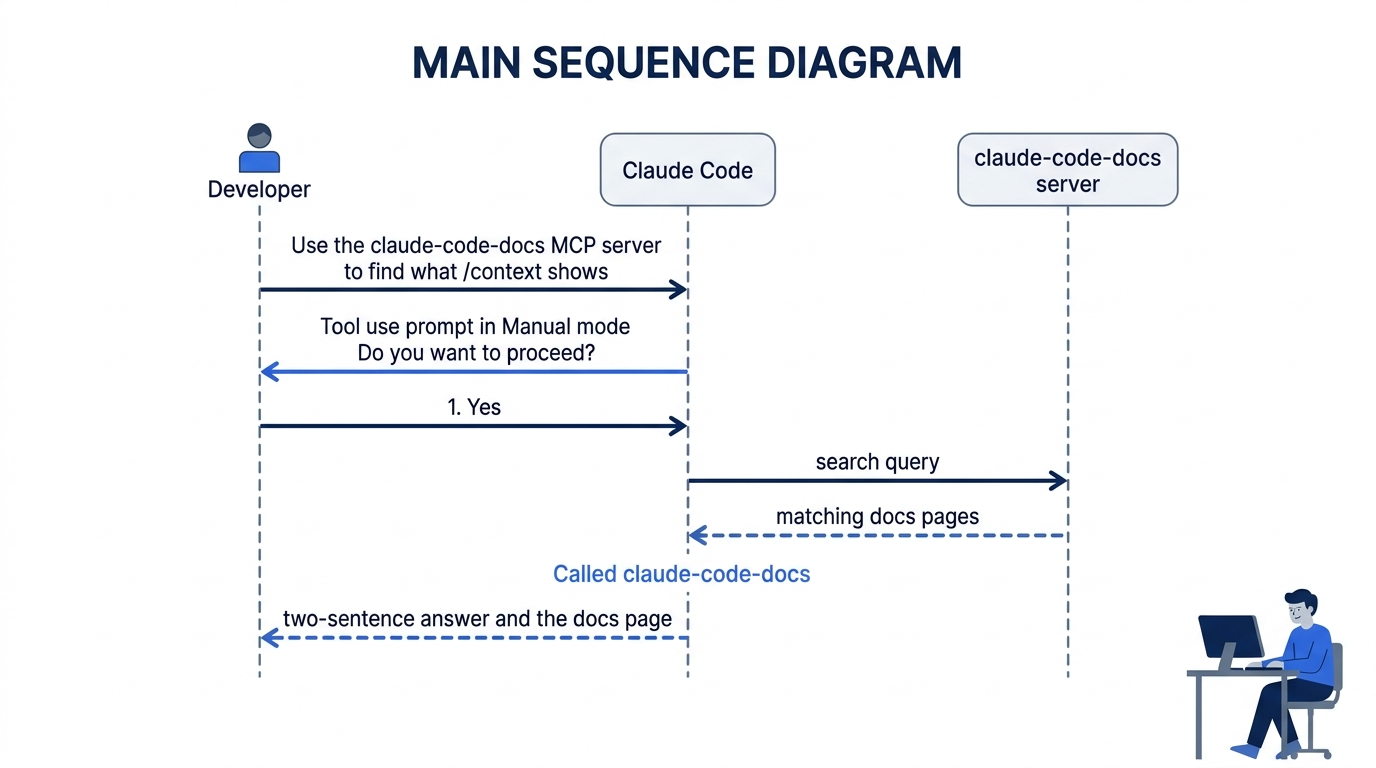

The scene shows the payoff. The Called line means Claude used the server you added and did not answer from memory.
Why a server matters
The docs server is small and safe, which makes it a good first server. The same three steps connect a server that does real work. Claude works in a loop of three steps, the agentic loop: gather context, take action, verify. A server gives Claude new ways to do the first step and the last one. A database server lets Claude run the query that proves a change worked. A browser server lets Claude open the page that it just changed. Each one is a tool that Claude can call when the task needs it, and each call shows a line like today's.
Check the win
Type /exit. In the terminal, run:
git status
npm test
Git prints nothing to commit, working tree clean, and the tests still show ℹ pass 19. The server lives in your home folder, not in the repository, so there is nothing to commit today.
You added an MCP server, checked it with claude mcp list, claude mcp get, and /mcp, and saw Called claude-code-docs on screen when Claude used it.
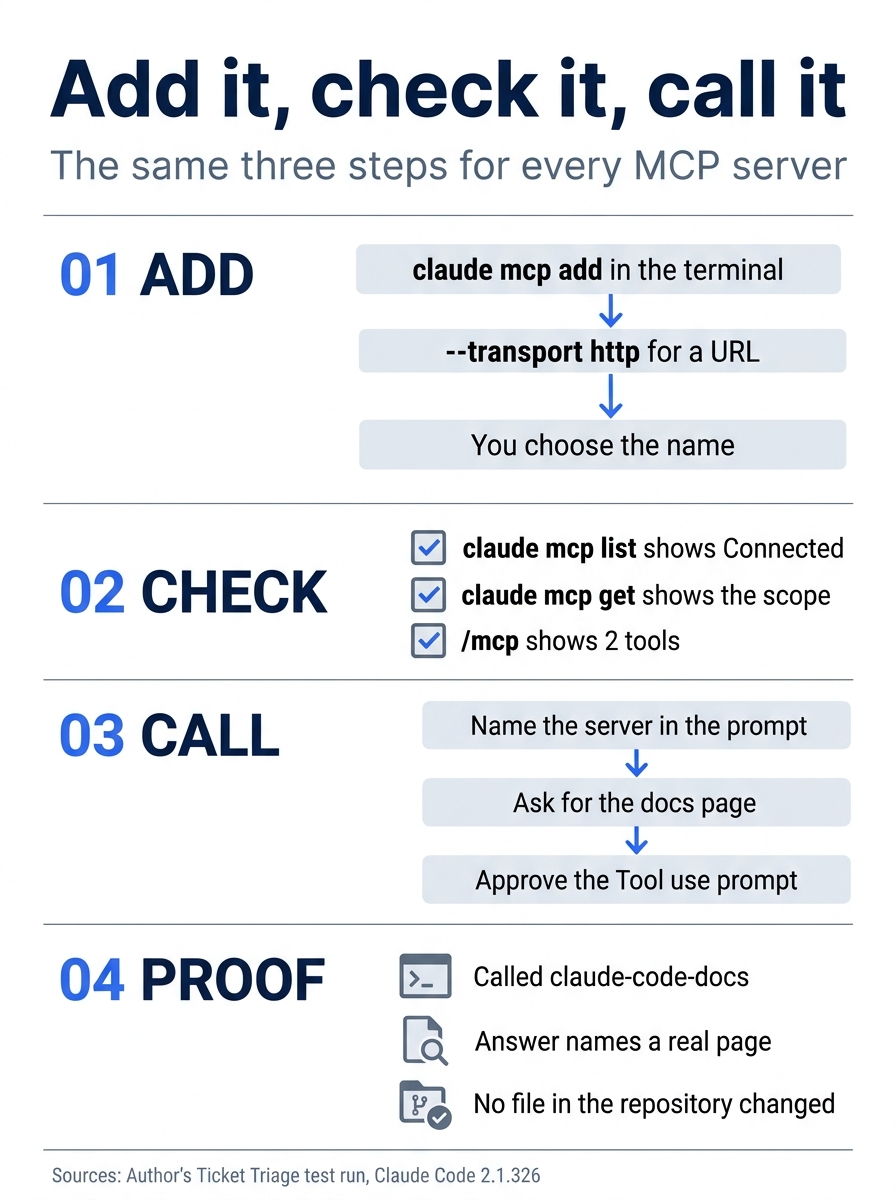
The whole routine is three steps, add, check, and call, plus one piece of evidence that it worked: the Called claude-code-docs line.
You can stop here. Going deeper explains why this works and where it breaks.
Going deeper
This section is for readers who want to know how a server's tools reach Claude, what Code Mode changes, where servers are saved, how to share one with a team, and what to do when a server does not connect. It assumes you finished Start here in Parts 1 to 13.
How a server's tools reach Claude
Every tool from a server has a full name in the form mcp__<server>__<tool>, such as mcp__github__search_repositories in the docs. To see the tools of a server, run /mcp and select the server. The full name is what a hook matcher or a permission rule names. Day 11's Edit|Write hook never fires for an MCP tool, because no MCP tool has that name. To match every tool from one server in a hook, the hooks reference uses a pattern such as mcp__memory__.*. The .* is required. Without it, mcp__memory is compared as an exact name and matches no tool.
A server does not load all its tools into every turn. With tool search, which is on by default, only the tool names and the server's instructions load when a session starts. Claude loads a tool's full description when it decides to use the tool. Each server still costs some context in every session, so the MCP quickstart suggests that you remove the servers you no longer use. On Day 6, a machine with many servers showed 11.5k tokens of MCP tool descriptions in a fresh session. Run /context after you add a server to see its share.
A tool result can also be large. The MCP reference gives these limits: Claude Code warns when one result passes 10,000 tokens, and the default maximum is 25,000 tokens. MAX_MCP_OUTPUT_TOKENS changes the maximum. A result over the limit goes to a file, and Claude reads the file when it needs the content.
Code Mode: Claude writes code that calls the tools
Code Mode is an experimental way for Claude to use its tools. It arrived in v2.1.323, and it is off by default. Without it, Claude asks for one tool call at a time, such as one call to the docs server, and reads each result before it asks for the next. With it, Claude writes a short piece of JavaScript that makes the calls, and Claude Code runs that code in your session. The docs say that Code Mode may change or be removed in any release, so treat what follows as a snapshot of 2.1.326.
To try it, set a variable when you start Claude Code, from Ticket Triage:
CLAUDE_CODE_EXPERIMENTAL_CODE_MODE=1 claude
The first time, a screen titled Code Mode (experimental) explains the feature and its limits, with No, start without it selected. Choose Yes, turn on Code Mode. Claude Code restarts and shows this line near the top of the session:
⚠ Code Mode (experimental) is on · this session can be resumed only with Code Mode on
Claude Code saves your answer, so the screen does not come back. If the session shows Code Mode (experimental) isn't available instead, the reason follows on the same line. The docs page's Code Mode doesn't start table gives the fix for each reason, such as an unsupported model or a gateway. The docs say that Claude Code ignores this variable in a project's settings files, so a repository that you clone cannot turn on Code Mode for you.
Three things change for you:
- How the tools get called. The screen still shows the calls, such as
Called claude-code-docs 2 times, and not the code. To read the code, pressctrl+oto open the transcript view, thenctrl+eto show all of it. Each piece of code is one row, such as⏺ Code(const r = await tools.mcp__claude-code-docs__sear…) · 3 lines (ctrl+e to show). Pressctrl+oagain to go back. - What a permission prompt looks like. In Manual mode, the prompt has the same form as in Start here:
Tool use, the tool's name, its input, andDo you want to proceed?. You get one prompt for each call in the code that needs one. On the tested Manual run, the code called the docs server twice, so two prompts appeared, where the run without Code Mode showed one. The second prompt offered only1. Yesand2. No. In auto mode, the docs say that the classifier reviews each piece of code before it runs, not each call. It therefore cannot see values that the code works out as it runs. Your deny rules and hooks still check each call under the tool's usual name, so keep them for the calls that you must control. - Where it works. From the docs: only in an interactive terminal session, not with
claude -p, the Desktop app, or VS Code. Remote Control (Day 7) and Claude in Chrome are off in Code Mode, and a Code Mode session resumes only with Code Mode on.
This guide measured Code Mode on 2.1.326, from today's end state, with only the docs server loaded. Other servers and claude.ai connectors add to both /context numbers. The guide asked the Start here question four times, with Code Mode off and on, in auto mode and in Manual mode. Each time, it read /context before and after the question and /cost at the end:
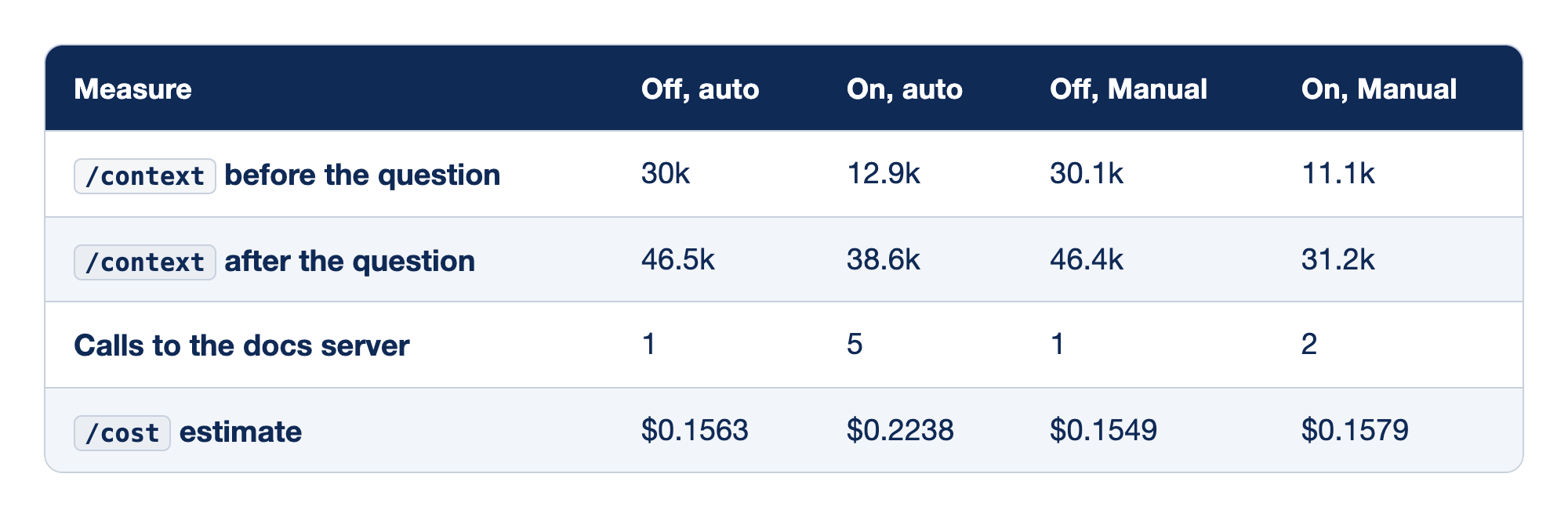
The four test runs compare Code Mode off and on, in auto mode and in Manual mode, on the same docs question, with four measures for each run.
/contextbefore the question read 30k with Code Mode off in auto mode, 12.9k with it on in auto mode, 30.1k with it off in Manual mode, and 11.1k with it on in Manual mode./contextafter the question read 46.5k with Code Mode off in auto mode, 38.6k with it on in auto mode, 46.4k with it off in Manual mode, and 31.2k with it on in Manual mode.- The docs server got 1 call with Code Mode off in auto mode, 5 with it on in auto mode, 1 with it off in Manual mode, and 2 with it on in Manual mode.
- The
/costestimate was $0.1563 with Code Mode off in auto mode, $0.2238 with it on in auto mode, $0.1549 with it off in Manual mode, and $0.1579 with it on in Manual mode.
Each Code Mode session started with less than half the context, because the System tools row of /context fell from about 23.4k tokens to 6.2k in auto mode and 4.4k in Manual mode. Each Code Mode session still used less context after the question. The cost of the question did not fall. The auto-mode Code Mode run called the server five times and cost the most. In Manual mode, the two estimates were almost the same. Both modes also gave a different answer with Code Mode on: they cited the Commands page, while the runs without it cited the Debug your config page.
One question is a small sample. The docs say that Code Mode is for tasks that take many related tool calls, such as a change that repeats across many files or a search whose results need filtering before Claude reads them. Before you keep it on, measure a task of your own with /context and /cost, with and without it. For a video walkthrough, see Ray Amjad's Code Mode Is Claude Code's BIGGEST Harness Change Yet. Its numbers come from other tasks, so check them against your own.
OpenCode has its own Code Mode, covered on the MCP day of the OpenCode guide.
To turn Code Mode off, start claude without the variable. The Code Mode line no longer shows.
Scopes: where a server is saved
The MCP reference names three scopes. Each one saves the server in a different place.
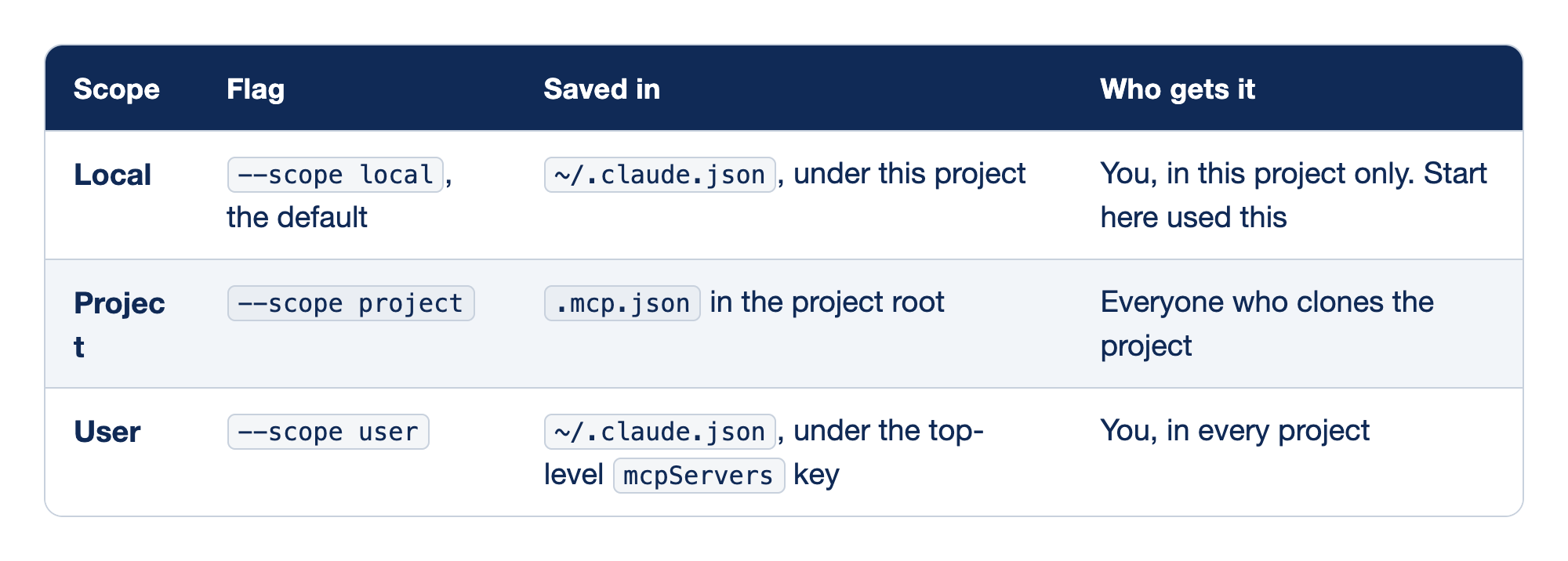
Each MCP scope saves a server in a different place and gives it to a different audience. The Scope column names the scope, the Flag column gives the claude mcp add option that selects it, the Saved in column names the file that holds the server, and the Who gets it column says who can use the server.
- Local is the default, selected with
--scope local. Claude Code saves it in~/.claude.jsonunder this project, and only you get it, in this project only, which is the scope that Start here used. - Project is selected with
--scope project. Claude Code saves it in.mcp.jsonin the project root, and everyone who clones the project gets it. - User is selected with
--scope user. Claude Code saves it in~/.claude.jsonunder the top-levelmcpServerskey, and you get it in every project.
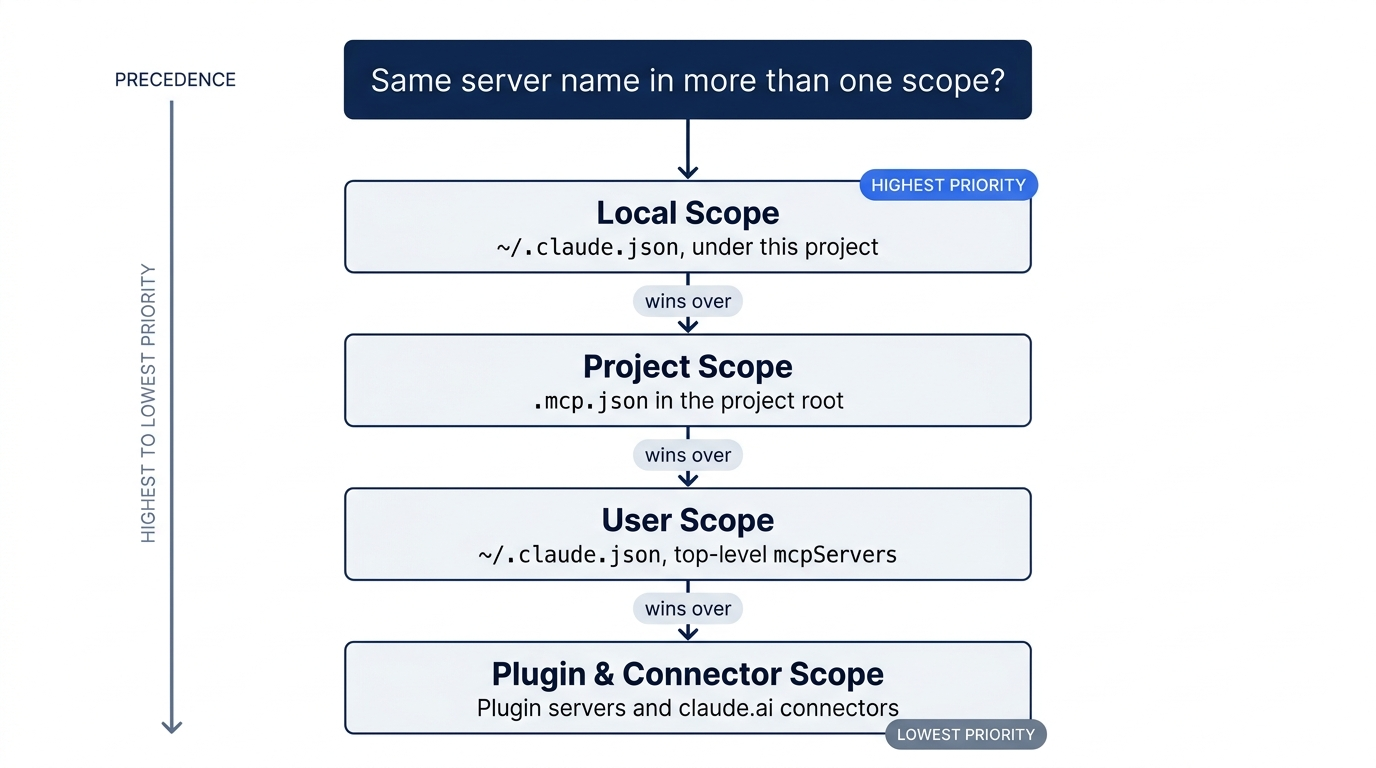
When the same server name is in more than one scope, Claude Code uses one definition and does not merge them. Local wins over project, project wins over user, and all three win over plugin servers and claude.ai connectors. You cannot move a server to another scope. Remove it, then add it again with the new --scope.
MCP local scope is not the same as .claude/settings.local.json. The settings file is in your project folder. A local-scope server is in ~/.claude.json, in your home folder.
A project-scope server is a file in the repository, so a teammate gets it with their next pull. Because a cloned repository could otherwise start programs on your machine, Claude Code asks you to approve each server from .mcp.json the first time it sees it. Until you approve, claude mcp list shows ⏸ Pending approval (run `claude` to approve). If you dismissed the prompt, claude mcp reset-project-choices shows it again at the next start. Put a server that needs a personal key in local scope, so that the key stays out of version control.
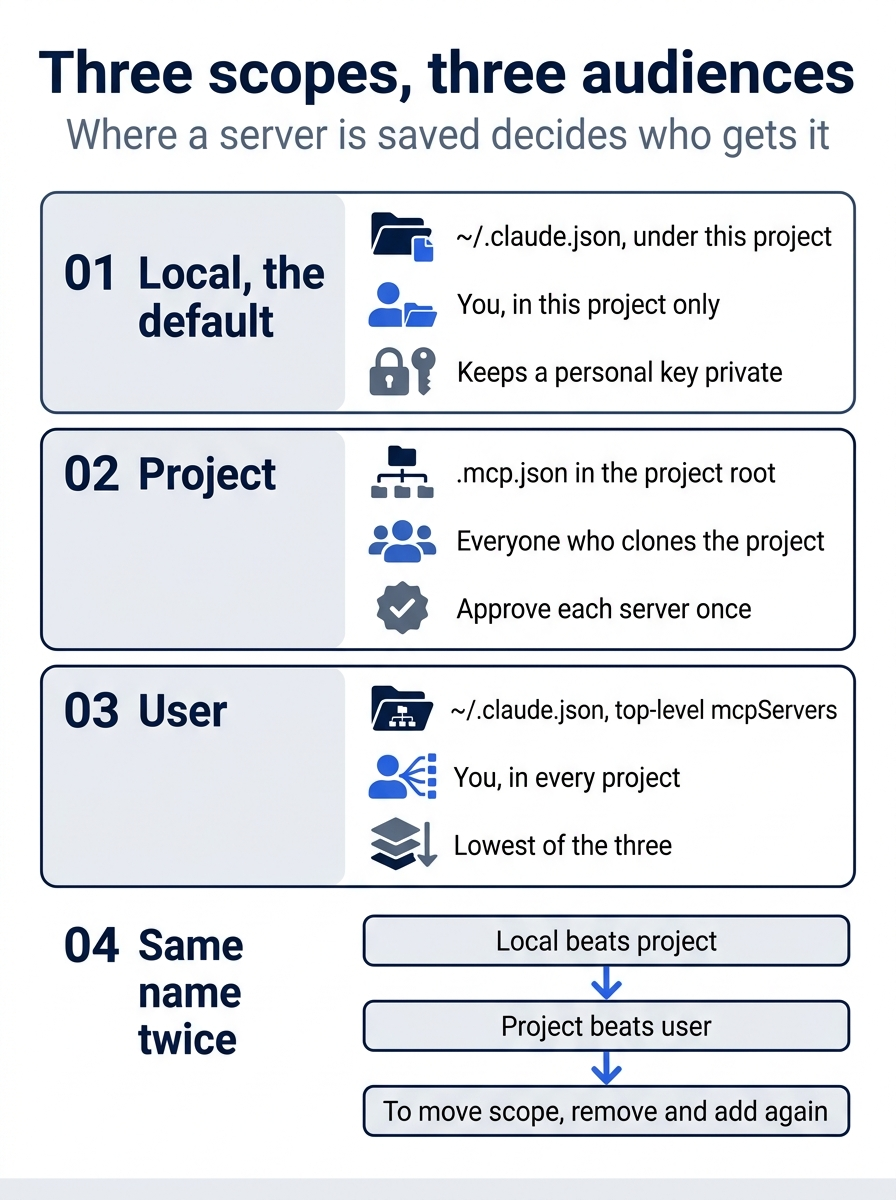
Each scope serves a different audience, and a name clash goes to local first, then project, then user.
Other kinds of server
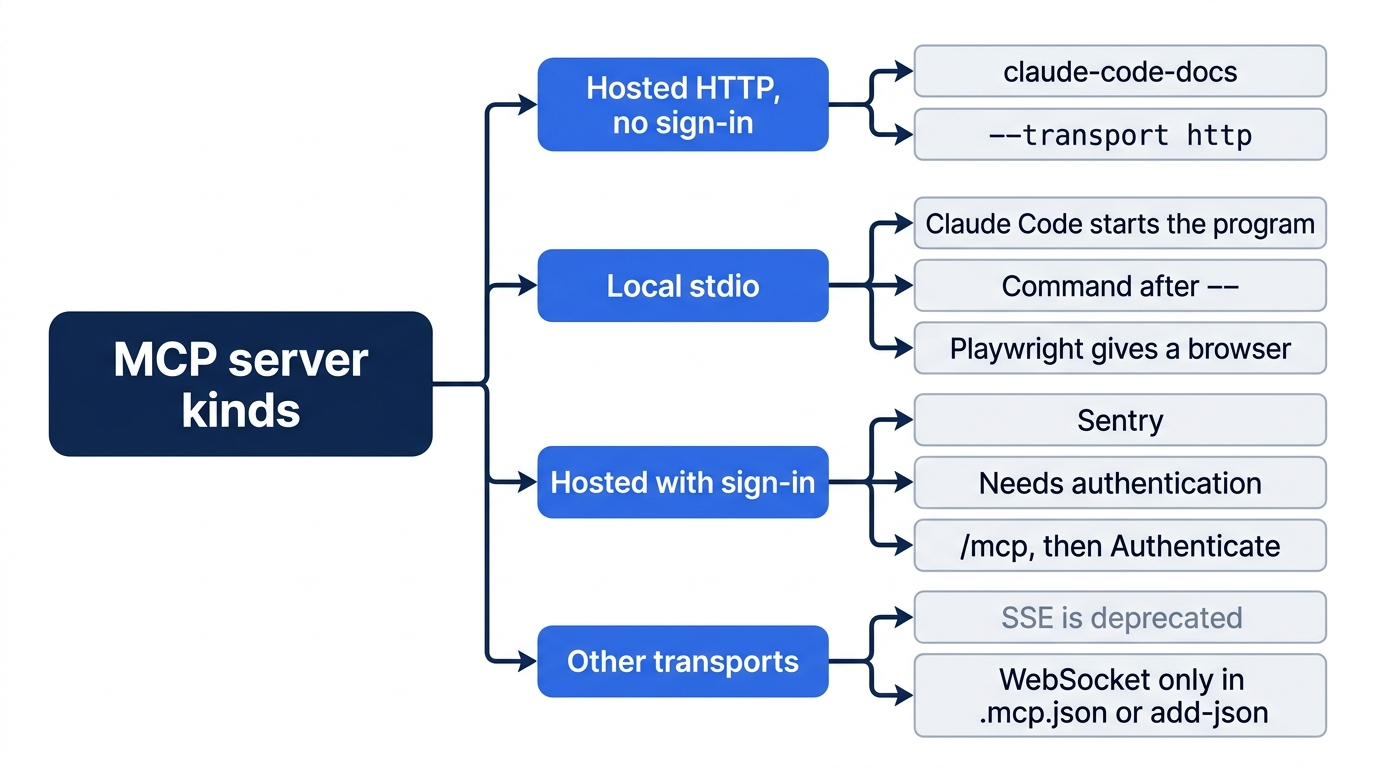
The docs server is a hosted HTTP server with no sign-in. The MCP quickstart shows the other two common kinds. This guide did not test them.
- A local server is a program that Claude Code starts on your machine. It uses the default
stdiotransport, and everything after--is the command to run:claude mcp add playwright -- npx -y @playwright/mcp@latest. The Playwright MCP server gives Claude a browser. The firstclaude mcp listcan show✘ Failed to connectwhilenpxdownloads the package. Wait, then run it again. - A hosted server that needs a sign-in, such as Sentry, shows
! Needs authenticationafterclaude mcp add. Run/mcp, select the server, and chooseAuthenticate. Your browser opens the service's sign-in page.
The SSE transport is deprecated. Since v2.1.265, an http server that speaks only the old HTTP and SSE transport connects anyway, because Claude Code falls back to SSE. A fourth transport, WebSocket ("type": "ws"), is set only in .mcp.json or with claude mcp add-json, not with --transport.
Connectors from claude.ai
If you sign in to Claude Code with a claude.ai subscription, the connectors that you added at claude.ai load in Claude Code too. They appear in /mcp under their own claude.ai heading, and connectors that you never signed in to are behind a Show unused connectors row. They do not load when you sign in with an API key or a cloud provider. A server that you add yourself wins over a connector that points at the same URL, and /mcp lists the connector as hidden.
Servers for verification
On Day 12 you verified a change with a test. A server lets Claude verify things that a test does not reach. The first edition built its MCP chapter on three: a database server ("did the data change?"), a browser server ("did the page render?"), and a logs server ("did the deploy work?"). The pattern still holds. Claude makes a change, calls the server to look at the result, and reports what it saw instead of "this should work".
For a database, the MCP reference now uses DBHub, the @bytebase/dbhub package. The example puts a read-only database user in the connection string, so that the queries that Claude runs cannot change data. Give a server only the access it needs.
Trust each server before you connect it. The docs warn that a server that fetches outside content can expose you to prompt injection, text that tries to give Claude instructions. The docs server returns pages from the Claude Code docs, which is why it is a safe first server.
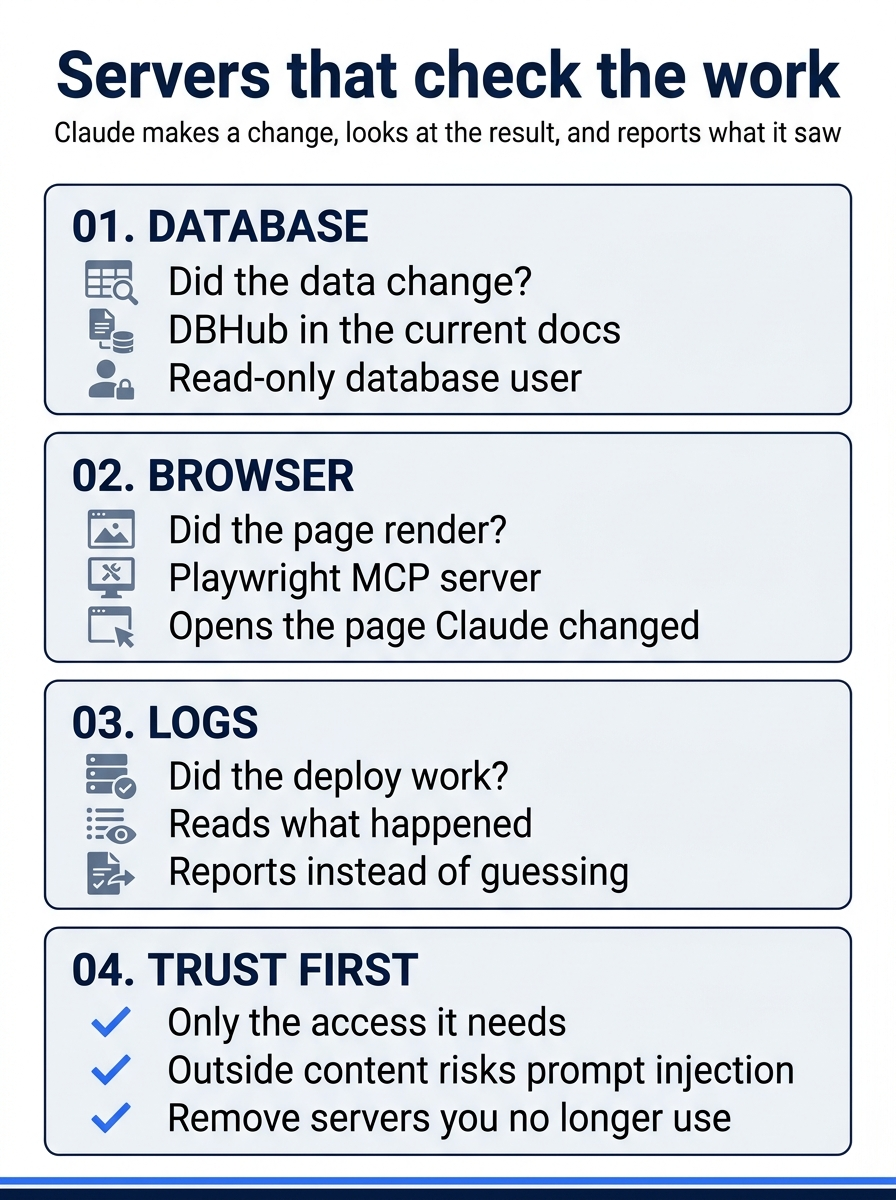
The pattern is always the same: Claude makes a change, calls the server to look at the result, and reports what it saw.
When a server does not work
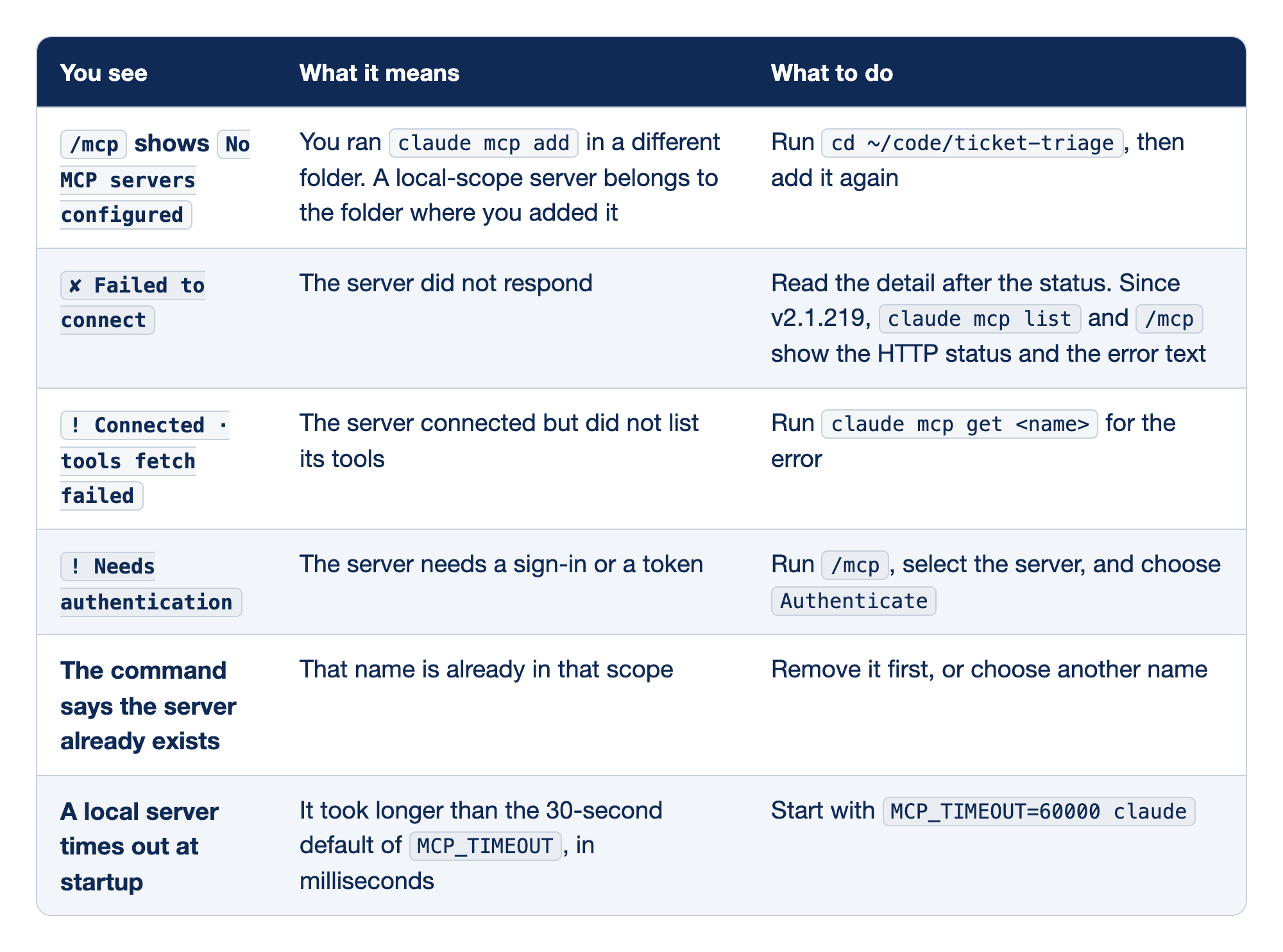
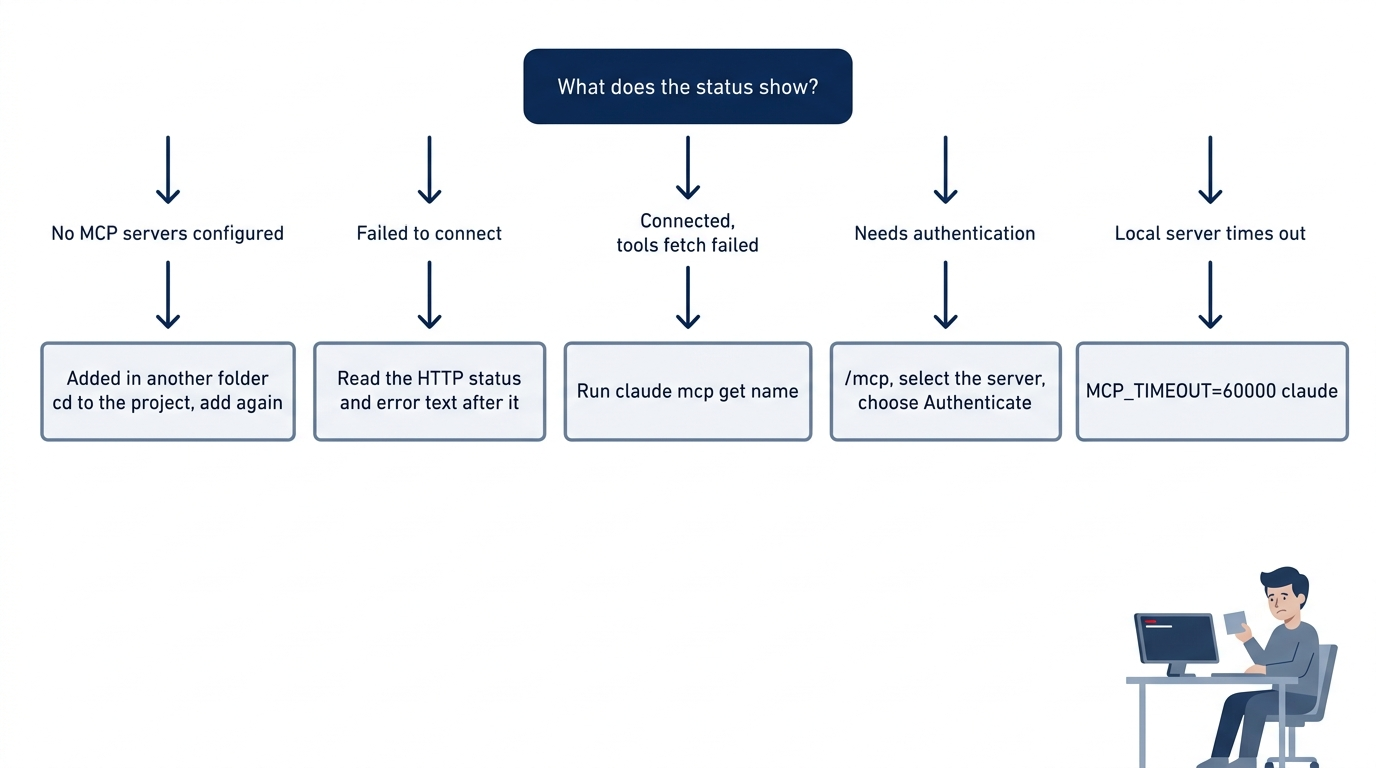
Each common MCP failure has a status that you see, a meaning, and a fix. The You see column holds the message on screen, the What it means column explains the cause, and the What to do column gives the next step.
- When
/mcpshowsNo MCP servers configured, you ranclaude mcp addin a different folder, because a local-scope server belongs to the folder where you added it. Runcd ~/code/ticket-triageand add it again. - When the status is
✘ Failed to connect, the server did not respond. Read the detail after the status, becauseclaude mcp listand/mcpshow the HTTP status and the error text. - When the status is
! Connected · tools fetch failed, the server connected but did not list its tools. Runclaude mcp get <name>to see the error. - When the status is
! Needs authentication, the server needs a sign-in or a token. Run/mcp, select the server, and chooseAuthenticate. - When the command says the server already exists, that name is already in that scope. Remove the server first, or choose another name.
- When a local server times out at startup, it took longer than the 30-second default of
MCP_TIMEOUT, which is set in milliseconds. Start Claude Code withMCP_TIMEOUT=60000 claude.
Docs pages: v2.1.219, MCP_TIMEOUT.
Remove the server
You can keep the docs server. It is useful whenever you have a question about Claude Code. To remove it, run this in the terminal, from Ticket Triage:
claude mcp remove claude-code-docs
On the tested run, it printed:
Removed MCP server "claude-code-docs" from local config
File modified: ~/.claude.json [project: ~/code/ticket-triage]
The second line names the file that held the server, your ~/.claude.json, and the project that the server belonged to. Your screen shows the full path of your home folder where this text shows ~. Check that claude mcp list has no claude-code-docs line. To get it back, run the claude mcp add command from Start here again.
Go further: Your AI Says the Code Works. Can It Prove It? is the first edition's MCP chapter, with the database, browser, and logs servers in full and a day with several servers connected. Read it with today's docs in mind. Its PostgreSQL example uses @modelcontextprotocol/server-postgres, but the current docs use DBHub. It also lists three transports, while the docs now add WebSocket.
Do this today
Everyone
- Add
claude-code-docs, check it withclaude mcp listand/mcp, and ask the/contextquestion. Check the win: the screen showsCalled claude-code-docs,git statusis clean, andnpm testshowsℹ pass 19. - Habit: when an answer depends on facts from outside your repository, look for the tool line above it, and ask Claude to name its source. Check: the next such answer you rely on shows a
Calledline or names a page that you can open.
If you read Going deeper
- Start a new session and ask the question again without the server's name: "What does the /context command show? Name the docs page you used." Check: note whether the screen shows
Called claude-code-docs, another tool, or no tool at all. This guide did not test this prompt. Reset: nothing changed. Check thatgit status --shortprints nothing. - Try Code Mode once. From Ticket Triage, run
CLAUDE_CODE_EXPERIMENTAL_CODE_MODE=1 claude, and chooseYes, turn on Code Modeif the screen asks. Run/context, ask the Start here question, then run/contextand/costagain. Manual mode: one prompt for each call that the code makes to the docs server, two on the tested run. Choose1. Yesat each. Check: the session showsCode Mode (experimental) is on, the answer has aCalled claude-code-docsline, and you can set your two/contextnumbers beside the table in Going deeper. Your numbers can differ. Reset: type/exit, and check thatgit status --shortprints nothing. The next time you startclaudewithout the variable, check that the Code Mode line does not show. - Try project scope in a copy, so that Ticket Triage stays as it is. This exercise was tested once. Run
cp -R ~/code/ticket-triage /tmp/tt-mcp && cd /tmp/tt-mcp, thenclaude mcp add --scope project --transport http claude-code-docs https://code.claude.com/docs/mcp. Check: the command printsAdded HTTP MCP server claude-code-docs with URL: https://code.claude.com/docs/mcp to project config,cat .mcp.jsonshows the server with"type": "http"and its URL, andgit status --shortshows?? .mcp.json. Ifgit status --shortprints nothing, a global gitignore file hides.mcp.json, as the tester's did. Rungit check-ignore -v .mcp.jsonto see which file. On the tested run, its line started with the file, the line number, and the pattern, as in~/.gitignore_global:10:.mcp.json. Your screen shows the full path of your home folder where this text shows~. Reset: runcd ~/code/ticket-triage && rm -rf /tmp/tt-mcp. Check thatls /tmp/tt-mcpsaysNo such file or directoryand thatgit status --shortin Ticket Triage prints nothing.
The line that tells you how Claude knows
Connecting a server took one command. Checking it took two more. The part worth keeping is the habit: when an answer matters, look for the Called line and the named source.
A confident answer without a tool line is a guess you cannot audit. One with a tool line is a lookup you can follow. Choose servers that let Claude look, and you stop wondering.
This is Part 13 of "Claude Code, Day-to-Day (second edition)," a day-by-day guide to Claude Code in which each day takes 20 to 40 minutes. Part 13 is Day 13. All 28 days are out now.